Every CachyOS desktop install boots linux-cachyos, an EEVDF kernel built with Clang ThinLTO and AutoFDO. On most machines that’s the CachyOS kernel you should keep. The other variants exist for specific jobs: BORE for interactive feel under load, the LTS kernel as a fallback when a new release breaks your hardware, RT for audio work, server for throughput. Picking one because a forum thread said it is faster usually buys you nothing you can measure.
Below you’ll find what each variant’s build config turns on, what linux-cachyos-lts is, the best scheduler for your workload, how to swap kernels with CachyOS Kernel Manager, and the tweaks cachyos-settings already applies. Package lists, kernel configs and settings files were re-checked against the live CachyOS repositories in October 2026 (linux-cachyos 7.3, linux-cachyos-lts 6.18). The boot menu and benchmark captures come from our May 2026 CachyOS install in a Proxmox VM.
Pick the right CachyOS kernel
Stay on linux-cachyos unless you have a reason you can name. It is the kernel the installer puts on every machine, it gets the most testing, and it is the only one built with Clang ThinLTO plus AutoFDO profiling by default. Most of the other packages are the same mainline tree with a different scheduler, build or preemption setting (LTS tracks an older tree and hardened adds its own patchset), and each one costs about 150 MiB in /boot and /usr/lib/modules.
List what the repo carries right now. On a machine that uses the x86-64-v3 repos (CPUs with AVX2), the kernels live in cachyos-v3. Replace it with cachyos-v4 or cachyos-znver4 if that’s what your pacman.conf lists:
pacman -Sl cachyos-v3 | awk '$2 ~ /^linux-cachyos/ && $2 !~ /(headers|dbg|zfs|nvidia|r8125)/ {print $2, $3}'The filter drops headers, debug, ZFS, NVIDIA and r8125 driver packages so only the kernel images remain. Two lines in this output matter more than the rest: linux-cachyos-lts-lto still sits on the 6.12 series while plain linux-cachyos-lts tracks 6.18, and linux-cachyos-rc-lto is stuck on an old release candidate. Our May install showed the same lts-lto build, so treat those two as abandoned and install the non-LTO packages instead.

The scheduler column below comes from each package description and, where we pulled it, the kernel’s own .config, which the next section shows how to read.
| Package | Scheduler | Build differences | Run it when |
|---|---|---|---|
| linux-cachyos | EEVDF | Clang ThinLTO + AutoFDO, 1000 Hz, full preemption | Default for desktops, laptops and gaming |
| linux-cachyos-bore | BORE | GCC, 1000 Hz, full preemption | You want the desktop to stay snappy while a build or encode runs |
| linux-cachyos-eevdf | EEVDF | EEVDF with CachyOS responsiveness tweaks, GCC | You want a tuned EEVDF build without Clang/AutoFDO |
| linux-cachyos-gcc | EEVDF | GCC build of the default kernel | An out-of-tree module fails to build against the Clang kernel |
| linux-cachyos-lts | EEVDF | Latest LTS series, minimal patches, GCC | Second kernel as a fallback, or hardware that regresses on new releases |
| linux-cachyos-rt-bore | BORE + PREEMPT_RT | Real-time preemption | Pro audio, control loops, anything that needs bounded latency |
| linux-cachyos-server | EEVDF | 300 Hz, lazy preemption, THP madvise, no CachyOS desktop tweaks | Servers and batch hosts that care about throughput, not input latency |
| linux-cachyos-deckify | BORE | Handheld patches | Steam Deck and other handhelds, where the installer makes it the default |
| linux-cachyos-hardened | BORE | Aggressive hardening, no sched-ext | Security matters more than speed |
| linux-cachyos-bmq | BMQ | Project C scheduler, no sched-ext | A workload you have measured to prefer BMQ |
| linux-cachyos-rc | EEVDF | Mainline release candidate | Testing new hardware support, but only while its version is ahead of linux-cachyos (in our check it was behind) |
Most variants also ship an -lto twin built with Clang. For a laptop or desktop the practical set is short: linux-cachyos as the daily kernel, linux-cachyos-lts as the fallback, and linux-cachyos-bore only if you’ve tried the default and still feel input lag under load.
What is the CachyOS LTS kernel?
linux-cachyos-lts is the CachyOS build of the newest upstream Long Term Support kernel, which is the 6.18 series as of October 2026. It carries far fewer CachyOS patches than the main kernel on purpose and uses the stock EEVDF scheduler. It moves to a new series only when kernel.org names the next LTS, so it changes slowly while linux-cachyos follows every mainline release.
pacman -Si linux-cachyos-lts | grep -E "^(Repository|Version|Description)"The description says EEVDF, and the build config agrees: there’s no CONFIG_SCHED_BORE in it. The CachyOS wiki lists the LTS kernel as BORE, so trust the package. Both the v3 and the generic repo carry it, and the v3 build was a few point releases ahead when we checked:

Install the LTS kernel next to the default one, not instead of it. When a linux-cachyos update breaks suspend, Wi-Fi or a GPU driver on your machine, you pick the LTS entry in the boot menu, keep working, and switch back once the regression is fixed upstream. That is the cheapest insurance on a rolling distro.
Compare kernel builds before you install them
You do not need to boot a kernel to know what it was built with. Every -headers package carries the full .config, so you can download the headers into a scratch directory without installing them (or their Clang and LLVM dependencies) and read the options straight out of the archive. That is how the scheduler and build columns in the table above were checked.
mkdir -p /tmp/kcfg && cd /tmp/kcfg
sudo pacman -Sw --noconfirm --nodeps --nodeps --cachedir . linux-cachyos-headers linux-cachyos-bore-headers linux-cachyos-lts-headers
The double --nodeps tells pacman to skip dependency checks completely, so you get just the three archives. Now grep the options that tell the variants apart:
for f in *headers*.zst; do echo "== $f"; bsdtar -xOf "$f" "usr/lib/modules/*/build/.config" | grep -E "^CONFIG_(SCHED_BORE|HZ|PREEMPT_RT|LTO_CLANG_THIN|AUTOFDO_CLANG)="; doneAll three run at 1000 Hz. Only the BORE build has CONFIG_SCHED_BORE=y, and only the default kernel is built with ThinLTO and AutoFDO, which is why it is the one CachyOS calls the most optimised:

Running the same loop over the server and RT headers showed the rest of the picture: linux-cachyos-server drops to 300 Hz with CONFIG_PREEMPT_LAZY=y (the wiki says no preemption, the config says lazy) and leaves CONFIG_CACHY unset, while linux-cachyos-rt-bore adds CONFIG_PREEMPT_RT=y on top of BORE. Every variant we checked builds with CONFIG_SCHED_CLASS_EXT=y and CONFIG_X86_64_VERSION=3 in the v3 repo. Delete /tmp/kcfg when you’re done.
Choose the best CachyOS scheduler
The best scheduler for most CachyOS machines is the default EEVDF in linux-cachyos. It is the upstream scheduler with CachyOS tuning, it handles a desktop, a game and a background compile well, and nothing else gets as much testing. Move off it only for a symptom you can reproduce, and pick by that symptom:
- Mouse and audio stutter during a big build:
linux-cachyos-bore - Frame pacing in games:
scx_lavdorscx_bpflandon the default kernel - Battery life on a laptop:
scx_lavdwith--powersave - Audio interfaces dropping buffers:
linux-cachyos-rt-bore - Throughput on a server:
linux-cachyos-server
BORE (Burst-Oriented Response Enhancer) is a patch on top of EEVDF. It tracks how long each task runs between sleeps. Short-burst tasks, like the compositor, your terminal or the game’s input thread, then get more timeslice and earlier preemption than CPU hogs. That’s why it helps when the machine is loaded and makes no visible difference when it is idle. sched-ext is different again: it loads a whole scheduler written in BPF at runtime and replaces the kernel’s choice until you stop it, with no reboot either way.
On a BORE kernel you can confirm it’s active with sysctl kernel.sched_bore, which returns 1. The upstream BORE project documents six tunables under kernel.; these are the defaults:
| Sysctl | Default | Effect |
|---|---|---|
| kernel.sched_bore | 1 | Turns BORE on or off |
| kernel.sched_burst_penalty_offset | 24 | Bits subtracted before a burst is penalised; higher lets longer bursts pass |
| kernel.sched_burst_penalty_scale | 1536 | How hard long-running tasks are pushed down |
| kernel.sched_burst_smoothness | 1 | Smoothing of the burst score (1 means none) |
| kernel.sched_burst_inherit_type | 2 | How new tasks inherit burst history from parents |
| kernel.sched_burst_cache_lifetime | 75000000 | Nanoseconds a child burst average stays cached |
Leave them alone. They only exist on BORE kernels, and the defaults are what the BORE author and the CachyOS team test against. If BORE does not fix your stutter at its defaults, a tweaked penalty scale won’t either.
Run a sched-ext scheduler with scxctl
sched-ext schedulers come from two packages: scx-scheds holds the schedulers themselves and scx-tools holds scx_loader, a D-Bus service, and scxctl, its command-line client. Install both if your CachyOS edition didn’t pull them in:
sudo pacman -S --needed scx-scheds scx-toolsThe current scx-scheds ships nineteen schedulers, and most of them are experiments or built for specific topologies. These four are where we’d start on a desktop or laptop, based on what the CachyOS wiki says each one targets:
scx_lavdfor gaming and laptops, with--powersaveon batteryscx_bpflandfor general desktop responsivenessscx_flashin gaming or power save modescx_cosmosin auto mode as an all-rounder
All four sit in /usr/bin after the install, next to the loader tools:

Start one through the loader. scxctl takes the scheduler name without the scx_ prefix and a mode (auto, gaming, lowlatency, powersave or server), and it asks polkit for authentication:
scxctl start --sched lavd --mode gamingCheck what’s running with the client, then ask the kernel directly. The sysfs files come from the upstream sched-ext interface, so they work no matter which tool started the scheduler:
scxctl get
cat /sys/kernel/sched_ext/state /sys/kernel/sched_ext/root/ops
A running scheduler shows enabled and its name, such as lavd. Swap to another one with scxctl switch --sched bpfland, and go back to the kernel’s own scheduler with scxctl stop. If a BPF scheduler misbehaves, the kernel kicks it out and falls back to EEVDF or BORE by itself, which is why trying them is low risk.
A scheduler started with scxctl is gone after a reboot. To make it the default, copy the template config into /etc:
sudo mkdir -p /etc/scx_loader
sudo cp /usr/share/scx_loader/config.toml /etc/scx_loader/config.toml
sudo vim /etc/scx_loader/config.toml
The template ships with every line commented out. Uncomment the two default lines at the top and set the scheduler and mode you settled on:
default_sched = "scx_lavd"
default_mode = "Auto"
Then enable the loader so it starts at boot.
sudo systemctl enable --now scx_loader.serviceThe current scx-scheds no longer ships the old scx.service, but an install that predates the loader may still have it enabled. The CachyOS wiki warns that with both enabled the loader starts but does nothing, so run sudo systemctl disable --now scx.service first if systemctl status scx.service finds it. The sched-ext scheduler config button in CachyOS Kernel Manager, and the standalone scx-manager GUI, drive the same scx_loader service if you’d rather click. Pick one place to set the default: the loader reads /etc/scx_loader/config.toml before /etc/scx_loader.toml, so if you later save a default from the GUI, delete the file you created above or the GUI setting is ignored at boot.
Swap kernels with CachyOS Kernel Manager
CachyOS Kernel Manager (cachyos-kernel-manager) is a Qt front end for pacman. It lists every kernel in the enabled repos with its category, and you tick a box and press Execute to install, or untick an installed kernel to remove it. It doesn’t build anything for the prebuilt kernels; it runs pacman through polkit. Open it from CachyOS Hello or the application menu, or from a terminal:
cachyos-kernel-managerOn our May install the default kernel and the LTS kernel were ticked, which is the pairing we recommend. The Configure button opens the custom-kernel builder, and the sched-ext button opens the scheduler panel described above:
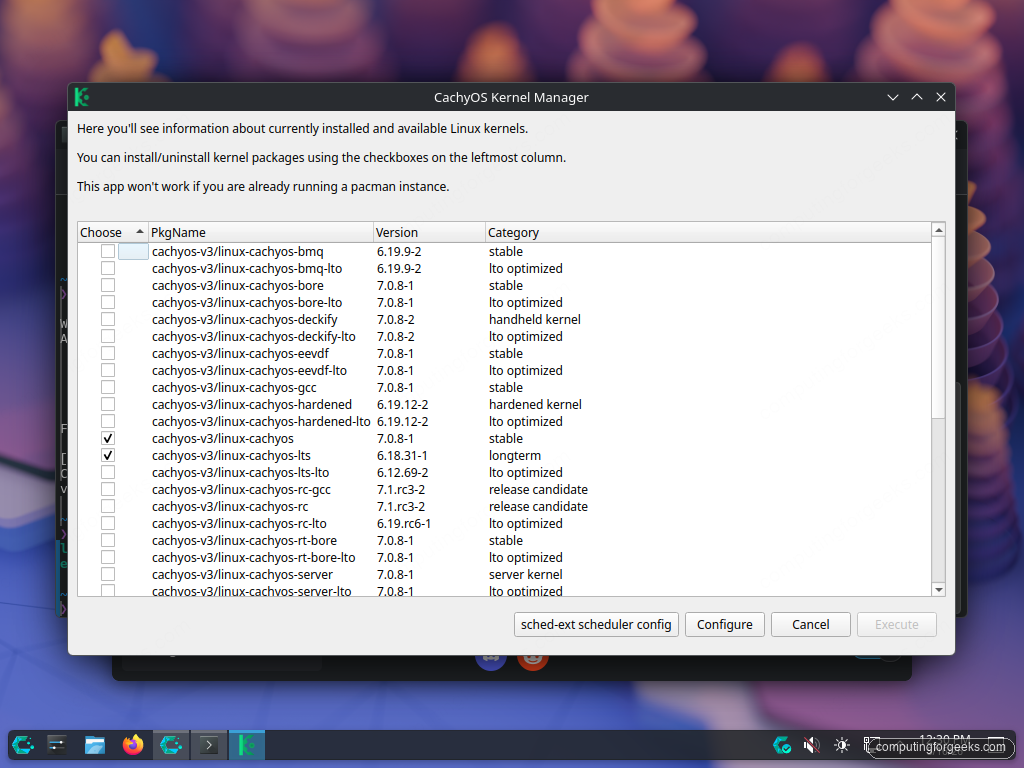
Configure is where you build your own kernel from the CachyOS PKGBUILDs. The options it exposes:
- Scheduler: BORE, EEVDF, BMQ, RC, RT or RT plus BORE
- Tick rate from 100 Hz to 1000 Hz, and idle, periodic or full tickless
- Full, Thin or no LTO
- -O3 or -O2 and CPU-specific optimisation
- Preemption, transparent hugepages, BBR3, ZFS and NVIDIA modules
The build lands in ~/.cache/cachyos-km/. A custom kernel pays off only if you need an option no prebuilt package has, because you also take on rebuilding it for every update. If you want the full manual route instead, our guide to compiling the Linux kernel from source covers it.
From a terminal it’s one pacman command per kernel. Install the headers with each kernel so DKMS modules such as NVIDIA or VirtualBox build for it:
sudo pacman -S linux-cachyos-lts linux-cachyos-lts-headersThe BORE kernel installs the same way.
sudo pacman -S linux-cachyos-bore linux-cachyos-bore-headersOn Limine, the default CachyOS bootloader, the limine-mkinitcpio-hook package adds each new kernel to the boot menu during the pacman transaction, so there’s no extra step. If you installed with GRUB, regenerate the menu with sudo grub-mkconfig -o /boot/grub/grub.cfg. To remove a kernel you’ve finished testing, run sudo pacman -Rns linux-cachyos-bore linux-cachyos-bore-headers, and never remove the kernel you are currently booted into.
Boot the fallback kernel from Limine
With two or more kernels installed, Limine lists them all under the CachyOS entry. Press any key during the countdown to stop the auto-boot, pick the kernel with the arrow keys and press Enter:
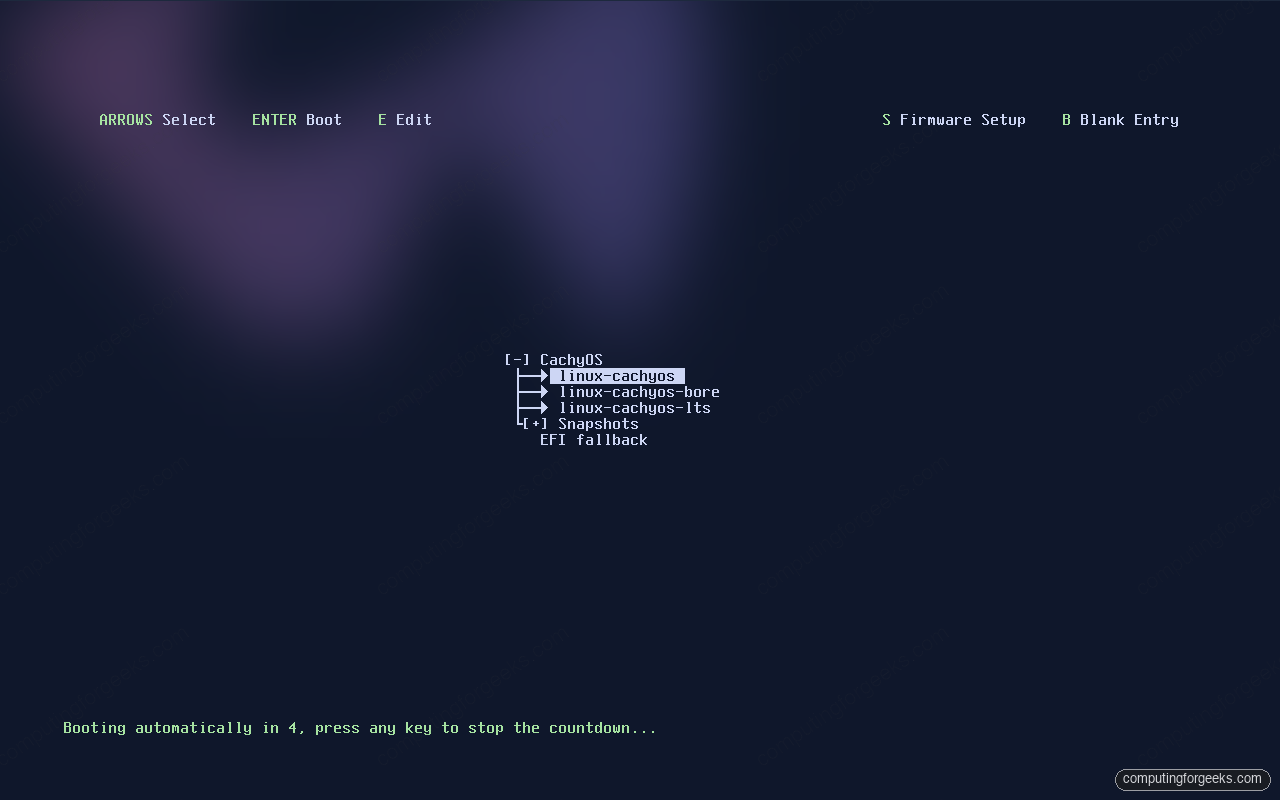
The Snapshots submenu comes from limine-snapper-sync, which turns Snapper snapshots of the BTRFS root into bootable entries, up to the limit set in its config. A kernel change and a bad update are different failures: a broken kernel needs the LTS entry, while a broken userspace needs a pre-update snapshot. For how Snapper takes and restores those snapshots, see our guide on Btrfs snapshots with Snapper.
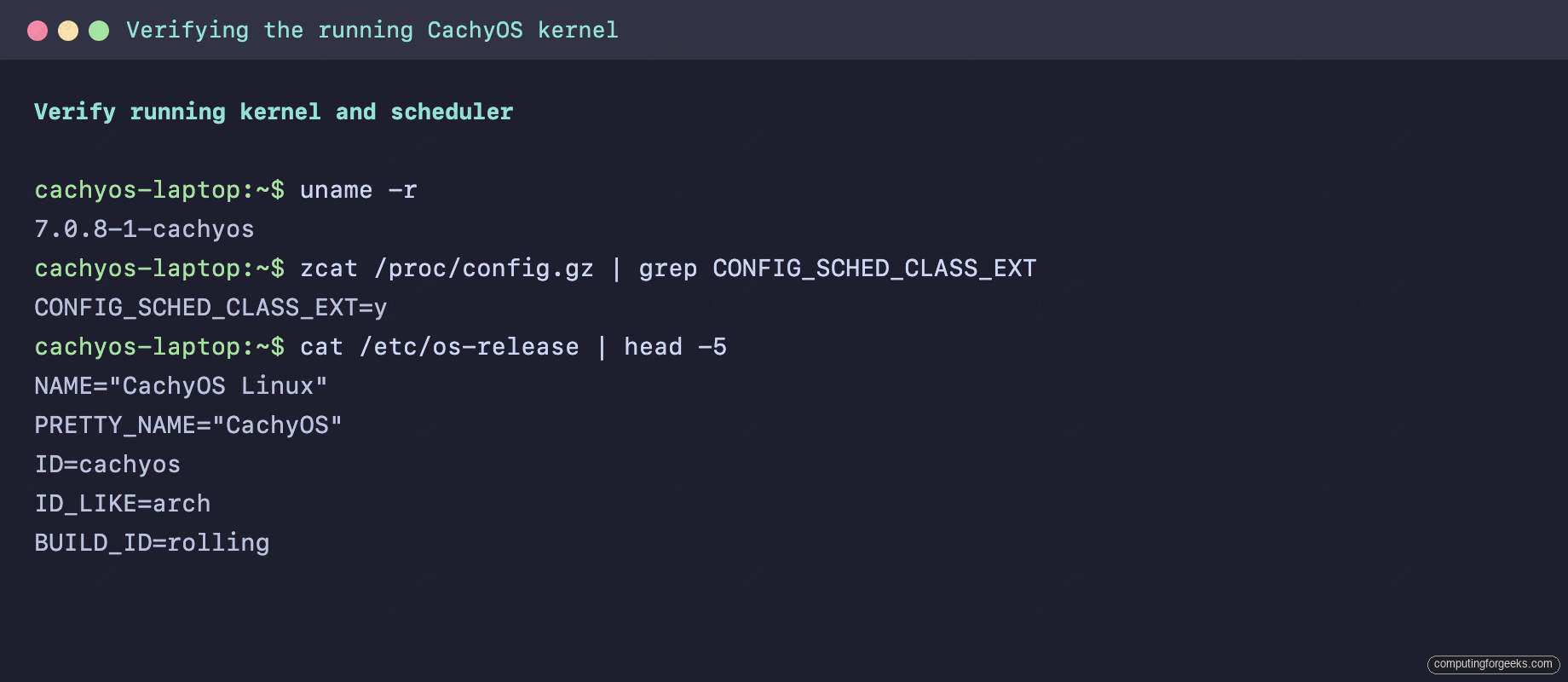
Once you’ve booted, confirm which kernel you are on and that sched-ext support is compiled in:
uname -r
zcat /proc/config.gz | grep CONFIG_SCHED_CLASS_EXT
The suffix tells you the variant: -cachyos for the default, -cachyos-bore, -cachyos-lts and so on. Our May install was on the 7.0 series at the time:
For other ways to read the kernel and distro version, our check Linux version from the command line reference lists them.
Check the x86-64-v3 and v4 repos
CachyOS rebuilds its packages for the x86-64-v3 level (AVX2, Haswell and newer) and x86-64-v4 (AVX-512), and the installer enables the matching repos when it detects a supported CPU. This is the part of CachyOS that speeds up every package, not just the kernel, so make sure it took. The dynamic linker reports what the CPU supports, and pacman.conf shows which repos are active:
/lib/ld-linux-x86-64.so.2 --help | grep supported
grep -E "^\[cachyos" /etc/pacman.conf
A v3 CPU lists x86-64-v3 as supported and has the three -v3 repos above plain [cachyos]:

A v4 line in the linker output doesn’t always mean you should switch. The CachyOS optimized repositories page says Intel 12th gen and newer can report v4 support and should stay on v3, and AMD Zen 4 and Zen 5 get their own -znver4 repos instead of -v4. If the installer did pick the wrong level, the documented fix is a hand edit, not a script. The cachyos-repo.sh script on that page is for adding CachyOS repos to an existing Arch install. On a CachyOS box it leaves pacman.conf alone but still installs its pinned keyring, mirrorlist and pacman packages, so don’t run it there.
On AMD, check whether GCC sees a Zen 4 or Zen 5 core first. This needs the gcc package, and it prints znver4 or znver5 on those CPUs (our v3 lab box printed haswell):
gcc -march=native -Q --help=target 2>&1 | grep -Po "^\s+-march=\s+\K(\w+)$"Back up /etc/pacman.conf and open it:
sudo cp /etc/pacman.conf /etc/pacman.conf.bak
sudo vim /etc/pacman.conf
Replace the three -v3 sections in place, above [cachyos], with the v4 set below. On Zen 4 or Zen 5, use [cachyos-znver4], [cachyos-core-znver4] and [cachyos-extra-znver4] as the section names instead; both sets read the same cachyos-v4-mirrorlist, which CachyOS already installs. Leave [cachyos], [core], [extra] and [multilib] as they are:
[cachyos-v4]
Include = /etc/pacman.d/cachyos-v4-mirrorlist

[cachyos-core-v4]
Include = /etc/pacman.d/cachyos-v4-mirrorlist

[cachyos-extra-v4]
Include = /etc/pacman.d/cachyos-v4-mirrorlist
Then clear the cache, resync and reinstall every repo package so each one comes from the new repo, and reboot. pacman -Scc asks for confirmation twice:
sudo pacman -Scc
sudo pacman -Sy
pacman -Qqn | sudo pacman -S -
The steps follow the CachyOS optimized repositories documentation, which also covers the matching mirrorlist packages. We didn’t run this switch in the lab, so read that page for your CPU before you start.
Review the performance tweaks CachyOS already applies
Most of what people call CachyOS performance tweaks are already on your machine through the cachyos-settings package. Before you paste sysctls from a forum post, read what it set, because you’ll often be overriding a value CachyOS picked for a reason:
grep -vE "^#|^$" /usr/lib/sysctl.d/70-cachyos-settings.conf
cat /usr/lib/systemd/zram-generator.conf
Two values here differ from what many guides, including the earlier version of this one, still repeat. The sysctl file sets vm.swappiness = 100, where our May install reported 150, and ZRAM is sized to ram, the full amount of memory, not half of it:

Full-size ZRAM sounds wasteful but is not, since a ZRAM device only uses memory for the compressed pages actually swapped into it. The settings that matter most, from that file and the rest of the package:
| Setting | CachyOS value | Why |
|---|---|---|
| vm.swappiness | 100 | Swap to compressed RAM early instead of dropping page cache |
| vm.page-cluster | 0 | Read one page at a time from swap, right for ZRAM |
| vm.dirty_bytes / dirty_background_bytes | 256 MiB / 64 MiB | Fixed writeback limits instead of a percentage of RAM |
| vm.vfs_cache_pressure | 50 | Keep directory and inode caches longer |
| kernel.nmi_watchdog | 0 | No periodic NMI interrupts |
| ZRAM | zstd, size = RAM, priority 100 | Compressed swap in memory before any disk swap |
| I/O scheduler (udev) | bfq on HDD, mq-deadline on SATA SSD, kyber on NVMe | Per-device scheduler instead of the kernel default |
| systemd timeouts | 15 s start, 10 s stop | Shutdown doesn’t hang for 90 seconds on a stuck unit |
| Journal | 50 MB cap | Logs stay small on laptop SSDs |
| Transparent huge pages | defrag set to defer+madvise | Huge pages without synchronous compaction stalls |
The package also loads the ntsync module for Wine and Proton, and ships a game-performance wrapper. It runs a program under the performance power profile through powerprofilesctl and switches back when the program exits, so in Steam you set a game’s launch options to game-performance %command% instead of forcing the performance governor system-wide.
To change one of these values, don’t edit the packaged file, because the next cachyos-settings update overwrites it. Drop an override in /etc/sysctl.d/ with a higher number so it’s read last, for example if you add a disk swap partition for hibernation and want the kernel to swap less:
echo "vm.swappiness = 60" | sudo tee /etc/sysctl.d/99-local-swappiness.conf
sudo sysctl --system
Check the result with sysctl vm.swappiness. Removing cachyos-settings altogether puts you back on stock Arch behaviour, but it also drops ZRAM and the I/O scheduler rules (and ananicy-cpp too if you remove with -Rs), so do that only if you’re replacing them with your own.
Keep the BTRFS mount options
The installer’s Erase disk with btrfs path creates the subvolume layout Snapper and limine-snapper-sync expect, with mount options that are already right for an SSD. Check them with findmnt -t btrfs:
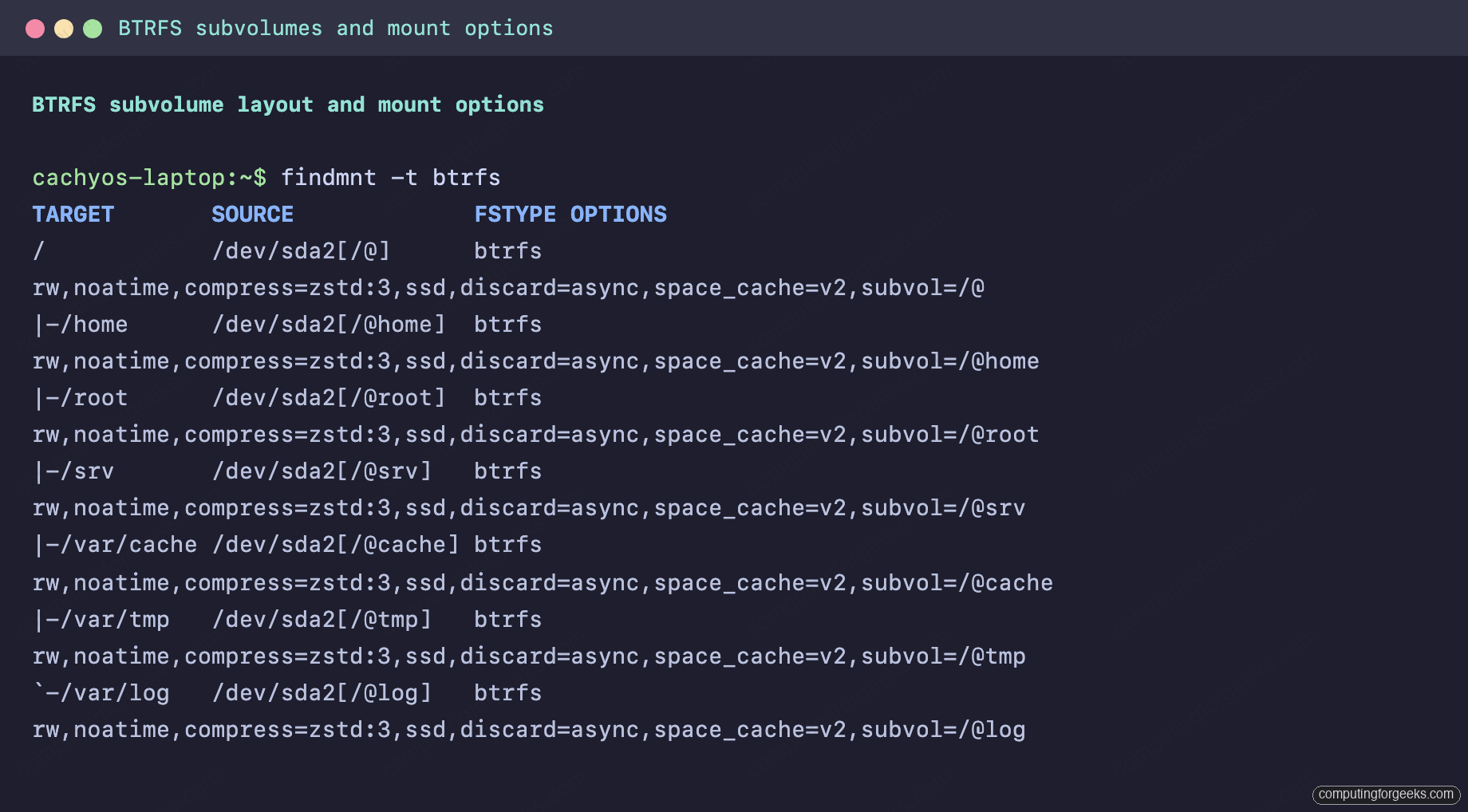
noatime stops a metadata write on every file read, compress=zstd:3 compresses new writes at a level that costs little CPU, discard=async trims freed blocks in the background, and space_cache=v2 is the free-space tree. Leave them as they are. Raising the zstd level only helps if you’re short on disk and have idle cores, and it applies only to data written after the remount. If you haven’t installed yet, our CachyOS install guide walks through the btrfs and Limine choices, and things to do after installing CachyOS covers the first-boot setup this article assumes.
Measure a kernel swap before you keep it
A kernel or scheduler change is worth keeping only if it moves a number you care about on your hardware. Three cheap tools cover most cases: stress-ng for raw CPU throughput, the 7-Zip benchmark for a mixed compression load, and hackbench from rt-tests for scheduler overhead with many communicating tasks:
sudo pacman -S --needed stress-ng 7zip rt-tests
stress-ng --matrix 0 --metrics-brief --timeout 30s
7z b
hackbench -l 1000 -g 16
Without -mmt, 7-Zip uses every core, which is what you want on bare metal. Our May baseline ran 7z b -mmt4 to match the VM’s vCPUs, so these numbers come from the default kernel inside a Proxmox VM with 4 vCPUs of an Intel Core i7-6700 and 16 GB of RAM:
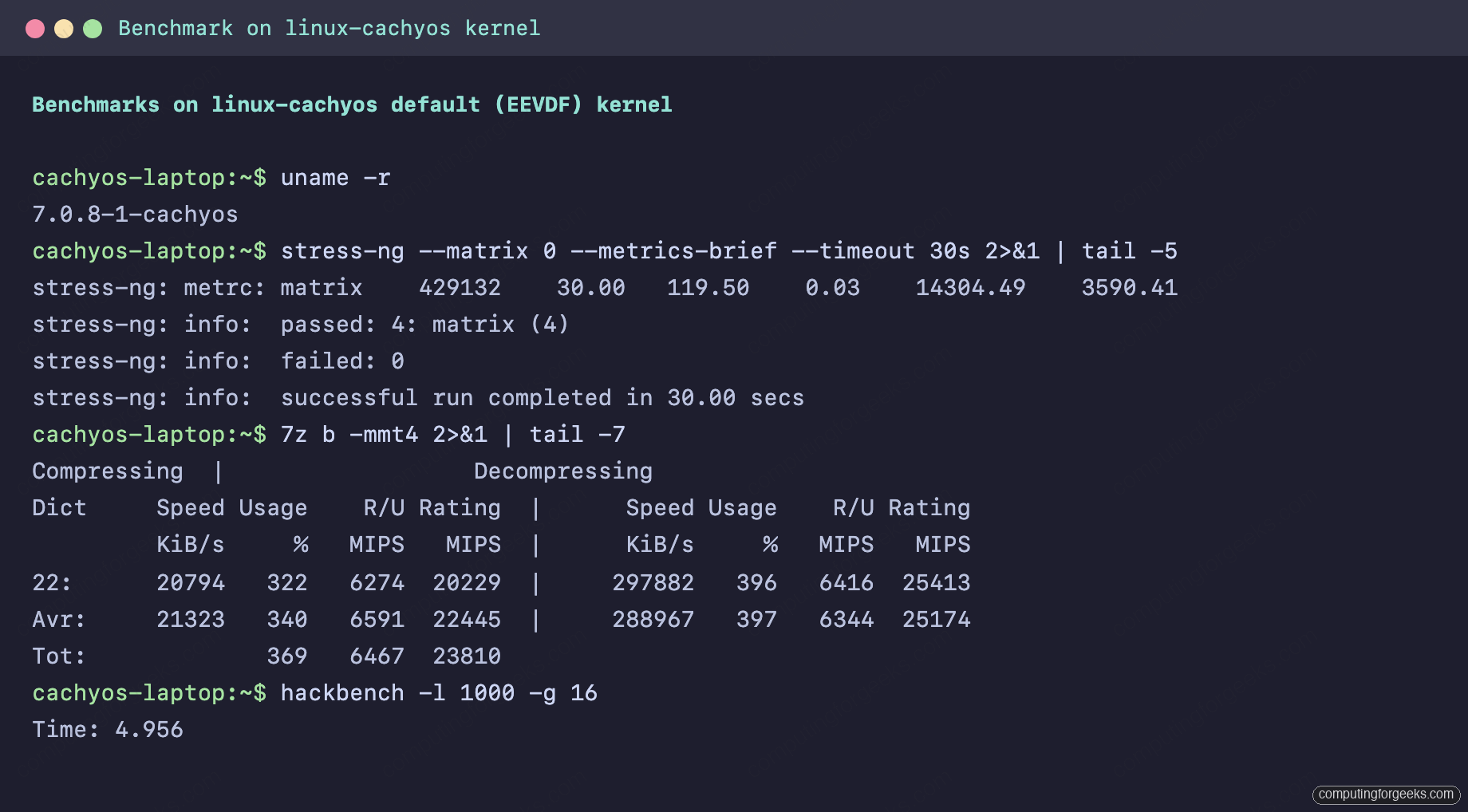
That May run installed p7zip, which Arch has since replaced with the official 7zip package; it provides the same 7z command, and all three benchmark commands ran cleanly with it when we re-checked them in October. The baseline in table form:
| Benchmark | linux-cachyos (EEVDF), May 2026 |
|---|---|
| stress-ng matrix (bogo-ops/s, real time) | 14,304 |
| 7z b total MIPS | 23,810 |
| hackbench, 16 groups x 1000 loops (seconds, lower is better) | 4.956 |
Absolute numbers from a VM don’t carry over to bare metal, so build your own baseline. Run each test three times on the current kernel, install the candidate, reboot into it from Limine, run the same three tests three times, and compare the means. Interactive feel needs its own test: run the build or encode that bothers you and watch whether the desktop stutters. If the means move by less than about 5% and you can’t feel a difference, the kernel isn’t your bottleneck, so go back to linux-cachyos and keep the LTS kernel as your fallback. For what changed in the mainline releases CachyOS builds on, our notes on what’s new in Linux kernel 7.1 are a good starting point.