If you run PHP in production on Debian, you already know the default repos sit a version or two behind. Debian 13 (Trixie) ships PHP 8.4 and Debian 12 (Bookworm) ships PHP 8.2, which is fine for maintenance but misses the performance gains and language features in PHP 8.5. The Sury repository fixes this. It’s maintained by Ondřej Surý, the same person who packages PHP for Debian officially, so the packages follow Debian conventions and get security fixes fast.
This guide covers installing PHP 8.5 on Debian 13 (Trixie) and Debian 12 (Bookworm) from the Sury repo, setting up PHP-FPM with Nginx, tuning for production, and checking that your build carries the PHP2Shell fix. Every step below was re-run on a fresh Debian 13 system in October 2026 against Sury’s PHP 8.5.12 build, with the repo, install, FPM, Nginx, mod_php and upgrade steps repeated on Debian 12, so the output matches what you’ll get today.
Prerequisites
- Debian 13 or Debian 12 with sudo access
- At least 512 MB RAM
Step 1: Add the Sury PHP Repository
Unlike Ubuntu where you use a PPA, Debian requires adding the Sury APT repo manually with a signed key. Install the prerequisites first:
sudo apt update
sudo apt install -y lsb-release ca-certificates curl
Sury distributes its signing keys as a small Debian package, debsuryorg-archive-keyring, and that is the method its own README documents. Use it instead of downloading a bare key file, because the package can ship a rotated key later without you touching the source entry. Install the keyring and add the source:
sudo curl -sSLo /tmp/debsuryorg-archive-keyring.deb https://packages.sury.org/debsuryorg-archive-keyring.deb
sudo dpkg -i /tmp/debsuryorg-archive-keyring.deb

echo "deb [signed-by=/usr/share/keyrings/debsuryorg-archive-keyring.gpg] https://packages.sury.org/php/ $(lsb_release -sc) main" | \
  sudo tee /etc/apt/sources.list.d/sury-php.list

sudo apt update
This works for both Debian 13 (trixie) and Debian 12 (bookworm), because lsb_release -sc fills in the right codename. If you followed an older version of this guide, the tee overwrites the same sury-php.list file, so you do not end up with two entries for one repo signed by different keys.
Confirm that apt now picks PHP 8.5 from packages.sury.org:
apt-cache policy php8.5-fpm | head -5On Debian 13 the candidate is the Sury build tagged debian13. Debian 12 shows the same version tagged debian12:
php8.5-fpm:
  Installed: (none)
  Candidate: 8.5.12-1+0~20261021.27+debian13~1.gbp1a3e8a
  Version table:
     8.5.12-1+0~20261021.27+debian13~1.gbp1a3e8a 500
If the candidate still points at a Debian archive version or shows (none), the source entry or the keyring is wrong, and apt update will have printed the reason.
Step 2: Install PHP 8.5 with Extensions
Install PHP 8.5 with FPM and the extensions most PHP applications expect. Listing php8.5-fpm in the same command keeps apt from pulling in Apache and mod_php to satisfy the php8.5 metapackage:
sudo apt install -y php8.5 php8.5-fpm php8.5-cli php8.5-common \
  php8.5-mysql php8.5-pgsql php8.5-curl php8.5-gd php8.5-mbstring \
  php8.5-xml php8.5-zip php8.5-intl php8.5-redis \
  php8.5-bcmath php8.5-soap php8.5-imagick
A few Debian-specific notes:
- OPcache is built into PHP 8.5, so there is no
php8.5-opcachepackage to install php8.5-ldapis available on Debian (it wasn’t on some earlier builds)- The
php8.5-imagickpackage works on both Debian 13 and 12
Step 3: Verify the Installation
Check the PHP version first:
php8.5 --versionThe banner names the Debian build and the bundled OPcache:
PHP 8.5.12 (cli) (built: Oct 21 2026 08:09:42) (NTS)
Copyright (c) The PHP Group
Built by Debian
Zend Engine v4.5.12, Copyright (c) Zend Technologies
    with Zend OPcache v8.5.12, Copyright (c), by Zend Technologies
Check loaded modules:
php8.5 -m | grep -c '^\w'With the extension set from Step 2, the count comes back as:
5959 modules loaded. New in PHP 8.5, the uri and lexbor extensions ship by default:
php8.5 -m | grep -E 'uri|lexbor'Both names should print:
lexbor
uri
The lexbor extension has no PHP functions of its own. It is the HTML5 and URL parsing library behind ext/uri and the Dom\HTMLDocument class, and uri adds standards-compliant URL parsing and manipulation to core.
Confirm the PHP2Shell fix (CVE-2026-109618, CVE-2026-109619)
PHP2Shell is two critical remote code execution bugs in PHP itself, CVE-2026-109618 and CVE-2026-109619 (CVSS v4.0 9.2), fixed upstream on 21 October 2026 in PHP 8.5.12, 8.4.27, 8.3.36 and 8.2.35. The Sury repo already ships the fixed PHP 8.5.12 build for both trixie and bookworm, so a fresh install from this guide is patched, and on Sury a version banner of 8.5.12 or later is proof in itself. The package changelog is the check that works everywhere, including Ubuntu builds and PHP 8.1 or older packages that keep the old upstream number after a backported fix. It names the CVEs once the fix is in:
zgrep -E 'CVE-2026-10961[89]' /usr/share/doc/php8.5-common/changelog.Debian.gzDebian 13 and Debian 12 both printed the fix entry. No output at all means the installed build predates the fix:
+ (CVE-2026-109618, CVE-2026-109619): Avoid state corruption viaOn a fresh install you can stop here and carry on with Step 4. On an existing server that installed PHP 8.5 before 21 October, pull the patched packages. The php8.5* glob covers the extensions and the metapackage but not the mod_php package, so name libapache2-mod-php8.5 as well. If it isn’t installed, apt just skips it:
sudo apt update
sudo apt install --only-upgrade 'php8.5*' libapache2-mod-php8.5
Note when the upgrade ran, because that is the reference time for the restart check below. dpkg logs every package it upgrades:
grep -E ' upgrade php8.5-(common|fpm|cli)' /var/log/dpkg.log | tail -3A worker that started before the upgrade keeps running the old code. When we upgraded Debian 13’s own php8.4 in testing, the package scripts restarted FPM by themselves, but restart it yourself anyway and confirm. With mod_php, restart apache2 as well, since the FPM pool keeps running beside it:
sudo systemctl restart php8.5-fpm
systemctl show -p ActiveEnterTimestamp php8.5-fpm
The ActiveEnterTimestamp must be later than the upgrade time from dpkg.log. For mod_php, run the same check against apache2. A test page served through the web server (Step 8) that reports 8.5.12 is direct proof too, because it comes from the running process. Debian’s own branches are fixed as well: Debian 13’s php8.4 8.4.27-1~deb13u1 and Debian 12’s php8.2 8.2.35-1~deb12u1, so a stock PHP running beside 8.5 is covered once it is upgraded and its own FPM unit (for example php8.4-fpm) is restarted. Debian 11 is end of life and its php7.4 gets no free fix (only paid ELTS). Sury’s bullseye builds are patched, but plan the move off Debian 11. The PHP2Shell patching guide for Debian covers the other branches. PHP’s PHP2Shell security advisory has the upstream details.
Step 4: Enable and Start PHP-FPM
Start and enable php-fpm service:
sudo systemctl enable --now php8.5-fpmCheck the unit status:
sudo systemctl status php8.5-fpmLook for active (running) and the ready status line:
● php8.5-fpm.service - The PHP 8.5 FastCGI Process Manager
     Loaded: loaded (/usr/lib/systemd/system/php8.5-fpm.service; enabled; preset: enabled)
     Active: active (running) since Thu 2026-10-22 15:19:00 UTC; 5s ago
   Main PID: 12905 (php-fpm8.5)
     Status: "Ready to handle connections"
Check the socket is listening:
ls -la /run/php/php8.5-fpm.sockThe socket belongs to www-data, which is the user Nginx runs as on Debian:
srw-rw---- 1 www-data www-data 0 Oct 22 15:19 /run/php/php8.5-fpm.sockNginx connects to that path in Step 7, so note it if you change the pool’s listen setting.
Step 5: Configure php.ini for Production
The FPM and CLI have separate php.ini files on Debian. For web applications, edit the FPM config:
sudo vim /etc/php/8.5/fpm/php.iniKey settings to change from defaults:
; Memory and limits
memory_limit = 256M
max_execution_time = 60
max_input_time = 60
max_input_vars = 5000

; Uploads
upload_max_filesize = 64M
post_max_size = 64M

; Error handling
display_errors = Off
log_errors = On
error_log = /var/log/php8.5-fpm.log

; Timezone
date.timezone = UTC

; OPcache
opcache.enable = 1
opcache.memory_consumption = 256
opcache.interned_strings_buffer = 16
opcache.max_accelerated_files = 20000
opcache.validate_timestamps = 0

; JIT (PHP 8.5 defaults to 64M buffer)
opcache.jit = tracing
opcache.jit_buffer_size = 64M
The opcache.validate_timestamps = 0 setting matters for production, because PHP then stops checking files for changes on every request. The trade is that new code only goes live after an FPM restart, so restart it after every deploy, and set the value to 1 during development:
sudo systemctl restart php8.5-fpmWith these values in place, sudo php-fpm8.5 -t reported the configuration test as successful on Debian 13, and FPM restarted cleanly.
Step 6: Configure PHP-FPM Pool
The default pool config is at /etc/php/8.5/fpm/pool.d/www.conf. The defaults are conservative:
grep '^pm\.' /etc/php/8.5/fpm/pool.d/www.confFive children is the ceiling, which a busy site hits quickly:
pm.max_children = 5
pm.start_servers = 2
pm.min_spare_servers = 1
pm.max_spare_servers = 3
For a 2 GB server, adjust to:
sudo vim /etc/php/8.5/fpm/pool.d/www.confAdd or update the following settings:
pm = dynamic
pm.max_children = 20
pm.start_servers = 5
pm.min_spare_servers = 3
pm.max_spare_servers = 10
pm.max_requests = 500

; Slow log for finding bottlenecks
slowlog = /var/log/php8.5-fpm-slow.log
request_slowlog_timeout = 5s
To calculate pm.max_children for your server, check how much memory each PHP worker uses:
ps -eo rss,comm | grep php-fpm | awk '{sum+=$1; n++} END {print sum/n/1024 " MB per process"}'Divide your available RAM (minus what the OS and other services need) by that number. Idle workers on our Debian 13 test box averaged about 29 MB each with the php.ini above, but a worker serving a real application grows well past that, so measure under load before settling on a value. Restart FPM to apply the pool changes:
sudo systemctl restart php8.5-fpmIf FPM fails to start after the edit, sudo php-fpm8.5 -t points at the line it rejects.
Step 7: Set Up Nginx with PHP-FPM
Install the Nginx web server:
sudo apt install -y nginxOpen the default site so it passes PHP requests to FPM:
sudo vim /etc/nginx/sites-available/defaultReplace its contents with this server block:
server {
    listen 80 default_server;
    root /var/www/html;
    index index.php index.html;
    server_name _;

    location / {
        try_files $uri $uri/ /index.php?$query_string;
    }

    location ~ \.php$ {
        include snippets/fastcgi-php.conf;
        fastcgi_pass unix:/run/php/php8.5-fpm.sock;
        fastcgi_param SCRIPT_FILENAME $document_root$fastcgi_script_name;
    }

    location ~ /\. { deny all; }
}
Test the syntax and restart Nginx:
sudo nginx -t && sudo systemctl restart nginxNginx only restarts when the test passes:
nginx: the configuration file /etc/nginx/nginx.conf syntax is ok
nginx: configuration file /etc/nginx/nginx.conf test is successful
A syntax error leaves the running Nginx untouched, so fix the line it names and run the command again.
Step 8: Test PHP
Create a test page:
echo '<?php phpinfo(); ?>' | sudo tee /var/www/html/info.phpOpen http://10.0.1.50/info.php in your browser, using your server’s IP address. The page should report PHP 8.5 with Server API set to FPM/FastCGI:
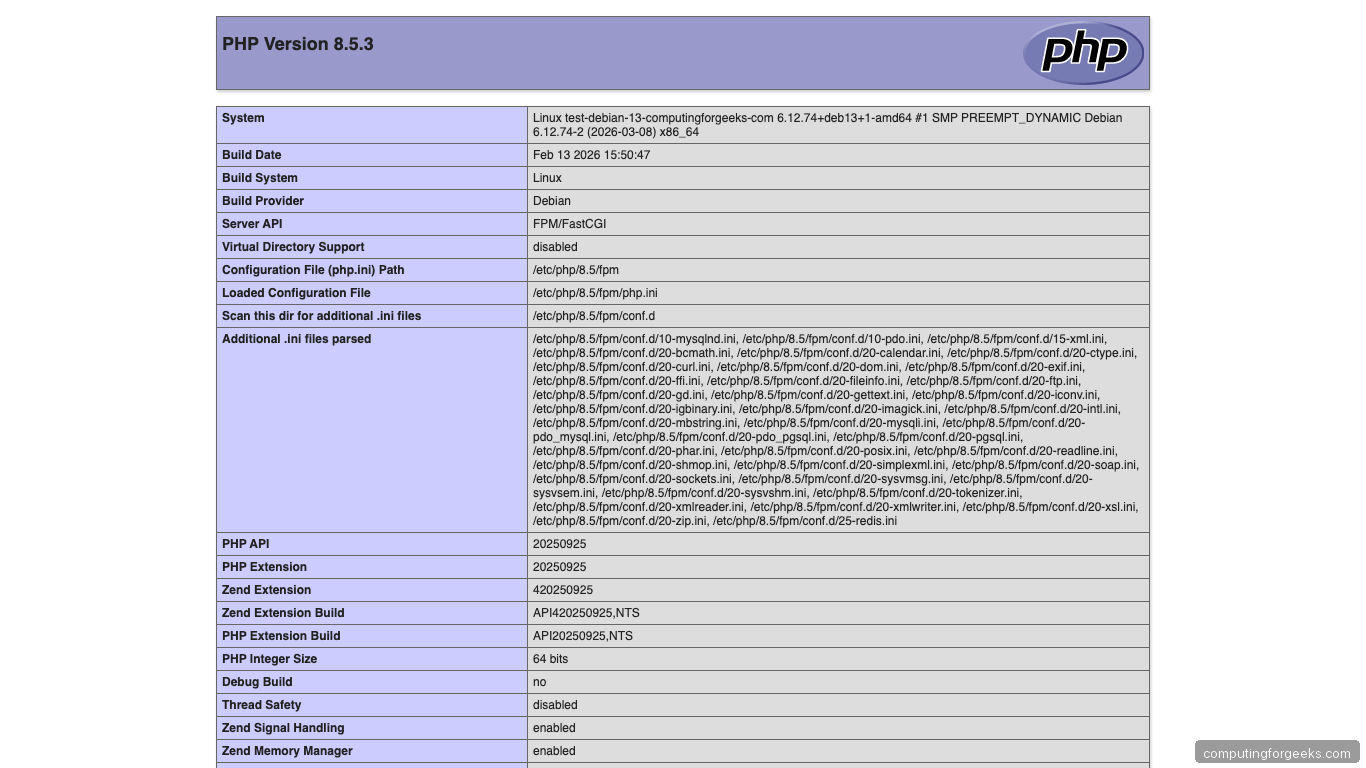
Delete the test file after verifying, because phpinfo output tells an attacker exactly which build and modules you run:
sudo rm /var/www/html/info.phpNginx and PHP-FPM are now serving PHP 8.5.
Step 9: Apache Alternative
Apache replaces Nginx here, it doesn’t run beside it. Both want port 80, and if Nginx from Step 7 is still running, Apache fails with (98)Address already in use: AH00072: make_sock: could not bind to address 0.0.0.0:80. Stop and disable Nginx first if you installed it:
sudo systemctl disable --now nginxWith Apache, PHP-FPM is still the recommended approach over mod_php:
# Install Apache with FPM support
sudo apt install -y apache2
sudo a2enmod proxy_fcgi setenvif
sudo a2enconf php8.5-fpm
sudo systemctl restart apache2
If you want the simpler (but less performant) mod_php approach, install it instead of the FPM block above and disable the FPM handler config. With php8.5-fpm enabled in Apache, requests keep going to FPM even after mod_php loads:
sudo apt install -y apache2 libapache2-mod-php8.5
sudo a2disconf php8.5-fpm
sudo systemctl restart apache2
The package switches Apache from the event MPM to prefork, which mod_php needs, and phpinfo then shows Apache 2 Handler as the Server API. With mod_php, PHP lives inside Apache, so after every PHP security update you restart apache2 as well as php8.5-fpm. Going back from mod_php to FPM takes sudo a2dismod php8.5 followed by the FPM block above, because disabling the module alone leaves Apache serving PHP files as plain text.
Step 10: Manage Multiple PHP Versions
The Sury repo lets you run multiple PHP versions side by side. Set 8.5 as the default CLI version:
sudo update-alternatives --set php /usr/bin/php8.5Switch between versions interactively:
sudo update-alternatives --config phpRun different PHP versions for different sites by configuring each Nginx server block to use a different FPM socket (/run/php/php8.4-fpm.sock vs /run/php/php8.5-fpm.sock).
Common troubleshooting
Sury repo returns “not signed” error:
The keyring is missing or the source entry points at a different key file. Reinstall the keyring package:
sudo curl -sSLo /tmp/debsuryorg-archive-keyring.deb https://packages.sury.org/debsuryorg-archive-keyring.deb
sudo dpkg -i /tmp/debsuryorg-archive-keyring.deb
Then make sure the entry in /etc/apt/sources.list.d/sury-php.list references signed-by=/usr/share/keyrings/debsuryorg-archive-keyring.gpg. Older setups that fetched apt.gpg into /etc/apt/keyrings/sury-php.gpg still verified on Debian 13 in October 2026, but the keyring package is the method Sury maintains.
502 Bad Gateway with Nginx:
PHP-FPM is not running or the socket path doesn’t match. Check both:
sudo systemctl status php8.5-fpm
grep fastcgi_pass /etc/nginx/sites-enabled/default
The fastcgi_pass line must name /run/php/php8.5-fpm.sock, the socket from Step 4.
php.ini changes not taking effect:
Debian has separate php.ini files for CLI and FPM. Web changes go in /etc/php/8.5/fpm/php.ini, not /etc/php/8.5/cli/php.ini. Always restart FPM after changes.
Firewall blocking port 80:
A fresh Debian install loads no firewall rules, so nothing blocks port 80 until you add a firewall. The nftables service ships disabled, and adding a rule before it loads /etc/nftables.conf fails with Error: Could not process rule: No such file or directory. If you use nftables, enable it first and then allow HTTP and HTTPS:
sudo systemctl enable --now nftables
sudo nft add rule inet filter input tcp dport 80 accept
sudo nft add rule inet filter input tcp dport 443 accept
Rules added with nft add are lost on reboot unless you also write them into /etc/nftables.conf. Or install UFW if you prefer it, and allow SSH before enabling it so you do not lock yourself out of a remote server:
sudo apt install -y ufw
sudo ufw allow 22/tcp
sudo ufw allow 'Nginx Full'
sudo ufw enable
Answer y at the enable prompt. The Nginx Full profile comes with the Debian nginx package and opens ports 80 and 443, which sudo ufw status lists next to the SSH rule. On Apache, allow 'WWW Full' instead.
Conclusion
PHP 8.5 on Debian 13 works the same as on Ubuntu once the Sury repo is set up, and the main difference is the keyring step. For WordPress, Laravel, or any PHP application, enable OPcache with JIT tracing and tune pm.max_children based on your available RAM. If you’re upgrading from PHP 8.3 or 8.4, test your application first, then switch the FPM socket in your Nginx config. Whatever branch you run, keep the Sury packages current and check the changelog for the CVE IDs after each security release.
Related guides: