

Form handling and validation are essential when building full-stack applications. In a React + Spring Boot application, React collects and validates user input on the frontend, while Spring Boot validates the submitted data again on the backend before processing or storing it.
- React manages form fields, user interactions, and basic client-side validation.
- Spring Boot performs server-side validation to ensure that invalid or manipulated data cannot enter the application.
What We Will Build
We will create a simple User Registration Form with the following fields:
- Name
- Age
- Password
The application will validate the form in both React and Spring Boot. After successful validation, Spring Boot will return the registered user details.
Application Flow
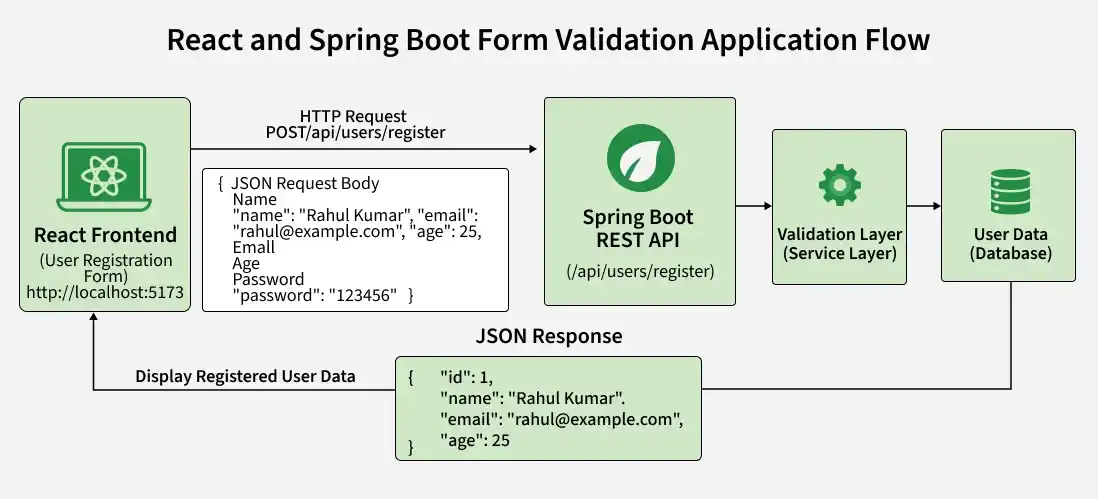
In above diagram shows how the React frontend sends user registration data to the Spring Boot REST API, where the submitted data is validated and processed. After successful validation, the backend returns a JSON response to React, which displays the result to the user.
Prerequisites
Before starting, make sure you have:
- Java 17 or later
- Maven
- Node.js and npm
- An IDE such as IntelliJ IDEA or VS Code
- Basic knowledge of React
- Basic knowledge of Spring Boot and REST APIs
Spring Boot Backend Implementation
First, we will create the Spring Boot backend responsible for receiving and validating form data.
Step 1: Create a Spring Boot Project in Spring Initializr
Create a new Spring Boot project using Spring Initializr with the following configuration:
- Project: Maven
- Language: Java
- Spring Boot: Latest stable version
- Group: com.example
- Artifact: formvalidation
- Name: formvalidation
- Package Name: com.example.formvalidation
- Packaging: Jar
- Java: 17 or later
Add these dependencies:
- Spring Web
- Validation
Download the generated project, extract it, and open it in your IDE.
Step 2: Project Structure
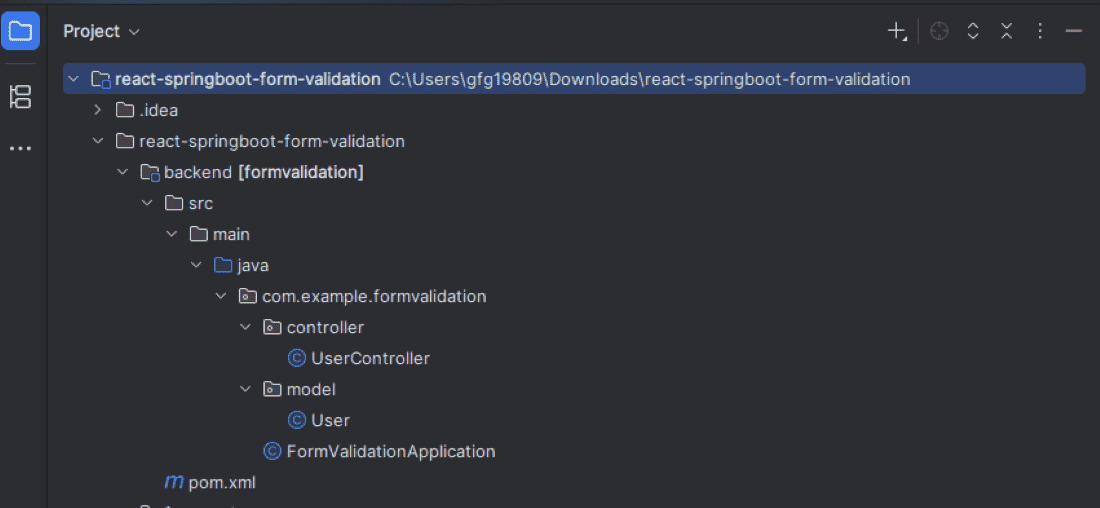
The backend project will have the following structure:
Step 3: Create the User Model
Create User.java inside the model package.
package com.example.formvalidation.model;

import jakarta.validation.constraints.Email;
import jakarta.validation.constraints.Max;
import jakarta.validation.constraints.Min;
import jakarta.validation.constraints.NotBlank;
import jakarta.validation.constraints.Size;

public class User {

    @NotBlank(message = "Name is required")
    @Size(min = 3, message = "Name must contain at least 3 characters")
    private String name;

    @NotBlank(message = "Email is required")
    @Email(message = "Enter a valid email address")
    private String email;

    @Min(value = 18, message = "Age must be at least 18")
    @Max(value = 100, message = "Age must not exceed 100")
    private int age;

    @NotBlank(message = "Password is required")
    @Size(min = 6, message = "Password must contain at least 6 characters")
    private String password;

    public User() {
    }

    public String getName() {
        return name;
    }

    public void setName(String name) {
        this.name = name;
    }

    public String getEmail() {
        return email;
    }

    public void setEmail(String email) {
        this.email = email;
    }

    public int getAge() {
        return age;
    }

    public void setAge(int age) {
        this.age = age;
    }

    public String getPassword() {
        return password;
    }

    public void setPassword(String password) {
        this.password = password;
    }
}
Here, Jakarta Bean Validation annotations define the validation rules. For example, @NotBlank prevents empty values, @Email validates email format, and @Min and @Max restrict the allowed age.
Step 4: Create the REST Controller
Create UserController.java inside the controller package.
package com.example.formvalidation.controller;

import com.example.formvalidation.model.User;
import jakarta.validation.Valid;
import org.springframework.http.ResponseEntity;
import org.springframework.validation.BindingResult;
import org.springframework.web.bind.annotation.*;

import java.util.HashMap;
import java.util.Map;

@RestController
@RequestMapping("/api/users")
@CrossOrigin(origins = "http://localhost:5173")
public class UserController {

    @PostMapping("/register")
    public ResponseEntity<?> registerUser(
            @Valid @RequestBody User user,
            BindingResult result) {

        if (result.hasErrors()) {

            Map<String, String> errors = new HashMap<>();

            result.getFieldErrors().forEach(error ->
                    errors.put(
                            error.getField(),
                            error.getDefaultMessage()
                    )
            );

            return ResponseEntity.badRequest().body(errors);
        }

        Map<String, Object> response = new HashMap<>();

        response.put("message", "User registered successfully");
        response.put("name", user.getName());
        response.put("email", user.getEmail());
        response.put("age", user.getAge());

        return ResponseEntity.ok(response);
    }
}
The @Valid annotation tells Spring Boot to validate the incoming User object according to the validation annotations defined in the model. Notice that the password is deliberately not included in the response.
Step 5: Run the Spring Boot Application
Run the main application class:
package com.example.formvalidation;

import org.springframework.boot.SpringApplication;
import org.springframework.boot.autoconfigure.SpringBootApplication;

@SpringBootApplication
public class FormValidationApplication {

    public static void main(String[] args) {
        SpringApplication.run(FormValidationApplication.class, args);
    }
}
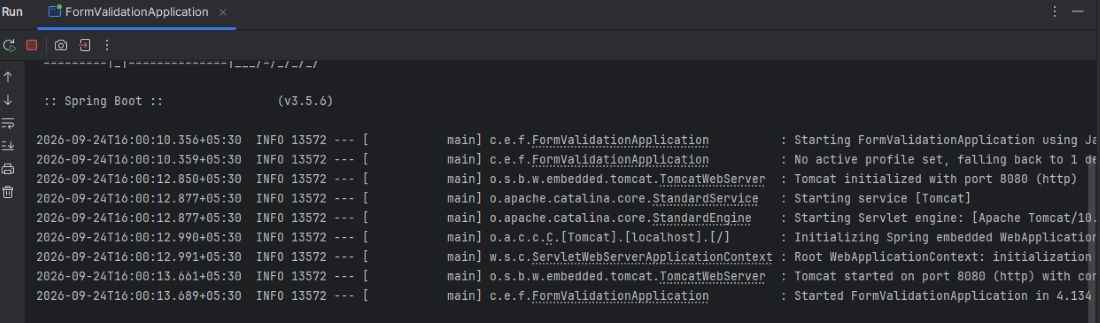
By default, the Spring Boot application runs at:
http://localhost:8080
The registration API endpoint is:
POST /api/users/register
React Frontend Implementation
Now we will create the React application containing the registration form.
Step 6: Create the React Application
Create the project using Vite:
npm create vite@latest form-validation-frontend -- --template react
Move into the project:
cd form-validation-frontend
Install dependencies:
npm install
Start the application:
npm run dev
Vite normally runs the application at:
http://localhost:5173
Step 7: Create the Registration Form
Replace the content of src/App.jsx with:
import { useState } from "react";
import "./App.css";

function App() {

  const [formData, setFormData] = useState({
    name: "",
    email: "",
    age: "",
    password: ""
  });

  const [errors, setErrors] = useState({});
  const [message, setMessage] = useState("");

  const handleChange = (event) => {

    const { name, value } = event.target;

    setFormData({
      ...formData,
      [name]: value
    });
  };

  const validateForm = () => {

    const newErrors = {};

    if (!formData.name.trim()) {
      newErrors.name = "Name is required";
    } else if (formData.name.trim().length < 3) {
      newErrors.name = "Name must contain at least 3 characters";
    }

    if (!formData.email.trim()) {
      newErrors.email = "Email is required";
    } else if (
      !/^[^\s@]+@[^\s@]+\.[^\s@]+$/.test(formData.email)
    ) {
      newErrors.email = "Enter a valid email address";
    }

    if (!formData.age) {
      newErrors.age = "Age is required";
    } else if (
      Number(formData.age) < 18 ||
      Number(formData.age) > 100
    ) {
      newErrors.age = "Age must be between 18 and 100";
    }

    if (!formData.password) {
      newErrors.password = "Password is required";
    } else if (formData.password.length < 6) {
      newErrors.password =
        "Password must contain at least 6 characters";
    }

    return newErrors;
  };

  const handleSubmit = async (event) => {

    event.preventDefault();
    setMessage("");

    const validationErrors = validateForm();

    if (Object.keys(validationErrors).length > 0) {
      setErrors(validationErrors);
      return;
    }

    setErrors({});

    try {

      const response = await fetch(
        "http://localhost:8080/api/users/register",
        {
          method: "POST",
          headers: {
            "Content-Type": "application/json"
          },
          body: JSON.stringify({
            ...formData,
            age: Number(formData.age)
          })
        }
      );

      const data = await response.json();

      if (!response.ok) {
        setErrors(data);
        return;
      }

      setMessage(data.message);

      setFormData({
        name: "",
        email: "",
        age: "",
        password: ""
      });

    } catch (error) {
      setMessage("Unable to connect to the server.");
    }
  };

  return (
    <div className="container">

      <h2>User Registration</h2>

      <form onSubmit={handleSubmit} noValidate>

        <div className="form-group">

          <label>Name</label>

          <input
            type="text"
            name="name"
            value={formData.name}
            onChange={handleChange}
          />

          {errors.name && (
            <p className="error">{errors.name}</p>
          )}

        </div>

        <div className="form-group">

          <label>Email</label>

          <input
            type="email"
            name="email"
            value={formData.email}
            onChange={handleChange}
          />

          {errors.email && (
            <p className="error">{errors.email}</p>
          )}

        </div>

        <div className="form-group">

          <label>Age</label>

          <input
            type="number"
            name="age"
            value={formData.age}
            onChange={handleChange}
          />

          {errors.age && (
            <p className="error">{errors.age}</p>
          )}

        </div>

        <div className="form-group">

          <label>Password</label>

          <input
            type="password"
            name="password"
            value={formData.password}
            onChange={handleChange}
          />

          {errors.password && (
            <p className="error">{errors.password}</p>
          )}

        </div>

        <button type="submit">
          Register
        </button>

      </form>

      {message && (
        <p className="success">{message}</p>
      )}

    </div>
  );
}

export default App;
Step 8: Add CSS
Add the following code to src/App.css:
.container {
  width: 400px;
  margin: 50px auto;
  padding: 25px;
  border: 1px solid #ddd;
  border-radius: 8px;
  font-family: Arial, sans-serif;
}

h2 {
  text-align: center;
}

.form-group {
  margin-bottom: 15px;
}

label {
  display: block;
  margin-bottom: 5px;
  font-weight: bold;
}

input {
  width: 100%;
  padding: 10px;
  box-sizing: border-box;
}

button {
  width: 100%;
  padding: 10px;
  cursor: pointer;
}

.error {
  margin-top: 5px;
  font-size: 14px;
}

.success {
  margin-top: 15px;
  text-align: center;
  font-weight: bold;
}
How Form Handling Works in React
React uses the useState() hook to maintain the values entered into the form.
const [formData, setFormData] = useState({
  name: "",
  email: "",
  age: "",
  password: ""
});
Each input is a controlled component because its value is controlled by React state.
For example:
<input
  type="text"
  name="name"
  value={formData.name}
  onChange={handleChange}
/>
Whenever the user changes a field, handleChange() updates the corresponding property.
const handleChange = (event) => {
  const { name, value } = event.target;

  setFormData({
    ...formData,
    [name]: value
  });
};
Using [name] allows the same function to handle all form fields.
How Client-Side Validation Works
Before sending the request, React calls:
const validationErrors = validateForm();The function checks fields such as:
if (!formData.name.trim()) {
  newErrors.name = "Name is required";
}
If validation errors exist, the form is not submitted:
if (Object.keys(validationErrors).length > 0) {
  setErrors(validationErrors);
  return;
}
This provides immediate feedback and avoids unnecessary API requests.
Sending Form Data to Spring Boot
After client-side validation succeeds, React sends the form data as JSON.
const response = await fetch(
  "http://localhost:8080/api/users/register",
  {
    method: "POST",
    headers: {
      "Content-Type": "application/json"
    },
    body: JSON.stringify({
      ...formData,
      age: Number(formData.age)
    })
  }
);
The request body will look similar to:
{
  "name": "Rahul Kumar",
  "email": "rahul@example.com",
  "age": 25,
  "password": "123456"
}
How Server-Side Validation Works
Spring Boot converts the JSON request into the User object.
@Valid @RequestBody User user@Valid triggers validation using rules such as:
@NotBlank(message = "Email is required")
@Email(message = "Enter a valid email address")
private String email;
If the submitted data is invalid, BindingResult contains the validation errors.
if (result.hasErrors()) {

    Map<String, String> errors = new HashMap<>();

    result.getFieldErrors().forEach(error ->
        errors.put(
            error.getField(),
            error.getDefaultMessage()
        )
    );

    return ResponseEntity.badRequest().body(errors);
}
For example, Spring Boot could return:
{
  "email": "Enter a valid email address",
  "password": "Password must contain at least 6 characters"
}
React then displays these errors next to their respective fields.
Why Both Frontend and Backend Validation Are Required
Frontend validation improves the user experience because errors can be detected immediately without contacting the server.
However, frontend validation alone is not secure because a client can bypass React and send HTTP requests directly to the API.
Frontend Validation
        |
        v
Better User Experience
        |
        v
HTTP Request
        |
        v
Backend Validation
        |
        v
Data Integrity and Security
The backend should always be treated as the final authority for validating submitted data.
Running the Complete Application
First, start the Spring Boot backend. From the backend project directory, run:
mvn spring-boot:runThe backend should run on:
http://localhost:8080Next, start React:
npm install
npm run dev
Open the Vite URL shown in the terminal, typically:
http://localhost:5173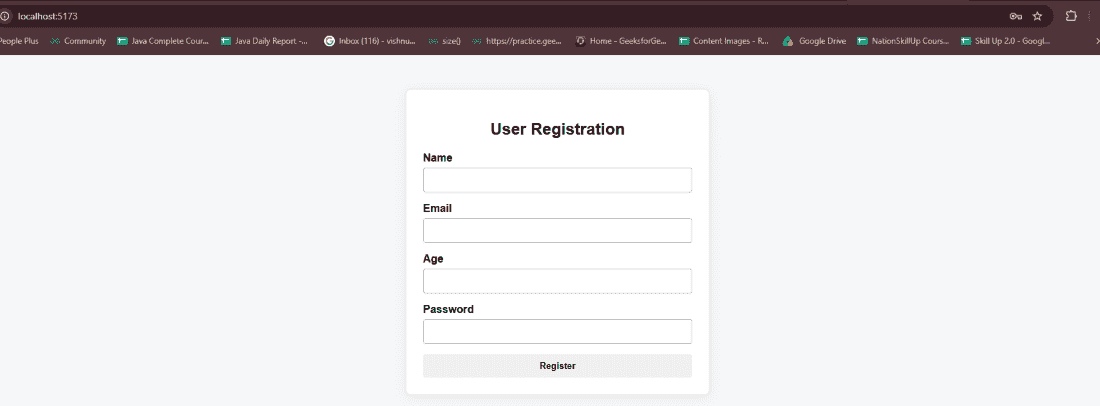
Enter valid data and click Register. React first performs client-side validation and then sends the request to Spring Boot. For invalid input, validation messages appear below the appropriate fields.
Enter:
- Name: Rahul Kumar
- Email: rahul@example.com
- Age: 25
- Password: 123456
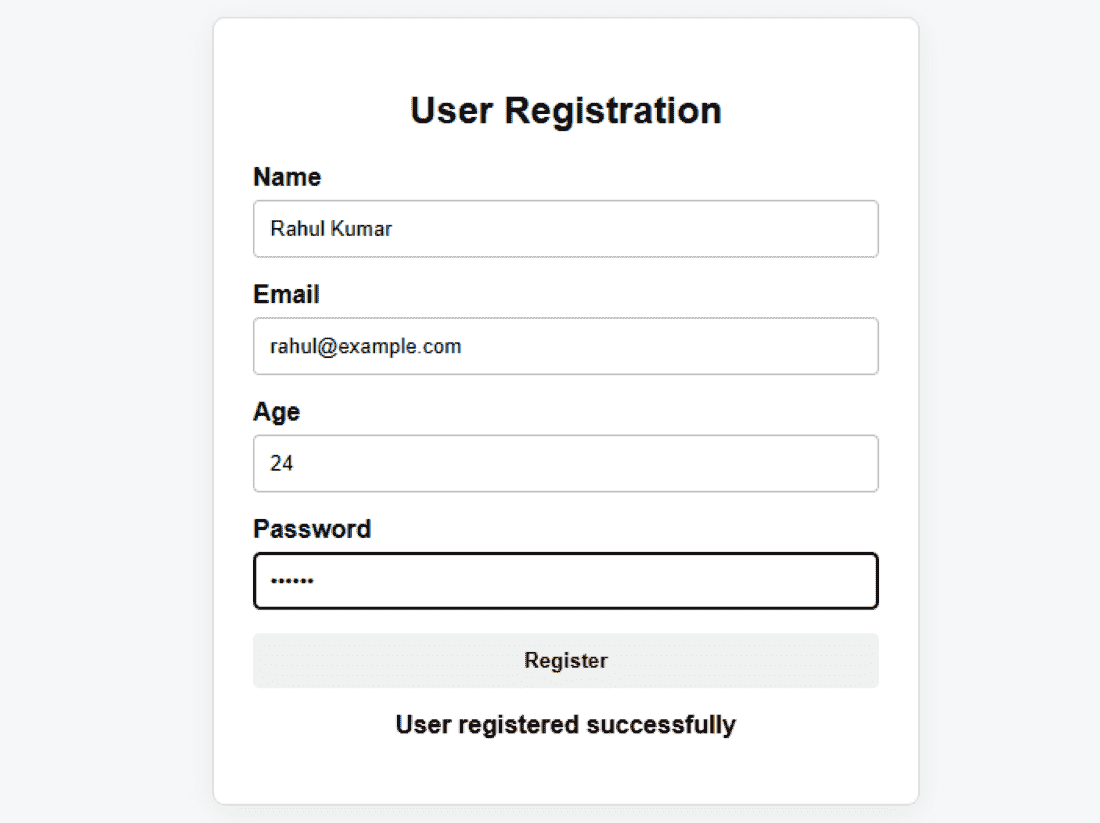
For valid input, the application displays:

Important Points
- Use controlled components to manage React form fields.
- Perform frontend validation for quick user feedback.
- Always perform validation again in Spring Boot.
- Use Jakarta Bean Validation annotations such as @NotBlank, @Email, @Size, @Min, and @Max.
- Use @Valid to trigger validation for request bodies.
- Return field-specific validation errors so React can display them correctly.
- Never rely only on client-side validation for security.
- Avoid returning sensitive values such as passwords in API responses.
Download the complete runnable ZIP
Download the complete runnable ZIP file to run and explore the React + Spring Boot Form Handling and Validation example locally.
