

Pagination and sorting are commonly used when an application needs to display large amounts of data efficiently. In a React and Spring Boot application, Spring Boot retrieves only the required records in a specific order, while React provides controls for navigating and sorting the data.
- Pagination divides large datasets into smaller pages.
- Sorting arranges records based on fields such as name, price, or ID.
- Spring Boot provides pagination and sorting using Spring Data JPA.
- React sends page and sorting parameters through HTTP requests.
Pagination
Pagination is the process of dividing a large set of records into smaller, manageable pages instead of retrieving all records at once. It helps applications display and process large amounts of data efficiently.
- It reduces the amount of data retrieved and transferred in a single request.
- It improves application performance and makes large datasets easier to navigate.
Example
Suppose a database contains 1,000 products, and we want to display only 10 products per page.
If the client sends the following request:
GET /api/products?page=0&size=10
The Spring Boot REST API retrieves only the first 10 products from the database and returns them to the client.
Total Products = 1000
Page Size = 10
Total Pages = 100Page 0 -> Products 1–10
Page 1 -> Products 11–20
Page 2 -> Products 21–30
...
Page 99 -> Products 991–1000
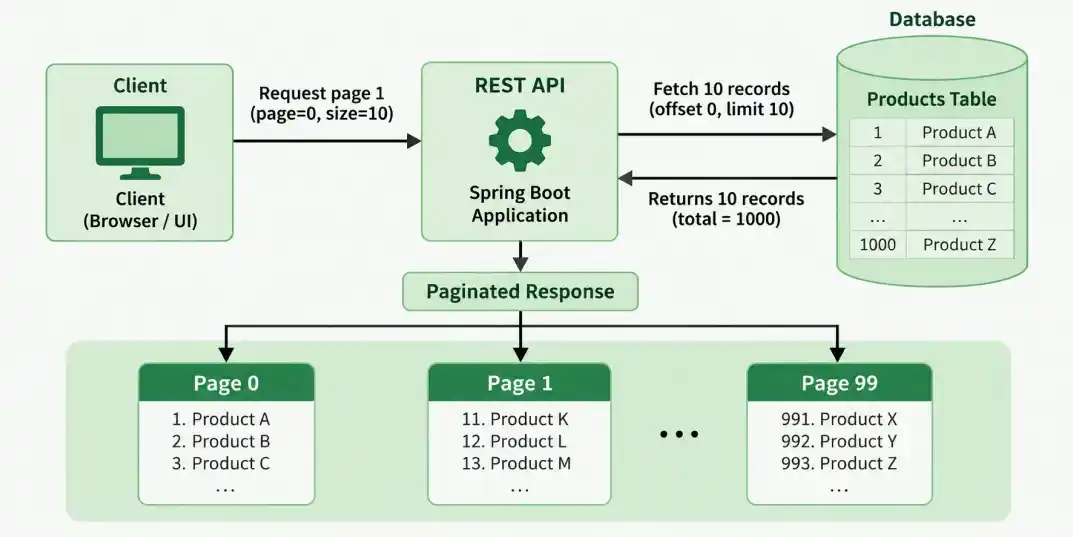
The image shows how the client requests a specific page from the REST API. The API retrieves only the required records from the database and returns them as a paginated response.
Instead of loading all 1,000 products at once, the application retrieves only the records required for the requested page. This reduces unnecessary data transfer and makes handling large datasets more efficient.
Sorting
Sorting is the process of arranging records based on a specific field in either ascending or descending order. It helps users view and analyze data in a desired sequence.
- Ascending order arranges values from lowest to highest, such as price from ₹100 to ₹1,000.
- Descending order arranges values from highest to lowest, such as price from ₹1,000 to ₹100.
Example
Suppose a database contains multiple products with different prices, and we want to retrieve the first 5 products sorted by price in ascending order.
If the client sends the following request:
GET /api/products?page=0&size=5&sortBy=price&direction=asc
The Spring Boot REST API sorts the products by the price field in ascending order and returns the first five products.
Sort By = price
Direction = ascending
Page = 0
Page Size = 5
Before Sorting:
Laptop -> ₹60,000
Mouse -> ₹500
Keyboard -> ₹1,500
Monitor -> ₹15,000
Headphones -> ₹2,000
After Sorting:
Mouse ₹500
Keyboard -> ₹1,500
Headphones -> ₹2,000
Monitor -> ₹15,000
Laptop -> ₹60,000
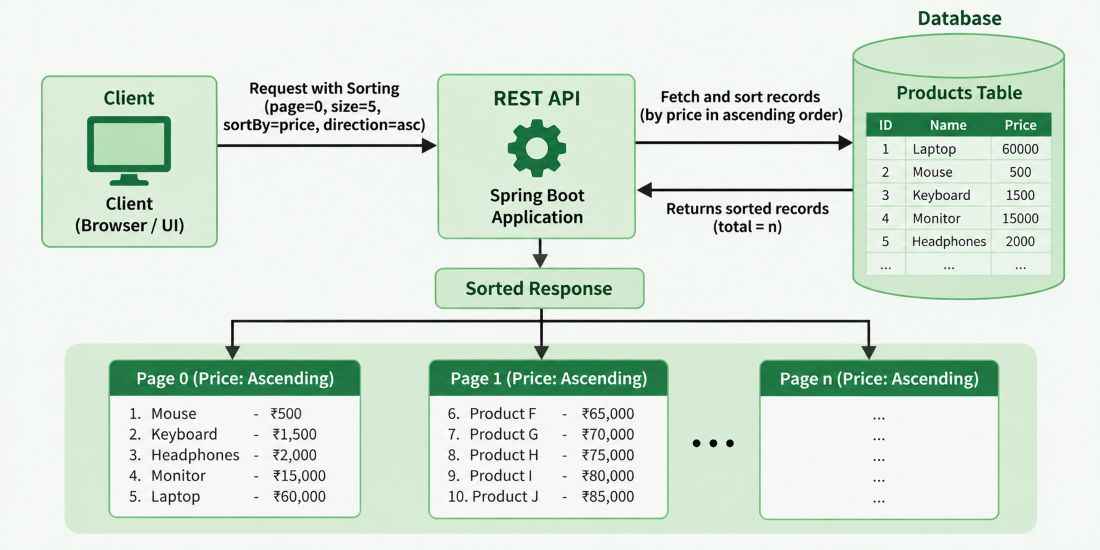
The image can show how the client sends sorting parameters to the REST API, which sorts the records by the specified field and returns the ordered result.
Instead of displaying products in an arbitrary order, sorting allows the application to arrange records according to fields such as price, name, date, or rating, making the data easier to browse and analyze.
Technologies Used
- Frontend: React
- HTTP Client: Axios
- Backend: Spring Boot
- Database: MySQL
- ORM: Spring Data JPA
- Build Tool: Maven
Spring Boot Backend Implementation
First, we will create a Spring Boot REST API that supports pagination and sorting.
Step 1: Create a Spring Boot Project in Spring Initializr
Create a Spring Boot project using Spring Initializr with the following configuration:
- Project: Maven
- Language: Java
- Spring Boot: Latest stable version
- Group: com.example
- Artifact: paginationdemo
- Name: paginationdemo
- Packaging: Jar
- Java: 17 or later
Add the following dependencies:
- Spring Web
- Spring Data JPA
- MySQL Driver
Download the project, extract it, and open it in your preferred IDE.
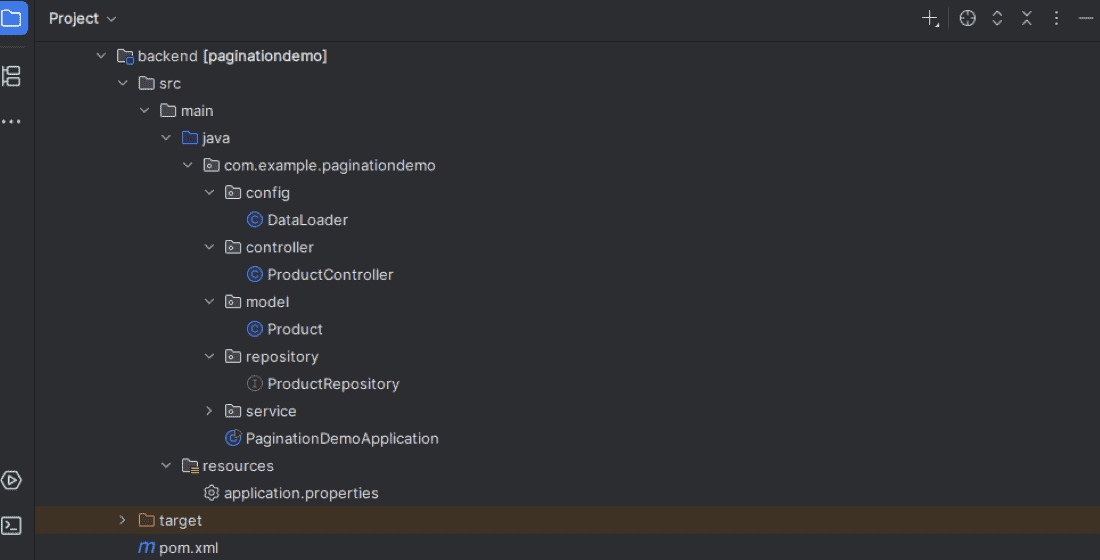
Step 2: Project Structure
The backend project will have the following structure:
Step 3: Configure MySQL Database
Create a database:
CREATE DATABASE pagination_db;
Add the database configuration to application.properties:
spring.datasource.url=jdbc:mysql://localhost:3306/pagination_db
spring.datasource.username=root
spring.datasource.password=your_passwordspring.jpa.hibernate.ddl-auto=update
spring.jpa.show-sql=true
Replace your_password with your MySQL password.
Step 4: Create the Product Entity
Create Product.java:
package com.example.paginationdemo.model;

import jakarta.persistence.*;

@Entity
@Table(name = "products")
public class Product {

    @Id
    @GeneratedValue(strategy = GenerationType.IDENTITY)
    private Long id;

    private String name;
    private double price;

    public Product() {
    }

    public Product(String name, double price) {
        this.name = name;
        this.price = price;
    }

    public Long getId() {
        return id;
    }

    public void setId(Long id) {
        this.id = id;
    }

    public String getName() {
        return name;
    }

    public void setName(String name) {
        this.name = name;
    }

    public double getPrice() {
        return price;
    }

    public void setPrice(double price) {
        this.price = price;
    }
}
The Product entity represents the product records stored in the MySQL database.
Step 5: Create Product Repository
Create ProductRepository.java:
package com.example.paginationdemo.repository;

import com.example.paginationdemo.model.Product;
import org.springframework.data.jpa.repository.JpaRepository;

public interface ProductRepository extends JpaRepository<Product, Long> {
}
JpaRepository already provides pagination and sorting support, so no custom query is required.
Step 6: Create Product Service
Create ProductService.java:
package com.example.paginationdemo.service;

import com.example.paginationdemo.model.Product;
import com.example.paginationdemo.repository.ProductRepository;
import org.springframework.beans.factory.annotation.Autowired;
import org.springframework.data.domain.*;
import org.springframework.stereotype.Service;

@Service
public class ProductService {

    @Autowired
    private ProductRepository productRepository;

    public Page<Product> getProducts(
            int page,
            int size,
            String sortBy,
            String direction) {

        Sort sort = direction.equalsIgnoreCase("desc")
                ? Sort.by(sortBy).descending()
                : Sort.by(sortBy).ascending();

        Pageable pageable = PageRequest.of(page, size, sort);

        return productRepository.findAll(pageable);
    }
}
Here:
- Sort defines the sorting field and direction.
- PageRequest defines the page number, page size, and sorting.
- findAll(pageable) retrieves only the required records.
Step 7: Create REST Controller
Create ProductController.java:
package com.example.paginationdemo.controller;

import com.example.paginationdemo.model.Product;
import com.example.paginationdemo.service.ProductService;
import org.springframework.beans.factory.annotation.Autowired;
import org.springframework.data.domain.Page;
import org.springframework.web.bind.annotation.*;

@RestController
@RequestMapping("/api/products")
@CrossOrigin(origins = "http://localhost:5173")
public class ProductController {

    @Autowired
    private ProductService productService;

    @GetMapping
    public Page<Product> getProducts(
            @RequestParam(defaultValue = "0") int page,
            @RequestParam(defaultValue = "5") int size,
            @RequestParam(defaultValue = "id") String sortBy,
            @RequestParam(defaultValue = "asc") String direction) {

        return productService.getProducts(
                page, size, sortBy, direction);
    }
}
The API accepts pagination and sorting information through query parameters.
Step 8: Add Sample Product Data
Add some records to the products table:
INSERT INTO products (name, price) VALUES
('Laptop', 65000),
('Mouse', 1200),
('Keyboard', 2500),
('Monitor', 18000),
('Headphones', 3500),
('Webcam', 4200),
('Printer', 15000),
('Tablet', 30000),
('Smartphone', 45000),
('Speaker', 5000);
Step 9: Run and Verify the Spring Boot Backend
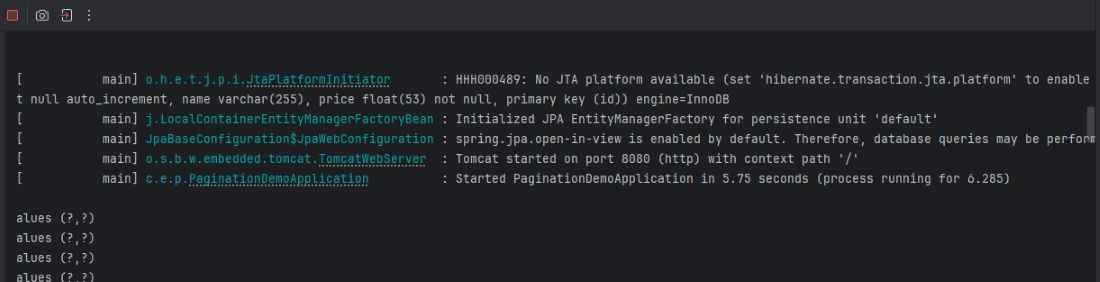
Run the Spring Boot application.
Tomcat started on port 8080
Started PaginationDemoApplication
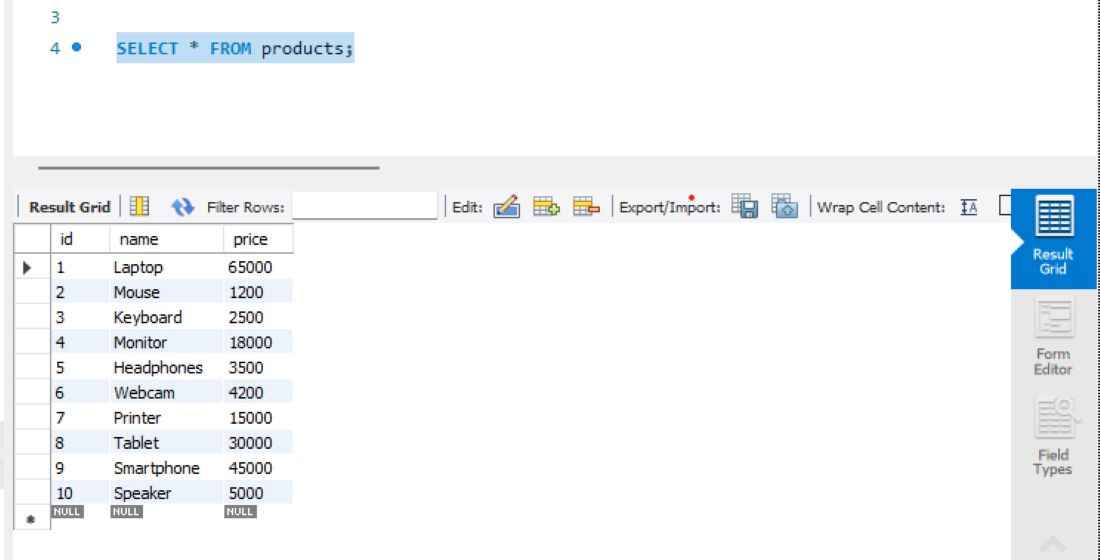
Verify the Database
Open MySQL and execute:
USE pagination_db;
SELECT * FROM products;
The table should contain 10 sample products.
Verify Pagination
Now test the REST API directly in a browser or Postman.
Test First Page:
Request: http://localhost:8080/api/products?page=0&size=5
The response should contain:
{"content":[{"id":1,"name":"Laptop","price":65000.0},{"id":2,"name":"Mouse","price":1200.0},{"id":3,"name":"Keyboard","price":2500.0},
{"id":4,"name":"Monitor","price":18000.0},{"id":5,"name":"Headphones","price":3500.0}],"pageable":{"pageNumber":0,"pageSize":5,"sort":
{"empty":false,"sorted":true,"unsorted":false},"offset":0,"paged":true,"unpaged":false},
"last":false,"totalElements":10,"totalPages":2,"size":5,"number":0,"first":true,"numberOfElements":5,"sort":{"empty":false,"sorted":true,"unsorted":false},"
empty":false}

Test Second Page
Change:
page=0 to page=1
Request:
http://localhost:8080/api/products?page=1&size=5
The response should again contain five products, but:
number = 1
first = false
last = true
Therefore:
10 Products
     ↓
Page Size = 5
     ↓
┌──────────────┬──────────────┐
│    Page 0    │    Page 1    │
│ Products 1–5 │ Products 6–10│
└──────────────┴──────────────┘

The content field contains the products for the current page, while totalPages, totalElements, and number provide pagination information.
React Frontend Implementation
Now we will create the React frontend that requests and displays paginated product data.
Step 1: Create the React Application
Create a React application using Vite:
npm create vite@latest pagination-frontend
Select:
Framework: React
Variant: JavaScript
Move into the project:
cd pagination-frontend
npm install
Install Axios:
npm install axios
Step 2: Create Product Service
Create:
src/services/ProductService.js
Add:
import axios from "axios";

const API_URL = "http://localhost:8080/api/products";

export const getProducts = async (
  page,
  size,
  sortBy,
  direction
) => {
  const response = await axios.get(API_URL, {
    params: {
      page,
      size,
      sortBy,
      direction
    }
  });

  return response.data;
};
This service sends pagination and sorting parameters to the Spring Boot REST API.
Step 3: Create Product Component
Create:
src/components/ProductList.jsx
Add:
import { useEffect, useState } from "react";
import { getProducts } from "../services/ProductService";

function ProductList() {

  const [products, setProducts] = useState([]);
  const [page, setPage] = useState(0);
  const [totalPages, setTotalPages] = useState(0);

  const [sortBy, setSortBy] = useState("id");
  const [direction, setDirection] = useState("asc");

  const size = 5;

  useEffect(() => {
    loadProducts();
  }, [page, sortBy, direction]);

  const loadProducts = async () => {
    const data = await getProducts(
      page,
      size,
      sortBy,
      direction
    );

    setProducts(data.content);
    setTotalPages(data.totalPages);
  };

  return (
    <div>
      <h2>Products</h2>

      <div>
        <label>Sort By: </label>

        <select
          value={sortBy}
          onChange={(e) => {
            setSortBy(e.target.value);
            setPage(0);
          }}
        >
          <option value="id">ID</option>
          <option value="name">Name</option>
          <option value="price">Price</option>
        </select>

        <select
          value={direction}
          onChange={(e) => {
            setDirection(e.target.value);
            setPage(0);
          }}
        >
          <option value="asc">Ascending</option>
          <option value="desc">Descending</option>
        </select>
      </div>

      <table border="1">
        <thead>
          <tr>
            <th>ID</th>
            <th>Name</th>
            <th>Price</th>
          </tr>
        </thead>

        <tbody>
          {products.map((product) => (
            <tr key={product.id}>
              <td>{product.id}</td>
              <td>{product.name}</td>
              <td>{product.price}</td>
            </tr>
          ))}
        </tbody>
      </table>

      <div>
        <button
          disabled={page === 0}
          onClick={() => setPage(page - 1)}
        >
          Previous
        </button>

        <span>
          {" "}
          Page {page + 1} of {totalPages}{" "}
        </span>

        <button
          disabled={page + 1 >= totalPages}
          onClick={() => setPage(page + 1)}
        >
          Next
        </button>
      </div>
    </div>
  );
}

export default ProductList;
The component reloads the products whenever the user changes the page, sorting field, or sorting direction.
Step 4: Update App Component
Update App.jsx:
import ProductList from "./components/ProductList";

function App() {
  return (
    <div>
      <h1>Product Management</h1>
      <ProductList />
    </div>
  );
}

export default App;
Step 5: Run the React Application
Start the frontend:
npm run dev
Open:
http://localhost:5173
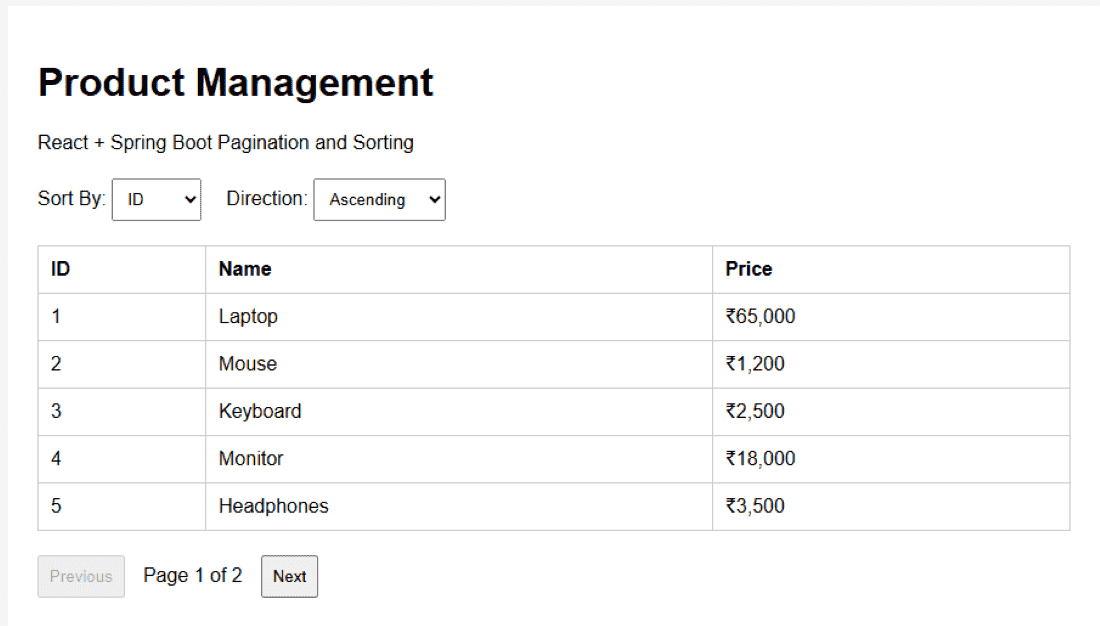
The application displays five products at a time. Users can navigate using Previous and Next and sort products by ID, name, or price in ascending or descending order.
Verify Pagination from React
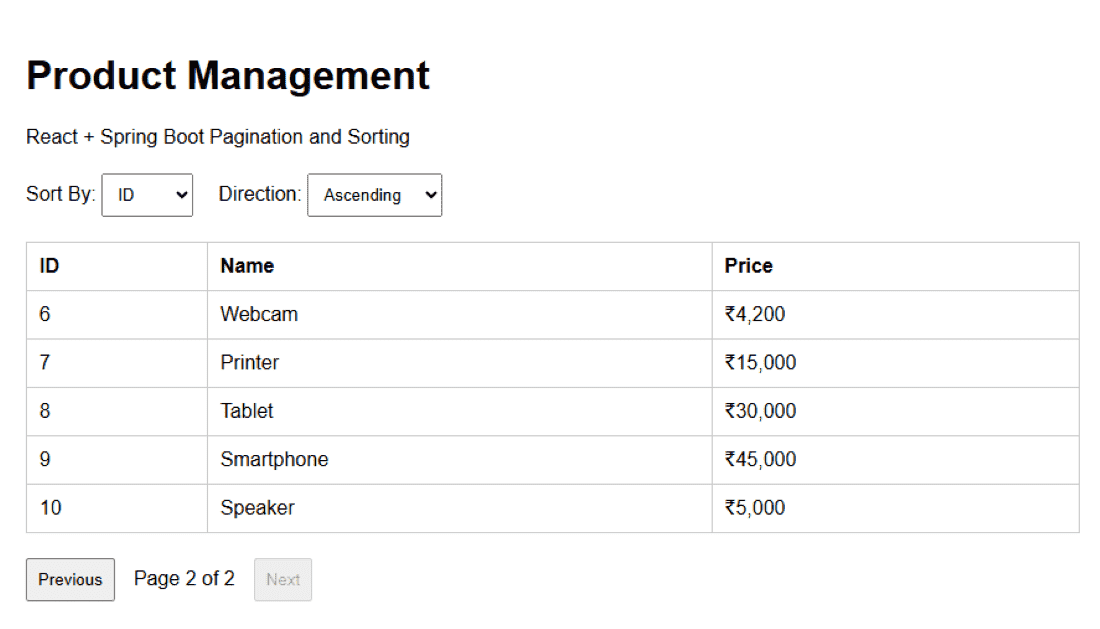
Click Next. React changes:
Verify Sorting from React
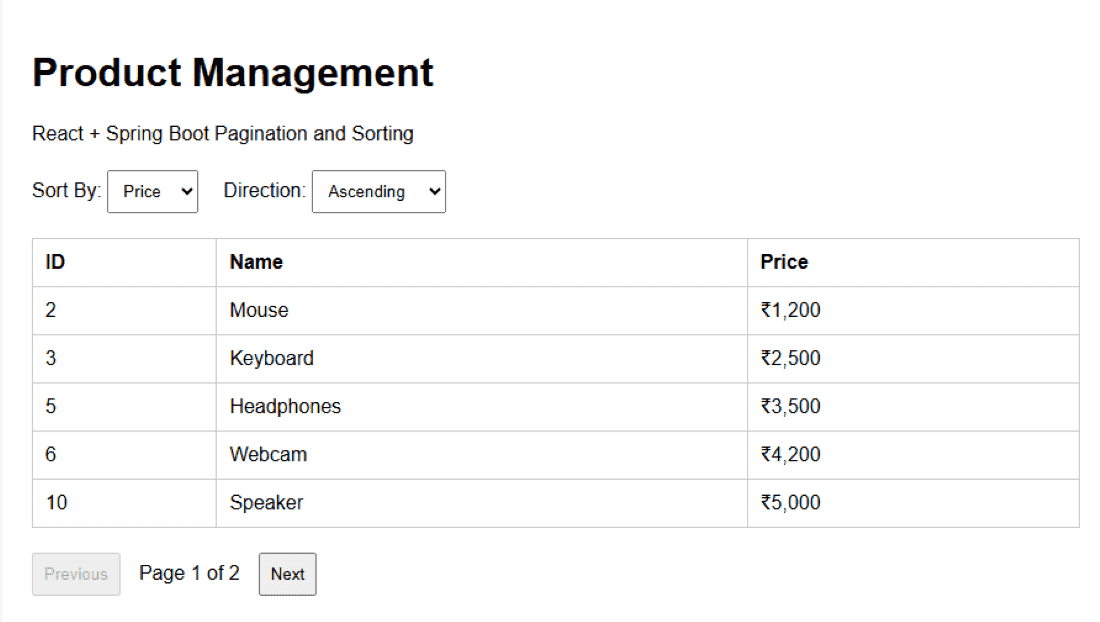
Select:
Sort By -> Price
Direction -> Ascending
The table should display the lower-priced products first.
Now select:
Sort By -> Price
Direction -> Descending
The table should display:
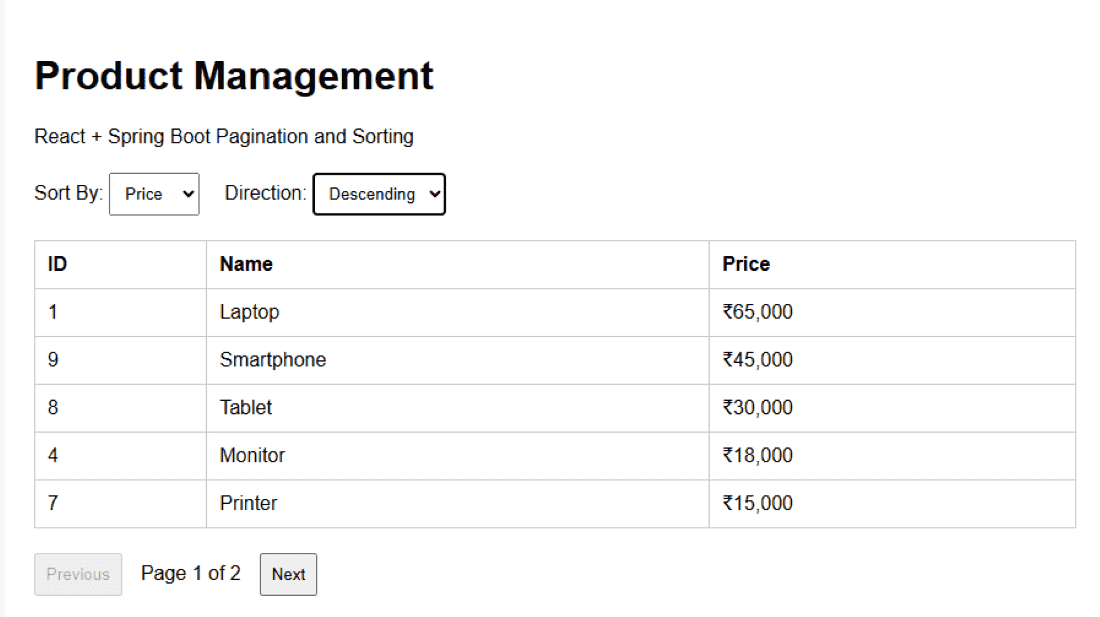
The application automatically resets to the first page whenever the sorting option changes.
Verify React and Spring Boot Communication
We can also verify the actual HTTP request sent by React.
Open the browser Developer Tools:
F12 -> Network
Select:
Sort By -> Price
Direction -> Descending
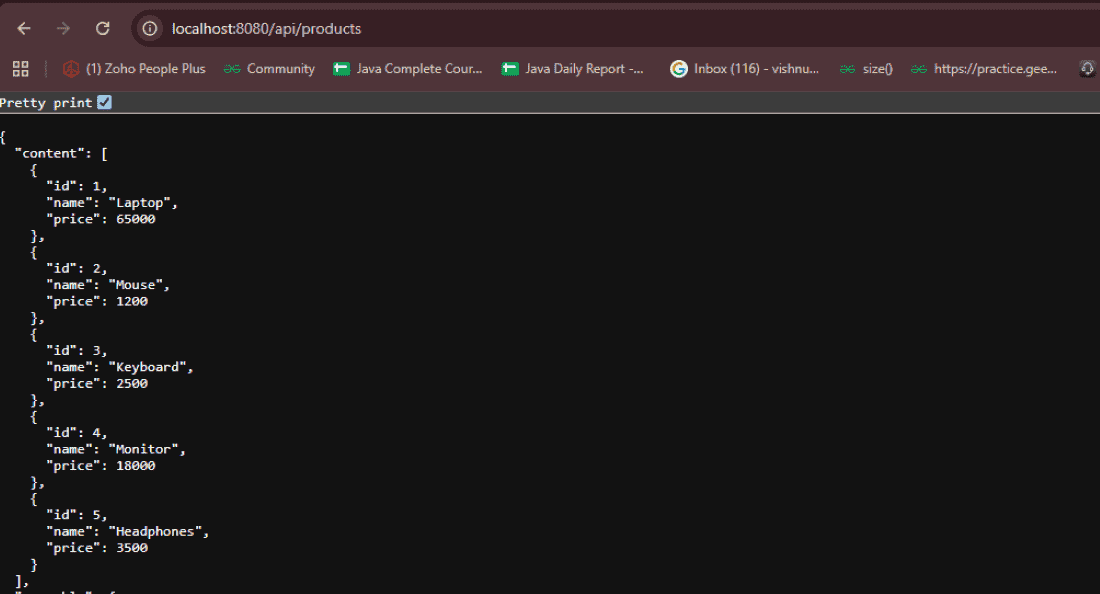
Look for the /api/products request. It should be similar to:
GET /api/products?page=0&size=5&sortBy=price&direction=desc
Select the request and check its Response. The response should contain:
Common Issues
Blank React page: Open F12 → Console. If you see:
React is not defined
make sure React is imported in JSX files where your setup requires it:
import React from "react";
Products are not displayed: First verify:
http://localhost:8080/api/products?page=0&size=5
If this URL does not return JSON, troubleshoot the backend/database before the React frontend.
CORS error: Make sure the controller contains:
@CrossOrigin(origins = "http://localhost:5173")
Database connection error: Verify the MySQL username, password, port, and whether the MySQL service is running.
Download the complete runnable ZIP
Download the complete runnable ZIP file to run and verify the Pagination and Sorting React + Spring Boot application locally.
