

A Personal Expense Tracker using React and Spring Boot is a full-stack web application that helps users record, organize, and monitor their daily expenses. React provides an interactive interface for managing expenses, while Spring Boot handles REST APIs, calculations, and database operations.
- Users can add, view, edit, and delete expenses with details such as amount, category, date, and description.
- Expenses are stored in a MySQL database using Spring Data JPA.
- The application displays monthly spending totals and category-wise expense summaries to help users understand their spending habits.
In this project, we will build a Personal Expense Tracker using React, Spring Boot, Spring Data JPA, MySQL, and Axios.
Features of the Personal Expense Tracker
The application provides the following features:
- Add Expenses: Record an expense with an amount, category, date, and description.
- View Expenses: Display recorded expenses in a structured table.
- Edit Expenses: Update the details of an existing expense.
- Delete Expenses: Remove incorrect or unwanted expense records.
- Category Management: Organize expenses into categories such as Food, Travel, Shopping, Bills, and Others.
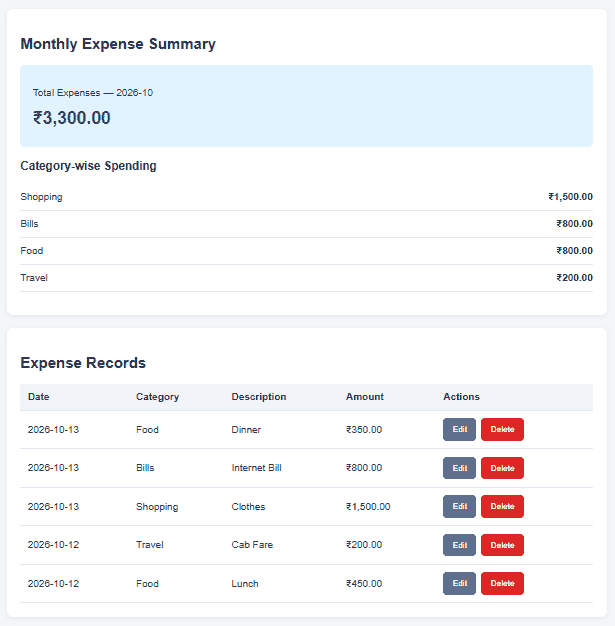
- Monthly Summary: Calculate total expenses for a selected month.
- Category-wise Summary: Display how much money was spent in each category.
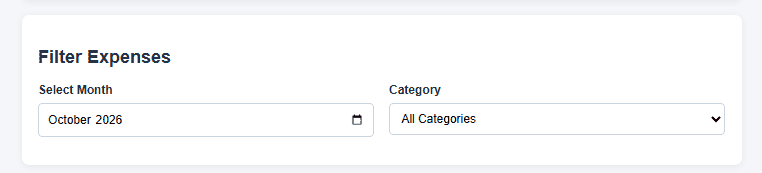
- Filter Expenses: View expenses by month and category.
How the Personal Expense Tracker Works
The application uses a client-server architecture, where React handles the frontend, Spring Boot processes requests, and MySQL stores expense records.
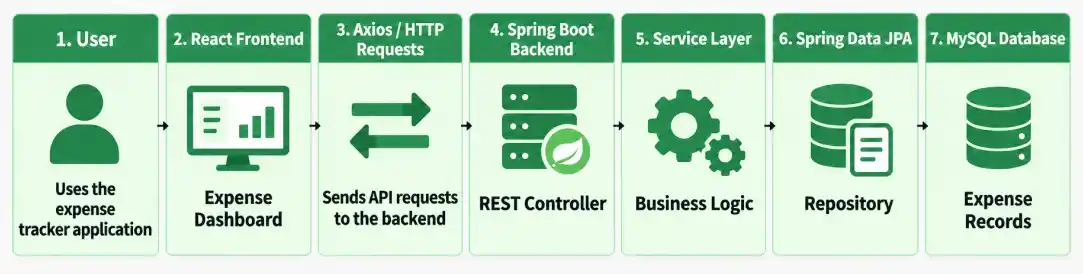
Working Process:
- The user enters expense details or selects a reporting month in the React application.
- React sends an HTTP request to the Spring Boot backend using Axios.
- The REST Controller receives the request and passes it to the Service Layer.
- The Service Layer validates and processes expense operations or calculates summaries.
- Spring Data JPA retrieves or modifies records in MySQL.
- The backend returns JSON data, and React updates the expense dashboard.
Prerequisites
Before starting, install the following:
- Java JDK 17 or later, compatible with the selected Spring Boot release
- Maven
- Node.js and npm
- MySQL Server and MySQL Workbench
- VS Code, IntelliJ IDEA, or Eclipse
- Postman for optional API testing
The current Vite documentation specifies Node.js 20.19+ or 22.12+ as minimum supported release lines. Using a current compatible Node.js LTS version is recommended.
Backend Development using Spring Boot
We will first create the Spring Boot project, configure the database, and develop REST APIs for managing expenses.
Step 1: Create a Spring Boot Project
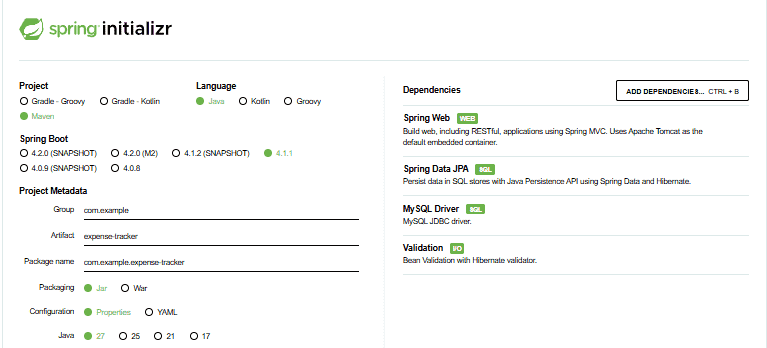
Open Spring Initializr and select the following project configuration.
- Project: Maven
- Language: Java
- Spring Boot: A compatible stable Spring Boot 3.x release
- Group: com.example
- Artifact: expense-tracker
- Packaging: Jar
- Java: 17
Add the following dependencies:
- Spring Web
- Spring Data JPA
- MySQL Driver
- Validation
Click Generate, extract the ZIP file, and open the project in your IDE.
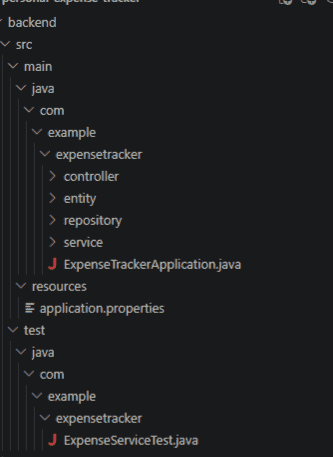
Backend Project Structure
Step 2: Configure the MySQL Database
Open MySQL Workbench and execute the following SQL query:
CREATE DATABASE expensedb;
Now open src/main/resources/application.properties and add the configuration.
File: application.properties
spring.application.name=expense-tracker

# Database Configuration
spring.datasource.url=jdbc:mysql://localhost:3306/expensedb
spring.datasource.username=root
spring.datasource.password=${DB_PASSWORD}

# JPA Configuration
spring.jpa.hibernate.ddl-auto=update
spring.jpa.show-sql=true

# Server Port
server.port=8080
Set the DB_PASSWORD environment variable to the password of your MySQL user before starting the backend.
Explanation:
- spring.datasource.url specifies the database connection.
- spring.datasource.username and password provide the database credentials.
- spring.jpa.hibernate.ddl-auto=update allows Hibernate to update the development database schema.
- spring.jpa.show-sql=true prints generated SQL queries in the console.
- server.port=8080 runs the backend on port 8080.
Note: The update setting is suitable for local development. Production applications should use database migration tools such as Flyway or Liquibase
Step 3: Create the Expense Entity
The Expense entity represents an individual expense record stored in the database.
Create an entity package and add Expense.java.
File: Expense.java
package com.example.expensetracker.entity;

import jakarta.persistence.*;
import jakarta.validation.constraints.*;
import java.math.BigDecimal;
import java.time.LocalDate;

@Entity
@Table(name = "expenses")
public class Expense {

    @Id
    @GeneratedValue(strategy = GenerationType.IDENTITY)
    private Long id;

    @NotNull
    @DecimalMin(value = "0.01")
    @Digits(integer = 10, fraction = 2)
    @Column(nullable = false, precision = 12, scale = 2)
    private BigDecimal amount;

    @NotBlank
    @Size(max = 50)
    @Column(nullable = false, length = 50)
    private String category;

    @NotNull
    @Column(nullable = false)
    private LocalDate date;

    @Size(max = 255) private String description;

    public Expense() {}

    public Long getId() { return id; }

    public void setId(Long id) { this.id = id; }

    public BigDecimal getAmount() { return amount; }

    public void setAmount(BigDecimal amount)
    {
        this.amount = amount;
    }

    public String getCategory() { return category; }

    public void setCategory(String category)
    {
        this.category = category;
    }

    public LocalDate getDate() { return date; }

    public void setDate(LocalDate date)
    {
        this.date = date;
    }

    public String getDescription() { return description; }

    public void setDescription(String description)
    {
        this.description = description;
    }
}
Explanation:
- @Entity maps the Java class to a database table.
- @Id identifies the primary key.
- @GeneratedValue automatically generates the expense ID.
- BigDecimal stores monetary values accurately without the typical floating-point precision issues of double.
- @DecimalMin and @Digits validate the amount.
- @NotBlank ensures that a category is provided.
- LocalDate stores the expense date without a time component.
Step 4: Create the Expense Repository
The Repository Layer communicates with MySQL through Spring Data JPA.
Create a repository package and add ExpenseRepository.java.
File: ExpenseRepository.java
package com.example.expensetracker.repository;

import com.example.expensetracker.entity.Expense;
import java.time.LocalDate;
import java.util.List;
import org.springframework.data.jpa.repository.JpaRepository;

public interface ExpenseRepository
    extends JpaRepository<Expense, Long> {

    List<Expense> findAllByOrderByDateDescIdDesc();

    List<Expense>
    findByDateGreaterThanEqualAndDateLessThanOrderByDateDesc(
        LocalDate start, LocalDate end);
}
Explanation:
- JpaRepository provides predefined CRUD methods such as save(), findAll(), findById(), and delete().
- The additional repository methods retrieve expenses in descending date order and retrieve records belonging to a specified date range.
- Spring Data JPA generates the repository implementation automatically from the method names.
Step 5: Implement the Expense Service
The Service Layer handles expense-related business logic, including creating, updating, deleting, and calculating monthly spending.
Create a service package and add ExpenseService.java.
File: ExpenseService.java
package com.example.expensetracker.service;

import com.example.expensetracker.entity.Expense;
import com.example.expensetracker.repository.ExpenseRepository;
import java.math.BigDecimal;
import java.time.YearMonth;
import java.util.LinkedHashMap;
import java.util.List;
import java.util.Map;
import org.springframework.http.HttpStatus;
import org.springframework.stereotype.Service;
import org.springframework.web.server.ResponseStatusException;

@Service
public class ExpenseService {

    private final ExpenseRepository repository;

    public ExpenseService(ExpenseRepository repository)
    {
        this.repository = repository;
    }

    public List<Expense> getAllExpenses()
    {
        return repository.findAllByOrderByDateDescIdDesc();
    }

    public Expense getExpenseById(Long id)
    {
        return repository.findById(id).orElseThrow(
            ()
                -> new ResponseStatusException(
                    HttpStatus.NOT_FOUND,
                    "Expense not found"));
    }

    public Expense addExpense(Expense expense)
    {
        expense.setId(null);
        return repository.save(expense);
    }

    public Expense updateExpense(Long id, Expense updated)
    {
        Expense expense = getExpenseById(id);

        expense.setAmount(updated.getAmount());
        expense.setCategory(updated.getCategory());
        expense.setDate(updated.getDate());
        expense.setDescription(updated.getDescription());

        return repository.save(expense);
    }

    public void deleteExpense(Long id)
    {
        Expense expense = getExpenseById(id);
        repository.delete(expense);
    }

    public Map<String, Object>
    getMonthlySummary(YearMonth month)
    {

        List<Expense> expenses
            = repository
                  .findByDateGreaterThanEqualAndDateLessThanOrderByDateDesc(
                      month.atDay(1),
                      month.plusMonths(1).atDay(1));

        BigDecimal total = BigDecimal.ZERO;

        Map<String, BigDecimal> byCategory
            = new LinkedHashMap<>();

        for (Expense expense : expenses) {

            total = total.add(expense.getAmount());

            byCategory.merge(expense.getCategory(),
                             expense.getAmount(),
                             BigDecimal::add);
        }

        Map<String, Object> summary = new LinkedHashMap<>();

        summary.put("month", month.toString());
        summary.put("total", total);
        summary.put("byCategory", byCategory);

        return summary;
    }
}
Explanation:
- getAllExpenses() retrieves expenses in descending date order.
- getExpenseById() finds a record or returns HTTP 404 when it does not exist.
- addExpense() stores a new record.
- updateExpense() modifies an existing expense.
- deleteExpense() removes a record.
- getMonthlySummary() calculates the total and category-wise spending for a selected month.
The monthly summary uses BigDecimal to calculate monetary totals and YearMonth to identify the reporting period.
Step 6: Create the REST Controller
The controller exposes REST API endpoints for the React frontend.
Create a controller package and add ExpenseController.java.
File: ExpenseController.java
package com.example.expensetracker.controller;

import com.example.expensetracker.entity.Expense;
import com.example.expensetracker.service.ExpenseService;
import jakarta.validation.Valid;
import java.time.YearMonth;
import java.time.format.DateTimeParseException;
import java.util.List;
import java.util.Map;
import org.springframework.http.HttpStatus;
import org.springframework.web.bind.annotation.*;
import org.springframework.web.server.ResponseStatusException;

@RestController
@RequestMapping("/api/expenses")
@CrossOrigin(origins = "http://localhost:5173")
public class ExpenseController {

    private final ExpenseService service;

    public ExpenseController(ExpenseService service)
    {
        this.service = service;
    }

    @GetMapping public List<Expense> getAllExpenses()
    {
        return service.getAllExpenses();
    }

    @GetMapping("/summary")
    public Map<String, Object>
    getMonthlySummary(@RequestParam String month)
    {

        try {
            return service.getMonthlySummary(
                YearMonth.parse(month));
        }
        catch (DateTimeParseException ex) {
            throw new ResponseStatusException(
                HttpStatus.BAD_REQUEST,
                "Month must use YYYY-MM format");
        }
    }

    @GetMapping("/{id}")
    public Expense getExpense(@PathVariable Long id)
    {
        return service.getExpenseById(id);
    }

    @PostMapping
    @ResponseStatus(HttpStatus.CREATED)
    public Expense
    addExpense(@Valid @RequestBody Expense expense)
    {

        return service.addExpense(expense);
    }

    @PutMapping("/{id}")
    public Expense
    updateExpense(@PathVariable Long id,
                  @Valid @RequestBody Expense expense)
    {

        return service.updateExpense(id, expense);
    }

    @DeleteMapping("/{id}")
    @ResponseStatus(HttpStatus.NO_CONTENT)
    public void deleteExpense(@PathVariable Long id)
    {
        service.deleteExpense(id);
    }
}
Explanation:
- @RestController defines the class as a REST API controller.
- @RequestMapping defines the base endpoint /api/expenses.
- @GetMapping, @PostMapping, @PutMapping, and @DeleteMapping handle HTTP requests.
- @Valid enables request body validation.
- @CrossOrigin permits requests from the local React development server.
Expense Management API Endpoints
Method | API Endpoint | Description |
|---|---|---|
GET |
| Retrieve all expenses |
GET |
| Retrieve a specific expense |
POST |
| Add a new expense |
PUT |
| Update an expense |
DELETE |
| Delete an expense |
GET |
| Get the monthly spending summary |
Step 7: Run and Test the Spring Boot Backend
Open a terminal in the backend project directory and execute:
mvn spring-boot:runOnce the application starts, the backend will be available at:
http://localhost:8080Open Postman and create the following request.
Method: POST
URL:
http://localhost:8080/api/expensesRequest Body (JSON):
{
  "amount": 450.00,
  "category": "Food",
  "date": "2026-10-12",
  "description": "Lunch"
}
Expected Response: HTTP 201 Created
{
  "id": 1,
  "amount": 450.00,
  "category": "Food",
  "date": "2026-10-12",
  "description": "Lunch"
}
Expected Result: The API returns a JSON array containing the saved expense records.
Frontend Development using React
With the Spring Boot backend ready, we will now build the React frontend. It will provide an expense entry form, a list of recorded expenses, filters, and a monthly summary.
Step 8: Create the React Project
Open a new terminal and execute:
npm create vite@latest expense-frontend -- --template react
Navigate to the project directory:
cd expense-frontend
Install the dependencies:
npm install
npm install axios
Here, Vite provides the React development environment, while Axios sends HTTP requests to the backend.
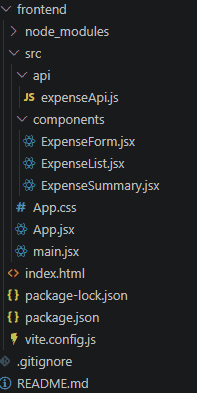
Step 9: Create the Axios API Service
Create an api folder inside src and add expenseApi.js.
This service will manage communication between React and Spring Boot.
File: src/api/expenseApi.js
import axios from "axios";

const API_URL = "http://localhost:8080/api/expenses";

export const getExpenses = () => axios.get(API_URL);

export const addExpense
    = (expense) => axios.post(API_URL, expense);

export const updateExpense = (id, expense) => axios.put(
    `${API_URL}/${id}`, expense);

export const deleteExpense
    = (id) => axios.delete(`${API_URL}/${id}`);

export const getMonthlySummary = (month) => axios.get(
    `${API_URL}/summary`, {params : {month}});
Explanation:
- getExpenses() retrieves all expense records.
- addExpense() sends new expense details.
- updateExpense() modifies an existing record.
- deleteExpense() removes an expense.
- getMonthlySummary() retrieves total and category-wise spending for a specified month.
Step 10: Create the Expense Form Component
The Expense Form allows users to enter expense details and edit existing records.
Create ExpenseForm.jsx inside the components folder.
File: src/components/ExpenseForm.jsx
import {useEffect, useState} from "react";

const initialForm = {
    amount : "",
    category : "Food",
    date : new Date().toLocaleDateString("en-CA"),
    description : ""
};

function ExpenseForm({onSave, editingExpense, onCancel})
{
    const [form, setForm] = useState(initialForm);

    useEffect(() => {
        if (editingExpense) {
            setForm({
                amount : String(editingExpense.amount),
                category : editingExpense.category,
                date : editingExpense.date,
                description :
                    editingExpense.description || ""
            });
        }
        else {
            setForm({
                ...initialForm,
                date :
                    new Date().toLocaleDateString("en-CA")
            });
        }
    }, [ editingExpense ]);

    const handleChange = (e) => {
        const {name, value} = e.target;

        setForm(
            (previous) => ({...previous, [name] : value}));
    };

    const handleSubmit = (e) => {
        e.preventDefault();

        if (!form.amount || Number(form.amount) <= 0) {
            return;
        }

        onSave({
            amount : form.amount,
            category : form.category,
            date : form.date,
            description : form.description.trim()
        });
    };

  return (
    <form className="expense-form" onSubmit={handleSubmit}>
      <h2>{editingExpense ? "Edit Expense" : "Add Expense"}</h2>

      <label htmlFor="amount">Amount (₹)</label>
      <input
  id = "amount"
  type = "number"
  name = "amount"
  placeholder = "Enter amount"
  min = "0.01"
  max = "9999999999.99"
  step = "0.01"
        value={form.amount}
        onChange={handleChange}
        required
      />

      <label htmlFor="category">Category</label>
      <select
        id="category"
        name="category"
        value={form.category}
        onChange={handleChange}
      >
        <option value="Food">Food</option>
        <option value="Travel">Travel</option>
        <option value="Shopping">Shopping</option>
        <option value="Bills">Bills</option>
        <option value="Health">Health</option>
        <option value="Others">Others</option>
      </select>

      <label htmlFor="date">Expense Date</label>
      <input
        id="date"
        type="date"
        name="date"
        value={form.date}
        onChange={handleChange}
        required
      />

      <label htmlFor="description">Description</label>
      <textarea
        id="description"
        name="description"
        placeholder="Enter expense details"
        maxLength={255}
        value={form.description}
        onChange={handleChange}
      />

      <div className="actions">
        <button type="submit">
          {editingExpense ? "Update Expense" : "Add Expense"}
        </button>

        {editingExpense && (
          <button
            type="button"
            className="secondary"
            onClick={onCancel}
          >
            Cancel
          </button>
        )
}
      </div>
    </form>
  );
      }

      export default ExpenseForm;
Explanation:
- useState stores the current form values.
- useEffect populates the form when the user selects an expense for editing.
- handleChange() updates the corresponding input field.
- handleSubmit() passes expense information to the parent component.
The expense amount is sent as a decimal string. Spring Boot converts it to BigDecimal for validation and storage.
Step 11: Create the Expense List Component
The Expense List displays saved records in a table with Edit and Delete buttons.
File: src/components/ExpenseList.jsx
function ExpenseList({expenses, onEdit, onDelete})
{
    if (expenses.length === 0) {
    return <p>No expenses found for the selected filters.</p>;
  }

  return (
    <div className="table-wrapper">
      <table>
        <thead>
          <tr>
            <th>Date</th>
            <th>Category</th>
            <th>Description</th>
            <th>Amount</th>
            <th>Actions</th>
          </tr>
        </thead>

        <tbody>
    {expenses.map((expense) => (
            <tr key={expense.id}>
              <td>{expense.date}</td>
              <td>{expense.category}</td>
              <td>{expense.description || "-"}</td>
              <td>
                ₹{Number(expense.amount).toLocaleString("en-IN", {
                  minimumFractionDigits: 2,
                  maximumFractionDigits: 2
                })}
              </td>

              <td>
                <div className="actions">
                  <button
        className = "secondary"
                    onClick={() => onEdit(expense)}
                  >
                    Edit
                  </button>

                  <button
                    className="danger"
                    onClick={() => onDelete(expense.id)}
                  >
                    Delete
                  </button>
                </div>
              </td>
            </tr>
          ))}
        </tbody>
      </table>
    </div>
  );
    }

    export default ExpenseList;
Explanation:
- expenses.map() creates a row for each record.
- The amount is formatted with the Indian rupee symbol.
- Edit and Delete buttons trigger functions provided by the parent component.
- An empty-state message is displayed when no matching expenses exist.
The number conversion here is for display formatting. Monetary calculations remain on the backend using BigDecimal.
Step 12: Create the Monthly Expense Summary
The Monthly Summary component displays the total spending and category-wise breakdown returned by Spring Boot.
File: src/components/ExpenseSummary.jsx
function ExpenseSummary({summary})
{
    if (!summary) {
        return null;
    }

    const formatMoney
        = (amount) => Number(amount).toLocaleString(
            "en-IN",
            {style : "currency", currency : "INR"});

  return (
    <section className="summary">
      <h2>Monthly Expense Summary</h2>

      <div className="total-card">
        <p>Total Expenses</p>
        <h3>{formatMoney(summary.total)}</h3>
      </div>

      <h3>Category-wise Spending</h3>

      {Object.keys(summary.byCategory).length === 0 ? (
        <p>No expenses recorded for this month.</p>
      ) : (
        <ul className="category-list">
          {Object.entries(summary.byCategory).map(
            ([category, amount]) => (
              <li key={category}>
                <span>{category}</span>
                <strong>{formatMoney(amount)}</strong>
              </li>
            )
          )}
        </ul>
      )}
    </section>
  );
}

export default ExpenseSummary;
Explanation:
- summary.total displays the selected month's total expenses.
- summary.byCategory contains spending totals grouped by category.
- Object.entries() converts the category totals into displayable rows.
- The component displays an empty-state message when no expenses exist for the selected month.
Step 13: Integrate the Components in App.jsx
The main application component connects the expense form, list, summary, and Axios services.
It also manages the selected month and category filters.
File: src/App.jsx
import "./App.css";

import {useEffect, useState} from "react";

import {
    addExpense,
    deleteExpense,
    getExpenses,
    getMonthlySummary,
    updateExpense
} from "./api/expenseApi";
import ExpenseForm from "./components/ExpenseForm";
import ExpenseList from "./components/ExpenseList";
import ExpenseSummary from "./components/ExpenseSummary";

function getCurrentMonth()
{
    const now = new Date();
    const year = now.getFullYear();
    const month
        = String(now.getMonth() + 1).padStart(2, "0");

    return `${year}-${month}`;
}

function App()
{
    const [expenses, setExpenses] = useState([]);
    const [summary, setSummary] = useState(null);
    const [editingExpense, setEditingExpense]
        = useState(null);

    const [month, setMonth] = useState(getCurrentMonth);
    const [category, setCategory] = useState("All");

    const [loading, setLoading] = useState(true);
    const [error, setError] = useState("");

    useEffect(() => {
        let active = true;

        async function loadData()
        {
            setLoading(true);
            setError("");

            try {
                const [expenseResponse, summaryResponse]
                    = await Promise.all([
                          getExpenses(),
                          getMonthlySummary(month)
                      ]);

                if (active) {
                    setExpenses(expenseResponse.data);
                    setSummary(summaryResponse.data);
                }
            }
            catch (err) {
                if (active) {
                    setError("Unable to load expenses.");
                    setSummary(null);
                }
            }
            finally {
                if (active) {
                    setLoading(false);
                }
            }
        }

        loadData();

        return () => { active = false; };
    }, [ month ]);

    const refreshExpenses = async () => {
        const [expenseResponse, summaryResponse]
            = await Promise.all([
                  getExpenses(), getMonthlySummary(month)
              ]);

        setExpenses(expenseResponse.data);
        setSummary(summaryResponse.data);
    };

    const handleSave = async (expense) => {
        try {
            setError("");

            if (editingExpense) {
                await updateExpense(editingExpense.id,
                                    expense);
            }
            else {
                await addExpense(expense);
            }

            setEditingExpense(null);
            await refreshExpenses();
        }
        catch (err) {
            setError("Unable to save expense.");
        }
    };

    const handleDelete = async (id) => {
        if (!window.confirm("Delete this expense?")) {
            return;
        }

        try {
            setError("");
            await deleteExpense(id);

            if (editingExpense?.id === id) {
                setEditingExpense(null);
            }

            await refreshExpenses();
        }
        catch (err) {
            setError("Unable to delete expense.");
        }
    };

    const filteredExpenses = expenses.filter((expense) => {
        const matchesMonth = expense.date.startsWith(month);

        const matchesCategory
            = category === "All"
              || expense.category === category;

        return matchesMonth && matchesCategory;
    });

  return (
    <div className="container">
      <header className="page-header">
        <h1>Personal Expense Tracker</h1>
        <p>Track your expenses and understand your spending</p>
      </header>

      {error && <p className="error">{error}</p>
}

< ExpenseForm
editingExpense = {editingExpense} onSave
    = {handleSave} onCancel
    = {() => setEditingExpense(
           null)} />

      <section className="filters">
        <h2>Filter Expenses</h2
      >

      <div className = "filter-fields"><div>
      <label htmlFor = "month">Select Month<
          /label>
            <input
              id="month"
              type="month"
              value={month}
              onChange={(e) => setMonth(e.target.value)}
            />
      </div>

          <div>
            <label htmlFor="filterCategory">Category</label>< select
id = "filterCategory"
              value={category}
              onChange={(e) => setCategory(e.target.value)}
            >
              <option value="All">All Categories</option>
              <option value="Food">Food</option>
              <option value="Travel">Travel</option>
              <option value="Shopping">Shopping</option>
              <option value="Bills">Bills</option>
              <option value="Health">Health</option>
              <option value="Others">Others</option>
            </select>
          </div>
        </div>
      </section>

      {loading ? (
        <p>Loading expenses...</p>
      ) : (
        <>
          <ExpenseSummary summary={
    summary} />

          <section className="expense-section">
            <h2>Expense Records</h2>

            <ExpenseList
              expenses={filteredExpenses}
              onEdit={setEditingExpense}
              onDelete={
    handleDelete}
            />
          </section>
        </>
      )}
    </div>
  );
              }

              export default App;
Explanation:
- useState manages the expense list, selected month, category, editing state, and summary.
- useEffect retrieves expense records and summary data whenever the selected month changes.
- handleSave() adds or updates expenses.
- handleDelete() deletes the selected record after confirmation.
- filteredExpenses shows records matching the selected month and category.
- refreshExpenses() retrieves updated expenses and monthly totals after a successful operation.
Note: The category filter applies to the expense table. The monthly summary intentionally includes all categories for the selected month, so the monthly total remains consistent.
Step 14: Add CSS Styling
Add the following styles to create a clean expense dashboard.
File: src/App.css
* {
  box-sizing: border-box;
}

body {
  margin: 0;
  font-family: Arial, sans-serif;
  color: #243247;
  background: #f4f6f9;
}

.container {
  max-width: 1000px;
  margin: 35px auto;
  padding: 20px;
}

.page-header {
  text-align: center;
  margin-bottom: 30px;
}

h1 {
  color: #1e3a5f;
}

.expense-form,
.filters,
.summary,
.expense-section {
  background: white;
  border-radius: 10px;
  padding: 22px;
  margin-bottom: 20px;
  box-shadow: 0 2px 8px rgba(0, 0, 0, 0.06);
}

input,
select,
textarea {
  width: 100%;
  padding: 11px;
  margin: 8px 0 16px;
  border: 1px solid #cbd5e1;
  border-radius: 6px;
  font: inherit;
}

label {
  display: block;
  font-weight: 600;
}

button {
  padding: 10px 15px;
  border: none;
  border-radius: 6px;
  color: white;
  background: #2563eb;
  cursor: pointer;
}

button:hover {
  opacity: 0.9;
}

.actions {
  display: flex;
  gap: 8px;
  flex-wrap: wrap;
}

.secondary {
  background: #64748b;
}

.danger {
  background: #dc2626;
}

.filter-fields {
  display: grid;
  grid-template-columns: repeat(2, minmax(0, 1fr));
  gap: 20px;
}

.total-card {
  background: #e0f2fe;
  padding: 20px;
  border-radius: 8px;
  margin-bottom: 20px;
}

.total-card h3 {
  font-size: 28px;
  margin: 8px 0;
  color: #075985;
}

.category-list {
  list-style: none;
  padding: 0;
}

.category-list li {
  display: flex;
  justify-content: space-between;
  padding: 12px 0;
  border-bottom: 1px solid #e2e8f0;
}

.table-wrapper {
  overflow-x: auto;
}

table {
  width: 100%;
  border-collapse: collapse;
  min-width: 620px;
}

th,
td {
  padding: 12px;
  border-bottom: 1px solid #e2e8f0;
  text-align: left;
}

th {
  background: #f1f5f9;
}

.error {
  padding: 12px;
  background: #fee2e2;
  color: #b91c1c;
  border-radius: 6px;
}

@media (max-width: 600px) {
  .filter-fields {
    grid-template-columns: 1fr;
  }

  .container {
    padding: 12px;
    margin: 12px auto;
  }
}
Step 15: Configure the React Entry Point
Replace the generated src/main.jsx with:
File: src/main.jsx
import React from "react";
import ReactDOM from "react-dom/client";

import App from "./App.jsx";

ReactDOM.createRoot(document.getElementById("root")).render(
  <React.StrictMode>
    <App />
  </React.StrictMode>
);
Step 16: Run the React Application
Open the terminal in the React project directory and execute:
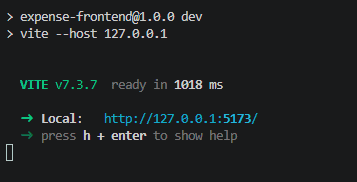
npm run devThe Vite development server normally starts at:
Open the address in your browser.
Ensure both applications are running:
Application | Address |
|---|---|
React Frontend |
|
Spring Boot Backend |
|
Expense API |
|
Step 17: Test the Personal Expense Tracker
Once the frontend and backend are running, test each feature to verify that the application works correctly.
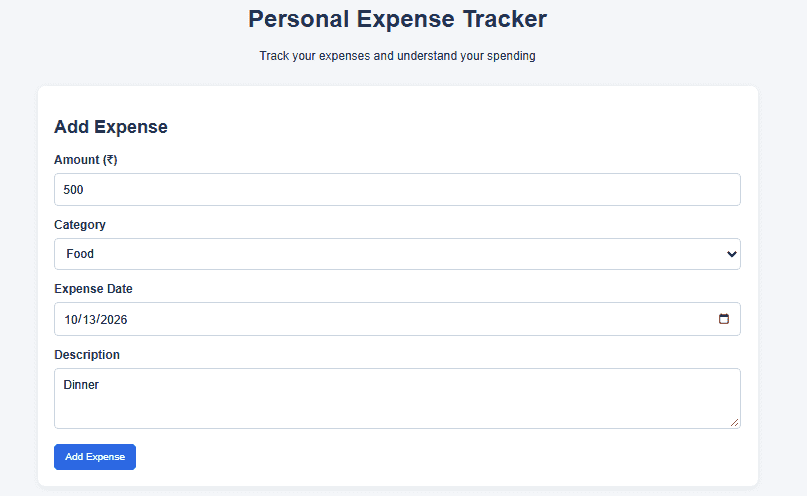
1. Add a New Expense
Enter the following details in the expense form:
Field | Value |
|---|---|
Amount | ₹450.00 |
Category | Food |
Date | 2026-10-12 |
Description | Lunch |
Click Add Expense .
Expected Result: The expense is saved in the MySQL database and appears in the expense table when October 2026 is selected.
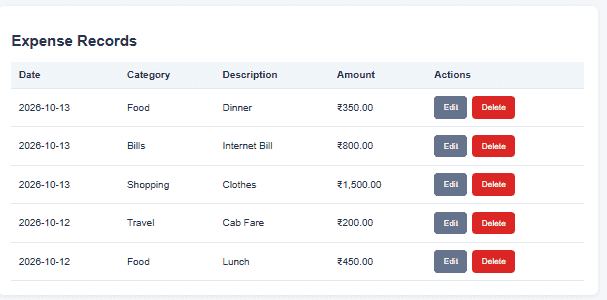
2. View All Expenses
Add a few more sample records.
Amount | Category | Date | Description |
|---|---|---|---|
₹450.00 | Food | 2026-10-12 | Lunch |
₹200.00 | Travel | 2026-10-12 | Cab Fare |
₹1,500.00 | Shopping | 2026-10-13 | Clothes |
₹800.00 | Bills | 2026-10-13 | Internet Bill |
₹350.00 | Food | 2026-10-13 | Dinner |
Expected Result: The expense table displays the saved records with their dates, categories, descriptions, and amounts.
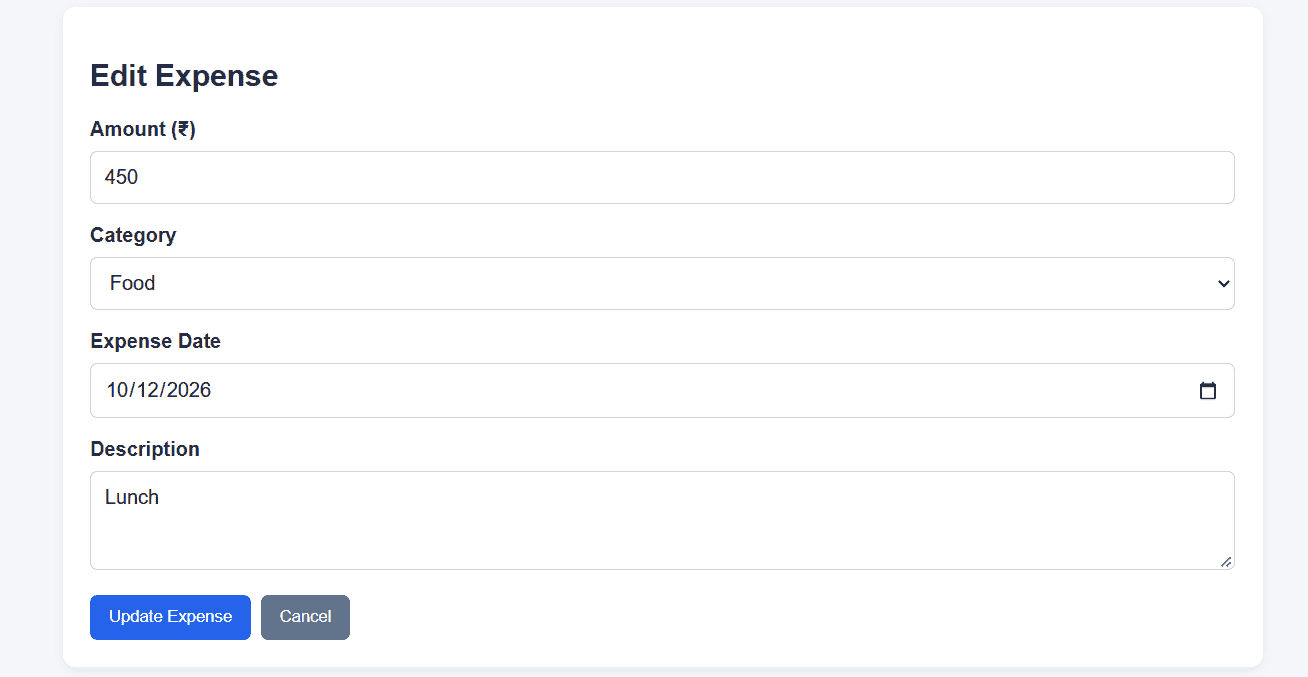
3. Edit an Expense
Click Edit beside an expense, change its amount or description, and click Update Expense.
Expected Result: The updated record appears in the expense table and the database is updated.
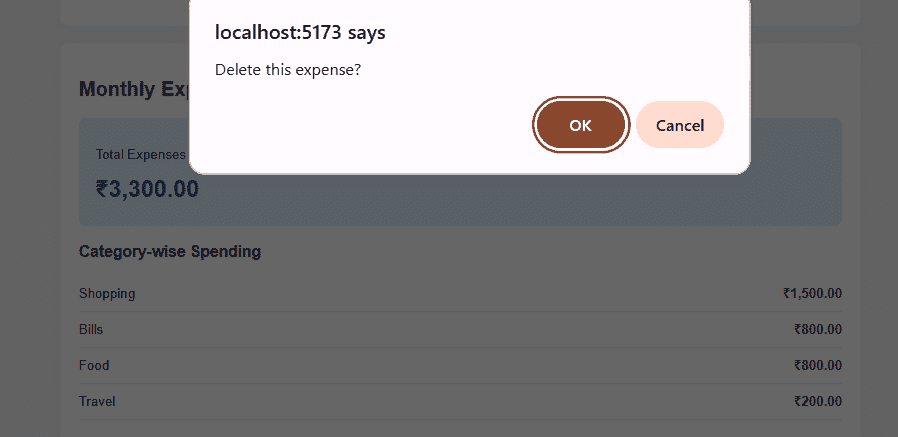
4. Delete an Expense
Click Delete beside an expense and confirm the action.
Expected Result: The expense is removed from the database, and the list and summary are refreshed.
5. Filter Expenses
Select 2026-10 in the month filter and Food in the category filter.
Expected Result: Only Food expenses recorded in October 2026 appear in the expense table.
6. Check Monthly Expense Summary
Using the five sample records above, before any edits or deletions, the monthly total should be:
Step 18: Verify the Data in MySQL
Open MySQL Workbench and execute the following query:
USE expensedb;
SELECT * FROM expenses;
Expected Result: The expenses table contains the expense records created through the React application.
You can also verify the monthly expense total using:
SELECT SUM(amount) AS total_expenses
FROM expenses
WHERE date >= '2026-10-01'
  AND date < '2026-11-01';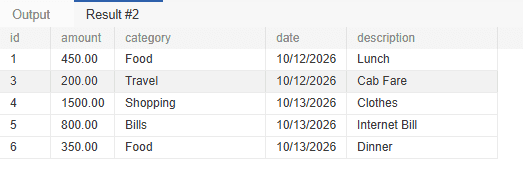
Common Errors and Troubleshooting
Error | Possible Cause | Solution |
|---|---|---|
CORS policy error | React origin is not allowed | Verify |
MySQL access denied | Incorrect database credentials | Verify MySQL username, password, and permissions |
Connection refused on port 8080 | Spring Boot is not running | Start the backend and inspect its console |
HTTP 400 Bad Request | Invalid amount, date, or category | Verify the submitted JSON and validation rules |
HTTP 404 Not Found | Incorrect endpoint or missing expense ID | Check the URL and requested ID |
Blank React page | JavaScript or import error | Inspect browser console and terminal output |
Expenses not displayed | API request failed or selected filters exclude the records | Check the Network tab and filter values |
| PowerShell execution policy restriction | Use |
Date formatting note: To make the form's default date consistent across browsers, use the following helper instead of relying on locale-based date formatting:
function getToday()
{
    const now = new Date();
    const year = now.getFullYear();
    const month
        = String(now.getMonth() + 1).padStart(2, "0");
    const day = String(now.getDate()).padStart(2, "0");

    return `${year}-${month}-${day}`;
}
In ExpenseForm.jsx, replace both occurrences of new Date().toLocaleDateString("en-CA") with getToday(). This produces the YYYY-MM-DD format required by the date input.
Future Enhancements
After completing the basic project, the application can be extended with additional capabilities.
- User Authentication: Implement Spring Security and JWT to allow users to manage their own private expense records.
- Budget Management: Let users set monthly spending limits and compare actual expenses against their budgets.
- Expense Charts: Display spending trends and category distributions using charts.
- Search and Pagination: Add backend-supported searching, filtering, and pagination for large datasets.
- Export Reports: Allow users to download expense records as CSV or PDF files.
- Recurring Expenses: Automatically create scheduled expense records for subscriptions or regular payments.
For a production application, also add authentication and authorization, DTO-based API contracts, database migrations, centralized error handling, and automated tests. The current project is a single-user educational example and does not separate financial records by user.
