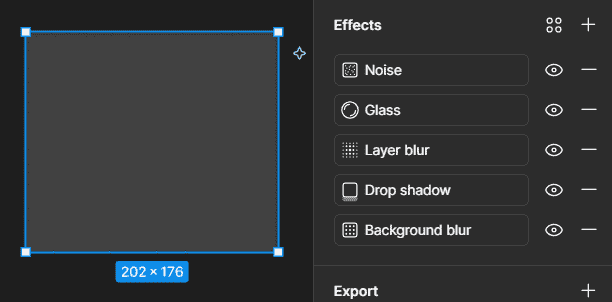
Effects in Figma can be used to add depth, blur, texture, and other visual treatments to design elements. Figma provides several effects that can be applied and adjusted from the Effects section in the right sidebar.
Effects in Figma
Figma primarily has several types of effects:
- Glass
- Drop Shadow
- Inner Shadow
- Layer Blur
- Background Blur
- Noise
- Texture
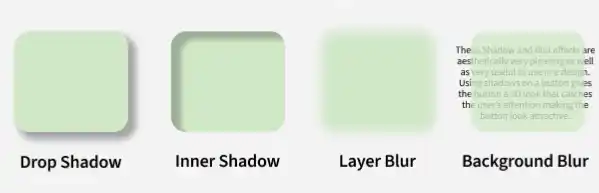
Effects can change the appearance of a layer and help create depth, focus, texture, or other visual treatments. For example, a drop shadow can help separate an element from its background.
Shadow Effects in Figma
Figma provides two shadow effects
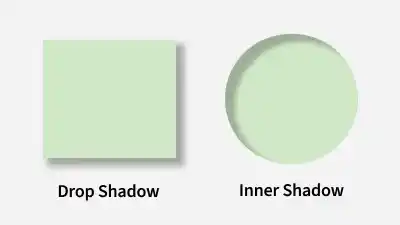
- Drop Shadow: Drop shadow adds a shadow behind a layer to create depth and separation from the background. It can be used on elements such as buttons, cards, text, and icons.
- Inner Shadow: Inner shadow adds a shadow inside a layer to create an inset or pressed appearance. It can be used to add depth and visual detail to design elements.
Blur Effects in Figma
Figma provides two types of blur effects
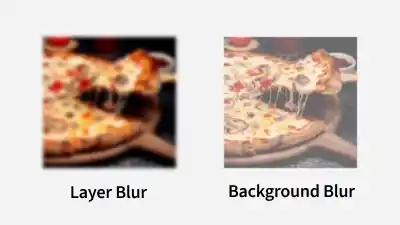
- Layer Blur: Layer blur applies blur to the selected layer. It can be used to soften or reduce focus, anonymize information, create abstract backgrounds, or create photographic effects such as bokeh.
- Background Blur: Background blur blurs the layers behind the selected layer on the canvas. It is commonly used to create depth and translucent interface effects.
Other Effects in Figma
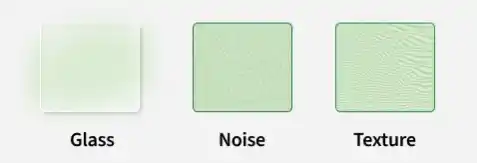
Figma also provides Glass, Noise, and Texture effects.
- Glass: The Glass effect gives a layer a translucent appearance and can change how the content behind it looks.
- Noise: The Noise effect adds random pixels to a layer to create a grainy or film-like appearance.
- Texture: The Texture effect adds a roughened texture to the edges of a layer.
Add Effects in Figma
- Select the layer or object you want to apply an effect to.
- In the right sidebar, find the "Effects" section and click the "+" button to add an effect.
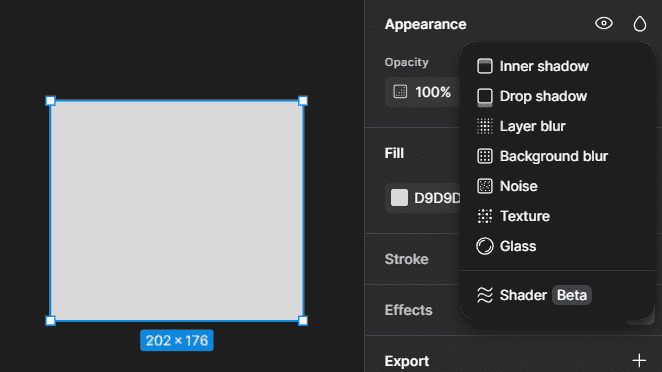
- Select the effect you want to use from the effects menu.
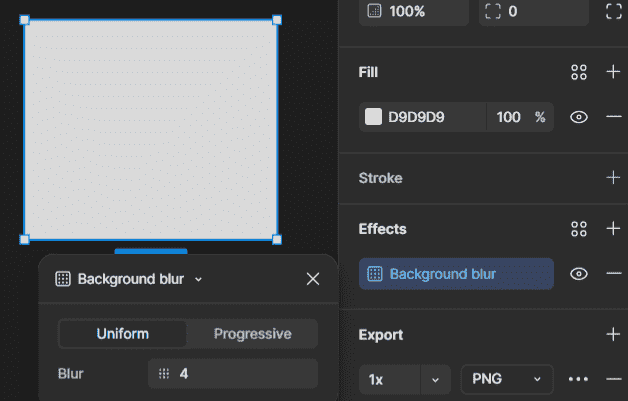
- Click the effect settings icon to adjust the properties of the selected effect.
- Adjust the available properties based on the selected effect.
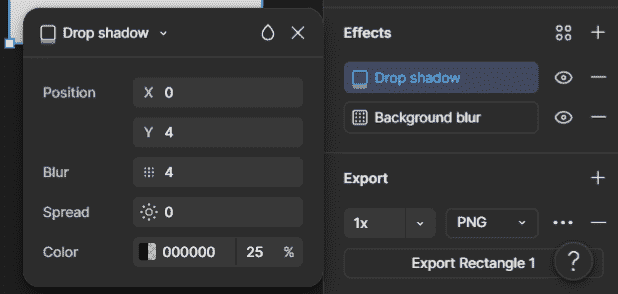
- You can add multiple effects to a layer and reorder them in the Effects section. The order of effects can affect how they appear on the canvas.