

Exporting your presentation as a PDF freezes the formatting and layout so it looks the same on any device. Recipients can view the slides even if they don’t have PowerPoint, but they cannot edit them.
Methods to Convert/Export pdf
Method 1: Using Export
Step 1: Open your PowerPoint presentation.
Step 2: Go to File select Export.
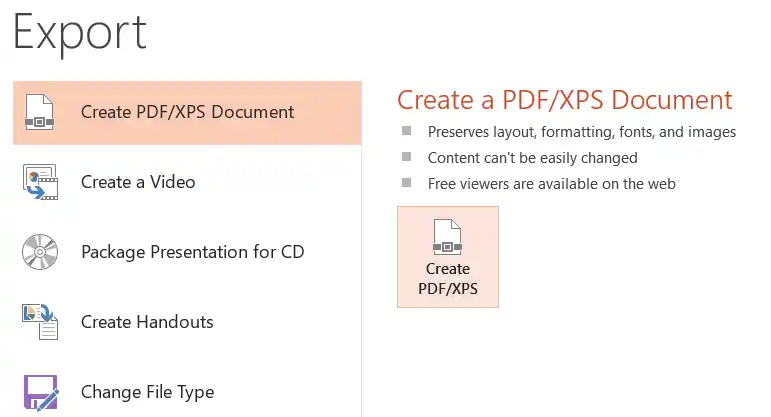
Step 3: Select Create PDF/XPS Document.
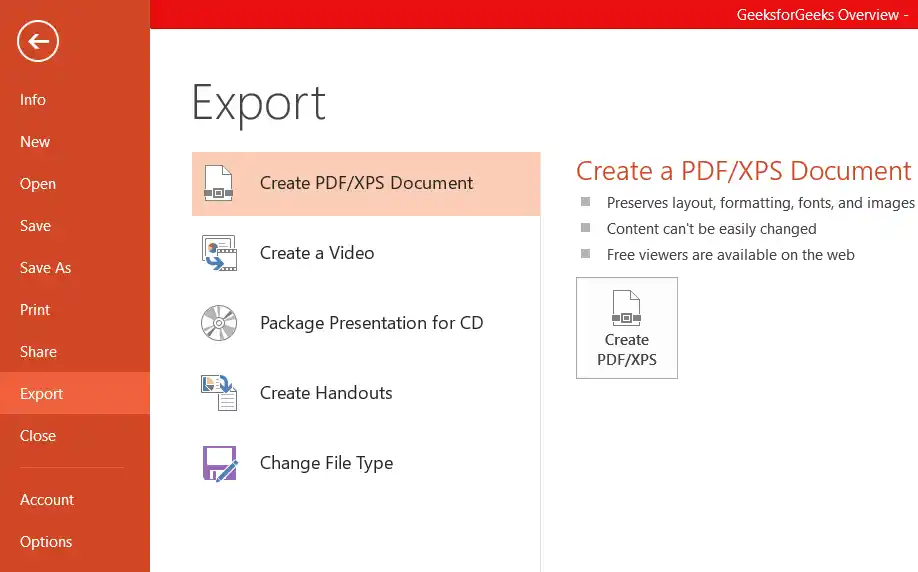
Step 4: Click Create PDF/XPS.
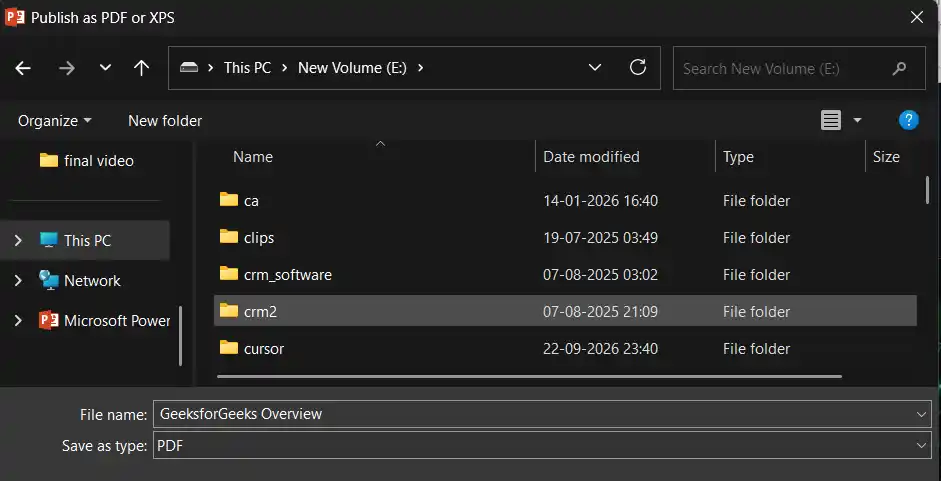
Step 5: In the dialog box:
- Choose the location where you want to save the PDF.
- Enter a file name if needed.
Step 6: Under Optimize for, choose:
- Standard: Higher quality (best for printing).
- Minimum size: Smaller file size (best for email).
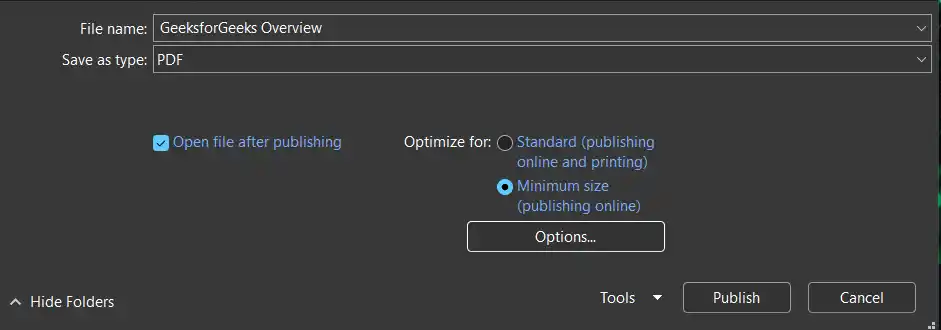
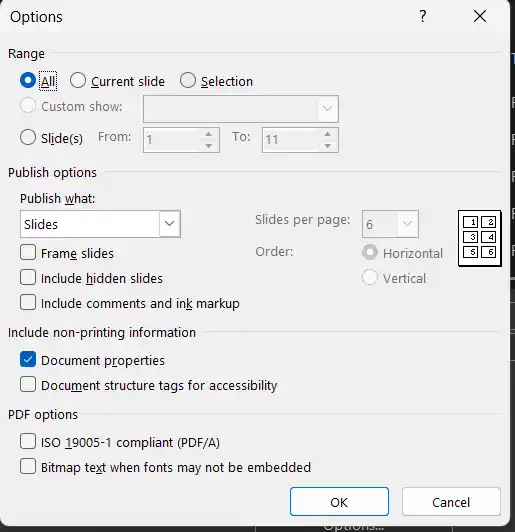
Step 7: Click Options to customize:
- Which slides to include (All, Current slide, or a custom range)
- Publish what (Slides, Handouts, Notes pages, or Outline)
- Number of slides per page (for handouts)
- Include hidden slides or comments
Step 8 : Click Publish.
Method 2: Using Save As
Step 1: Go to File select Save As (or Save a Copy).
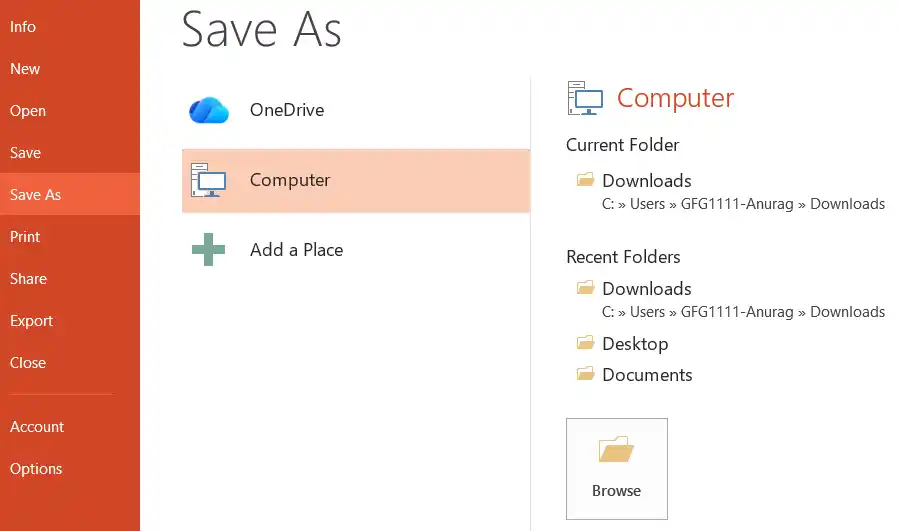
Step 2: Choose the location by clicking on browse.
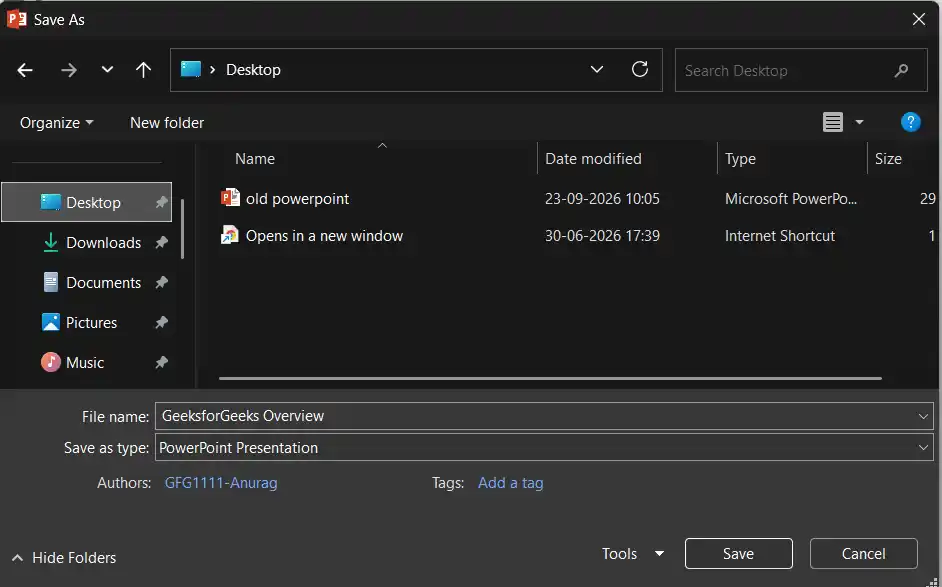
Step 3: In the Save as type dropdown, select PDF (*.pdf).
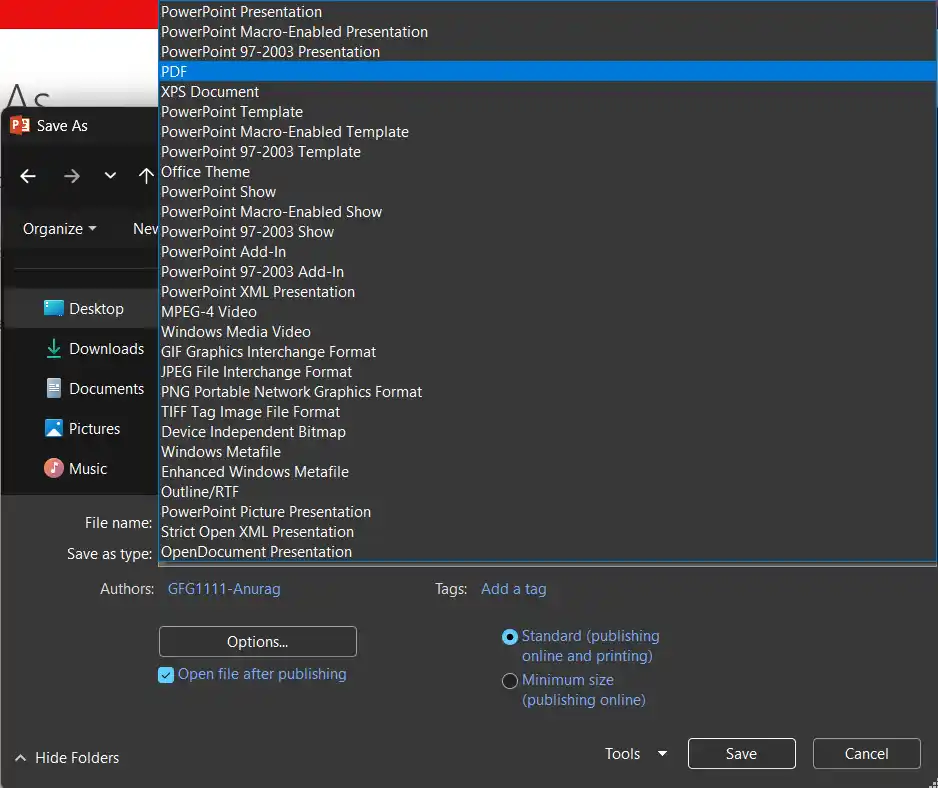
Step 4: Choose Standard or Minimum size.
Step 5: Click Save.
