

Docker containers run in isolated network namespaces. By default, they are unreachable from the host or the internet. To make a service accessible, we must bridge the gap between the Container Network and the Host Network.
Port Mapping Syntax
The -p (or --publish) flag is the key. The syntax follows the HOST:CONTAINER pattern: docker run -p <Host_IP>:<Host_Port>:<Container_Port>/<Protocol> <Image>
- Host Port: The port you hit in your browser (e.g., localhost:8080).
- Container Port: The port the application is listening on inside the container (e.g., Nginx defaults to 80).
- Protocol: Defaults to tcp, but can be udp (useful for DNS or streaming services)
Pulling Image From Docker Hub
Docker Hub is a hosted repository service for finding, storing, and sharing container images. It provides official images along with documentation and commands for pulling them.
- Image Repository: Stores and distributes Docker images.
- Official Images: Provides trusted images such as Nginx with official image tags.
- Image Information: Each repository contains details about the image, available tags, and usage instructions.
- Docker Pull: Provides the
docker pullcommand to download an image to your local system.
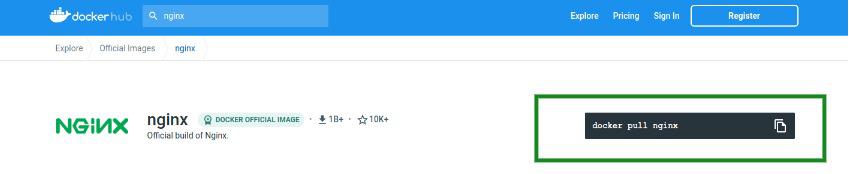
Step 1: Use the command to pull the Nginx image.
$ docker pull nginxOutput:

Running A Container From The Pulled Image:
- When we run a container using the docker run command, it does not publish any of its ports to the outside world.
- To expose our container port to services outside of Docker, or to containers that are not in the same network as our container, use the --publish or -p flag.
- A typical example of --publish flag:
$ docker run -p 8080:80 --name webhost -d nginxLet us break this command to understand better:
- Docker run Nginx: will start the container from the Nginx image.
- -p 8080:80: will map TCP port 80 in the container to port 8080 on the Docker host.
- --name webhost: will name our container webhost, if not specified docker will give it a random name.
- -d: flag will run docker in a detached mode that is, in the background.

$ docker inspect nginxThis will list all configurations of the Nginx image, from where we can locate the ExposedPort property.

Step 2: This data can be filtered out using the --format flag:
$ docker inspect --format="{{.ContainerConfig.ExposedPorts}}" nginx
Step 3: Now that we know for sure that Nginx runs on TCP port 80 inside the container's virtual network. We can use the docker run command.
$ docker run -p 8080:80 --name webhost -d nginx
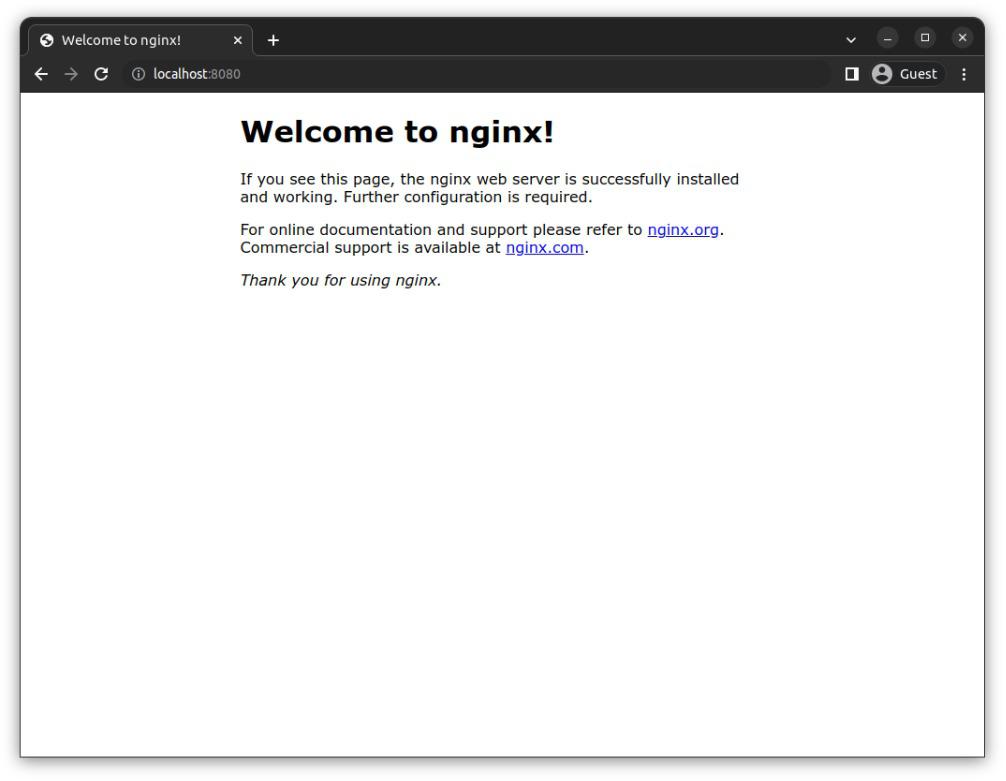
Step 4: Verify if Nginx is running on port 8080:
Creating And Exposing Local Containers
Well, this was easy, let us create a local docker image for a react app and publish its port:
Step 1: For this, I am using a simple react application. Let us initialize the react application first:
$ npx create-react-app gfg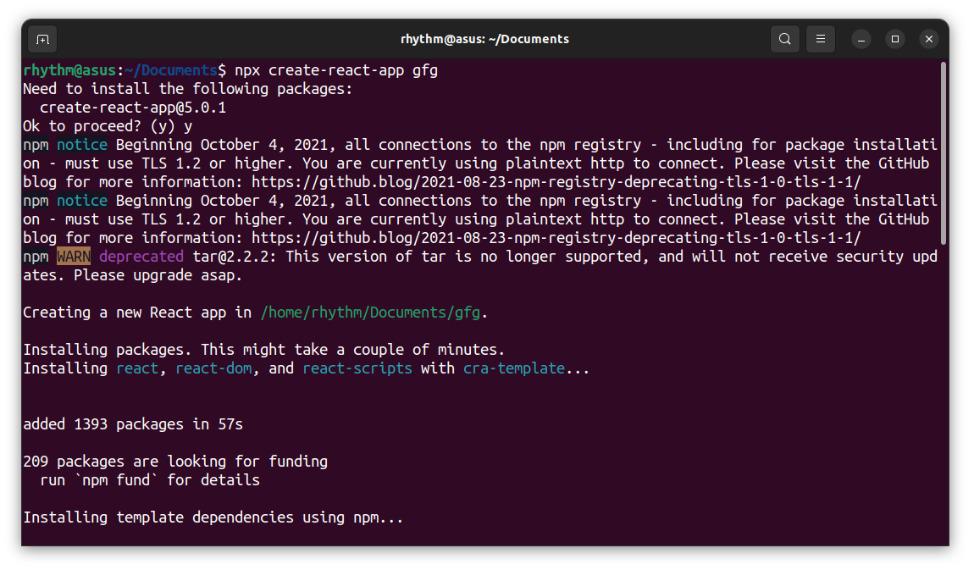
If you don't have NodeJs installed you can clone a react app project from GitHub.
Step 2: Create A Dockerfile file in the root directory of the project. Create a Dockerfile named file in your project's root directory and paste this:
# pull official base image
FROM node:13.12.0-alpine

# set working directory
WORKDIR /app

# add `/app/node_modules/.bin` to $PATH
ENV PATH /app/node_modules/.bin:$PATH

# install app dependencies
COPY package.json ./
COPY package-lock.json ./
RUN npm install --silent
RUN npm install react-scripts@3.4.1 -g --silent

# add app
COPY . ./

# can be skipped
EXPOSE 3000

# start app
CMD ["npm", "start"]
Step 3: Build An Image.
$ docker build -t basic-react-app .
Step 4: Run the Image:.$ docker inspect --format="{{.ContainerConfig.ExposedPorts}}" basic-react-app
$ docker run -p 3000:3000 -d basic-react-appThis step will need a little explanation. Ours react app runs on port 3000 inside the container -p 3000:3000 maps this port to the host port.

Step 5: Verify in your browser

Common Commands for Debugging
| Command | Purpose |
|---|---|
| docker ps | The go-to command. Shows all running containers and their PORT mappings. |
| docker port <container_id> | Lists all port mappings for a specific container in a clean format. |
| docker inspect --format='{{.NetworkSettings.Ports}}' <id> | Returns a JSON map of all port bindings for that specific container. |
| docker image inspect --format='{{.Config.ExposedPorts}}' <image> | Shows which ports the image author intended to be used (the EXPOSE instruction). |
| docker run -P <image> | Publish all: Maps all exposed ports in the Dockerfile to random high-range ports on the host. |
