

GitHub Actions is a workflow automation platform built into GitHub that helps automate software development tasks such as building, testing, and deploying applications. It can automatically run workflows when events occur in a repository, reducing manual effort and repetitive tasks.
- Automates build, test, deployment, and other development tasks.
- Workflows can run automatically when events such as code pushes or pull requests occur.
- Helps teams continuously integrate, test, deliver, and deploy code changes.
- Automates repetitive tasks and makes development workflows more consistent.
- Can automatically deploy applications, such as static websites to GitHub Pages.
- Provides reusable workflows and Actions for technologies such as HTML, Node.js, Python, and more.
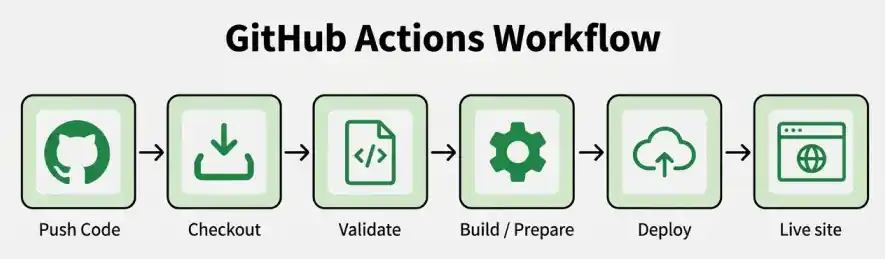
CI/CD
CI/CD is a set of practices that automates the process of building, testing, and releasing software. It helps teams deliver code changes faster, more reliably, and with less manual effort.
- CI (Continuous Integration): Frequently integrates and automatically tests code changes.
- CD (Continuous Delivery/Deployment): Automates the process of preparing and releasing validated code.
- Faster releases: Reduces the time and effort required to deliver updates.
- Early issue detection: Automated testing helps identify problems before deployment.
- Consistent deployments: Reduces errors caused by manual deployment processes.
For learning more about CI/CD visit this article Introduction to CI/CD
Setting Up CI/CD Pipeline with GitHub Actions
GitHub Actions allows you to create automated CI/CD pipelines directly inside a GitHub repository. In this example, we will create a simple workflow that automatically runs whenever code is pushed to the main branch.
Step 1: Create a GitHub Repository
Create a new repository on GitHub and give it a suitable name and clone the repository to your local system:
git clone https://github.com/<username>/github-actions-demo.gitcd github-actions-demo.gitStep 2: Create a Simple HTML File
Create a file named index.html in the repository:
<!DOCTYPE html>
<html lang="en">
    <head>
        <meta charset="UTF-8">
        <meta name="viewport" content="width=device-width, initial-scale=1.0">
        <title>GitHub Actions Demo</title>
    </head>

    <body>
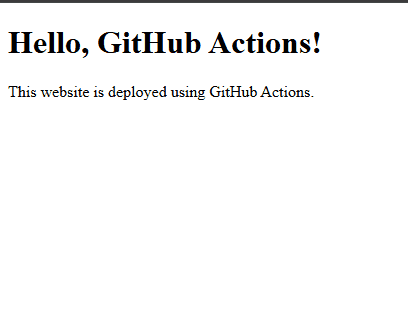
        <h1>Hello, GitHub Actions!</h1>
        <p>This website is deployed using GitHub Actions.</p>
    </body>
</html>
Step 3: Create the GitHub Actions Workflow
Create the .github/workflows directory and add a file named deploy.yml. And inside deploy.yaml write this script :
name: Deploy Website

on:
  push:
    branches:
      - main

permissions:
  contents: read
  pages: write
  id-token: write

jobs:
  deploy:
    runs-on: ubuntu-latest

    steps:
      - name: Checkout code
        uses: actions/checkout@v4

      - name: Validate HTML
        run: echo "Validation of HTML files completed successfully."

      - name: Setup Pages
        uses: actions/configure-pages@v5

      - name: Upload website
        uses: actions/upload-pages-artifact@v3
        with:
          path: .

      - name: Deploy to GitHub Pages
        id: deployment
        uses: actions/deploy-pages@v4
Understanding the GitHub Actions Workflow
The workflow file uses YAML syntax to define when the pipeline should run, what permissions it needs, and which tasks should be executed. Let's understand each keyword used in the workflow.
name
name: Deploy Website
- Defines the name of the GitHub Actions workflow.
- This name appears in the Actions tab of the GitHub repository.
on
on:push:branches:- main
- Defines the event that triggers the workflow.
- In this example, the workflow runs whenever code is pushed to the
mainbranch. - Other common events include
pull_request,schedule, andworkflow_dispatch.
permissions
permissions:contents: readpages: writeid-token: write
- Defines the permissions granted to the workflow's
GITHUB_TOKEN. contents: readallows the workflow to read repository contents.pages: writeallows the workflow to deploy content to GitHub Pages.id-token: writeallows the workflow to request an OpenID Connect (OIDC) token, which is required by the Pages deployment action.
jobs
jobs:deploy:
- Defines the jobs that make up the workflow.
- A workflow can contain one or multiple jobs.
deployis the identifier assigned to this job.
runs-on
runs-on: ubuntu-latest
- Specifies the operating system of the runner used to execute the job.
ubuntu-latestuses a GitHub-hosted Ubuntu runner.
steps
steps:
- Defines the individual tasks performed by a job.
- Steps execute in the order in which they are listed.
name in a Step
- name: Checkout code
- Gives a descriptive name to an individual step.
- The name appears in the workflow execution logs.
uses
uses: actions/checkout@v4
- Uses a reusable GitHub Action created by GitHub or the community.
actions/checkout@v4checks out the repository's code onto the runner.@v4specifies the version of the Action.
run
run: echo "Validation of HTML files completed successfully."
- Executes a shell command on the runner.
- In this example, it prints a message to the workflow log.
runcan also execute commands such asnpm install,npm test, or scripts.
actions/configure-pages
uses: actions/configure-pages@v5
- Configures the workflow for GitHub Pages deployment.
- It prepares the Pages environment and provides configuration information needed by later steps.
actions/upload-pages-artifact
uses: actions/upload-pages-artifact@v3with:path: .
- Packages the website files as a Pages artifact.
path: .specifies the directory whose contents should be uploaded.- Here,
.refers to the repository's current working directory.
with
with:path: .
- Provides input parameters to a reusable Action.
- The available parameters depend on the Action being used.
- In this example,
pathtells the upload Action which files to package.
id
id: deployment
- Assigns an identifier to a step.
- It allows outputs from that step to be referenced by other steps or workflow expressions.
- In this example, it identifies the deployment step as
deployment.
actions/deploy-pages
uses: actions/deploy-pages@v4
- Deploys the uploaded Pages artifact to GitHub Pages.
- After successful deployment, the website becomes available through its GitHub Pages URL.
Step 4: Configure GitHub Pages
In your GitHub repository:
- Go to Settings. And select Pages
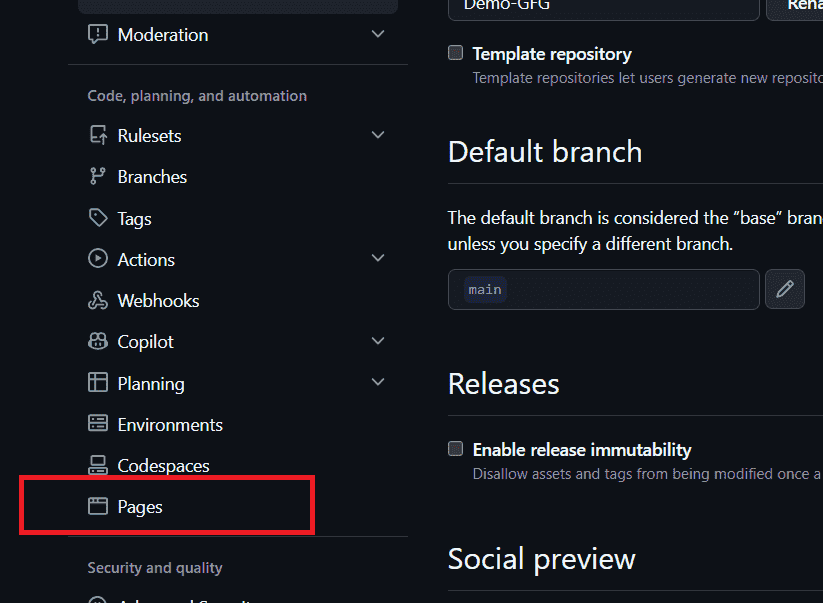
- Under Build and deployment, select GitHub Actions.
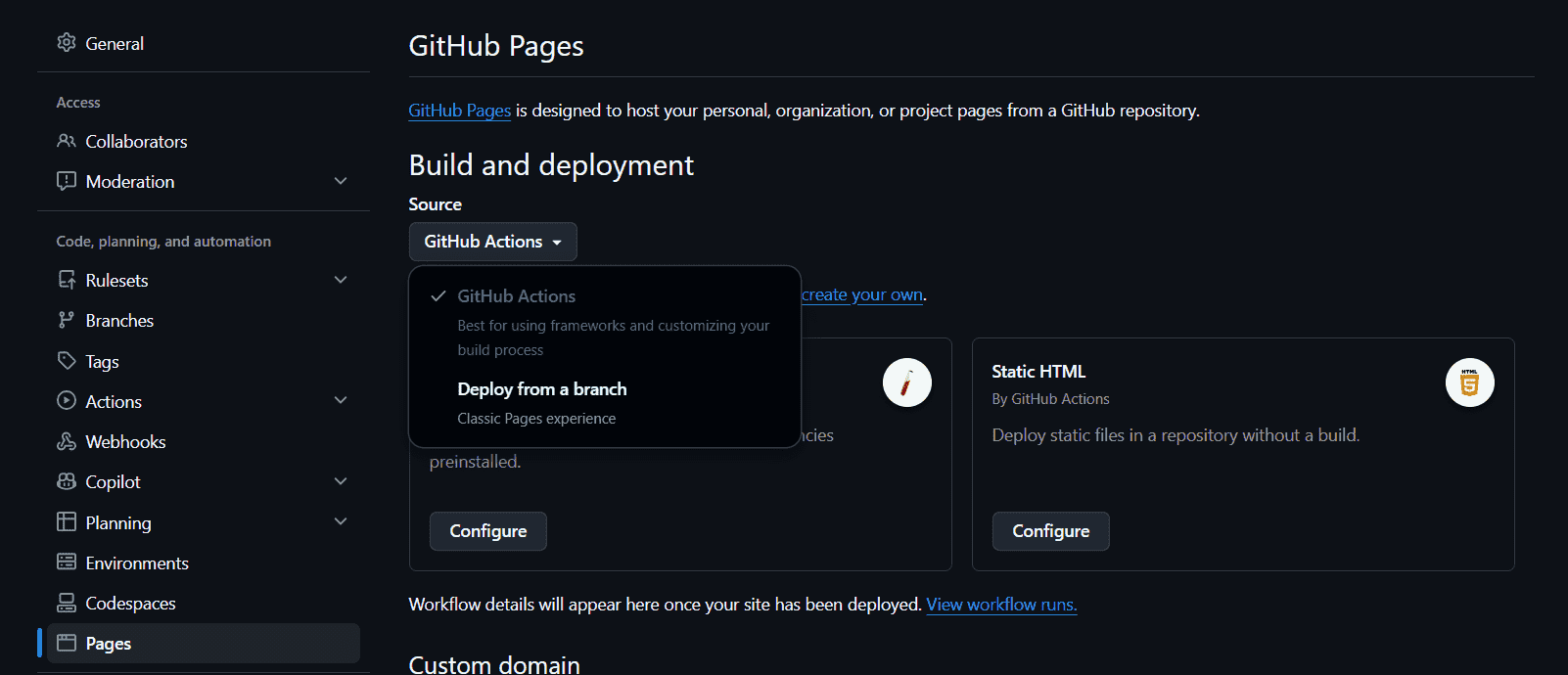
- Save the configuration.
Step 5: Commit and Push the Code
Run the following commands:
git add .git commit -m "Add GitHub Actions deployment"git push origin main
Step 6: View the Workflow
After pushing the code:
- Open your GitHub repository.
- Go to the Actions tab.
- Select Deploy Website.
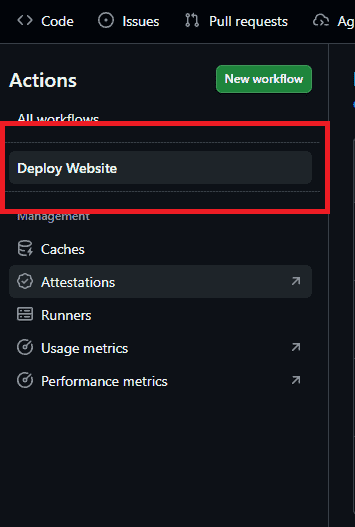
- Open the latest workflow run.

Step 7: Verify the Deployment
Once the workflow completes successfully, open:
Repository → Settings → PagesGitHub will provide the URL of your deployed website, Open the URL in a browser to verify that your HTML page is live.
Step 8: Test the CI/CD Pipeline
Modify the HTML file:
<h1>Welcome to My Website</h1><p>Updated using GitHub Actions.</p>
Then push the changes:
git add .git commit -m "Update website"git push origin main
GitHub Actions automatically starts the workflow again and deploys the updated website.
