

Docker Networking allows containers to communicate and share resources through dedicated networks. Docker supports different network drivers, with Bridge being the default driver for containers on a single Docker host.
- Docker supports network drivers such as Bridge and Macvlan.
- Bridge Network is the default network driver when no driver is specified.
- Single Host bridge networks allow communication between containers running on the same Docker host.
Bridge Network Driver
Docker Bridge Network is the default network used when no specific network is mentioned while creating a container. Containers connected to the same bridge network can communicate with each other.
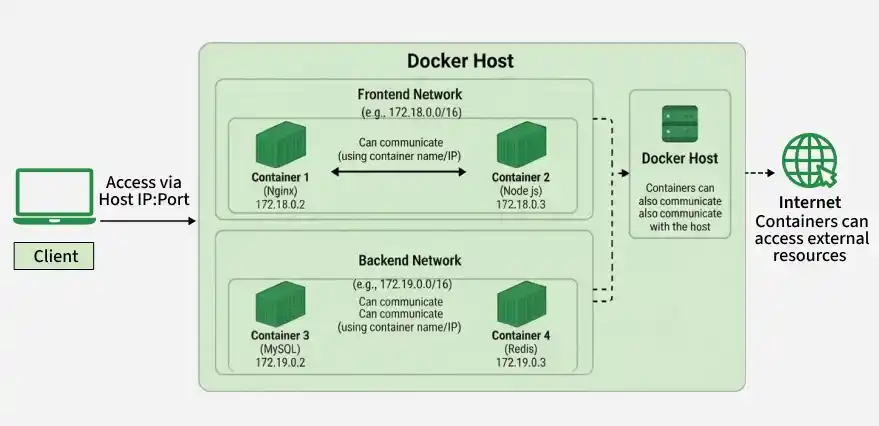
- Containers are automatically connected to the default bridge network if no network is specified.
- Containers on the same network can communicate with each other.
- Containers on different networks cannot communicate directly without proper network configuration.
- Use
docker network lsto view available Docker networks.
docker network lsTypes of Docker Networks
There are three main default networks as mentioned following and also to know more about Docker networking refer to Docker Networking.
- Bridge(default)
- Host
- None/Null
Connect a Container To a User-Defined Bridge
In the default bridge network, containers communicate using their IP addresses, not their container names. Since container IP addresses can change, relying on them in applications is not recommended.
- Containers in the default bridge network communicate using container IP addresses.
- Container names cannot be used directly for communication in the default bridge network.
- Container IP addresses may change when containers are recreated.
- Avoid hardcoding container IP addresses for application connectivity.
To Create Custom Bridge Network
To create a Custom Bridge Network, we can use docker network command, the syntax of this as follows:
Syntax
docker network create -d <driver> <networkName>How to create Custom Bridge Network? A Step-By-Step Guide
The following are the steps that guides you in creating a custom bridge network:
Step 1: Ensure Docker is Running
- The following helps in checking the docker running status:
sudo systemctl status docker - The following command helps in enabling the docker service:
sudo systemctl enable docker --nowStep 2: Create Bridge Network
- Firstly check the existing networks list with the following command:
docker network ls- Use the following command to create a new bridge network:
docker network create --driver bridge mynetworkStep 3: Verify the Network Creation
- Use the following command to verify whether the network is successfully created or not:
docker network lsStep 4: Inspect the Bridge Network
- Inspect the created custom bridge networks by using the following command.
docker network inspect mynetworkIf containers are created in custom bridge network. Each container can access other using containerName/ContainerIP.Delete Containers which are running in default bridge or create container with different name.
Default Bridge Network
Every installation of Docker provides a pre-built default Bridge Network with a Bridge driver scoped locally. You can verify the same using the network ls to know more commands refer to command. Docker – Instruction Commands.
sudo docker network ls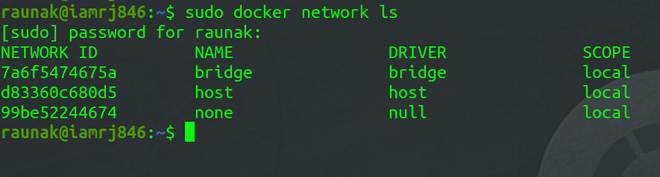
- Bridge Driver always provides single-host networking hence, the scope is local.
Connecting A Docker Container In Bridge Network
Note that the Bridge Network we saw in the previous step is the default network for Docker Containers. If you don't specify any other network, all new Containers will be joined to this default network. To connect an Ubuntu Container to the default bridge network, use this command.
sudo docker run -dt ubuntu

Inspecting The Bridge Network
After you have created the Docker Container, check whether it is running or not.
sudo docker container ls
Since the Container is already running, we can now use the network inspect command to inspect the Docker default bridge network.
sudo docker network inspect bridge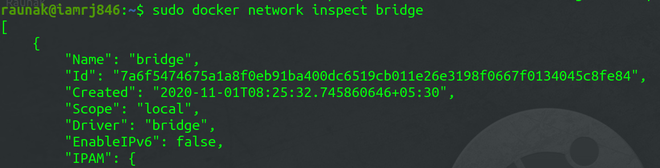
You can see the details related to the Bridge Network in JSON format. You can also check the Containers associated with the network in the Container object.

Testing The Network Connectivity
To test the network connectivity, note down the IP address of the Container. In this example, the IP address is "172.17.0.2/16".We will ping this address from the Docker Host to check the connectivity.
ping 172.17.0.2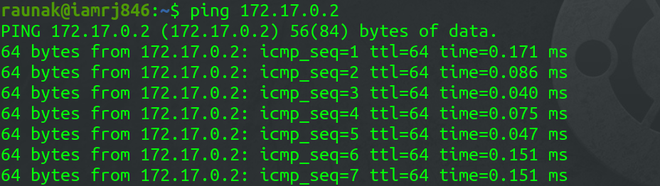
It shows that the host is able to ping the Docker Container in the network.
User-Defined Bridges Vs Default Bridge
| Feature | Default Bridge Network | User-Defined Bridge Network |
|---|---|---|
| Configuration | Provides basic network isolation. | Supports custom network configuration. |
| Container Communication | Uses IP addresses. | Uses container names or IP addresses. |
| Host Communication | Uses host IP addresses. | Uses host IP addresses. |
| DNS Resolution | Does not provide automatic container-name resolution. | Supports automatic container-name resolution through embedded DNS. |
Docker Network Host Vs Bridge
| Feature | Host Network | Bridge Network |
|---|---|---|
| Network Isolation | It shares the host's network stack with providing no network isolation | it provides a private internal network, isolating containers from the host network |
| Performance | It offers better network performance due to direct use of the host's network | It slightly lower performance due to the overhead of network bridging |
| Use Case | It is suitable for applications that needing direct access to host network, like monitoring tools | It is ideal for typical containerized applications needing isolation and controlled communication |
| IP Addressing | Containers use the host’s IP address and ports, leading to potential conflicts | Containers get their own IP addresses within the bridge network, avoiding conflicts with the host |
