

Docker Desktop is an application that provides Docker Engine components, a graphical interface, and command-line tools for managing containers. It allows developers to:
- Build Docker images from application source code.
- Download images from Docker Hub.
- Run and manage containers.
- Configure port mappings and environment variables.
- View container logs and troubleshoot errors.
- Manage volumes and networks.
Steps to Deploy a Docker Containerized Application
Step 1: Open Docker Desktop
Launch Docker Desktop and wait until the Docker Engine is running.
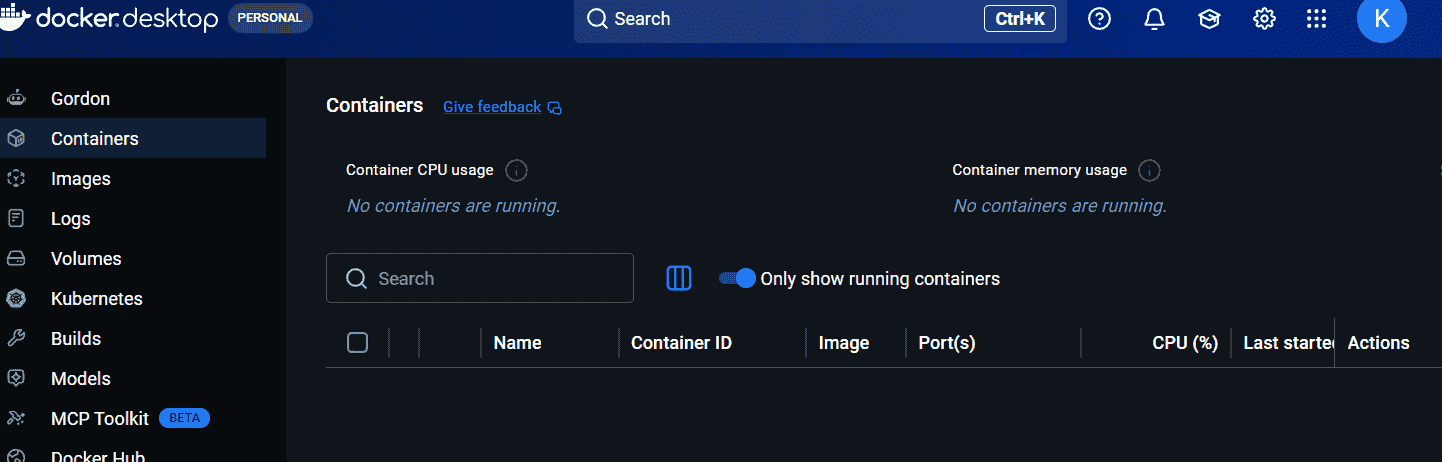
The dashboard provides access to sections such as Containers, Images, Volumes, and Builds.
Step 2: Download a Docker Image
- Open the Images section.
- Find the option to pull or search for an image.
- Search for
nginx. - Select the official NGINX image and pull it.
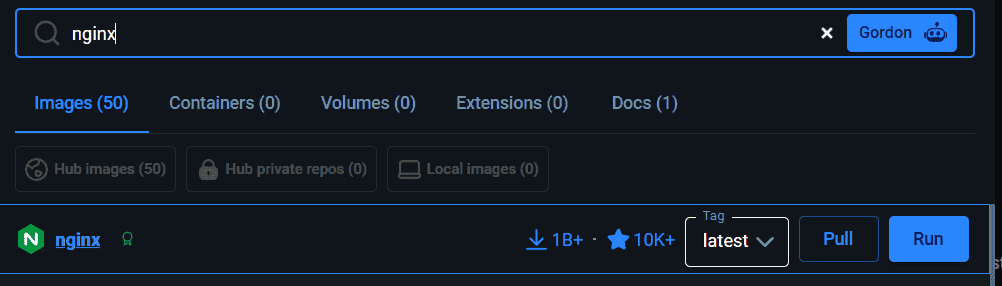
- Wait for the download to complete.
The NGINX image contains the files and configuration needed to run the NGINX web server.
Step 3: Run the Container
- Navigate to the Images section.
- Locate the downloaded NGINX image.
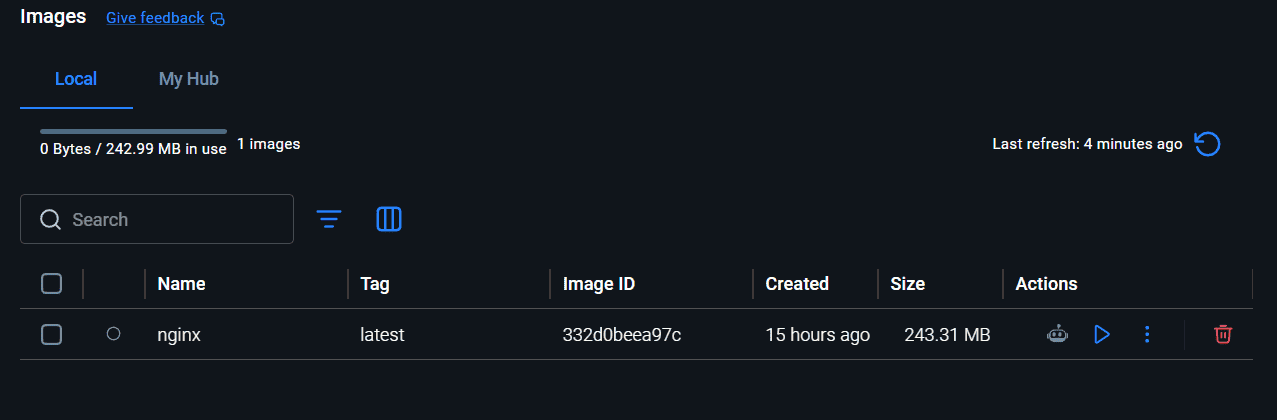
- Click Run.
- Enter a container name, such as
nginx-app. - Expand the optional configuration settings if needed.
Step 4: Configure Port Mapping
Port mapping allows users to access a service running inside a container through a port on the host machine.
Configure the following mapping:
| Setting | Value |
|---|---|
| Host port | 8080 |
| Container port | 80 |
| Protocol | TCP |
Click Run to start the container.
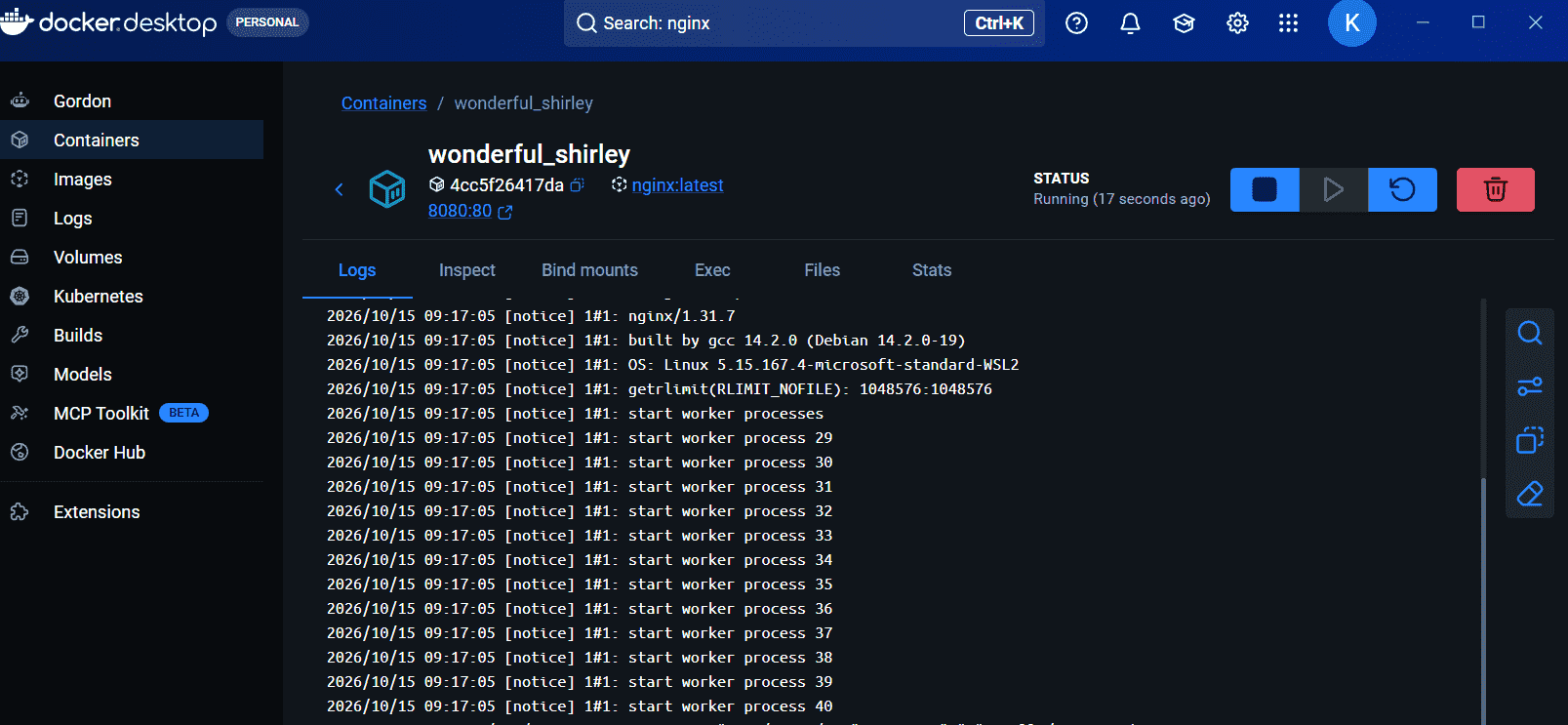
Docker Desktop forwards requests from port 8080 on your computer to port 80 inside the NGINX container.
Step 5: Access the Application
Open a web browser and visit: http://localhost:8080
You should see the default NGINX welcome page.
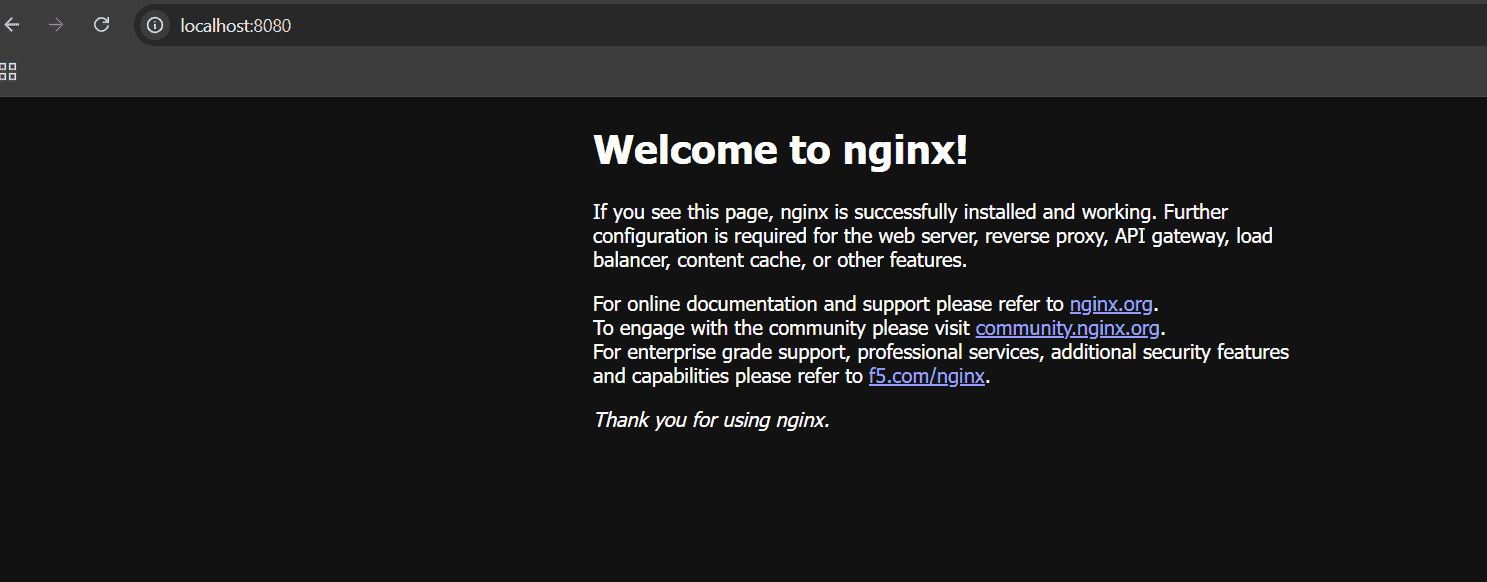
This confirms that the container is running and the port mapping is configured correctly.
Step 6: Monitor the Container
Open the Containers section in Docker Desktop and select nginx-app.
You can use the interface to:
- Check whether the container is running.
- View application logs.
- Stop or restart the container.
- Inspect container details.
- Remove the container when it is no longer needed.
Best Practices
- Use trusted and updated base images.
- Avoid including passwords or API keys in Dockerfiles.
- Map only the ports required by the application.
- Use volumes when application data must persist beyond the container lifecycle.
- Review container logs when troubleshooting errors.
- Stop and remove unused containers to free resources.
- Use environment variables or secret-management solutions for application configuration.
