

A Kubernetes Deployment is a Kubernetes resource used to manage and update applications running in Pods. It helps to:
- Create and manage Pods.
- Maintain the desired number of Pod replicas.
- Scale applications.
- Perform rolling updates.
- Roll back to previous versions.
- Maintain the desired state of an application.
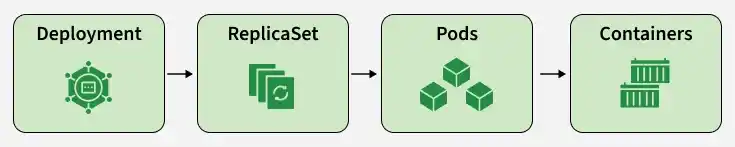
A Deployment manages a ReplicaSet, which in turn manages the Pods. The basic relationship is:
Use Cases
- Application Deployment: Creates and manages application Pods.
- Scaling: Increases or decreases the number of Pod replicas.
- Rolling Updates: Updates applications without stopping all Pods at once.
- Rollback: Reverts an application to a previous version.
- Self-Healing: Creates replacement Pods when existing Pods fail.
- Version Management: Maintains different revisions of a Deployment.
- Rollout Control: Allows rollouts to be paused and resumed.
- Monitoring: Provides status information about the Deployment and its rollout.
Components
A Kubernetes Deployment mainly contains the following components:
- Metadata: Contains the Deployment name, labels, and other identifying information.
- Specification: Defines the desired state, replicas, Pod template, container image, and other settings.
- Status: Shows the current state of the Deployment, including available and updated replicas.
The Deployment controller continuously compares the desired state with the current state and takes corrective action when required.
Kubernetes Deployment YAML
A Deployment can be created using a YAML manifest.
The following example creates an Nginx Deployment with three replicas:
apiVersion: apps/v1
kind: Deployment
metadata:
  name: nginx
spec:
  replicas: 3
  selector:
    matchLabels:
      app: nginx
  template:
    metadata:
      labels:
        app: nginx
    spec:
      containers:
      - name: nginx
        image: nginx:1.28
        ports:
        - containerPort: 80
Now first open the directory where you have created nginx.yaml file in your terminal and create deployment using the command:
kubectl apply -f nginx.yaml
Now check the status of your deployment if it is ready or not by running the command
kubectl get allHence we have successfully deployed created a deployment for Nginx.
Updating a Kubernetes Deployment
To update a Kubernetes deployment we can simply update its config file using 2 methods:
Method 1: Using the kubectl edit command from the terminal
kubectl edit deployment deployment-nameNow you can edit the deployment configuration by pressing "i" for inserting and after editing it you can just press the escape key and then ":wq" to save your changes and exit.

Method 2: Updating Configuration Directly
You can open your config file in an IDE like VS Code and edit the config there and apply the config by using the command
kubectl apply -f deployment_config.yamlLet's say in this case we are updating the container port from 80 to 800.
Rolling Back a Kubernetes Deployment
Kubernetes allows you to roll back a Deployment to a previous version if the current version has bugs or issues. This helps restore the application to a stable version and reduce the impact on users.
Step 1: View the Deployment revision history:
kubectl rollout history deployment/nginx-deployment
Select the revision to which you want to roll back.
Step 2: Roll back to a specific revision:
kubectl rollout undo deployment/nginx-deployment --to-revision=1
Replace 1 with the required revision number.
Step 3: Verify the rollback:
kubectl rollout status deployment/nginx-deployment
Regularly testing the rollback process helps ensure that applications can be quickly restored when deployment issues occur.
Checking the Rollout History
Rollout history can be seen by using the following command.
kubectl rollout history <name of the deployment>This command allows you to view the no.of revisions available in the kubernetes cluster and changes made to them. If you want to see the detailed history of a specific version then you use the following command.
kubectl rollout history deployment/web-appdeployment --revision=3Rollout history will help you to roll to previous versions of the application if you find bugs or problems in the currently deployed version of the application.
Horizontal Pod Autoscaling
Horizontal Pod Autoscaler (HPA) automatically adjusts the number of Pod replicas based on resource utilization or other supported metrics.
For example:
kubectl autoscale deployment nginx --min=2 --max=8 --cpu-percent=75Here:
--min=2→ Minimum number of replicas.--max=8→ Maximum number of replicas.--cpu-percent=75→ Target average CPU utilization.
HPA can increase the number of Pods when demand increases and reduce them when demand decreases.
Pausing and Resuming a Kubernetes Deployment
A Deployment rollout can be paused when multiple changes need to be made before starting the rollout.
Pause the rollout:
kubectl rollout pause deployment/nginxMake the required changes.
Resume the rollout:
kubectl rollout resume deployment/nginxPausing a rollout allows multiple changes to be grouped into a single rollout.
Kubernetes Deployment Status
The deployment will pass different stages while it was in deploying. Each stage will say the health of the pods and shows us if any problems are arising.
There are a few deployment statuses as follows which will show the health of the pods there are.
- Pending: Deployment is pending representing that it going to start or it is facing some issues to start.
- Progressing: Deployment was in progress it was going to be deployed.
- Succeeded: Deployment was deployed successfully without any errors or bugs.
- Failed: Deployment was not deployed successfully it failed due to some issues.
- Unknown: This happens if the kubernetes API is not reached for deployment or the problem with the deployment itself.
Deployment status will help you to monitor the pods and you can take action immediately if you found any trouble or bugs in it.
Progressing Kubernetes Deployment
If any deployment is in progress it is meant to be that deployment is in the stage of updating or creating a new replicaset. Following are some of the reasons that deployment is in progress.
- The deployment is creating for the first time or it was creating a new replicaset.
- If the deployment is going under the updation or scaling then it will be in progress.
- The deployment will be in progress when the pods are scaling down or the pod is getting started.
If you want to troubleshoot the deployment then you can use the following command.
kubectl describe deploymentsComplete Kubernetes Deployment
The following conditions must be satisfied to mark deployment as completed.
- All the replicas of the pods must be up and running.
- The desired count of pods must match the running count of pods.
- All the replicas of the pods which are associated with the deployment must be available.
- There must be no single replica of old pods must be running.
To check the status of the pods which are running you can use the following command.
kubectl rollout status <deployment/name of deployment>Failed Deployment
Deployment may fail for several reasons when you try to deploy its newest ReplicaSet it may be in an incomplete position forever. This can cause for different reasons following are the reasons.
- There is a failure of the readiness probe and liveness probe.
- Error while pulling the image (Mentioned the wrong tag).
- There may be insufficient quota while deploying as we mentioned resources.
- The deployment cannot connect to a dependency, such as a database.
To get more information about the deployment and why is was failed you can use the following command. Which gives you a detailed description of the deployment.
kubectl describe deployments Deployment Strategies
Kubernetes Deployments can be used with different application release strategies.
Common strategies include:
- Rolling Deployment.
- Blue-Green Deployment.
- Canary Deployment.
The default Deployment strategy is RollingUpdate.
RollingUpdate Strategy
The RollingUpdate strategy gradually replaces old Pods with new Pods.
Example:
strategy:type: RollingUpdaterollingUpdate:maxUnavailable: 1maxSurge: 1
Here:
- maxUnavailable: Defines how many Pods can be unavailable during the update.
- maxSurge: Defines how many additional Pods can be created during the update.
This strategy helps maintain application availability during updates.
Canary Deployment
A canary deployment is a release strategy where a new version of an application is deployed alongside the stable version and exposed to a small percentage of production traffic first.
- Deploys a new version to a tiny subset of users (e.g., 5%) to detect bugs without impacting the entire user base.
- Success is determined by comparing real-time telemetry (latency, error rates, KPIs) between the "canary" and the stable version.
- Unlike standard updates, traffic is split via logic or networking rules rather than simply the number of active servers/pods.
- Traffic is shifted in stages (e.g., 5% → 25% → 50% → 100%) only after the new version proves stable at each tier.
- Enables immediate redirection of 100% of traffic back to the stable version if performance degrades, ensuring high availability.
- Using a service mesh allows for precise layer 7 routing (e.g., routing based on headers or cookies) without changing application code.
Blue/Green Deployment
Blue/Green Deployment is a release strategy where two identical production environments are maintained to reduce downtime and deployment risk.
- Maintains two identical, hardware-isolated production environments: Blue (live) and Green (staging/new).
- Traffic is switched at the router or load balancer level, enabling an instantaneous transition between versions.
- Allows for comprehensive testing of the new version in a production-identical environment before any users see it.
- Unlike Canary, 100% of traffic is flipped from Blue to Green at once, rather than incrementally.
- If Green fails post-launch, traffic is immediately routed back to Blue, which remains untouched and functional.
- Requires doubling infrastructure capacity since two full environments must run concurrently during the deployment window.
Kubernetes Deployment vs Pod
| Aspect | Deployment | Pod |
|---|---|---|
| Purpose | Manages application replicas and updates | Runs one or more containers |
| Scaling | Manages replica count | Does not provide replica management |
| Updates | Supports rolling updates and rollbacks | Does not manage application versions |
| Self-Healing | Creates replacement Pods | Pod itself is not a controller |
| Management | Manages ReplicaSets | Managed by controllers such as Deployments |
Kubernetes Deployment vs ReplicaSet
| Aspect | Deployment | ReplicaSet |
|---|---|---|
| Purpose | Manages application releases | Maintains the desired number of Pods |
| Updates | Supports rolling updates | Does not manage application rollouts |
| Rollback | Supports revision-based rollback | Does not provide Deployment rollback |
| Pod Management | Manages ReplicaSets | Manages Pods |
| Typical Usage | Recommended for stateless applications | Usually managed by a Deployment |
Common Kubernetes Deployment Commands
| Task | Command |
|---|---|
| Create or update Deployment | kubectl apply -f deployment.yaml |
| List Deployments | kubectl get deployments |
| View Deployment details | kubectl describe deployment <name> |
| Scale Deployment | kubectl scale deployment <name> --replicas=5 |
| Update image | kubectl set image deployment/<name> <container>=<image> |
| Check rollout | kubectl rollout status deployment/<name> |
| View history | kubectl rollout history deployment/<name> |
| Roll back | kubectl rollout undo deployment/<name> |
| Pause rollout | kubectl rollout pause deployment/<name> |
| Resume rollout | kubectl rollout resume deployment/<name> |
Best Practices
- Use specific container image tags instead of relying on
latest. - Define resource requests and limits.
- Configure readiness and liveness probes where appropriate.
- Use rolling updates for applications that require high availability.
- Monitor rollout status after every update.
- Test rollback procedures before production use.
- Use HPA when workloads require automatic scaling.
- Store Deployment manifests in version control.
- Use separate configurations for different environments.
- Keep container images small and regularly updated.
Advantages
- Automates application deployment.
- Maintains the desired number of Pods.
- Supports application scaling.
- Provides rolling updates.
- Supports easy rollbacks.
- Helps recover failed Pods.
- Maintains different application revisions.
- Supports automated scaling with HPA.
Limitations
- Requires knowledge of Kubernetes resources and YAML manifests.
- Rolling updates can fail if the new version is incorrectly configured.
- Running multiple replicas can increase resource consumption.
- Troubleshooting failed deployments may require checking multiple Kubernetes resources.
- Advanced deployment strategies may require additional tools such as service meshes or progressive delivery controllers.
