

Kubernetes adds an orchestration layer around containers. It manages application deployment, scaling, networking, and container lifecycle. Kubernetes, also known as K8s, is an open-source container orchestration platform originally developed by Google. It is now maintained as a CNCF project.
A Kubernetes application runs inside a Pod, which can contain one or more containers.
Cluster Setup
To execute commands inside a Pod, we first need a Kubernetes cluster. A Kubernetes cluster can be created using:
- A multi-node Kubernetes setup
- A local single-node cluster using Minikube
- Managed Kubernetes services such as Amazon EKS, Google GKE, or Azure AKS
For this demonstration, we will use Minikube because it provides a simple local Kubernetes environment. Minikube is useful for:
- Learning Kubernetes
- Testing Kubernetes resources
- Running hands-on demonstrations locally
- Creating a single-node Kubernetes cluster
Understanding Pods and Containers
A Pod is the smallest deployable unit in Kubernetes. A Pod can contain:
- One container
- Multiple closely related containers
Containers inside the same Pod share:
- Network namespace
- IP address
- Storage volumes, when configured
For this demonstration, we will create a Pod running the NGINX container and execute commands inside it.
Execute Commands Inside a Kubernetes Pod
We will use Minikube and kubectl to create an NGINX Pod and execute shell commands inside the container.
Step 1: Start Minikube
Start the Minikube cluster:
minikube start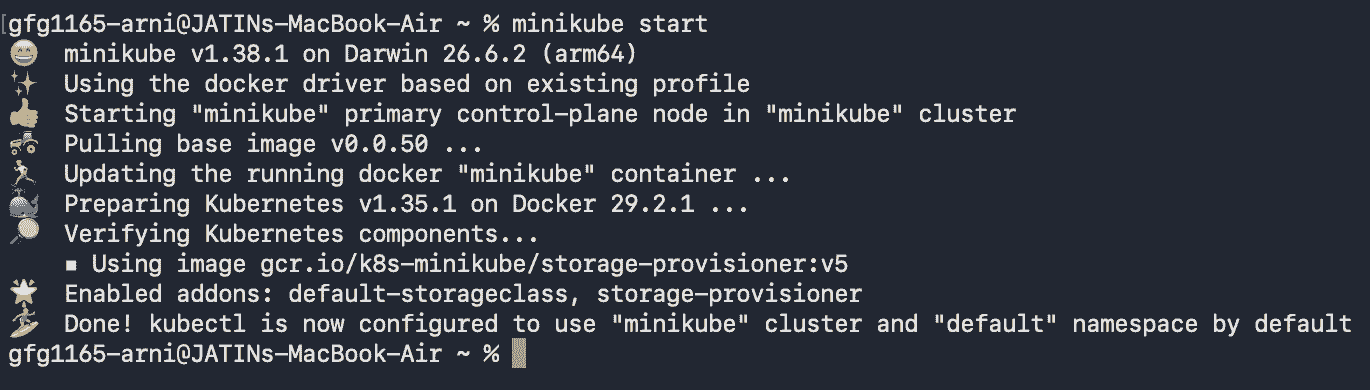
Minikube creates a local Kubernetes cluster and starts the required Kubernetes components.
Step 2: Check Minikube Status
Verify that Minikube is running:
minikube status
A running cluster should show the required components as Running.
Step 3: Create an NGINX Pod
Create a Pod using the NGINX image:
kubectl run nginx-pod --image=nginx
This command:
- Creates a Pod named
nginx-pod. - Uses the
nginxcontainer image. - Pulls the image if it is not already available.
- Starts the container inside the Pod.
Step 4: Check the Pod
List the Pods in the default namespace:
kubectl get podsYou should see output similar to:

The Running status indicates that the Pod is currently running.
Step 5: Execute a Command Inside the Pod
Kubernetes provides the kubectl exec command to execute commands inside a running container.
Run:
kubectl exec -it nginx-pod -- /bin/bash
Here:
kubectl execexecutes a command inside a container.-ikeeps standard input open.-tallocates a terminal.nginx-podis the Pod name./bin/bashstarts a Bash shell.
You will now be inside the NGINX container.
Step 6: Run Shell Commands
Once inside the container, you can execute normal Linux commands.
For example:
pwdTo list files:
lsTo move to another directory:
cd /usr/share/nginx/htmlYou can also check the contents of the NGINX web directory:
lsStep 7: Exit the Container
To leave the container shell, run:
exitYou will return to your local terminal.

Execute a Single Command Without Entering the Pod
You do not always need to open an interactive shell.
For example, to list the NGINX web directory directly:
kubectl exec nginx-pod -- ls /usr/share/nginx/htmlThis is useful for:
- Quick checks.
- Troubleshooting.
- Automation.
- Running one-time commands.
Execute Commands in a Specific Container
A Pod can contain multiple containers. In that case, use the -c option to specify the target container.
The syntax is:
kubectl exec -it <pod-name> -c <container-name> -- /bin/bashThe -c option tells Kubernetes which container should receive the command.
Execute Multiple Commands
You can execute multiple commands sequentially using the && operator.
For example:
kubectl exec nginx-pod -- sh -c "cd /usr/share/nginx/html && ls"The second command runs only if the first command completes successfully.
Debugging a Pod
When a Pod is not behaving as expected, you can use Kubernetes debugging tools.
For example:
kubectl describe pod nginx-podThis provides information about:
- Pod configuration.
- Containers.
- Events.
- Scheduling.
- Container states.
You can also check container logs:
kubectl logs nginx-podFor more advanced troubleshooting, Kubernetes also provides:
kubectl debugThis can be useful when the existing container does not contain the required debugging tools.
Non-Interactive Commands
For automation and scripts, commands can be executed without opening an interactive terminal.
For example:
kubectl exec nginx-pod -- lsInteractive flags such as -it are only required when you want to interact with a shell or command that requires input.
Best Practices
- Use
kubectl execinstead of directly accessing the container runtime. Kubernetes should be the primary interface for interacting with containers. - Specify the container with
-cwhen working with multi-container Pods. - Use non-interactive commands when performing automated checks or scripts.
- Use
kubectl logswhen you only need to inspect application output. - Use
kubectl describeto investigate Pod events and configuration. - Use
kubectl debugfor advanced troubleshooting scenarios. - Avoid modifying production containers manually unless required for troubleshooting.
