

A Blob (Binary Large Object) stores raw data, such as text, images, and files. To convert a Blob containing JSON data into a JavaScript object, read or decode the Blob as text and then parse the text using JSON.parse().
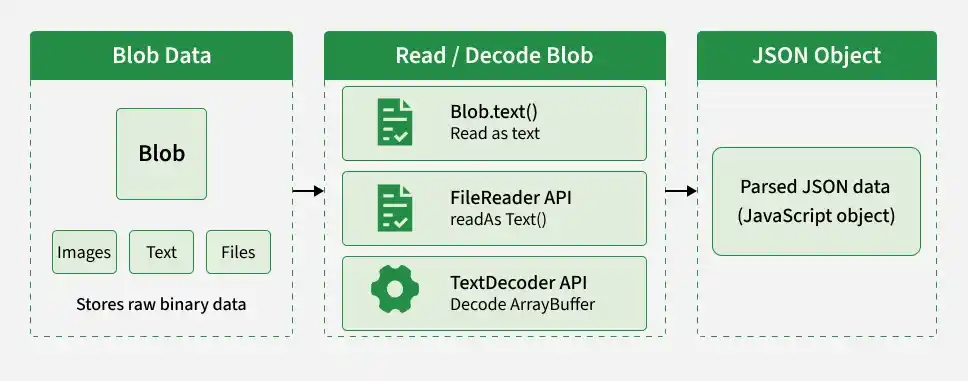
- Using the Blob.text() Method: Reads Blob data as a string and supports asynchronous processing.
- Using the FileReader API: Reads Blob content as text using readAsText().
- Using the TextDecoder API: Decodes binary data, such as an ArrayBuffer obtained from a Blob, into text.
Convert Blob to JSON Using Blob.text()
The Blob.text() method reads the contents of a Blob and returns a Promise that resolves to a string. You can pass the resulting string to JSON.parse() to obtain a JavaScript object.
<!DOCTYPE html>
<html lang="en">
<head>
    <meta charset="UTF-8">
    <meta name="viewport" content="width=device-width, initial-scale=1.0">
    <title>Convert Blob to JSON</title>
</head>
<body>
    <h2>Blob to JSON Conversion</h2>
    <p id="output"></p>

    <script>
        const blob = new Blob(
            ['{"name":"John","age":30}'],
            { type: "application/json" }
        );

        async function convertBlobToJson() {
            try {
                const text = await blob.text();
                const jsonData = JSON.parse(text);

                document.getElementById("output").textContent =
                    `Name: ${jsonData.name}, Age: ${jsonData.age}`;
            } catch (error) {
                console.error("Failed to convert Blob to JSON:", error);
            }
        }

        convertBlobToJson();
    </script>
</body>
</html>
Convert Blob to JSON Using the FileReader API
The FileReader API reads Blob data asynchronously. Its readAsText() method reads the contents as a string, which can then be parsed using JSON.parse().
<!DOCTYPE html>
<html lang="en">
<head>
    <meta charset="UTF-8">
    <meta name="viewport" content="width=device-width, initial-scale=1.0">
    <title>Convert Blob to JSON</title>
</head>
<body>
    <h2>Blob to JSON Conversion</h2>
    <p id="output"></p>

    <script>
        const blob = new Blob(
            ['{"name":"John","age":30}'],
            { type: "application/json" }
        );

        const reader = new FileReader();

        reader.onload = function () {
            try {
                const jsonData = JSON.parse(reader.result);

                document.getElementById("output").textContent =
                    `Name: ${jsonData.name}, Age: ${jsonData.age}`;
            } catch (error) {
                console.error("Invalid JSON data:", error);
            }
        };

        reader.onerror = function () {
            console.error("Failed to read Blob.");
        };

        reader.readAsText(blob);
    </script>
</body>
</html>
Convert Blob to JSON Using the TextDecoder API
The TextDecoder API converts binary data into a string using a specified character encoding, such as UTF-8. To use it with a Blob, first read the Blob as an ArrayBuffer, decode it, and then parse the resulting text as JSON.
<!DOCTYPE html>
<html lang="en">
<head>
    <meta charset="UTF-8">
    <meta name="viewport" content="width=device-width, initial-scale=1.0">
    <title>Convert Blob to JSON</title>
</head>
<body>
    <h2>Blob to JSON Conversion</h2>
    <p id="output"></p>

    <script>
        const blob = new Blob(
            ['{"name":"John","age":30}'],
            { type: "application/json" }
        );

        async function convertBlobToJson() {
            try {
                const buffer = await blob.arrayBuffer();
                const decoder = new TextDecoder("utf-8");
                const text = decoder.decode(buffer);
                const jsonData = JSON.parse(text);

                document.getElementById("output").textContent =
                    `Name: ${jsonData.name}, Age: ${jsonData.age}`;
            } catch (error) {
                console.error("Failed to decode or parse Blob:", error);
            }
        }

        convertBlobToJson();
    </script>
</body>
</html>
Note: Use Blob.text() for straightforward text conversion in modern browsers. The FileReader API is useful when working with its event-based interface, while TextDecoder is appropriate when you need direct control over decoding binary data. JSON.parse() works only when the decoded text contains valid JSON.
