

Postman JavaScript objects are built-in pm.* APIs used to interact with requests, responses, variables, and other runtime data within Postman scripts. They make API testing more dynamic by allowing scripts to access and process data during request execution.
- Access and manage variables at different scopes.
- Work with request and response data programmatically.
- Support dynamic API testing and workflow automation.
Where JavaScript Objects are Used in Postman
Postman JavaScript objects are mainly used in scripts that execute before a request is sent or after a response is received.
- Before-request Scripts: Prepare data, set variables, or generate dynamic values before sending a request.
- After-response Scripts: Validate responses, extract response data, set variables, and perform assertions.
- Collection and Folder Scripts: Define reusable script logic for multiple requests within a collection or folder.
Important Postman JavaScript Objects
Postman provides several built-in JavaScript objects through the pm API for accessing and managing data during API testing.
pm.environment: Gets, sets, or removes variables in the active environment.pm.globals: Gets, sets, or removes global variables.pm.collectionVariables: Manages variables defined at the collection level.pm.variables: Accesses variables available in the current execution scope.pm.iterationData: Accesses data supplied for the current Collection Runner iteration.pm.request: Provides information about the current request, including its URL, method, headers, and body.pm.response: Provides access to the received response, including its status, headers, body, and response time.pm.cookies: Provides access to cookies associated with the current request.pm.info: Provides information about the current script execution context.
How to Use JavaScript Objects in Postman
Postman scripts allow JavaScript objects to be used before sending a request and after receiving a response. Follow these steps to create a request and add scripts.
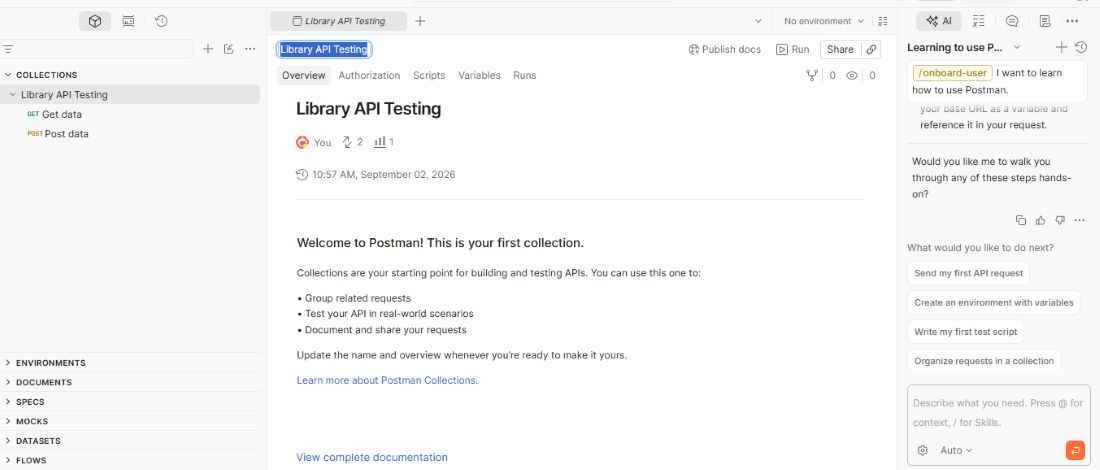
Step 1: Create a Collection
Open Postman and create a collection to organize related API requests. Give the collection a meaningful name.
Step 2: Add an API Request
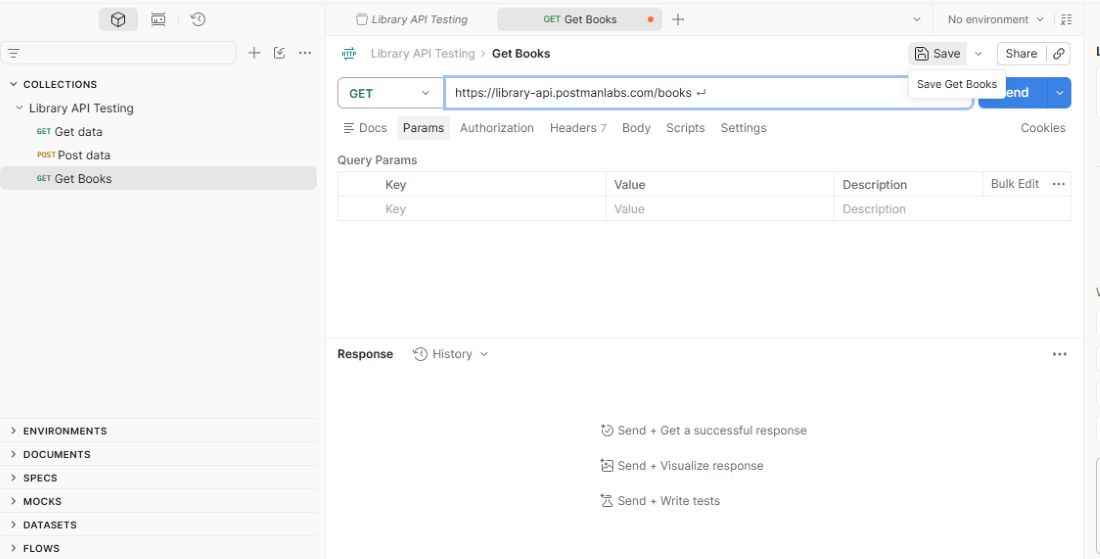
Add a request to the collection, select the HTTP method, and enter the API endpoint.
Example:
GET https://library-api.postmanlabs.com/books
Step 3: Open the Scripts Section
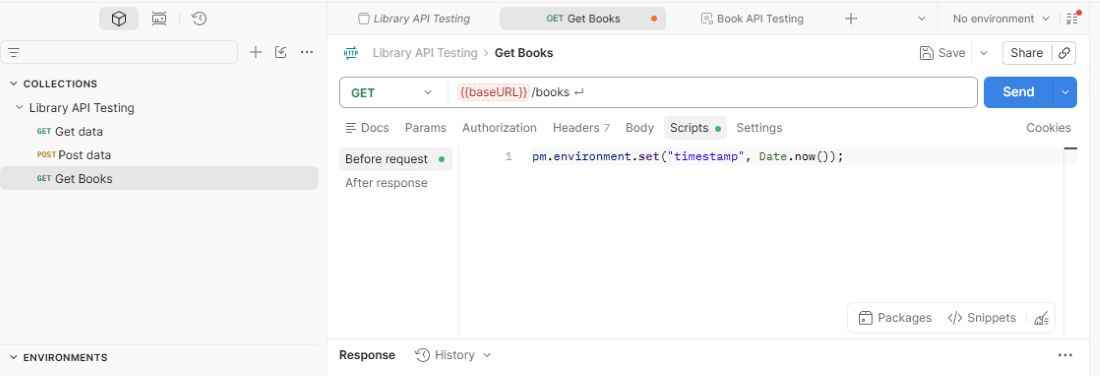
Open the Scripts tab and select the appropriate execution stage:
- Before request: Runs before the request is sent and is used to prepare request data.
- After response: Runs after receiving the response and is used for response processing and validation.
Step 4: Add a JavaScript Script
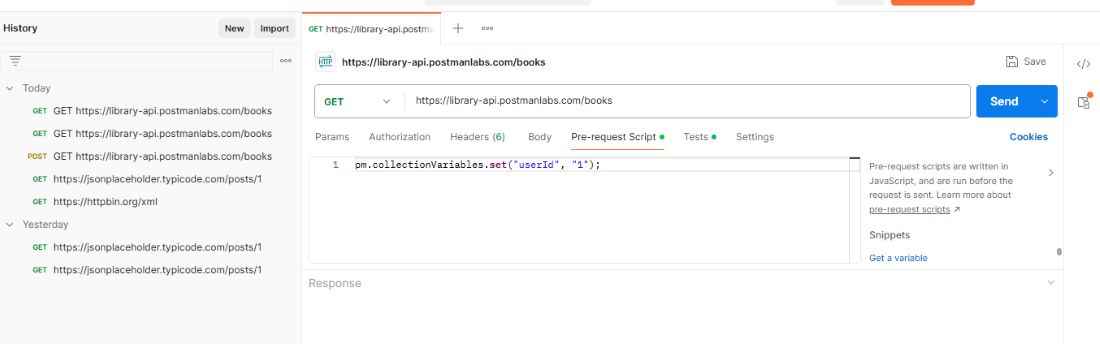
Open the Pre-request Script section and add the JavaScript code that should run before the request is sent. For example, the following script creates a collection variable named userId.
pm.collectionVariables.set("userId", "1");
Step 5: Send and Verify the Request
Click Send to execute the API request. Postman runs the configured scripts and returns the API response.
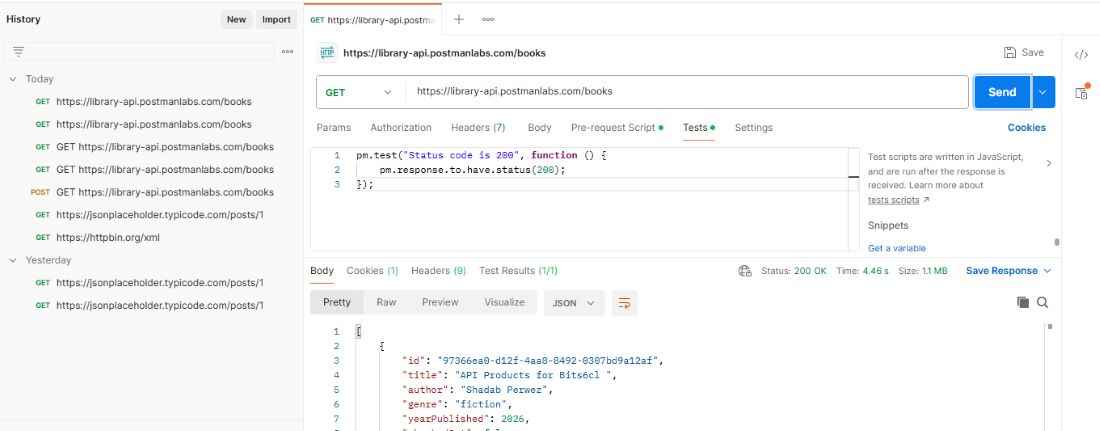
To verify the response status, add the following code in the Tests section:
pm.test("Status code is 200", function () {
pm.response.to.have.status(200);
});
After sending the request, check Test Results to confirm that the assertion passed.
Using pm.environment
The pm.environment object is used to access and manage variables in the active Postman environment. It is useful for storing environment-specific values such as base URLs and access tokens.
Set an environment variable:
pm.environment.set("token", "your_access_token");
Get an environment variable:
const token = pm.environment.get("token");
console.log(token);
Remove an environment variable:
pm.environment.unset("token");
Using pm.globals
The pm.globals object is used to access and manage global variables. These variables can be referenced by requests and scripts where the global scope is available.
Set a global variable:
pm.globals.set("apiKey", "your_api_key");
Get a global variable:
const apiKey = pm.globals.get("apiKey");
console.log(apiKey);
Remove a global variable:
pm.globals.unset("apiKey");
Using pm.collectionVariables
The pm.collectionVariables object is used to manage variables defined at the collection level. These variables can be shared by requests and scripts within the collection.
pm.collectionVariables.set(
"baseUrl",
"https://api.example.com"
);
const baseUrl = pm.collectionVariables.get("baseUrl");
console.log(baseUrl);
To remove a collection variable:
pm.collectionVariables.unset("baseUrl");
Using pm.variables
The pm.variables object provides access to variables available in the current script execution scope. It can retrieve values according to the variable scopes available during execution.
const token = pm.variables.get("token");
console.log(token);
A local variable can also be created for the current execution:
pm.variables.set("userId", "101");
Using pm.request
The pm.request object provides information about the current API request, including its HTTP method, URL, headers, and body.
console.log(pm.request.method);
console.log(pm.request.url.toString());
console.log(pm.request.headers);
A specific request header can also be accessed:
const contentType =
pm.request.headers.get("Content-Type");
console.log(contentType);
Using pm.response
The pm.response object provides access to the API response and is available in After response scripts. It can be used to access the response body, status code, headers, and response time.
const jsonData = pm.response.json();
console.log(jsonData);
console.log(pm.response.code);
console.log(pm.response.responseTime);
It can also be used to validate the response:
pm.test("Status code is 200", function () {
pm.response.to.have.status(200);
});
Using pm.iterationData
The pm.iterationData object provides access to data supplied for the current iteration when running a collection with external data.
For example:
const username =
pm.iterationData.get("username");
const password =
pm.iterationData.get("password");
console.log(username);
console.log(password);
This is useful for data-driven API testing where the same requests are executed with different input values.
Using pm.cookies
The pm.cookies object provides access to cookies associated with the current request URL. It can be used to retrieve cookie values in Postman scripts.
For example:
const sessionId = pm.cookies.get("sessionId");
console.log(sessionId);
The has() method can be used to check whether a particular cookie exists:
const exists = pm.cookies.has("sessionId");
console.log(exists);
Using pm.info
The pm.info object provides information about the current script execution context, such as the request name and iteration details.
For example:
console.log(pm.info.requestName);
console.log(pm.info.iteration);
console.log(pm.info.iterationCount);
This information is useful when debugging scripts or running requests multiple times through the Collection Runner.
Example: Using Multiple Postman JavaScript Objects
The following example can be added to an After response script to use multiple Postman JavaScript objects together:
// Access an environment variable
const baseURL = pm.environment.get("baseURL");
console.log(baseURL);

// Access current request information
console.log(pm.request.method);

// Access response data
const responseData = pm.response.json();
console.log(responseData);

// Validate the response
pm.test("Request is successful", function () {
    pm.response.to.have.status(200);
});
In this example:
pm.environmentretrieves an environment variable.pm.requestaccesses information about the current request.pm.responseaccesses the received API response.pm.test()creates a test to validate the response.
Best Practices for Using Postman JavaScript Objects
Following a few practices can make Postman scripts easier to maintain and reuse.
- Use appropriate variable scopes instead of storing every value globally.
- Store reusable values such as base URLs and tokens in variables.
- Keep scripts short and focused on a specific task.
- Use meaningful names for variables and tests.
- Use Before request scripts for request preparation and After response scripts for response processing and validation.
- Avoid storing sensitive credentials directly in scripts when a more appropriate secure variable mechanism is available.
