Docker is a platform that enables developers to build, package, and run applications in lightweight and isolated containers. It simplifies application deployment by ensuring applications and their dependencies run consistently across different environments.
System Requirements
Before installing Docker on Ubuntu, ensure your system meets the following requirements:
1. Supported Ubuntu versions:
- Ubuntu 22.04 (LTS)
- Ubuntu 20.04 (LTS)
- Ubuntu 18.04 (LTS)
2. System architecture must be x86_64 (64-bit) or arm64
3. Linux kernel version 3.10 or higher
Install Docker Engine using Docker's Official Repository
Docker provides an official APT repository for Ubuntu that contains the Docker Engine and related components. This method allows users to install Docker directly from Docker's maintained packages and receive updates through the configured repository.
Step 1: Before installing Docker Engine, remove older or conflicting packages that may interfere with the official Docker installation.
sudo apt remove $(dpkg --get-selections docker.io docker-compose docker-compose-v2 docker-doc docker-buildx podman-docker containerd runc | cut -f1)Step 2: Update the Package Index
Update the local APT package index to ensure that the system has the latest information about available packages.
sudo apt updateStep 3: Install Required Packages
Install ca-certificates and curl, which are required to securely download Docker's repository key.
sudo apt install ca-certificates curl -yStep 4: Add Docker's Official GPG Key
Create a directory to store repository keys and download Docker's official GPG key. The key allows APT to verify that packages downloaded from Docker's repository are authentic.
sudo install -m 0755 -d /etc/apt/keyringssudo curl -fsSL https://download.docker.com/linux/ubuntu/gpg \-o /etc/apt/keyrings/docker.asc
Set the appropriate permissions so that APT can read the key:
sudo chmod a+r /etc/apt/keyrings/docker.ascStep 5: Add Docker's APT Repository
Add Docker's official repository to the system's APT sources. This allows Ubuntu to find and install Docker Engine packages directly from Docker's repository.
echo \"deb [arch=$(dpkg --print-architecture) signed-by=/etc/apt/keyrings/docker.asc] \https://download.docker.com/linux/ubuntu \$(. /etc/os-release && echo "${UBUNTU_CODENAME:-$VERSION_CODENAME}") stable" | \sudo tee /etc/apt/sources.list.d/docker.list > /dev/null
Update the package index again so that the newly added Docker repository is recognized by APT.
sudo apt updateStep 6: Install Docker Engine
Install Docker Engine along with the Docker CLI, containerd, Buildx, and Docker Compose plugin.
sudo apt install docker-ce docker-ce-cli containerd.io docker-buildx-plugin docker-compose-plugin -yStep 7: Verify the Installation
After installation is complete, check the installed Docker version to confirm that Docker Engine and the CLI are available.
docker --versionYou can also verify that the Docker service is running:
sudo systemctl status dockerInstall Docker using docker.io
Ubuntu provides Docker through its default APT repository as the docker.io package. This is a simple installation method and is suitable for users who want to quickly set up Docker on an Ubuntu system.
Step 1: Update Software Repositories using the following command on the terminal.
sudo apt update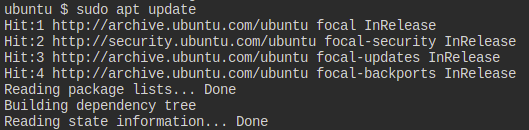
Step 2: Install Docker using the following command
sudo apt install docker.io -y
Step 3: Enable and start the docker service by using the following commands.
sudo systemctl enable docker --nowStep 4: Check Docker Version.
docker --version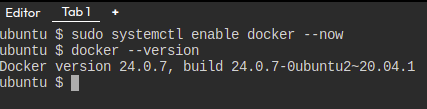
Executing the Docker Command Without Sudo
We will get a permission denied error as a regular user doesn't have permission to execute docker commands. now we need to add the the user to the required group.
Step 1: So we need to add an Ubuntu user to the docker group.
#sudo usermod -aG docker $USER
    or
#sudo usermod -aG docker ubuntu
- The following command helps in knowing whether current add user assigned to docker group or not:
getent group docker- Refresh the group permission to use updated one with running following command:
newgrp docker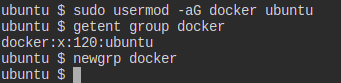
Step 2: Restart the docker daemon which is already running. After restarting only the changes will come into effect.
sudo service docker restartStep 3:Log out of the current SSH session and log in again. Then run:
docker psIf no error appears, Docker is successfully configured.
Using Docker Commands
To work efficiently with Docker, it is important to understand basic Docker commands that are commonly used.
Docker Build Command
After writing the dockerfile know you need to build the dockerfile into the docker image. This is docker image is further used to run the docker containers. Following is the command which is used to build the docker image.
- Here take sample Dockerfile as below:
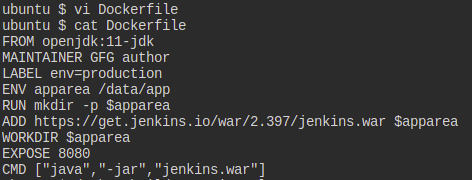
- Using the following command build the docker image from the Dockerfile:
docker build -t <Name of the Dockerfile>
Example:
docker build -t myimg:latest . 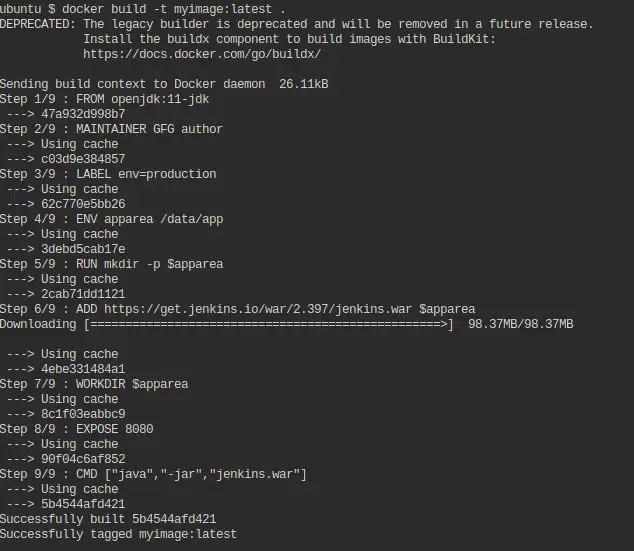
Docker Run Command
This command is used to run a container from an image. The docker run command is a combination of the docker create and docker start commands. It creates a new container from the image specified and starts that container. if the docker image is not present, then the docker run pulls that.
$ docker run <image_name>
To assign a name to the container:
$ docker run --name <container_name> <image_name>
Example:
docker run myimgTo Know more docker commands read Docker Commands.
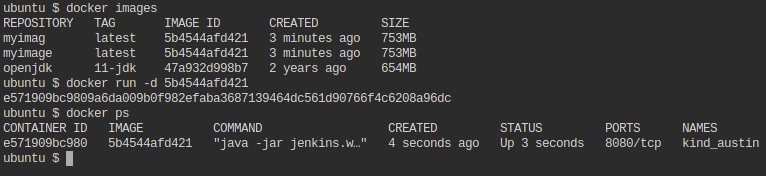
Working with Docker Images
When working with multiple Docker images, managing them efficiently is important. Docker provides several commands to handle images easily.
List available Docker images:
docker imagesPull an image from Docker Hub:
docker pull <image_name>To know more commands which are used to work with docker images refer to the "Working with Docker Images".
Docker Network Commands
Docker Networking allows you to create a Network of Docker Containers managed by a master node called the manager. Containers inside the Docker Network can talk to each other by sharing packets of information.
- The following command is used for listing the docker networks:
docker network ls 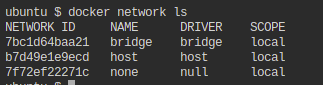
- The following command is used for detailing docker network driver:
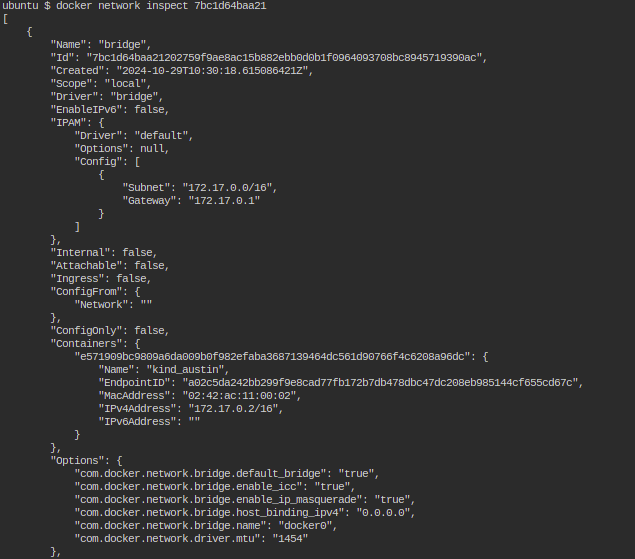
docker network inspect <network_name>