A Music Store Data Analysis project is a SQL-based project used to analyze music data and gain useful insights.
- Uses MySQL to store and manage the retrieved music data.
- Uses SQL to analyze the music data and generate insights.
- Supports analysis of tracks, artists, albums, genres, popularity, and audio features such as danceability and energy.
Creating the Music Store Database & Tables
Firstly, use MySQL Workbench to import the Spotify music data from the CSV file, create the music_store_db database in MySQL, define the required table, and verify the database setup.
Query
CREATE DATABASE music_store_db;
USE music_store_db;
After creating the database, import the Spotify CSV file using the Table Data Import Wizard in MySQL Workbench and create the table spotify_data.
To verify the database setup
SHOW TABLES;The Spotify dataset is taken from Kaggle.
Data Constraints & Project Goals
As part of the project, we need to ensure that the music data is properly prepared before performing the analysis:
- Track ID: Each track should have a valid track_id.
- Popularity: Popularity values should be available for analysis.
- Genre: Each track should have a valid track_genre.
- Standardized Data: Values in fields such as explicit, artists, and track_genre should be standardized.
- Duplicate Records: Duplicate tracks or entries should be handled to maintain data integrity.
Data Preparation with SQL
Before diving into the analysis, the data needs to be cleaned to ensure accuracy. SQL can be used to remove null values, standardize data, and handle duplicate entries. Although the Spotify dataset is already cleaned, these are important data preparation steps to consider when working with music data.
Exploration Data Analysis (EDA)
Let's perform an Exploratory Data Analysis (EDA) to find insights that can help us understand the music collection.
Query 1: Retrieve the total number of tracks
SELECT COUNT(track_id) AS Total_Tracks
FROM spotify_data;
Output:
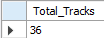
- This query counts the total number of track IDs in the dataset, providing an overview of the size of the music collection.
Query 2: Find the total number of unique artists
SELECT COUNT(DISTINCT artists_names) AS Total_Artists
FROM spotify_data;
Output:
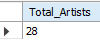
- This query counts the number of distinct artists in the dataset, helping to understand the diversity of music contributors.
Query 3: Find the total number of unique genres
SELECT COUNT(DISTINCT artist_genres) AS Total_Genres
FROM spotify_data;
Output:
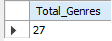
- This query counts how many different music genres are present in the dataset, offering insights into the genre diversity of the music catalog.
Query 4: Find the top 10 albums by average popularity
SELECT album_name,
       AVG(popularity) AS avg_popularity
FROM spotify_data
GROUP BY album_name
ORDER BY avg_popularity DESC
LIMIT 10;
Output:
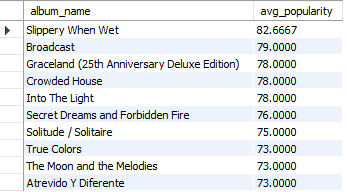
- This query calculates the average popularity for each album and then orders the albums in descending order to find the top 10 most popular albums.
Query 5: Analyze energy and danceability
SELECT danceability,
       energy
FROM spotify_data;
Output:
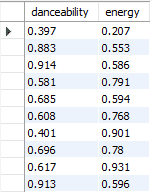
- This query retrieves the danceability and energy values for all tracks in the dataset, allowing us to analyze how these two attributes correlate in different songs.
Advanced Data Analysis With Dashboard Creation
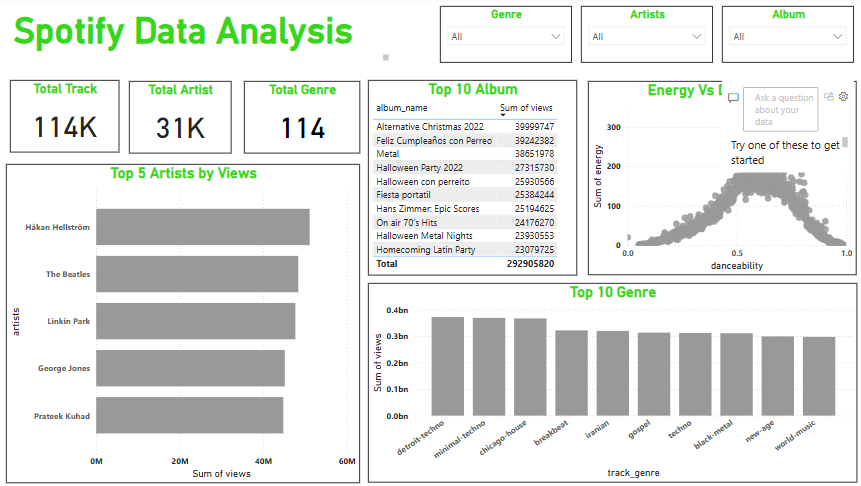
The Power BI dashboard presents key music store insights through different visuals.
Key Performance Indicators (KPIs)
KPIs help provide a quick overview of the music collection. The primary KPIs in this dashboard are:
- Total Tracks: Shows the total number of tracks available in the dataset.
- Total Artists: Shows the total number of unique artists.
- Total Genres: Shows the total number of unique music genres.
Popular Albums by Average Popularity
The column chart shows the average popularity of different albums.
- X-axis: Album Name
- Y-axis: Average Popularity
This visualization helps compare albums based on the average popularity of their tracks.
Music Genre Distribution
The chart shows the distribution of tracks across different music genres.
- X-axis: Track Genre
- Y-axis: Number of Tracks
This visualization provides an overview of the variety of genres present in the music collection.
Energy and Danceability Analysis
The visualization compares the energy and danceability values of tracks.
- X-axis: Danceability
- Y-axis: Energy
This analysis helps explore the relationship between these two audio features.
Audio Features Analysis
The dashboard can be used to analyze different audio characteristics available in the dataset.
The main audio features include:
- Danceability
- Energy
- Acousticness
- Valence
- Tempo
These features help provide a better understanding of the characteristics of different tracks.
Slicers (Filters for Dynamic Analysis)
Slicers enable interactive data filtering and allow users to explore specific parts of the music dataset.
- Genre Slicer: Filters data according to a selected genre.
- Artist Slicer: Filters data according to a selected artist.
- Album Slicer: Filters data according to a selected album.
Insights
- Music Metrics: The dashboard provides an overview of the total number of tracks, artists, and genres.
- Album Analysis: Average popularity can be used to compare albums and identify albums with higher average popularity.
- Genre Analysis: The genre distribution provides an understanding of the variety of music available in the dataset.
- Audio Features: Danceability and energy can be analyzed to understand different characteristics of songs.
- Interactive Analysis: Slicers allow users to filter the data by genre, artist, and album.