

Groups in Figma allow you to combine multiple layers and treat them as a single unit. This makes it easier to select, move, and manage related objects together. Groups are useful for organizing collections of objects without creating a frame or another container with its own properties.
Uses of Groups in Figma
Groups are useful when multiple elements need to be treated as a single unit. They can help organize related objects, move multiple elements together, and simplify the Layers panel. Groups can also be nested inside other groups to create hierarchical structures.
Create a Group in Figma
Initially we have three different shapes and let's see how to group them.
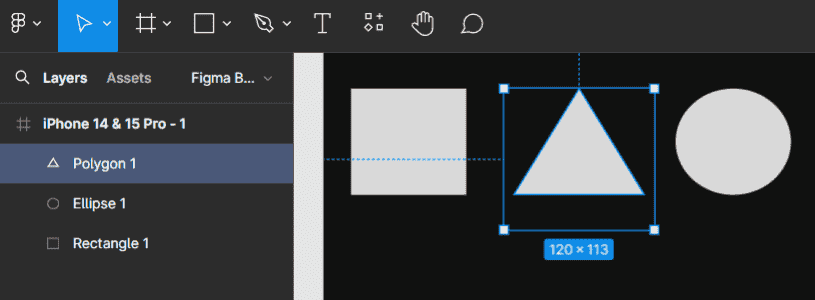
Creating a group in Figma is simple. We must follow the following steps to create a group.
Step 1: Select the objects which we want to group. We can do this by clicking and dragging our cursor to select multiple objects or by holding the shift key and clicking on individual objects.
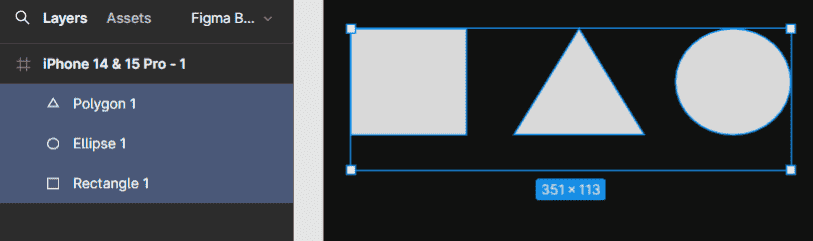
Step 2: Once we have selected our objects right click and choose group from the context menu or use the following shortcut key ( Cmd/Ctrl + G). Now our objects will be grouped and we can also name them as shapes.
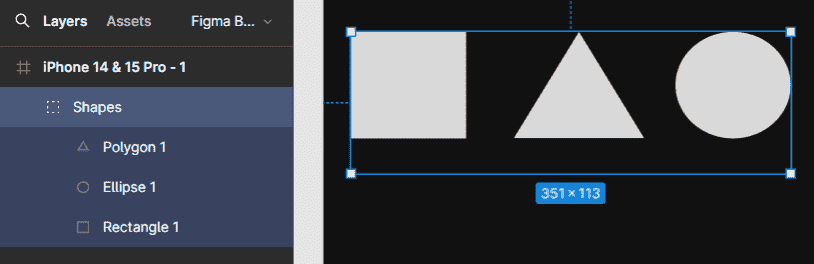
Working with Groups in Figma
1. Selecting a Group: When you select a group, the entire group is selected as a single unit. To select an individual layer inside the group, double-click the layer or select it directly from the Layers panel.
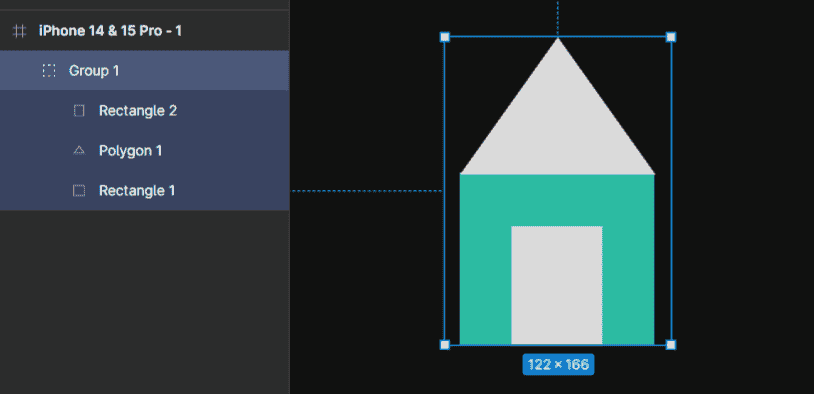
2. Editing: We can edit the individual elements within a group by double-clicking on the group to enter the editing mode. This allows us to make changes to specific elements while we can also keep the group in position.
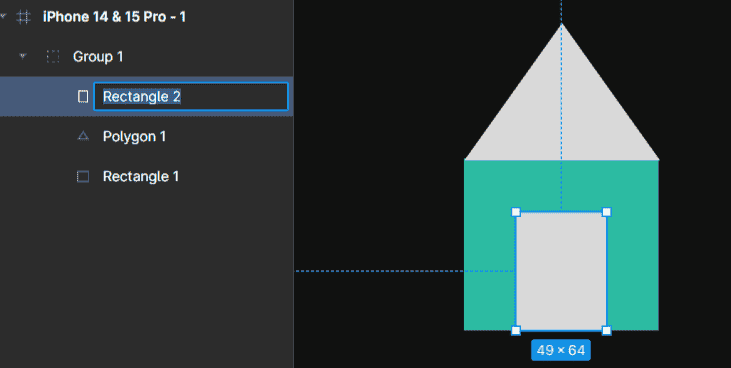
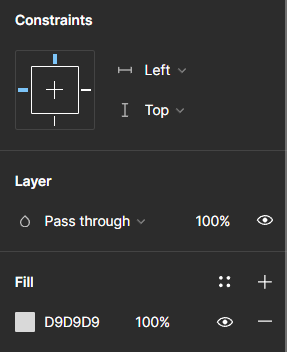
- After we double click on an object We can observe the options through which we can make changes on the right hand side which looks like this.
3. Layering: Groups have their own layer in the layer panel allowing us to easily manage and rearrange the order of groups in our design.
- We can observe the layers on the left's hand side which look like the following.
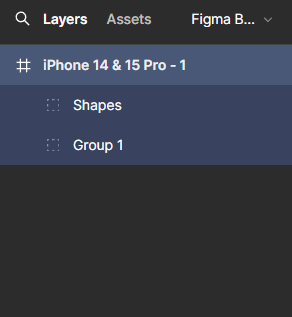
- Based on the arrangement of a layers we can see whether the current object is placed above the previous object or below the previous object. Let us understand it in a better way with an example.
- Let us consider the yellow colour grouped objects as the current object which is named as "Group1" in the layers section and the white colour group objects as the previous object which is named as "Shapes". If you want to place the "Group 1" above the "Shapes" then you must drag the "Group 1" to the upper side of the "Shapes" then you can see the result.
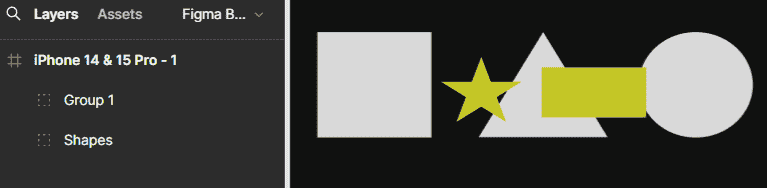
- In the same way if you want to place the "Shapes" above the "Group 1" then you must drag the "Shapes" to the upper side of the "Group 1" then you can see the result.
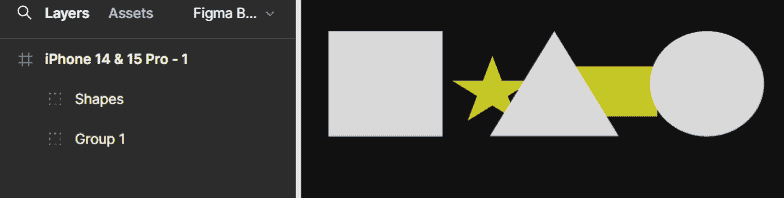
4. Nesting: Wickedness groups within other groups to create more complex hierarchies and organise our design in a structured manner which gives it a nice visual appearance. In simple terms we can say that it is a process of grouping layers or objects with a parent layer or object.
5. Auto Layout: Groups can also be converted into Auto Layout frames. Auto Layout automatically arranges and spaces the layers, making the layout easier to adjust when the content or its size changes.
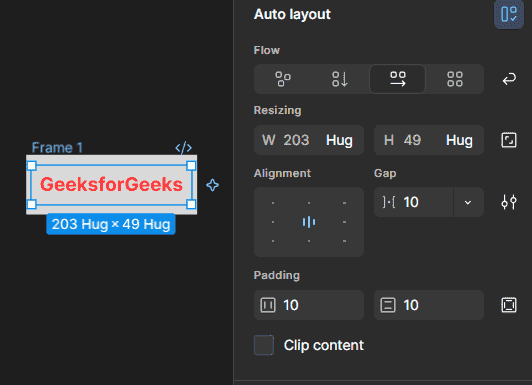
Note: Constraints cannot be applied directly to groups. When constraints are applied to a group, Figma applies them to the individual layers inside the group.
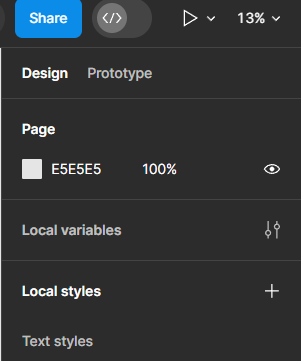
Sharing of design file: We can collaborate with others in Figma and share our Figma design file with them.We can do this by clicking on the "Share" button in the top right corner of a Figma interface.
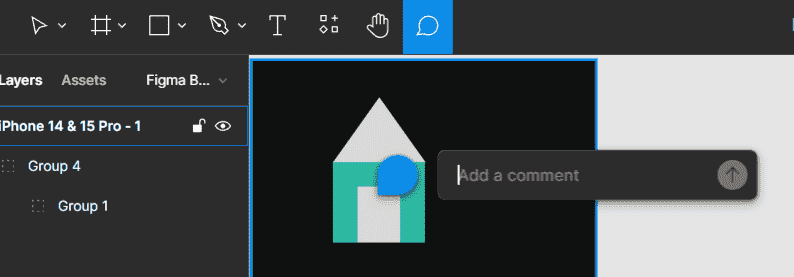
Comments and feedback: Figma has a feature in which we can leave comments and provide feedback on specific elements or the area of design.We can do this by selecting an object or a layer and leaving a comment in the right hand sidebar. Also we can use the shortcut key just by pressing "C". We can also add replies to the comment.
Version history: Figma keeps track of all the changes made to the design file allowing us to rollback to previous versions if needed. This is going to be really useful property while we try to collaborate with others as it provides a safety in case of any unwanted changes are made.
Benefits of Using Groups
Groups offer us several benefits that can really help our design process. Here are some advantages :
- Organisation: Groups keep related design elements organized and make them easier to identify and manage.
- Efficiency: You can move, resize, or modify multiple elements together instead of editing each one separately.
- Flexibility: Groups can be nested to create a clear hierarchy and manage complex layouts more easily.
- Collaboration: Groups make it easier to manage and share related elements when working with a team.
