

Frames are containers in Figma that help organize and structure layers such as text, images, shapes, and other frames. They can be used to create complete screens, components, sections, and other parts of a design. Frames also support features such as Auto Layout, constraints, and layout guides, which help create organized and adaptable layouts.
Creating Your First Frame
To create a frame, select the Frame Tool from the toolbar or press F, then drag on the canvas to define the frame's boundaries. You can also select existing elements and choose Frame Selection or use Ctrl + Alt + G on Windows (Cmd + Option + G on macOS).
.png)
How to Choose the Ideal Frame
Choosing a frame depends on the type of design you are creating. Figma provides frame presets for common devices and design formats, such as phones, tablets, desktops, presentations, watches, paper, and social media. You can also create a frame with custom dimensions when a preset does not meet your requirements
Step 1: Open the Frame tool
Open a Figma Design file and select the Frame tool from the toolbar. You can also press F or A on your keyboard.
.png)
Create Custom Frames
If your project has unique specifications, you can create a custom frame by selecting the "Frame" tool and inputting the desired dimensions.
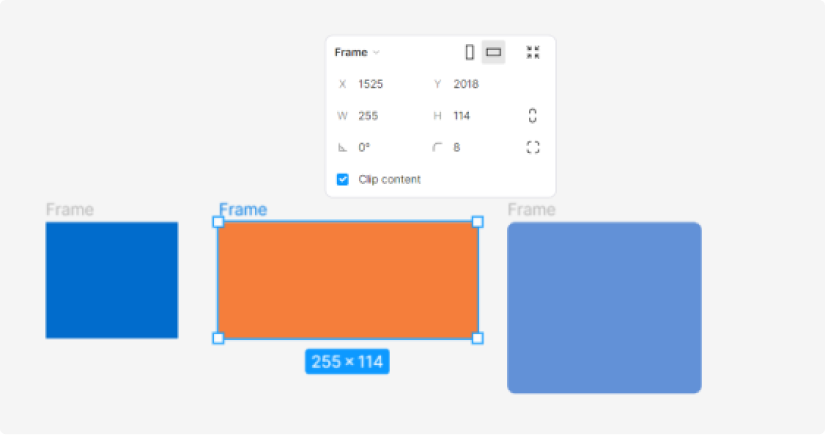
Naming your Frame
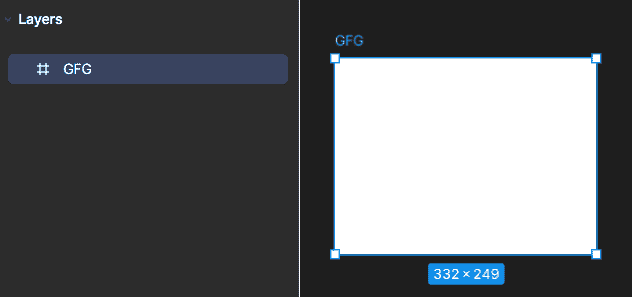
Name your frames appropriately to keep your project organized. For example, "Homepage - Desktop" or "Login Screen - Mobile."
Layout Guides
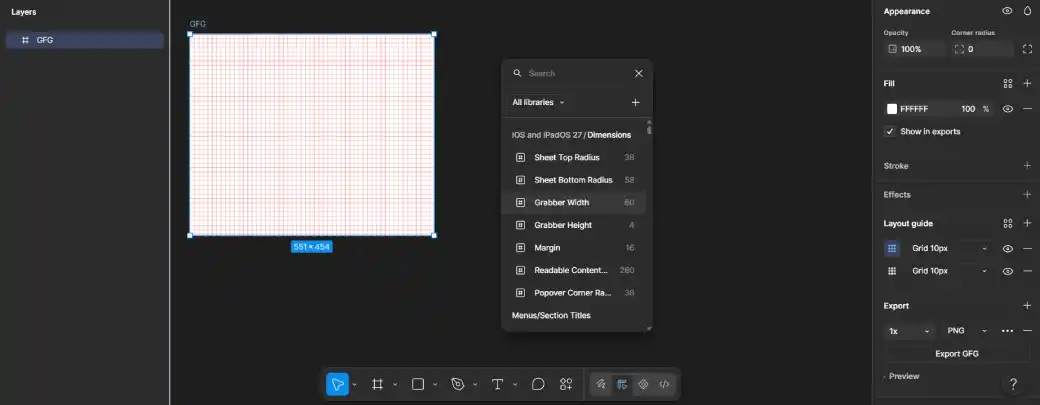
Layout guides can be added to frames to help maintain consistency and alignment in a design. Figma provides three types of layout guides: uniform grid, column, and row. Layout guides are visual aids and do not control how elements resize within a frame.
Auto Layout Frames vs Regular Frames
Auto Layout Frames
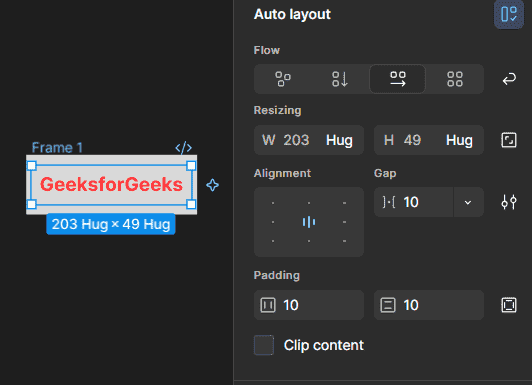
Auto Layout can be applied to a frame or a selection of layers to automatically arrange and space its contents. It provides properties such as direction, spacing, padding, alignment, and resizing. Figma provides three Auto Layout flows: Vertical, Horizontal, and Grid. Auto Layout is useful for creating adaptable designs such as buttons, navigation bars, lists, and dashboards.
Regular Frames
A regular frame does not have Auto Layout applied to it. Its child elements can be positioned manually, while features such as constraints and layout guides can still be used to control their layout and behavior.
.png)
Nested Frames
Nested frames are frames placed inside other frames. They are useful for organizing complex designs into smaller sections and creating structured layouts. Nested frames can also be combined with Auto Layout and constraints to create flexible and adaptable layouts.
.png)
