

Offline GPS apps allow users to navigate without an active internet connection by storing maps directly on their devices. These applications are useful for road trips, hiking, and traveling through areas with limited mobile network coverage.
- Provide access to downloaded maps without Wi-Fi or mobile data.
- Support GPS location tracking, route planning, and offline directions, depending on the app.
- Help reduce mobile data usage and avoid roaming charges while traveling.
Note: Offline GPS navigation uses your device's satellite positioning capabilities, but maps must generally be downloaded beforehand. Some apps offer free offline maps while charging for voice guidance, traffic updates, or advanced navigation features.
Key Features of Offline GPS Apps
Before selecting an offline GPS app, consider the following features:
- Offline Map Downloads: Save maps of cities, regions, or countries for use without internet access.
- Turn-by-Turn Navigation: Receive route instructions while driving, walking, or cycling.
- GPS Location Tracking: View your current position using the device's built-in GPS.
- Offline Search: Find saved addresses, roads, and points of interest without mobile data.
- Multiple Travel Modes: Navigate using driving, walking, cycling, or hiking routes.
- Map Updates: Download updated maps to reflect changes in roads and locations.
- Storage Management: Manage downloaded maps based on available device storage.
Offline GPS Apps for Android and iPhone
1. Google Maps
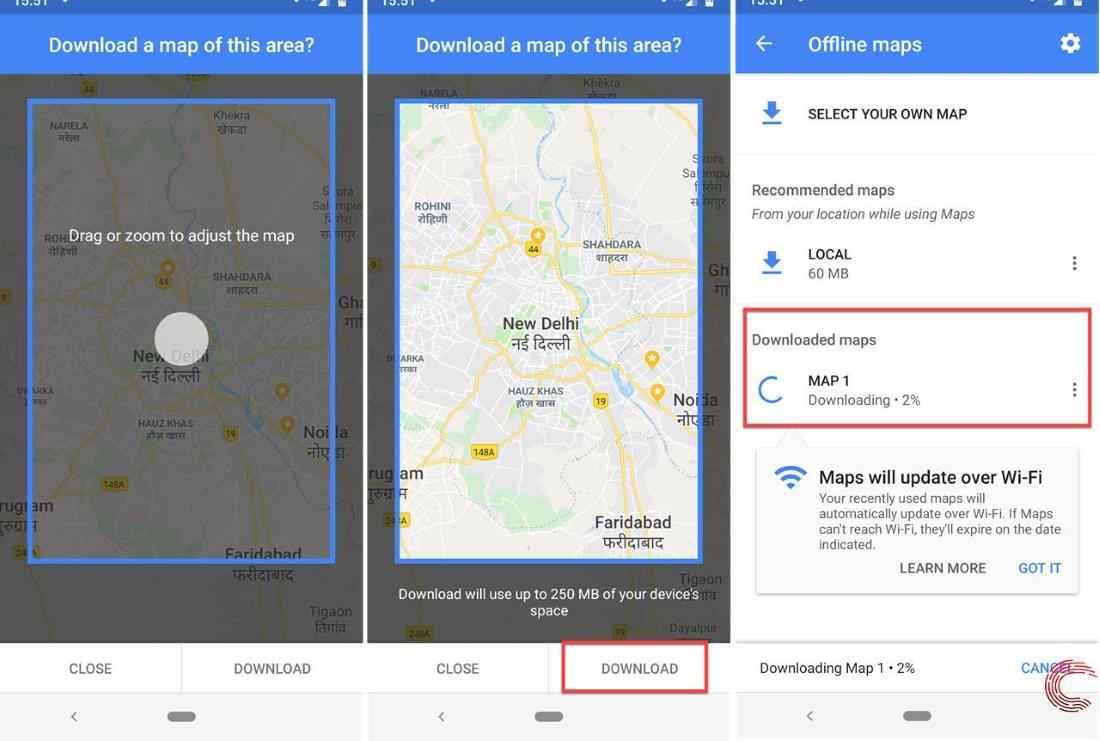
Google Maps is a navigation application that allows users to download selected geographical areas for offline use. Once downloaded, users can view maps, search for locations, and receive driving directions without an internet connection, provided the route is covered by the saved map.
Features:
- Download selected cities or regions for offline access.
- Access driving directions within downloaded map areas.
- Search for saved locations without internet connectivity.
- Manage and update downloaded maps.
Steps to Use Google Maps Offline:
- Step 1: Open Google Maps and connect your device to the internet.
- Step 2: Tap your profile picture and select Offline maps.
- Step 3: Select Select your own map and adjust the area you want to download.
- Step 4: Tap Download and wait for the map to be saved.
- Step 5: Open Google Maps without an internet connection and navigate within the downloaded region.
Limitation: Walking, cycling, and public transportation directions are unavailable offline. Real-time traffic information and alternative driving routes also require internet access.
2. Maps. me
MAPS.ME provides downloadable maps based on OpenStreetMap data. It is designed for travelers who need to explore unfamiliar areas without continuous internet access.
Features:
- Download maps for offline viewing and navigation.
- Find points of interest such as restaurants, hotels, and tourist attractions.
- Use supported walking and driving routes.
- Save locations and bookmarks for future trips.
Steps to Use MAPS.ME Offline:
- Step 1: Install and open MAPS.ME on your smartphone.
- Step 2: Search for your destination while connected to the internet.
- Step 3: Download the required map region.
- Step 4: Open the downloaded map to search for locations and navigate offline.
Limitation: Free map downloads and advanced features may be restricted by the app's current subscription or purchase options.
3. HERE WeGo
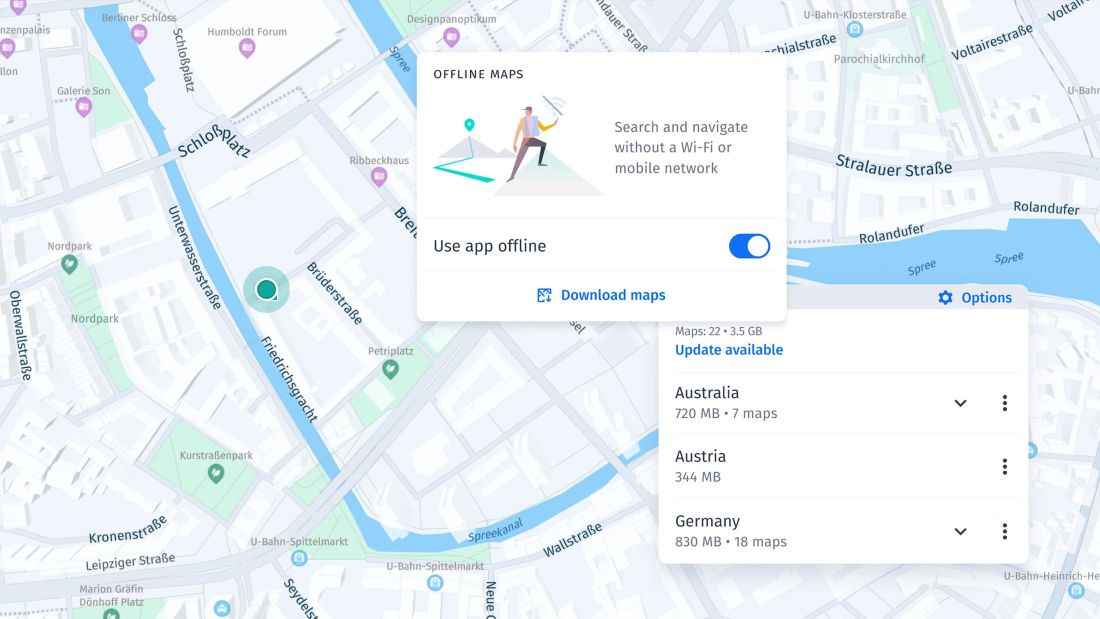
HERE WeGo provides offline maps and route planning for travelers and drivers. Users can download regions or entire countries and access supported navigation features without a mobile data connection.
Features:
- Download maps for countries and geographical regions.
- Navigate offline using driving, walking, and cycling directions.
- Search for destinations within downloaded maps.
- Access online traffic and public transportation information when connected.
Steps to Use HERE WeGo Offline:
- Step 1: Open HERE WeGo and expand the application menu.
- Step 2: Select Your Maps → Download maps.
- Step 3: Choose the country or region and download its map.
- Step 4: Enable Use app offline from the menu.
- Step 5: Search for a destination and start offline navigation.
4. Sygic GPS Navigation
Sygic GPS Navigation is a driving-focused application that provides downloadable maps with a 3D interface. It offers offline map access, while advanced features such as voice-guided navigation and live traffic services are included in its Premium+ subscription.
Features:
- Download 3D maps for offline use.
- Search for destinations and plan routes without internet access.
- Access premium voice guidance and driving assistance features.
- Use live traffic information when connected and subscribed.
Steps to Use Sygic Offline:
- Step 1: Install and open Sygic GPS Navigation.
- Step 2: Open the menu and select Offline maps.
- Step 3: Tap Add offline maps.
- Step 4: Select the country or region you want to save.
- Step 5: Download the map and open it for offline use.
Limitation: Premium+ is required for features including voice-guided navigation. Live traffic information also requires an internet connection.
5. OsmAnd
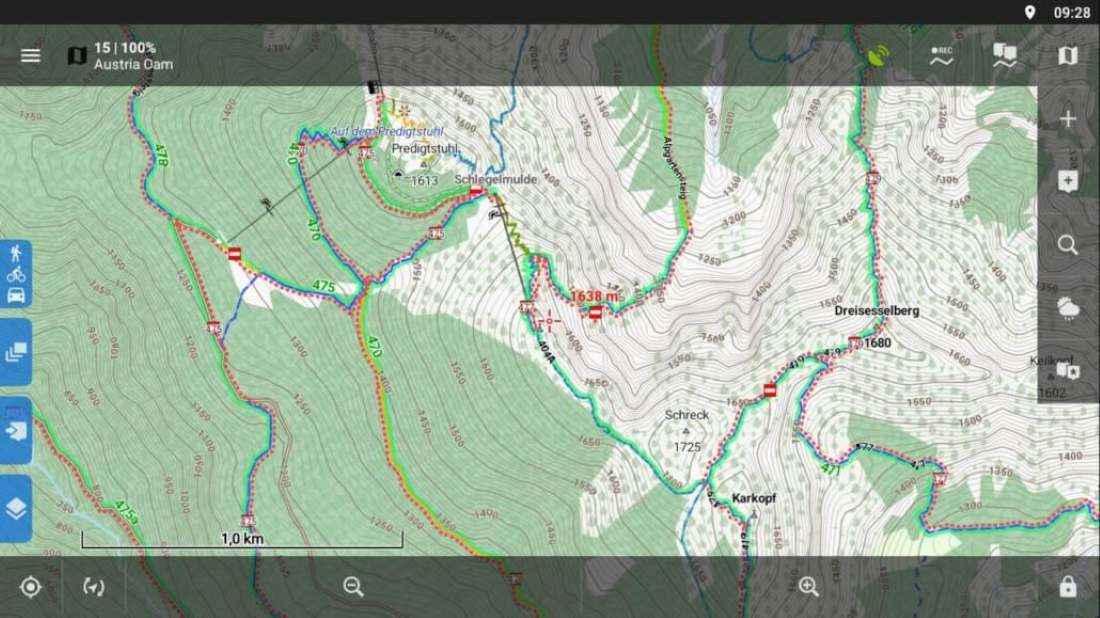
OsmAnd is an offline mapping and navigation application based on OpenStreetMap data. It is particularly useful for hiking, cycling, and outdoor navigation because it offers detailed routes, trails, and map customization features.
Features:
- Download detailed offline maps using OpenStreetMap data.
- Navigate using driving, cycling, and walking routes.
- Save waypoints and record GPS tracks.
- Access hiking trails and outdoor navigation tools.
Steps to Use OsmAnd Offline:
- Step 1: Install OsmAnd and open the application.
- Step 2: Navigate to the maps and resources section.
- Step 3: Select the country or region you want to download.
- Step 4: Download the map and choose your preferred navigation mode.
- Step 5: Search for a destination or follow a saved route without an internet connection.
Limitation: The free version currently allows seven map downloads or updates on Android and five on iOS. Additional downloads and certain advanced features require purchases.
6. Organic Maps
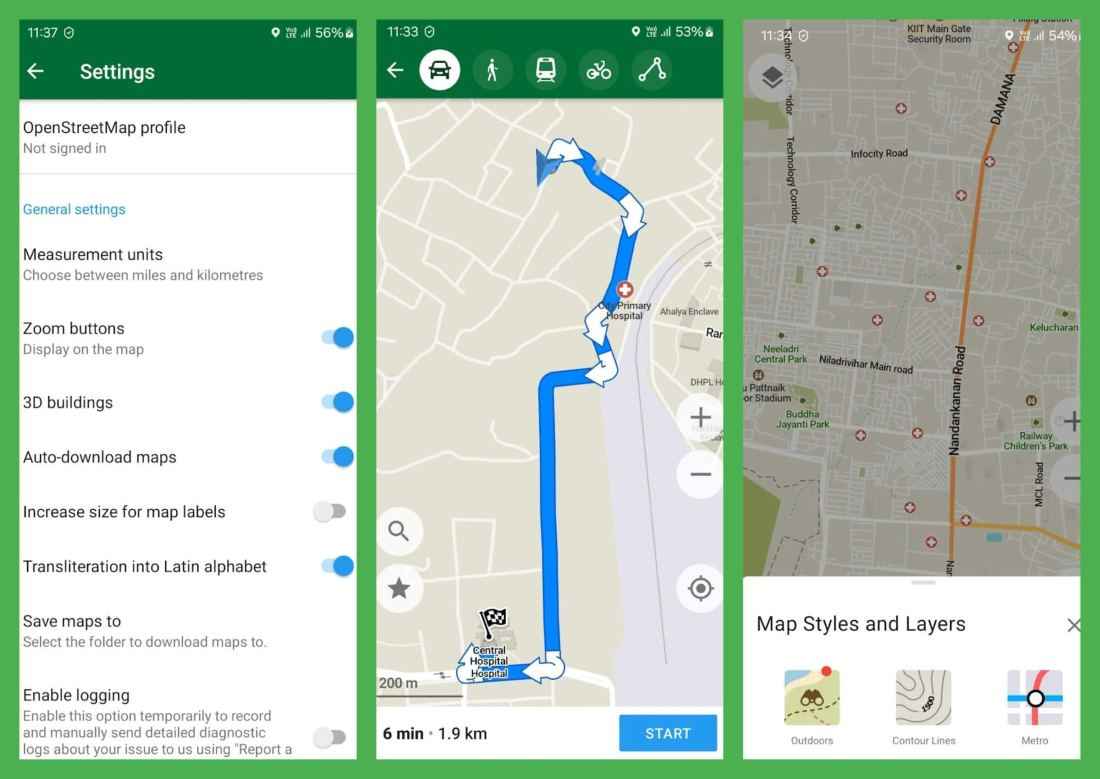
Organic Maps is a free, open-source navigation application designed for traveling, hiking, and cycling. It uses OpenStreetMap data and supports offline search, route planning, and navigation without advertisements or tracking.
Features:
- Download unlimited offline maps without subscription charges.
- Get turn-by-turn directions for driving, walking, and cycling.
- Access hiking trails, cycling routes, and geographical details.
- Save bookmarks and import or export GPS tracks.
Steps to Use Organic Maps Offline:
- Step 1: Download and install Organic Maps.
- Step 2: Open the app and select the required country or region.
- Step 3: Download the map while connected to the internet.
- Step 4: Search for a destination and select a transportation mode.
- Step 5: Start navigation using the downloaded map.
Limitation: Real-time traffic conditions and other live internet-based services are not available.
7. Polaris GPS Navigation
Polaris GPS Navigation is designed for outdoor activities such as hiking, camping, cycling, and marine navigation. It provides offline map access, waypoint management, and GPS tracking tools.
Features:
- Access offline topographic, hiking, and marine maps.
- Create waypoints and plan outdoor routes.
- Track routes using GPS coordinates.
- View navigation measurements such as speed, distance, and altitude.
Steps to Use Polaris GPS Navigation Offline
- Step 1: Install Polaris GPS Navigation on your Android device.
- Step 2: Open the application and grant location permissions.
- Step 3: Select and download the required offline maps.
- Step 4: Create waypoints or select a destination.
- Step 5: Use GPS tracking and navigation tools during your outdoor activity.
Limitation: Polaris GPS Navigation is primarily focused on outdoor exploration rather than everyday road navigation. The referenced application is Android-only.
8. MapFactor Navigator
MapFactor Navigator offers offline GPS navigation using downloadable OpenStreetMap data. It supports different transportation modes and is suitable for drivers who need route guidance without continuous internet connectivity.
Features:
- Download offline maps for more than 200 countries.
- Receive turn-by-turn voice navigation.
- Choose routes for cars, bicycles, motorcycles, and other supported vehicles.
- Access speed limit information and route preferences.
Steps to Use MapFactor Navigator Offline:
- Step 1: Install and open MapFactor Navigator.
- Step 2: Select the free OpenStreetMap map option, where available.
- Step 3: Download the required country or region.
- Step 4: Configure your preferred navigation mode.
- Step 5: Enter your destination and begin offline navigation.
Limitation: Some professional maps, live traffic services, and advanced features require additional purchases.
9. Genius Maps
Genius Maps is an offline mapping application that allows users to download maps, search for locations, and plan routes without internet connectivity. It provides optional paid features for enhanced driving navigation.
Features:
- Download maps for offline viewing and exploration.
- Search for addresses and points of interest.
- Plan routes using stored map data.
- Unlock voice-guided navigation and automatic rerouting through Pro Guidance.
Steps to Use Genius Maps Offline:
- Step 1: Download and install Genius Maps.
- Step 2: Open the app and access the map management section.
- Step 3: Select and download the required region.
- Step 4: Search for your destination using the downloaded map.
- Step 5: View the route or start supported navigation features.
Limitation: Voice-guided turn-by-turn navigation and automatic rerouting require Pro Guidance after the trial period.
10. Apple Maps
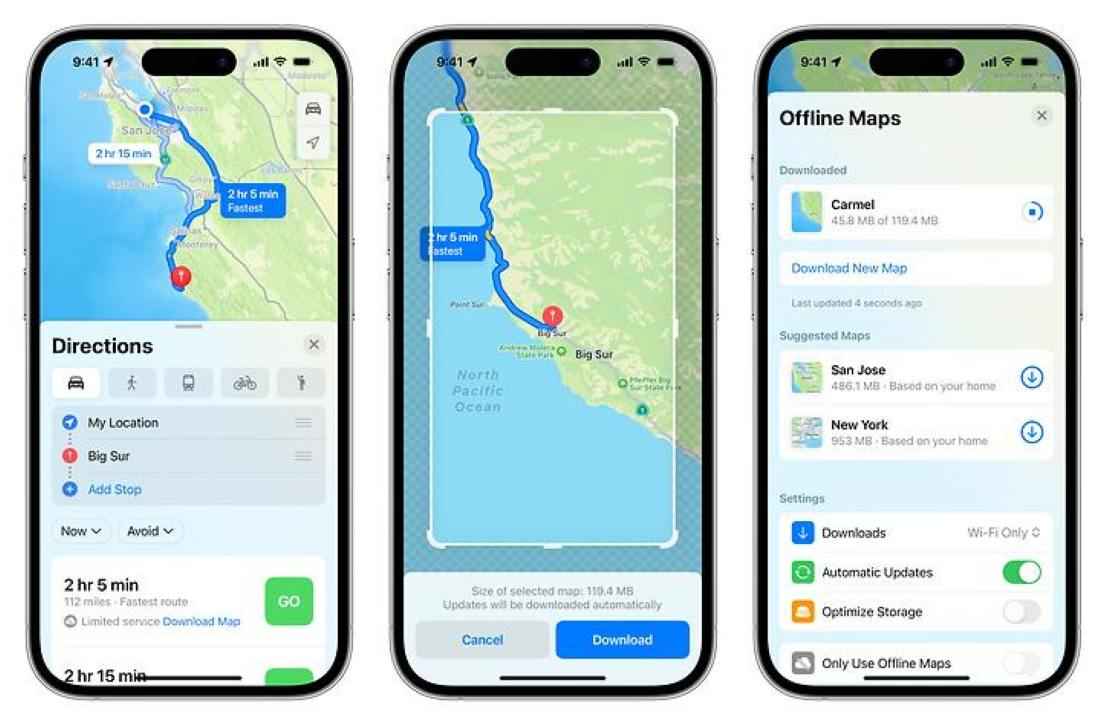
Apple Maps provides offline map downloads on supported iPhones running iOS 17 or later. Users can access downloaded locations and supported navigation directions even without Wi-Fi or cellular data.
Features:
- Download selected map areas for offline access.
- Get supported driving, walking, cycling, and transit directions.
- View saved place details and estimated arrival times.
Steps to Use Apple Maps Offline:
- Step 1: Open Apple Maps on an iPhone running iOS 17 or later.
- Step 2: Search for a location and open its place information.
- Step 3: Select Download where available.
- Step 4: Adjust the map area and confirm the download.
- Step 5: Access the saved map when an internet connection is unavailable.
Limitation: Offline maps are available only in supported geographical areas. Some live information still requires internet access.
Tips for Using Offline GPS Apps
To improve navigation reliability when traveling without an internet connection, follow these practices:
- Download Maps in Advance: Save all required regions before traveling.
- Check Map Coverage: Ensure the downloaded area includes your complete route.
- Update Maps Regularly: Refresh saved maps to receive recent road and location information.
- Enable Location Services: Keep GPS location access enabled for accurate positioning.
- Check Offline Functionality: Test the app without mobile data before starting your journey.
- Manage Battery Usage: Carry a charger or power bank for long navigation sessions.
