

Complex interactions make prototypes respond to different user actions and conditions instead of following only a fixed path. Figma supports features such as multiple actions, conditionals, variables, expressions, and variable modes for building these interactions.
Creating Complex Interactions
1. Use Multiple Actions
A prototype interaction has a trigger and one or more actions. Multiple actions let you add an unlimited number of actions to the same trigger. The actions run in the order in which they are listed.
For example, one click can:
- Click a button
- Set a variable
- Navigate to another screen
2. Add Conditional Logic
Conditionals let a prototype check whether a condition is true before running an action. Figma uses if/else logic for these checks.
For example:
IF itemCount > 0
    → Continue
ELSE
    → Stay on the current screen
The condition is evaluated as either true or false, and the corresponding action is triggered.
3. Use Variables to Control Interaction States
Variables store values that can change while a prototype is being used. In prototypes, the Set variable action can change a variable when a trigger occurs. Figma supports string, number, boolean, and color variable types for this workflow.
For example:
- Click Menu
- Set menuOpen = true
- Update the design using the variable
This can allow a prototype to change properties such as text, dimensions, or layer visibility based on the current variable value.
4. Use Expressions
Expressions allow you to manipulate variable values using supported operations. They can be used with the Set variable action and within Conditional actions.
- A number variable can be increased when a user clicks an Add button.
- Figma supports numerical operators such as addition, subtraction, multiplication, and division. Boolean expressions can also use comparisons such as ==, !=, >, <, >=, and <=.
For example: itemCount + 1
5. Use Variable Modes
A variable can have multiple modes, with each mode storing a different value. Prototype interactions can use specific mode values or change the variable mode of the current page.
For example, a design can have:
- Light Mode
- Dark Mode
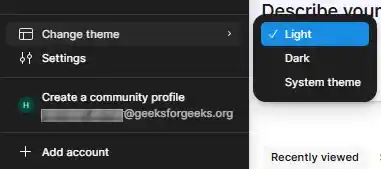
A prototype interaction can use the Set variable mode action to switch the current page between these modes.
6. Combine Variables with Components
Variables can also work with interactive components. When a variable is connected to a component property or another design property, changing the variable can update those elements together.
This is useful when one interaction needs to update more than one part of a prototype.
Create a Conditional Interaction
A common example is requiring a user to select a checkbox before continuing.
Step 1: Set the Variable
Create a boolean variable named isChecked with an initial value of false.
Step 2: Change the Variable
Add a prototype interaction to the checkbox using Set variable and change isChecked to true when the checkbox is selected.
Step 3: Add a Conditional
Add a conditional interaction to the Continue button:
IF isChecked == true
    → Navigate to the next screen
ELSE
    → Do nothing
Figma supports this type of if/else conditional in prototype interactions.
Step 4: Test the Prototype
Play the prototype and test both states:
Checkbox not selected
        ↓
isChecked = false
        ↓
No navigation

Checkbox selected
        ↓
isChecked = true
        ↓
Navigate to next screen
Figma provides an advanced prototyping example using a required checkbox interaction with variables and interactive components.
