

User Interface (UI) is the visual and interactive part of a digital product through which users interact with websites, apps, and software. It uses elements such as buttons, menus, typography, colours, icons, and layouts.
- Easy to Use: Makes interfaces simple to navigate with clear layouts and controls.
- Attractive Look: Uses colours, typography, images, and other visual elements to create a consistent design.
UI Design Process
The UI design process involves understanding users, designing the interface, creating interactive prototypes, and testing the design. Each stage helps create an interface that is usable, consistent, and effective.
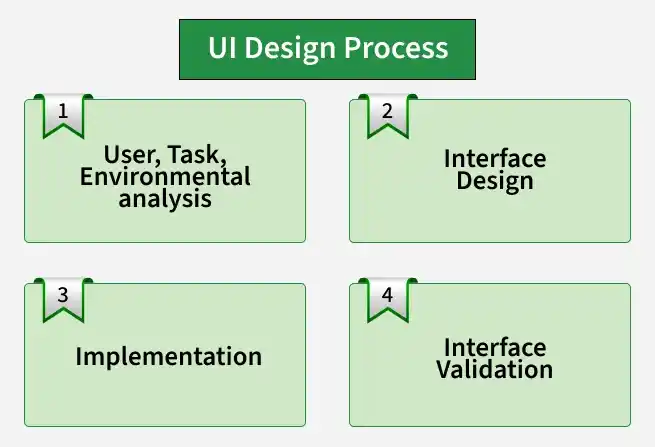
User, Task, and Environmental Analysis
- Profile users who will interact with the system.
- Conduct user research and task analysis to understand user needs and goals.
- Consider the environment and constraints in which the interface will be used.
Interface Design
- Define interface elements and the actions users can perform with them.
- Create wireframes, design layouts, and establish navigation.
- Organize visual and interactive elements into a clear interface structure.
Prototyping
- Create prototypes for common usage scenarios
- Build interactive models of the interface
- Use prototypes to test interactions before development
Interface Validation
- Test whether the interface is easy to use and meets user requirements.
- Conduct usability testing and collect user feedback.
- Identify usability issues and make improvements based on the results.
Types of UI Design
UI can take different forms depending on how users interact with a digital system.
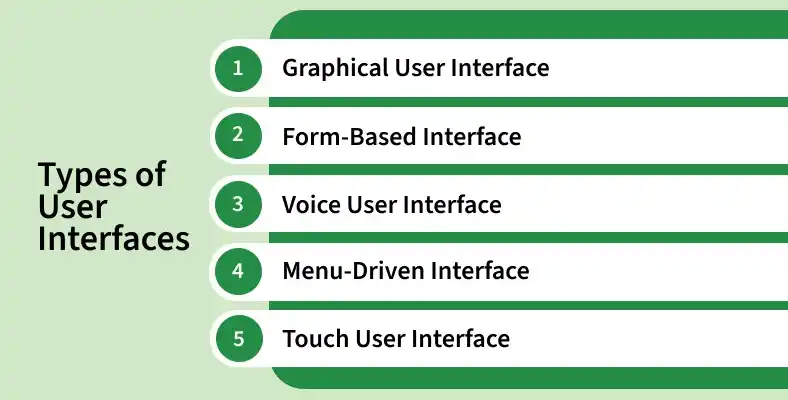
- Graphical User Interface (GUI): Uses visual elements such as windows, icons, menus, and buttons that users interact with using devices such as a mouse, keyboard, or touchscreen (e.g., desktop apps).
- Menu-Driven Interface: Allows users to interact with a system by selecting options from menus (e.g., ATM interfaces).
- Form-Based Interface: Uses fields and controls to collect or display structured information (e.g., registration and login forms).
- Touch User Interface: Allows users to interact with a device through touch gestures such as tapping, swiping, and pinching (e.g., smartphones).
- Voice User Interface (VUI): Allows users to interact with a system through spoken commands (e.g., voice assistants).
Components of UI Design
UI design relies on key components to create functional, user-friendly interfaces:
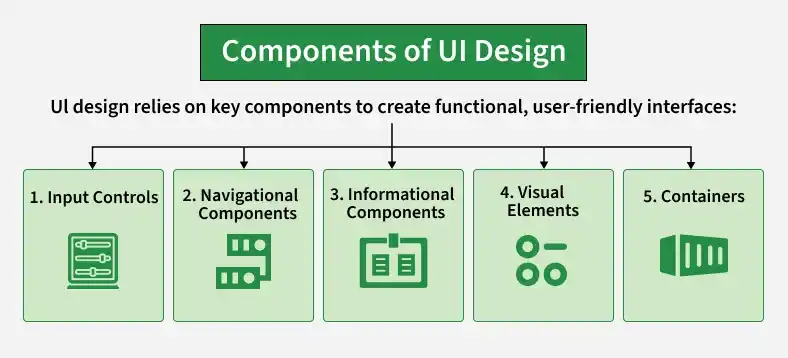
- Input Controls: Buttons, checkboxes, dropdowns, and text fields for user input.
- Navigation: Menus, search, breadcrumbs, and tabs for moving through a product.
- Information: Notifications, alerts, progress indicators, and tooltips for feedback.
- Visual Elements: Typography, colours, icons, images, and spacing for consistent design.
- Containers: Cards, panels, and dialogs for grouping related content.
Responsive UI Design
Responsive UI design adapts a digital product to different screen sizes and devices.
- Flexible Layouts: Adjusts content and components to available space.
- Multiple Devices: Works across desktops, tablets, and mobile devices.
- Readable Content: Maintains proper text size, spacing, and contrast.
- Easy Interaction: Keeps buttons and controls easy to use.
- Flexible Content: Allows content to reflow when the screen or text size changes.
Example of UI Design
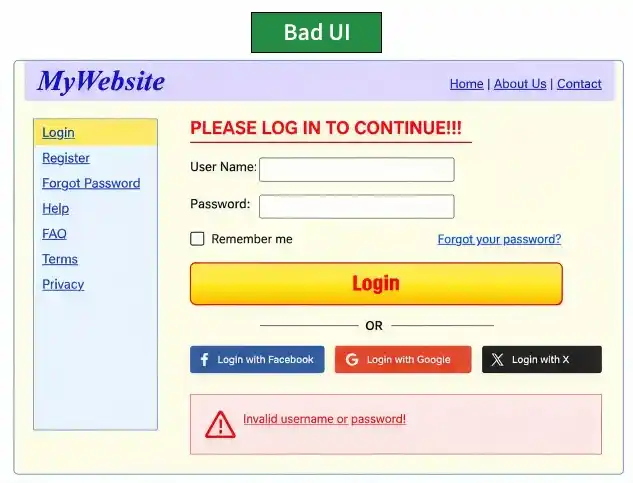
The examples below show the difference between a poorly designed interface and a well-designed interface. Compare them to understand how UI choices can affect usability and clarity.

Principles of Effective UI Design
To create user-friendly interfaces, follow these principles:
- Simplicity: Keep the interface focused and free of unnecessary elements.
- Consistency: Use consistent layouts, colours, typography, icons, and interactions.
- Placement: Put important elements where users can easily find them.
- Colour and Contrast: Use clear colours and sufficient contrast for readability.
- Feedback: Show clear feedback when users perform an action.
- Visual Hierarchy: Arrange elements by importance to guide user attention.
- Error Handling: Prevent mistakes with clear instructions and helpful error messages.
Must Read:
