

Constraints in Figma control how layers respond when the frame containing them is resized. They help maintain a layer's position, size, or alignment relative to its parent frame. Constraints guide Figma's layers on how to respond when their parent frame is resized.
Representation of Constraints in Figma
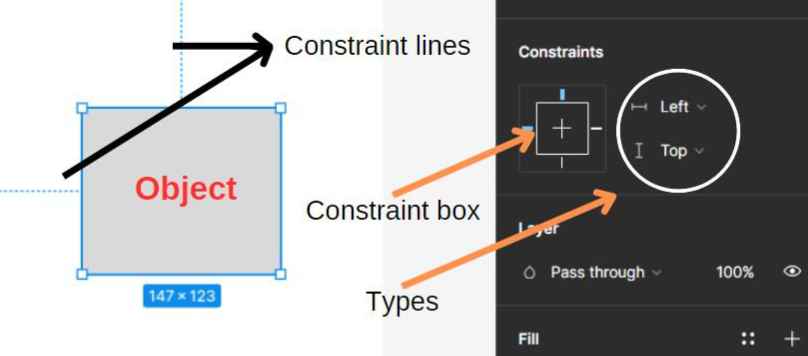
- In Figma, a constraint is usually shown by two dashed lines going along in each direction (by default on the top and left).
- The panel for adjusting the constraint in Figma is displayed on the upper right-hand side where alignment types are present.
- There is a little square box (Constraint box) also. By controlling the axes selection in it, constraints could be applied in varied directions.
Types of Constraints
There are two major ways constraints are aligned in the space and these two are detrimental to the basic alignment. These are Horizontal (X) and Vertical (Y) alignments.
Horizontal Alignment
There are 5 options in the horizontal alignment, which make alignment horizontally dynamic and adjustable. These are:
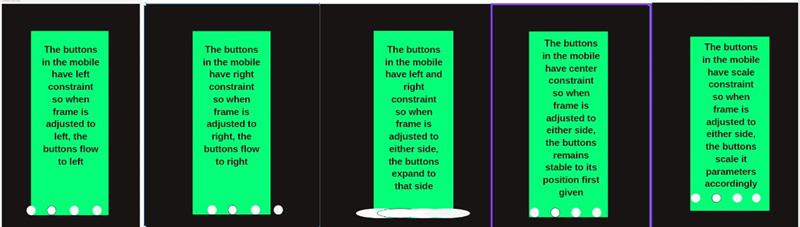
- Left: which allows the object to be adjusted concerning the left side of the frame so if the frame is resized to the left side, then the object will flow leftward.
- Right: which allows the object to be adjusted concerning the right side of the frame so if the frame is resized to the right side, then the object will flow rightwards.
- Left and right: allow the object to be adjusted concerning both sides of the frame so if the frame is moved anyway along the x-axis, then to that side the object will grow in size.
- Centre: allows the object to be adjusted concerning the horizontal centre of the frame giving the option to have a stable object in the position it is first placed.
- Scale: which allows the object’s parameters (object and dimension) to be defined as a percentage of the frame’s dimensions so now the object will readjust its parameters according to how the frame will be adjusted.
Vertical Alignment
There are 5 options in vertical alignment, which make the alignment vertically dynamic and adjustable. These are:
- Top: which allows the layer to be adjusted about the top of the frame so if the frame is resized to the top, then the object will flow upwards
- Bottom: which allows the layer to be adjusted about the bottom of the frame so if the frame is resized to the bottom, then the object will flow downwards.
- Top and Bottom: maintain the layer’s parameters (size and position) about the top and bottom of the frame so if the frame is resized along the y-axis, then to that side, the object shows an increase in size.
- Centre: which allows the layer to be adjusted about the vertical centre of the frame so if the frame is adjusted to any side along the y-axis, the object remains stable in its determined position.
- Scale: which allows to layer’s parameters (size and position) to be defined as the percentage of the frame’s dimension so now the object will readjust its parameters according to how frame will be adjusted.

Importance of Constraints
Constraints become crucial for designer especially while designing UI that needs to be utilized for multi-device channels and thus their importance could be understood with an example.
- A design needs to be prepared for a smartwatch, with a background, an image and a time-date stamp in it.
- Now, if the UI is adjusted such that the frame is resized, and the background needs to be resized accordingly, it should be set to scale horizontally and vertically.
- Now, there arises the condition that other elements get altered but the designer also needs to keep them to their real, so in that case, the elements need to have centre constraints.
- By applying the constraints, now the design is suited to need.

Method to Apply Constraints
Some key points to remember before applying constraints
- Constraints are applied to layers inside a frame and define how those layers respond when the parent frame is resized.
- Constraints can be applied to nested frames inside other frames.
- Constraints cannot be applied directly to groups. When constraints are applied to a group, Figma applies them to the individual layers inside the group.
- Layers managed by Auto Layout use Auto Layout's positioning and sizing rules rather than regular constraints.
How to apply Constraints to a layer?
A layer is built within the frame of the design and thus applying a constraints to a layer is similar to settings constraints.
- Select a layer inside a frame.
- In the right sidebar, locate the "Constraints" section.
- Choose the desired horizontal and vertical constraints.
- Resize the parent frame to see how the layer responds.
Combining Constraints with Layout Guides
Constraints and Layout Guides can be used together to create more structured layouts. Layout Guides help designers align elements within a frame, while Constraints define how those elements respond when the frame is resized. For example, a layer can be aligned with a column guide and use a Left and Right constraint so that it maintains its relationship with the frame when the frame size changes.
Limitations of constraints and overcoming them by ignoring constraints
Constraints are biding in nature so once applied they will be affected every time a frame is readjusted according to the need of the designer, however, this creates a limitation in design as some components need to be readjusted without constraints getting the design affected. To overcome this, Figma gives an option to ignore the constraints’ effect while readjusting the frame.
So, to ignore the constraints use of following modifier key can be utilized:
- Mac: Hold "Command" while resizing.
- Windows: Hold "Ctrl" while resizing.
