

Drawing tool kits are basically sets of pre-made shapes, icons and other design elements that you can use to create awesome designs and Figma. Drawing toolkits in figma are used to make awsome designs and icons.
- The icons which we see on most of the websites are made with the help of figma.
- We can also replicate the icons in Figma using these tools.
- These tool kits are filled with ready to use design elements.
- These toolkits save your time and effort by providing a library of asserts that you can simply drag and drop into your designs.
Types of Drawing Tools in Figma
Figma offers a variety of drawing tool kits for creating designs. Here are some of the key drawing tools available in Figma :
1. Pen Tool
Lets you create custom shapes and paths by placing and connecting nodes. You can adjust curves, close paths, and create complex shapes.
- Open Figma and create a new project.
- Click the Pen tool in the toolbar. You can also press P to activate it.
- Select Pen from the available Pen and Pencil tools.
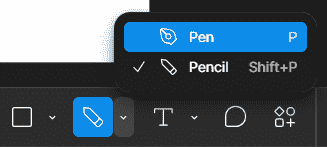
- After selecting the pen tool you can draw anything by creating a point or a node connecting with another node. Here in this example I have drawn this shape by using the pen tool.
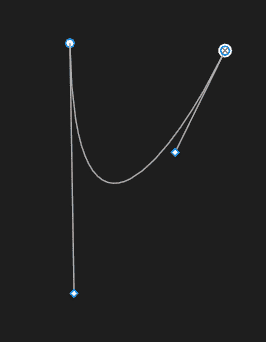
- While dealing with pen tool you must be careful because it is really important to place the notes in a right place when you draw something. It is always suggested to have a better practise when you are a beginner for figma.
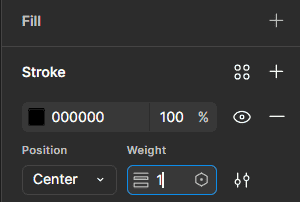
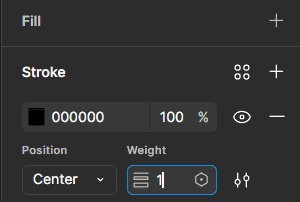
- We can increase the density of a line going to the "Stroke" section.
2. Pencil Tool
Lets you draw freehand directly on the Figma canvas. It is useful for sketching ideas, creating custom drawings, and adding a personal touch to designs. You can also adjust the stroke thickness and refine your drawings.
- On the top of a figma canvas you can see a "Pen" icon.Click on it. After clicking on that icon you get two options : 1) Pen 2)Pencil. Now select the "Pencil" tool. We can also use "Shift + P" to activate the "Pencil" tool.

- After selecting the pencil tool we can draw anything that comes to our mind in the canvas. In the below example you can see that I have taken the example of GeeksforGeeks logo drawn with pencil.
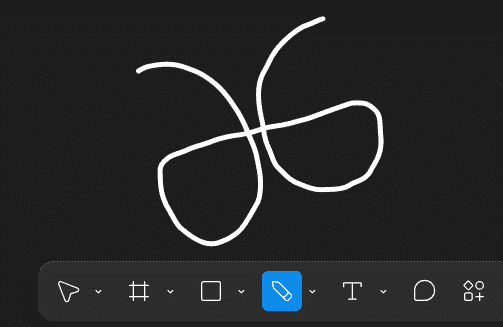
- For pencil tool also we can increase the density of the lines we have drawn. To increase the density first select the sketch which you have drawn and then go to the "Stroke" section and increase.
3. Line Tool
In Figma lets you create straight lines and paths on the canvas. It can be used to create borders, dividers, and custom shapes by combining multiple lines.
Let us see how to make a use of line tool and Figma :
- To use the line to you simply select it from the toolbar or use the keyboard shortcut "L".
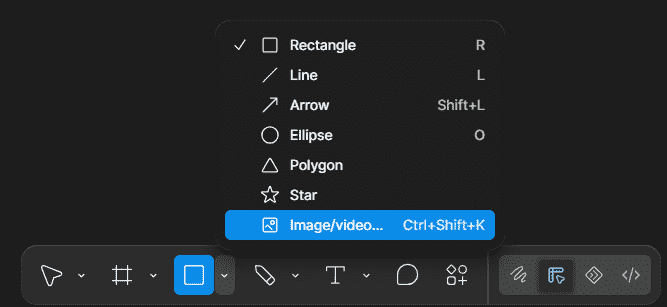
- Now click and drag to create a line.
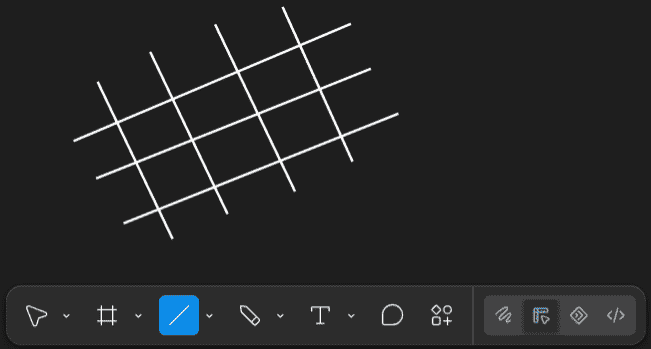
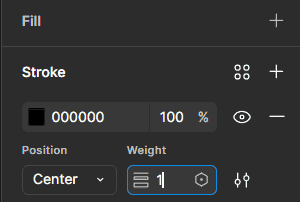
- As you know how to create lines you can actually work on making a designs by using lines. We can also increase the density of lines which we have drawn in the "Stroke" section.
4. Rectangle Tool
In Figma lets you quickly create rectangular shapes. Rectangles can be used for buttons, frames, backgrounds, and image or text placeholders.
- To use the rectangle tool you can either select it from the toolbar or use the keyboard shortcut "R".
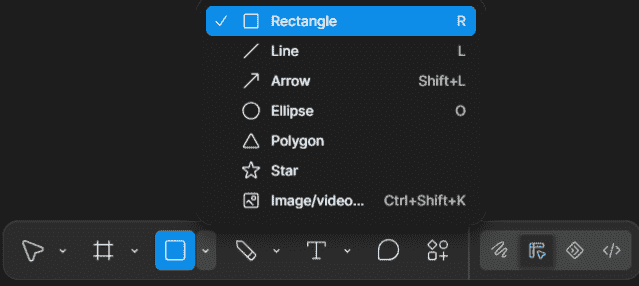
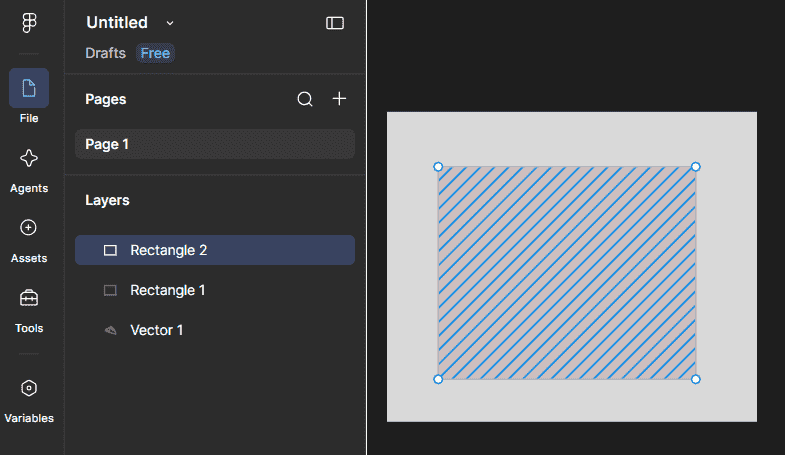
- Once you have selected the tool simply click and drag on the canvas to create a rectangle shape. You can adjust the size of the rectangle by dragging its corners.
5. Ellipse Tool
In Figma is a feature that allows you to create perfect circles and ovals in your design. It is just like having a virtual compass for drawing curves. These can be used for building icons.
Let us see how to make a use of Ellipse tool :
- To use the ellipse tool you can either select it from the toolbar or use the keyboard shortcut "O".
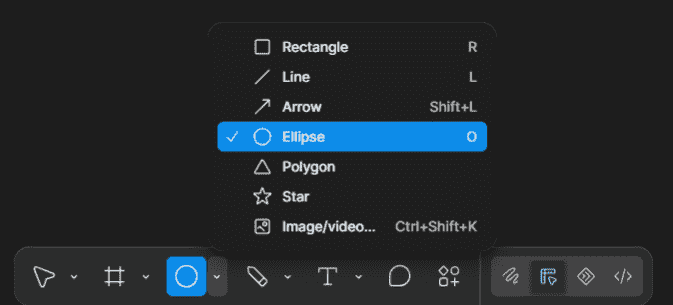
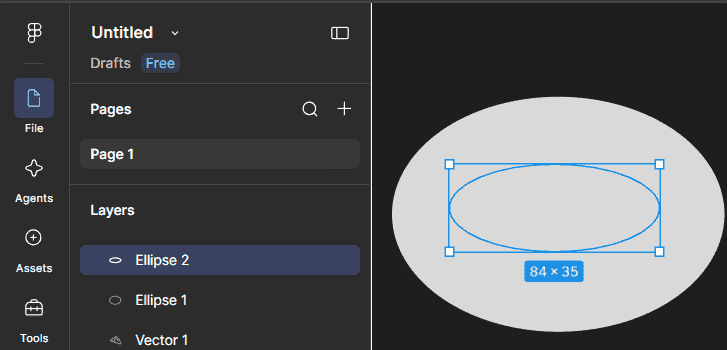
- Once you have chosen the tooth simply click and drag on the canvas to create an ellipse shape. You can adjust the size and proportions of the ellipse by dragging its corners.
6. Start Tool
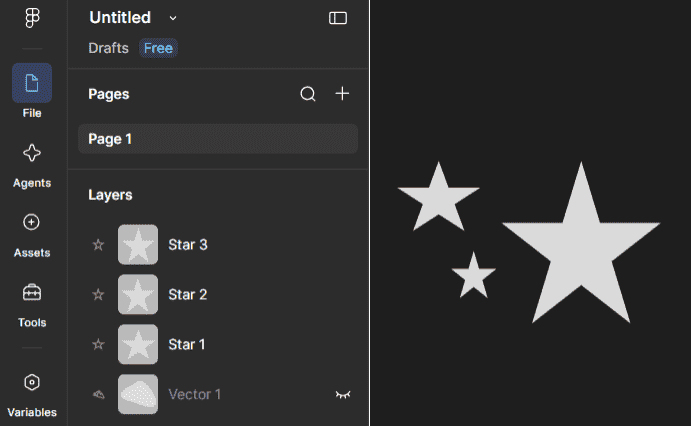
In Figma is a feature that allows you to create star shape in your designs. Stars can add a touch of layer to your designs and can be used for various elements like badges, icons or decorative elements.
Let's see how to make a use of Star tool :
- To use the star tool you can either select it from the toolbar or use the keyboard shortcut "S".
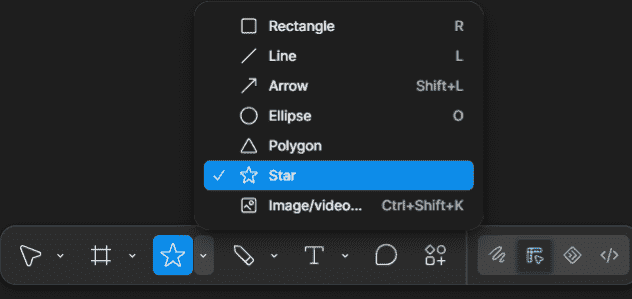
- Once you have chosen the tool simply click and drag on the canvas to create a star shape. You can adjust the size and proportions of the star by dragging the corners or by using the properties panel.
7. Arrow Tool
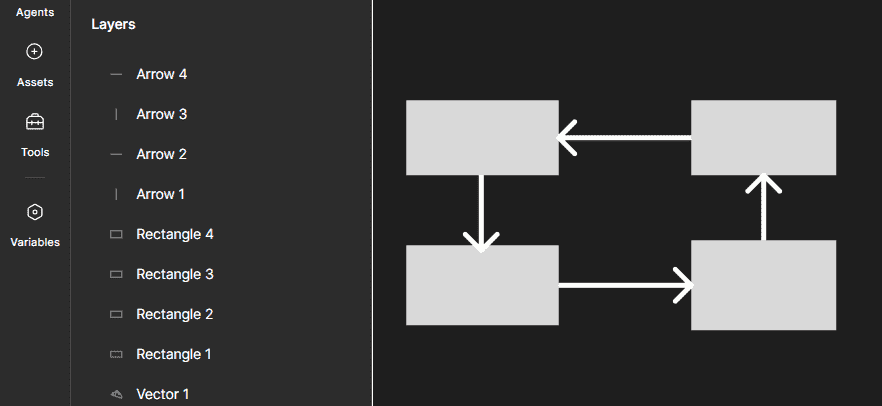
In Figma lets you create arrows and directional shapes. It is useful for showing direction, pointing to elements, and creating flows in interfaces, diagrams, and presentations.
Let us see how to use the Arrow tool in Figma :
- To use the arrow tool you can either select it from the toolbar or use the keyboard shortcut "A".
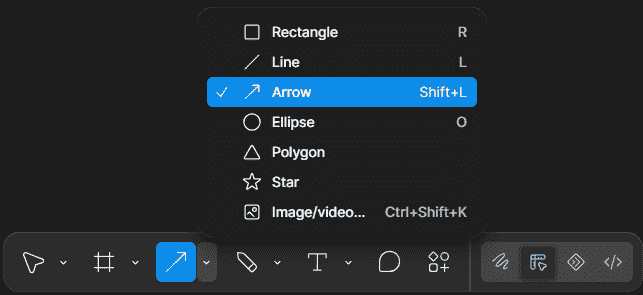
- Once you have chosen the tool simply click and drag on the canvas to create arrow shape. You can address the size and angle of the arrow by dragging its end points or by using the properties panel.
8. Polygon Tool
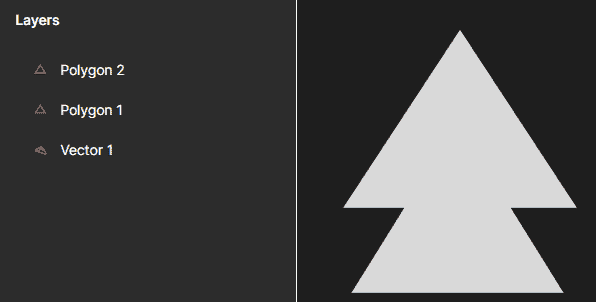
In Figma is a feature that lets you create polygon shapes in your designs. You can shape any polygon. Polygons can be used for various elements in your design such as buttons, icons and decorative shapes.
Let's see how to use the Polygon tool in Figma :
- To use the powerpoint tool you can either select it from the toolbar or use the keyboard shortcut "P".
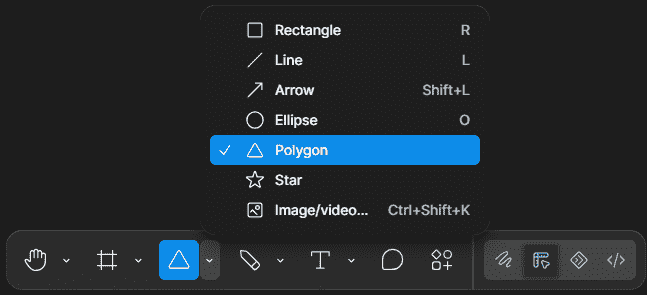
- Once you Once you have chosen the tool simply click and drag on the canvas to create a polygon shape. You can address the size and proportions of the polygon by dragging its corners.
9. Brush Tool
In Figma allows you to create expressive, hand-painted strokes directly on the canvas. It can be used to add texture, color, and an organic look to illustrations and other designs. Let us see how to make use of the Brush tool in Figma.
- In Figma Design, click Draw in the toolbar to open Figma Draw. Then select the Brush tool from the toolbar.
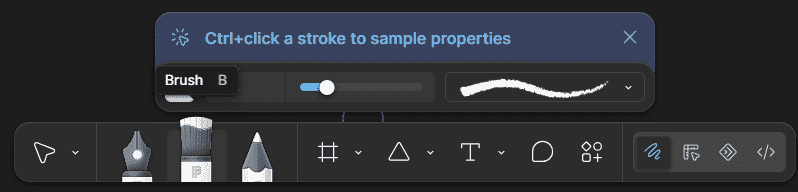
- After selecting the Brush tool, click and drag on the canvas to create a brush stroke.
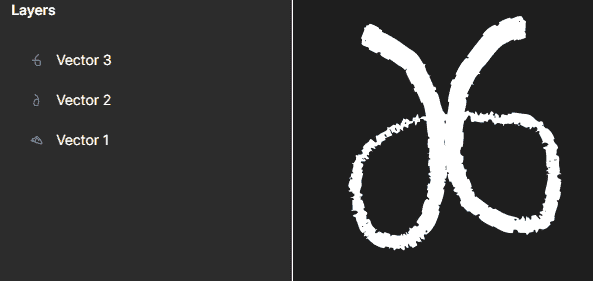
- You can use different brush styles to add texture and a more hand-painted appearance to your design.
Importance of Drawing Tools in Figma
- Creativity: Helps designers create custom shapes and designs directly in Figma.
- Customization: Allows designers to adjust shapes, colours, fonts, and spacing to match their design needs.
- User Experience: Helps create visually appealing interfaces and graphics that improve the overall user experience.
- Efficiency: Lets designers create and edit elements directly in Figma without relying on external tools, saving time and effort.
