

In Figma, teams provide a shared space for organizing and collaborating on design files and folders. Team features vary by plan: Starter and Professional plans each include one team, while Organization and Enterprise plans support multiple teams.
Steps to Create and Manage Teams
Step 1: Sign up and log in to Figma.
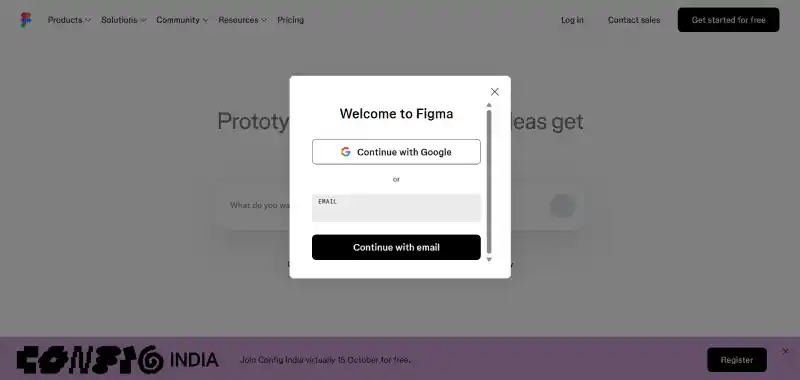
Step 2: After logging in to Figma, open the file browser. If you are already inside a Figma file, click Figma menu → Back to files.
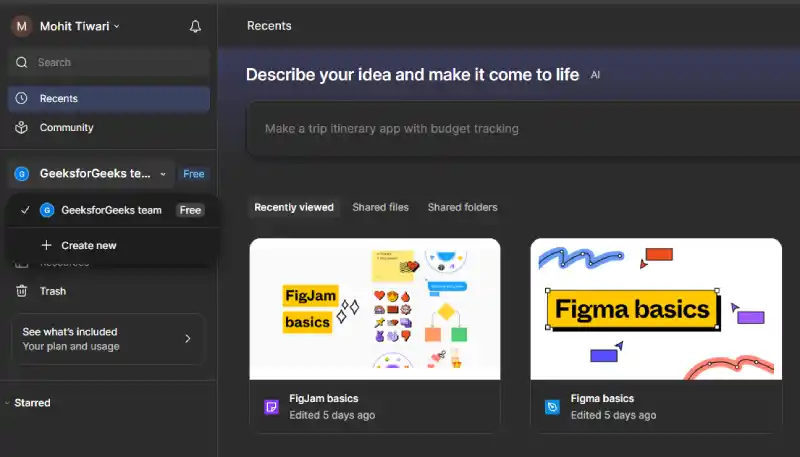
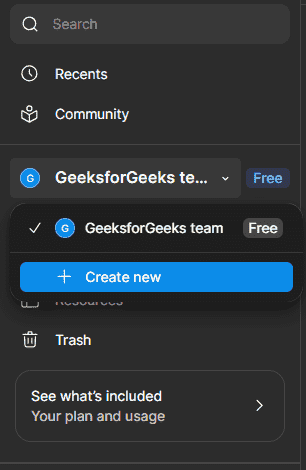
Step 3: In the Teams tab, you'll see an option to "Create a Team." Click on this button to initiate the team creation process.
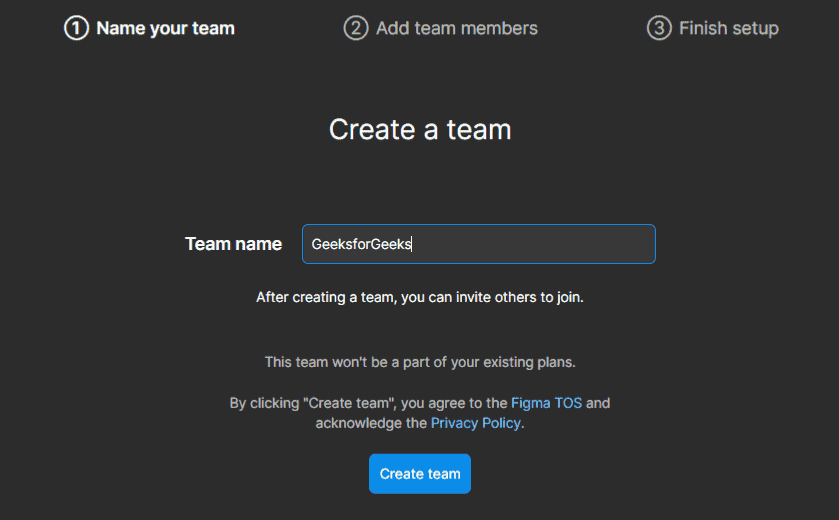
Step 4: Enter a name for your team in the provided field. Choose a name that reflects your team or project to help identify it easily.
Step 5: Enter all members Team Email you want to add in the box and after that click continue button.
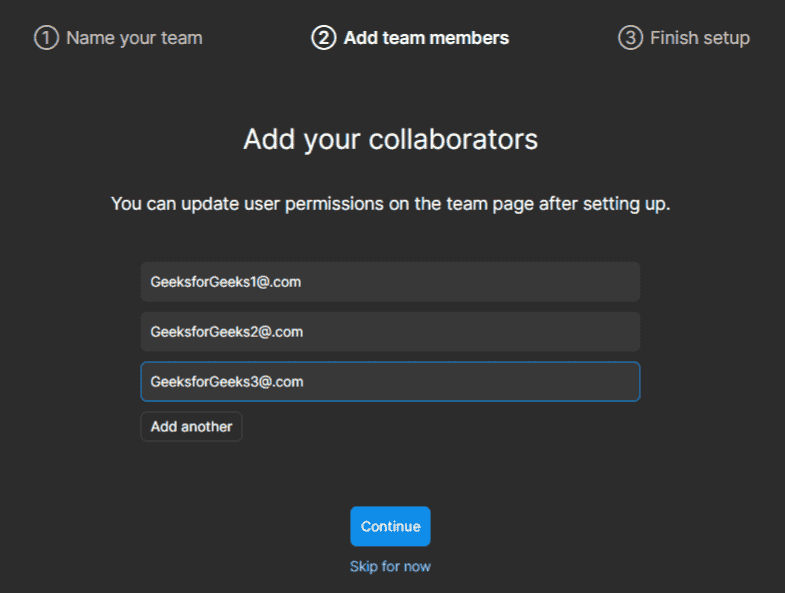
Step 6: It will create your team successfully. It Will free for some limits.
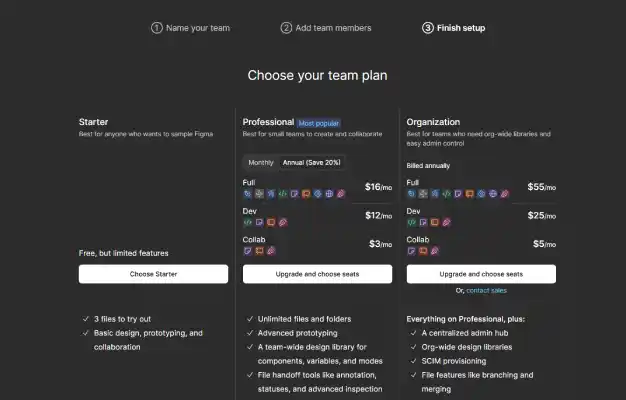
Step 7: Click Create team to finish creating the team. The team will then appear in the file browser, where you can organize files and folders and manage access.
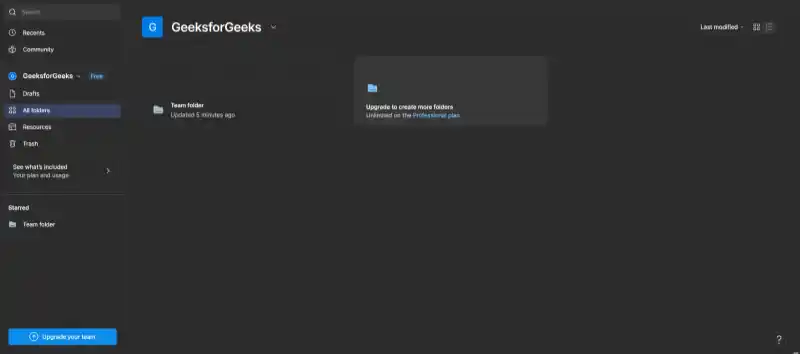
Now Let's Start Working with Your Team.
Step 8: Open the team or plan page and create a folder to organize related files. Folders can be used to group files and manage access to their contents.
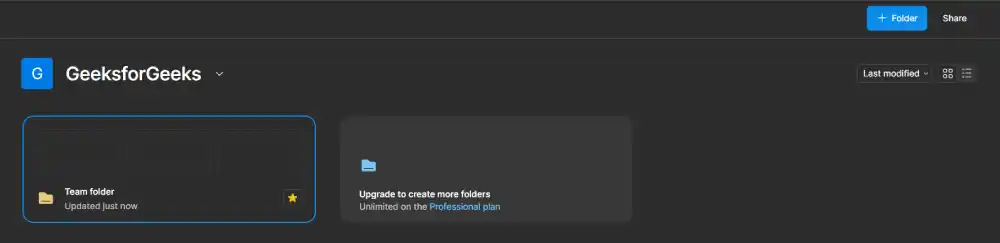
Step 9: Open the folder and create a new Figma file or add an existing file. Use clear file names so team members can easily identify the design.
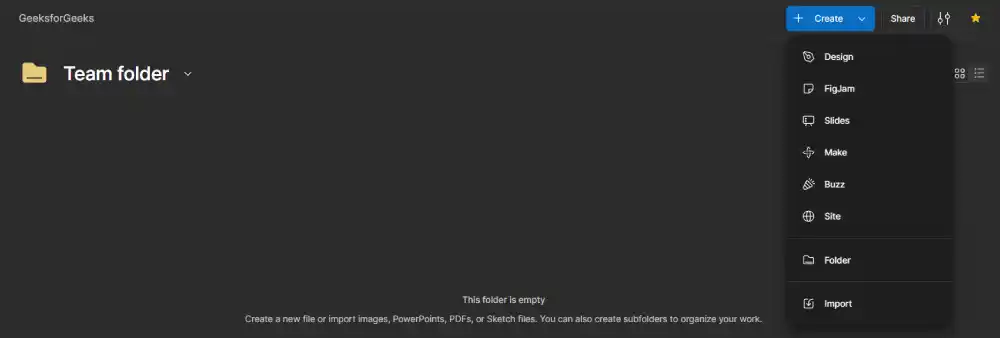
Step 10: Use the Share settings to control who can view or edit the folder or file. Access can be managed at the team, folder, and file levels depending on the plan.
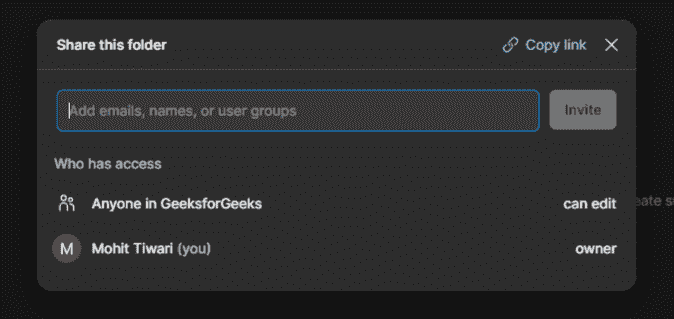
Managing Team Permissions
Team permissions control what members can do within a team. Depending on the plan and assigned permissions, members may have can view, can edit, admin, or owner access. File and folder permissions can provide more specific access when needed
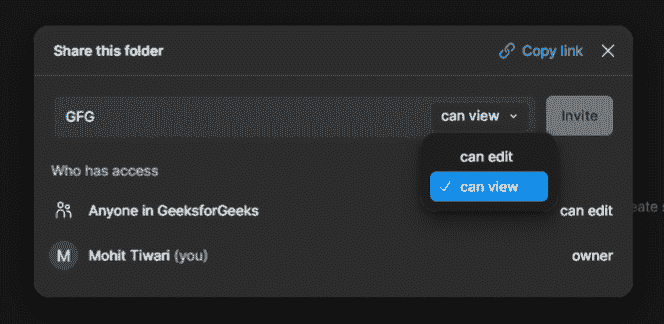
Benefits of Creating and Managing Teams in Figma
- Collaboration: Provides a central space for teams to work together in real time.
- Communication: Comments and notifications keep team members updated.
- Version Control: Helps track changes and restore previous versions.
- Permission Control: Manages access to files based on team roles.
- Design Systems: Helps teams reuse components and styles for consistency.
Note: Being a member of a team does not always mean that a person can access every file or folder in that team. File and folder permissions can control access separately.
