

Version history in Figma helps teams track design changes over time. Users can review previous versions, restore earlier work, and create named versions for important milestones.
- Track Changes: Review how a design has changed.
- Restore Versions: Return to an earlier version when needed.
- Record Milestones: Create named versions for important stages.
- Review Iterations: Compare earlier work with the current design.
- Support Experimentation: Use branches to explore changes separately.
Steps to Handle Version Control
Access Version History
Step 1: Open the Figma file you want to review.
Step 2: Click an empty area of the canvas to deselect all layers.
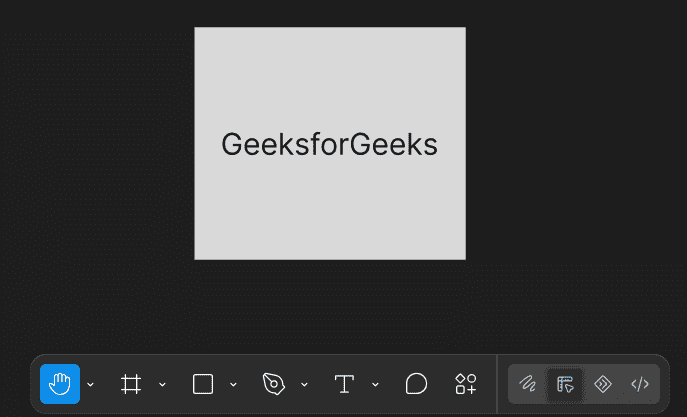
Step 3: Click the dropdown next to the file name in the toolbar.
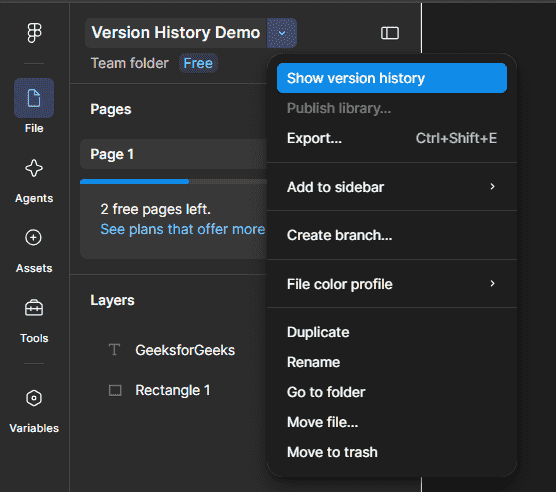
Step 4: Select "Show Version History".
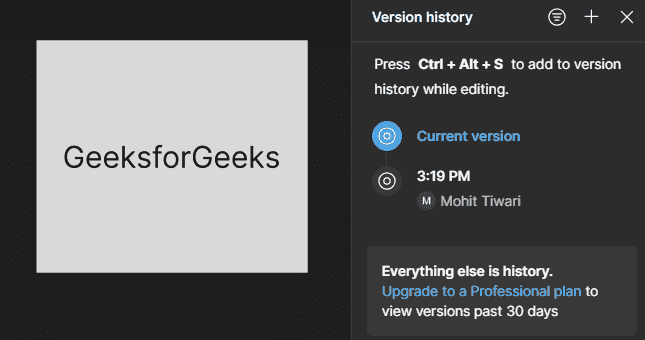
Figma opens the version history in the right sidebar, where you can browse saved and automatically created versions.
Version History Access
Version history is available across Figma plans, but the amount of history available depends on the plan. Starter users can access up to 30 days of version history, while Professional and Education teams and organizations can access the full history of a file. Users with view access can browse version history, while edit access is required to create, name, or restore versions.
Add to Version History
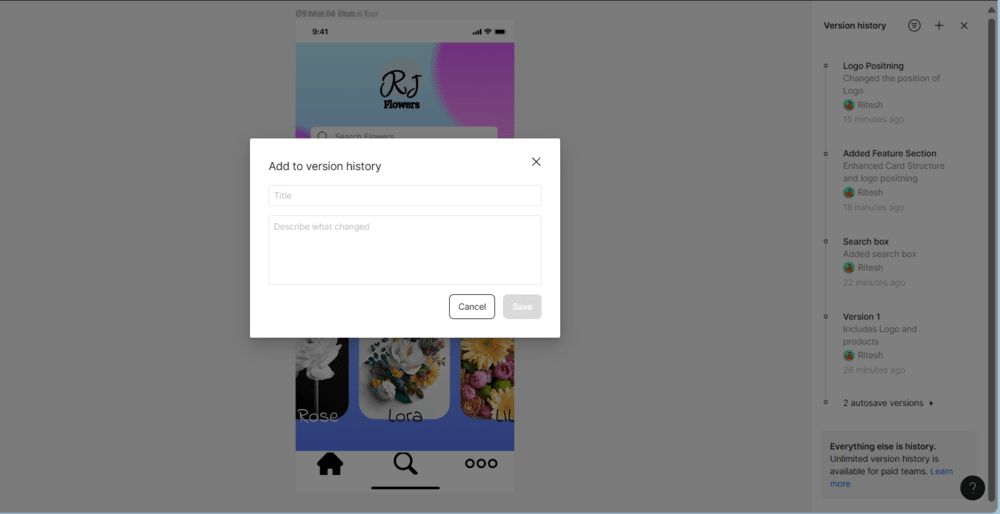
You can add a Current version to version history by the following process:
Step 1: Click on the "+" icon in the top-right in the Version History panel.
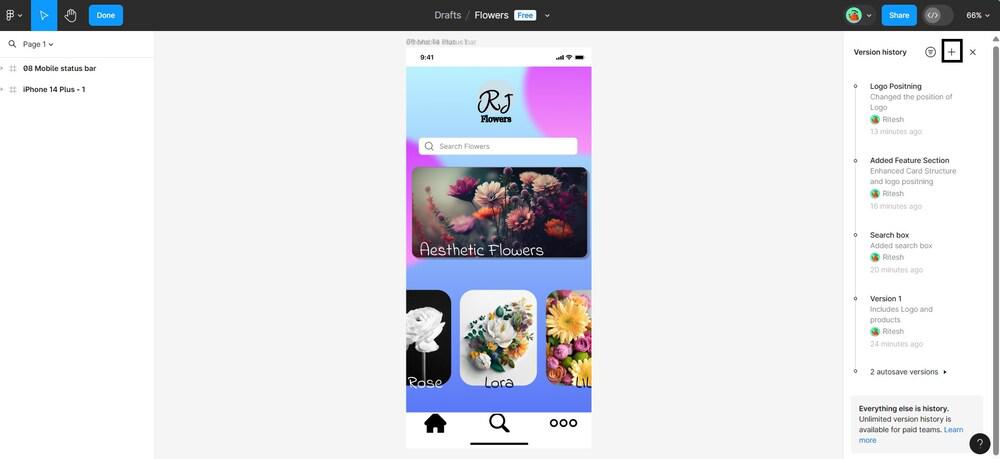
Step 2: A window pops up. Type the name and description of the version in the boxes, then press Save.
Hiding Version History
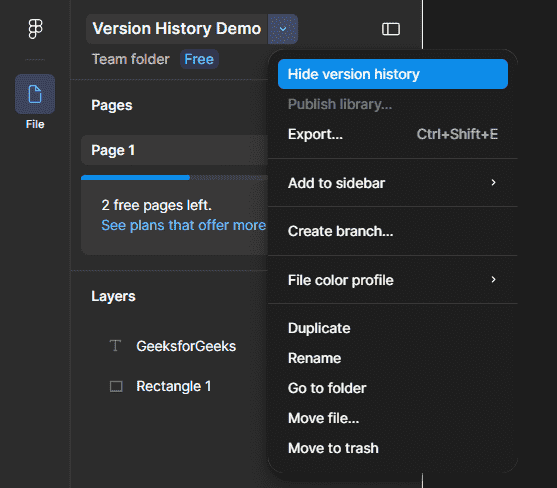
You can go back to current version for editing by this step
Click name of file again and then, select Hide Version History and it will replace version history panel with properties/editing panel.
Restore a Version
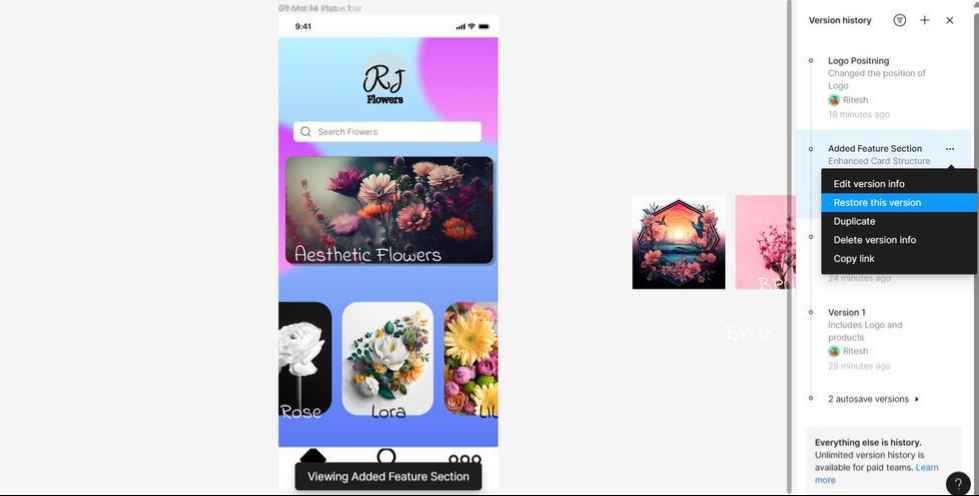
Figma also gives you the option to restore your design file to a previous version by selecting a version, Right click your mouse on version you want to Restore, select Restore This Version.
Select a version and click "Restore" to revert to that state.
Duplicate The Version
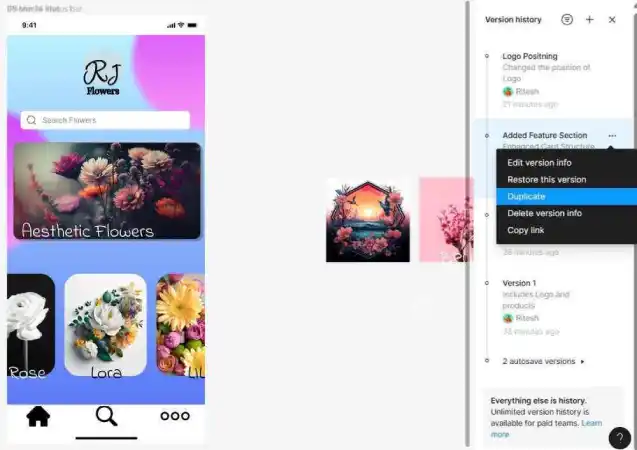
To duplicate a version, select the version, click the three dots in the version history panel, and choose "Duplicate" from the dropdown.
Name Versions
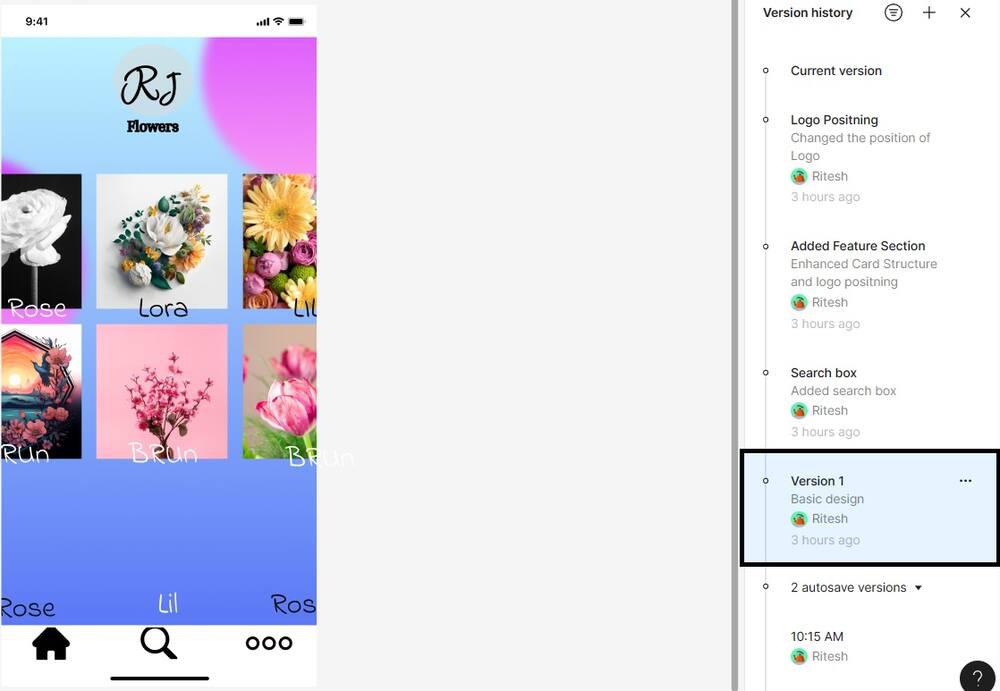
In Figma, naming versions means giving each version of your design a specific title or label to easily identify. It Provide context by naming versions, enhancing clarity.
Step 1: Click on Name This Version.
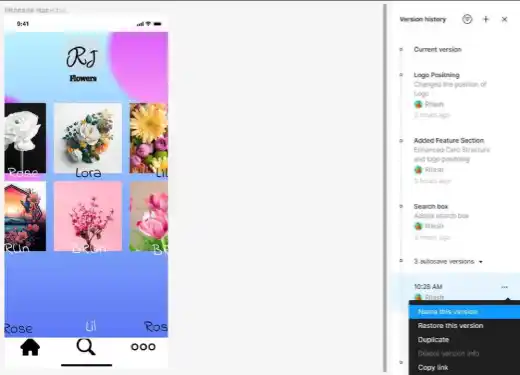
Step 2: Enter the Data in input Field.
.jpg)
Step 3: Your data will be updated successfully.
Benefits of Version History in Figma
- Track Design Changes: Teams can review how a design has developed over time.
- Restore Earlier Work: Previous versions can be restored when necessary.
- Support Experimentation: Designers can explore changes while keeping previous versions available.
- Document Milestones: Named versions provide clear references for important stages of a project.
- Support Collaboration: Version history gives team members a shared record of important design changes.
