

In PowerPoint, charts (also called graphs) help you visualize data clearly and make your presentation more professional. You can create charts directly inside PowerPoint or copy them from Excel.
Methods to Create Graph
Method 1: Create a Chart Directly in PowerPoint
Step 1: Go to the slide where you want the chart.
Step 2: On the Insert tab, click Chart.

Step 3: In the Insert Chart dialog box, select a chart type from the left panel (Column, Line, Pie, Bar, Area, etc.).
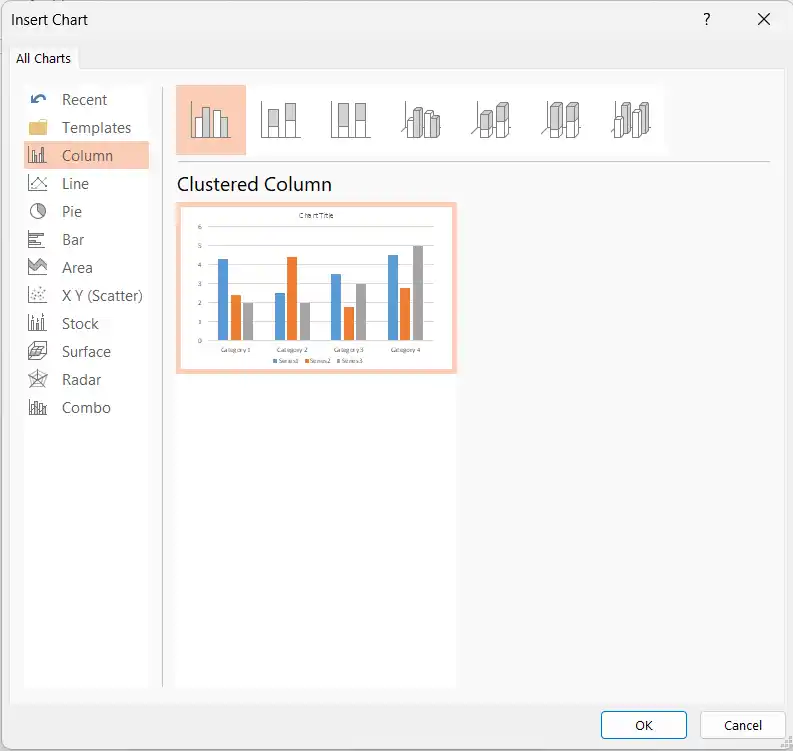
Step 4: Choose a specific style on the right and click OK.
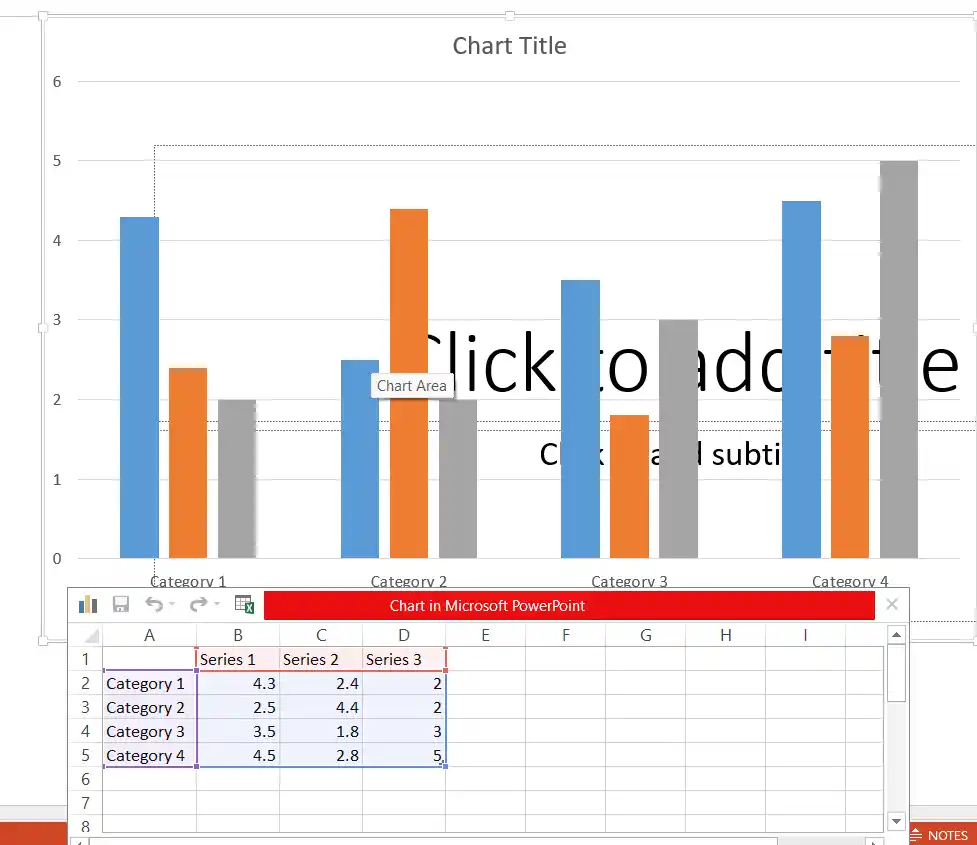
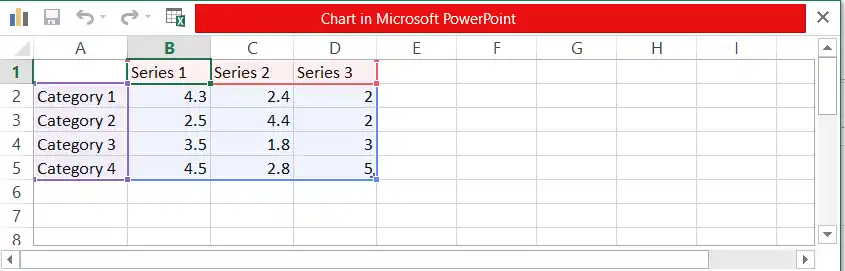
PowerPoint inserts a sample chart and opens a small Excel window titled Chart in Microsoft PowerPoint.
- Replace the sample data with your own numbers and labels.
- Close the Excel window when finished. The chart on the slide updates automatically.
Method 2: Copy a Chart from Excel
Step 1: Create or open the chart in Excel.
Step 2: Select the chart and copy it (Ctrl + C).
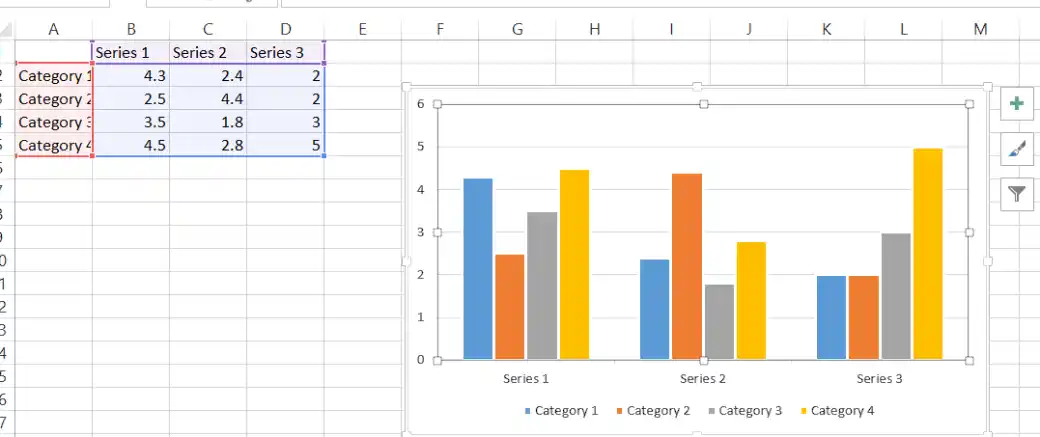
Step 3: In PowerPoint, go to the desired slide and paste (Ctrl + V).
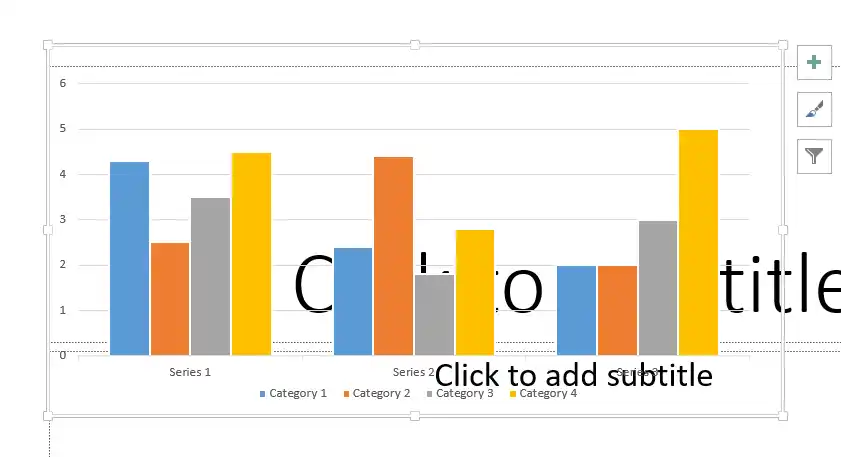
Step 4: Choose a paste option:
- Use Destination Theme & Embed Workbook (recommended for most cases)
- Keep Source Formatting & Embed Workbook
- Use Destination Theme & Link Data (keeps the chart linked to the Excel file)
- Keep Source Formatting & Link Data
- Picture (static image)
Edit Chart Data Later
- Click the chart → Chart Design tab → Edit Data.

- Or right-click the chart → Edit Data.
Quick Formatting Options
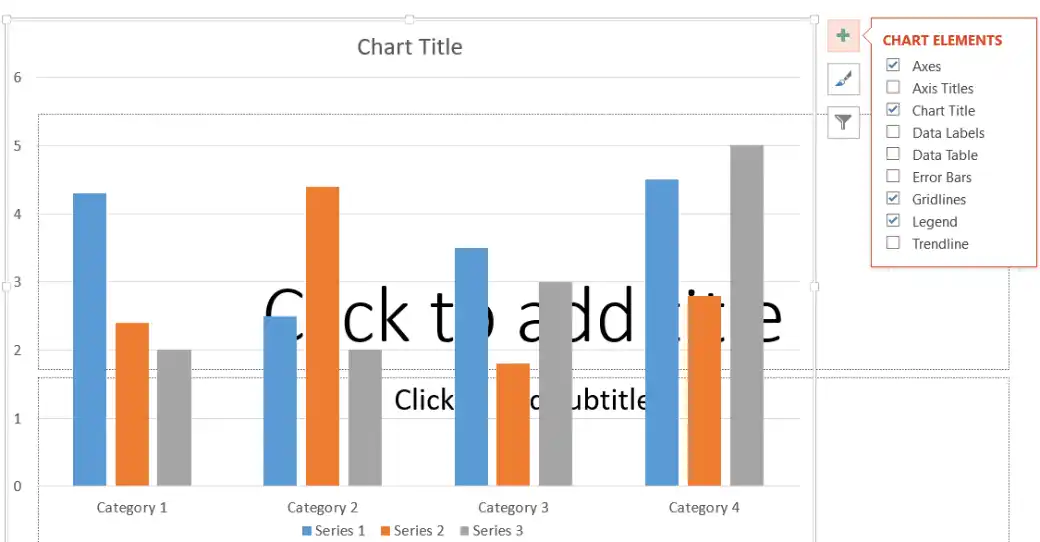
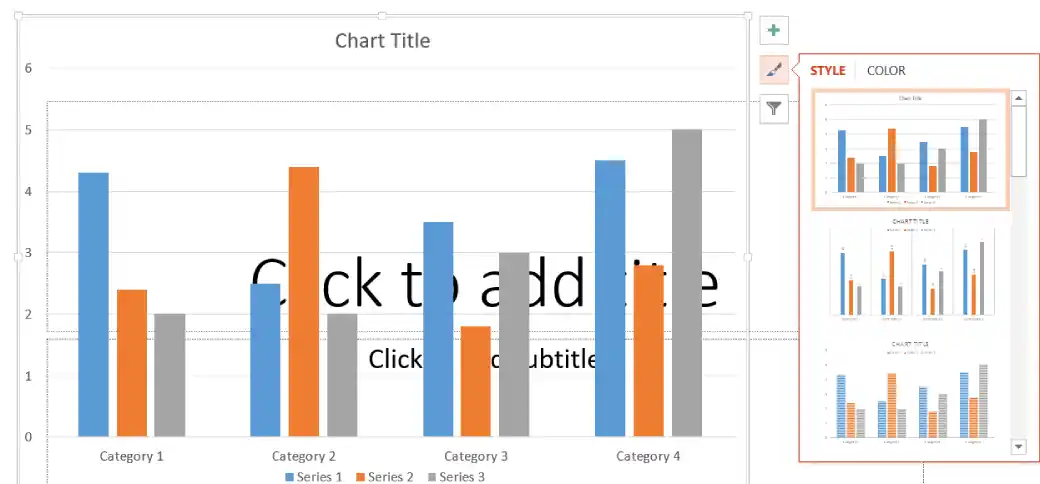
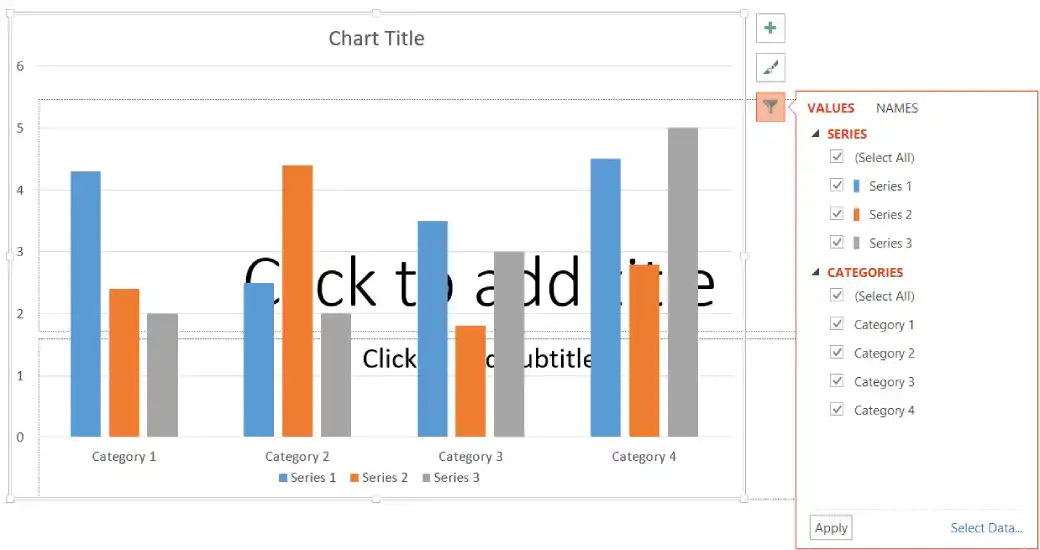
When the chart is selected, three floating buttons appear on the right:
- Chart Elements (+): Add or remove titles, legends, data labels, gridlines, etc.
- Chart Styles: Quickly change colors and overall look.
- Chart Filters: Show or hide specific data series or categories.
You can also use the Chart Design and Format tabs for more detailed customization.
