

Figma can connect with other design, development, collaboration, and project management tools to make design workflows easier. These integrations can help teams collaborate, manage design tasks, inspect designs, and hand off designs to developers.
Steps to Integrate Figma with (VSC) Visual Studio Code
Step 1: Open vs code and open a new folder for your Figma Integration.

Step 2: Click the Extensions icon in the Activity Bar on the left side of VS Code.
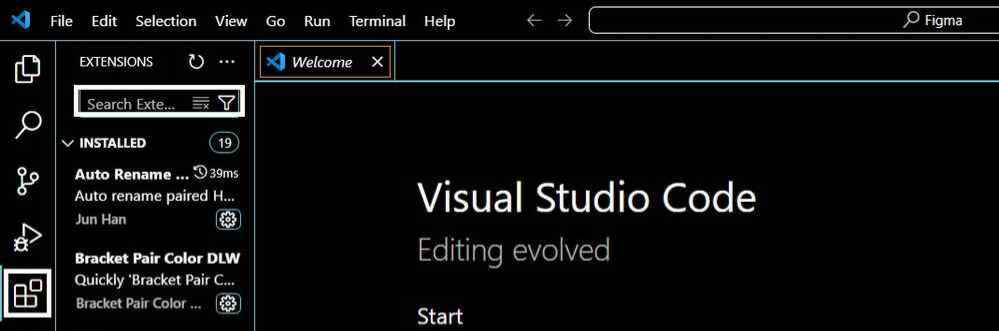
Step 3: Search for Figma for VS Code in the Extensions Marketplace and select the extension.
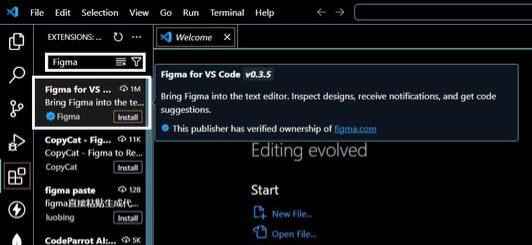
Step 4: Click Install to install the Figma for VS Code extension.

Step 5: Open the Figma extension in VS Code and sign in to your Figma account when prompted.
Step 6: Complete the Figma sign-in process when prompted. After signing in, return to VS Code and open the Figma extension from the Activity Bar.

Step 7: In VS Code, click Figma in the Activity Bar. Under Files in the primary sidebar, select the Figma design file you want to open.

Step 8: Select a design file to explore its frames. You can inspect frames, view code snippets, access Dev resources, and view component properties directly in VS Code.

Use of Integration
- Design Handoff: Figma integrations can help developers access design information, assets, and development resources during implementation.
- Prototyping and User Testing: Figma supports integrations with prototyping and user-testing tools that can help teams test and gather feedback on designs.
- Project Management : Project Management tools is integrated with Figma to Track design progress and tasks within project management tools.
- Collaboration: Integrations with collaboration tools can help teams receive design updates, comments, and notifications in the tools they already use.
Examples of Integration
Figma and Zeplin
Zeplin can be used as part of a design handoff workflow to share design information and specifications with developers.

Figma and Slack
Integration of Slack with Figma allows designer to send updates and comments from Figma directly to the Slack team channel for immediate communication.

Figma and Jira
Integration with Jira is used to link design tasks to Jira issues. Jira allows good project management and tracking.

Limitations of Integration of Tools
- The limitation of the Integration of tools is that the initial setup of these Tools is Difficult and time-consuming for beginners.
- Another Limitation is that The team members may need some time to adapt this new tools and new workflow.
- Some of the integration tools require a Premium Subscription or any other charges.
- All tools are not compatible to each other which leads to Challenges of Potential integration.
