

Figma provides tools for scaling and resizing design elements while maintaining their proportions when needed. These tools are useful when adjusting the size of individual elements or groups of elements for different design requirements.
Scaling in Figma
Scaling in Figma refers to increasing or decreasing the size of an element while maintaining its relative proportions when required. Figma provides tools for scaling individual elements, groups, and designs, allowing designers to adjust their size for different design requirements.
Scaling in Figma is a Straightforward Process
Step 1: Create a New Figma File or Use Existing File for scaling.
Step 2: Create Elements in Frame.
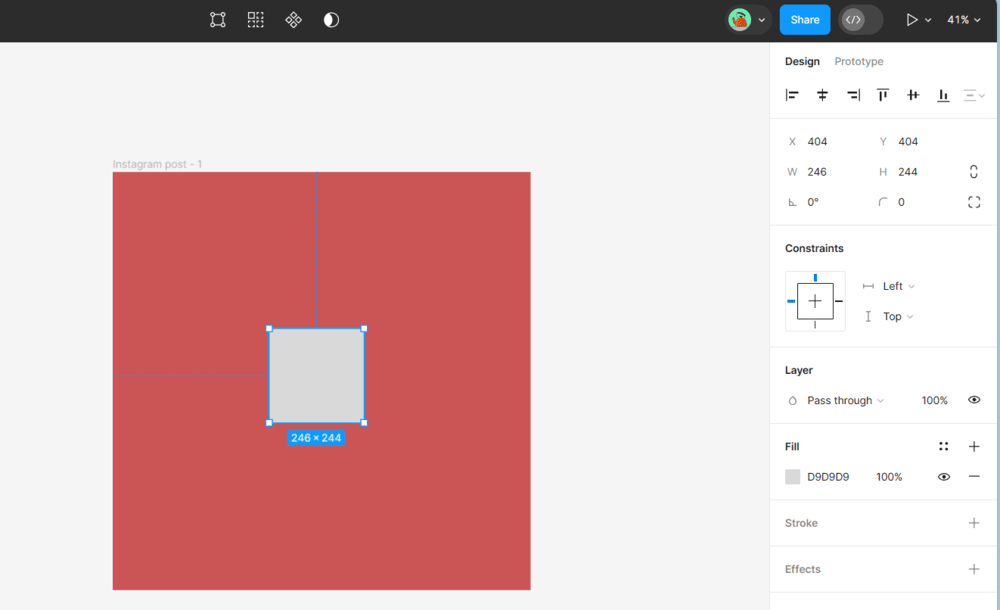
There are Three ways of Scaling an element In Figma:
1. Holding shift key and dragging the element.
.gif)
- Select the element you want to scale.
- Point the cursor from where you want to scale.
- Hold down the Shift key to maintain proportions while scaling using the Mouse Dragging/resizing Handels.
- Drag the mouse by holding right mouse key.
2. Using scale panel in right bar.
.gif)
- Select the element which you want to scale in a frame.
- After that Press k to open Scale panel which is visible in Right side.
- Change Value which is in terms of X. according to requirements eg:1x,2x.
3. Using dimension panel in right bar
.gif)
- Select the element which you want to scale in a frame.
- After that Properties panel in Right Side will be visible.
- Input specific dimensions in the properties panel change Value of width(w) and height(h) according to requirements.
Use of Scaling
Scaling in Figma finds extensive application in various design scenarios, including:
- Responsive Web Design: Ensuring that designs adapt seamlessly across different screen sizes.
- Mobile App Design: Scaling elements to fit various device resolutions without compromising layout integrity.
- Iconography: Enabling designers to create scalable icons for use in different contexts without loss of quality.
Scaling in Figma offers Several Benefits
- Efficiency: Quickly resize elements without recreating them, saving time across different screen sizes.
- Consistency: Maintains consistent proportions and spacing when resizing elements.
- Adaptability: Helps adjust designs for different screen sizes and platforms.
- Responsive Design: Supports layouts that adapt to different screen sizes and devices.
- Collaboration: Makes it easier for teams to review and communicate design changes.
