

The Assets panel helps you find and reuse design components in a Figma file. It gives access to components from the current file and available libraries, making it easier to locate existing design elements instead of creating them again.
Open the Assets Panel
The Assets tab is available in the left navigation bar of a Figma design file. Select Assets to browse the available components.
You can also open it with:
- Windows:
Alt + 2 - Mac:
Option + 2
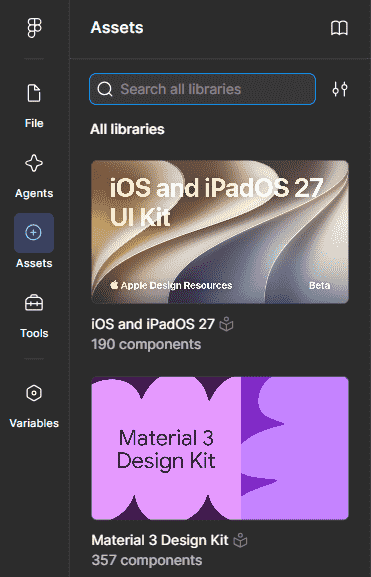
Manage the Assets Panel
1. Search for Assets: Use the search field to find a component by name. Figma searches components from the current file and libraries that are available to you.
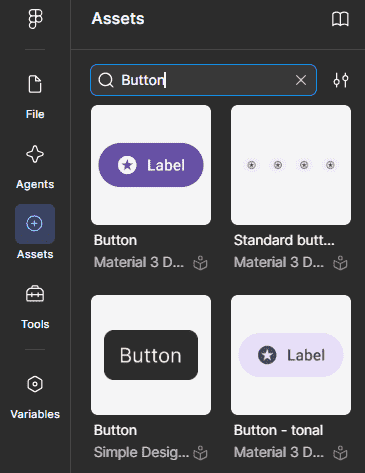
For example, searching for Button can help you find available button components quickly.
2. Browse Assets: The Assets panel organizes components according to their source. Components from a file can be explored through their file, page, and Frame structure.
When a file contains many components, Figma can show their location as
File → Page → Frame
You can expand these levels to find the required component.
3. Change the View: Figma lets you switch between Grid view and List view in the Assets panel.
- Grid view displays visual previews of components.
- List view provides a more compact view of component names and details.
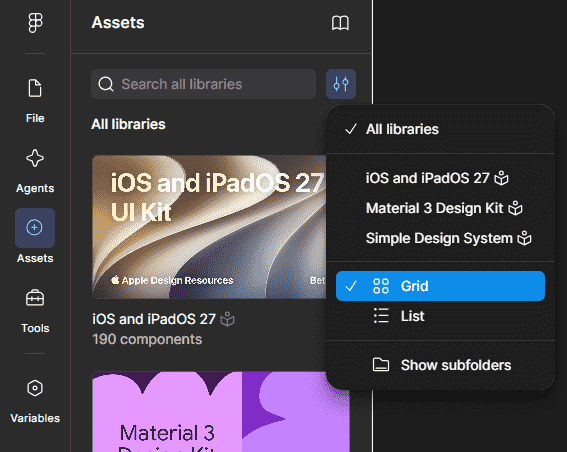
You can also show or hide subfolders while browsing assets.
4. Manage Libraries: The Libraries option lets you browse libraries that are available to the file and add a library when needed.
To add a library:
- Open the Assets tab.
- Select the Libraries icon.
- Find the library you want to use.
- Select Add to file.
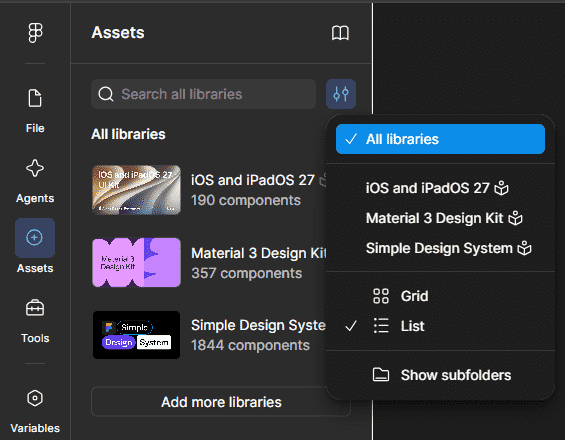
Once a library is added, its available components can be accessed from the Assets panel.
5. Insert an Asset: After finding the required component, drag it from the Assets panel onto the canvas. Figma creates an instance of the component in the design.
6. Review Asset Details: You can hover over a component in the Assets panel to view information such as its name and description. Component descriptions can also help when searching for assets.
7. Review Library Updates: When components used in a file have available updates from a library, Figma can indicate that updates are ready for review. You can open the Libraries controls to review and apply those updates.
Benefits of Using the Assets Panel
The Assets panel makes working with reusable components easier by providing:
- Faster access: Search for existing components instead of looking through the entire file.
- Reuse: Use existing components across a design instead of recreating the same elements.
- Consistency: Reusing components and library assets helps maintain a consistent design.
- Better organization: File, page, and Frame paths make large collections easier to browse.
- Library access: Components from enabled libraries can be found from the same Assets panel.
Drawbacks of Using the Assets Panel
The Assets panel can also have some practical limitations:
- Library access is required: Assets from a library may not be available unless the library is enabled for the file and you have the required access.
- Large collections can be harder to browse: When many assets are available, you may need to use search or change the view to find the right component.
- Library updates may require review: When a library component changes, available updates may need to be reviewed and applied to the file.
