

Plugins are tools that extend the functionality of Figma products. Classic plugins are built using the Figma Plugin API, while generative plugins can be created using Figma's agent. Plugins can be discovered through the Figma Community and run from supported Figma products.
Steps to Add Plugins in Figma
Step 1: Open a Figma Design file.
Step 2: Click Tools in the navigation bar on the left.
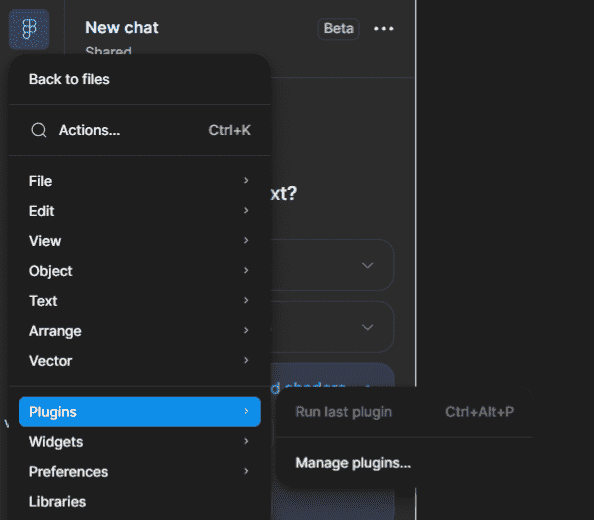
Step 3: Click the Filter by price and type icon and select Plugin.
Step 4: Choose a recent, suggested, or searched plugin.
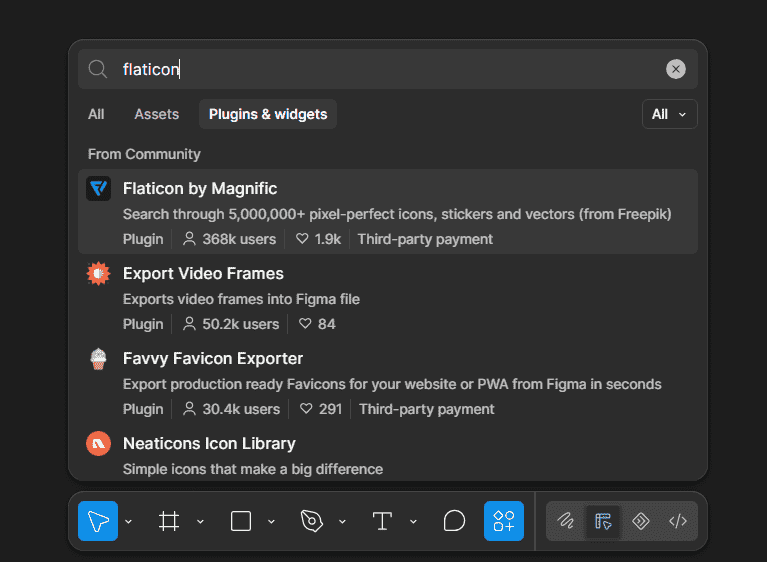
Step 5: Open the plugin details.
Step 6: Click run.

Reason to use Plugins in Figma
Plugins are used in Figma to boost productivity, enhance design capabilities, and streamline workflow. Here are some of the primary reasons why plugins are invaluable to designers using Figma:
- Automation: Automate repetitive design tasks.
- Workflow Enhancement: Add capabilities that are not part of the standard workflow.
- Asset Access: Find and use resources such as icons, illustrations, and images.
- Customization: Adapt Figma workflows to specific design needs.
- Integrations: Connect Figma workflows with external tools and services.
- Productivity: Complete common design tasks more efficiently.
Generative Plugins in Figma
Figma also supports generative plugins, which can be created using the Figma agent. These plugins allow users to build custom tools by describing what they want the plugin to do. Generative plugins run inside Figma and can help automate or customize design workflows.
Figma Plugins
Figma plugins can extend design workflows with tools for wireframing, illustrations, prototyping, presentations, image sourcing, and other tasks. The following plugins cover a range of common design needs.
1. Wireframe
The Wireframe plugin for Figma helps designers create wireframes, user flows, and basic design structures without starting from scratch. It provides 350+ custom-built graphics for web and mobile projects and supports collaborative work in Figma.
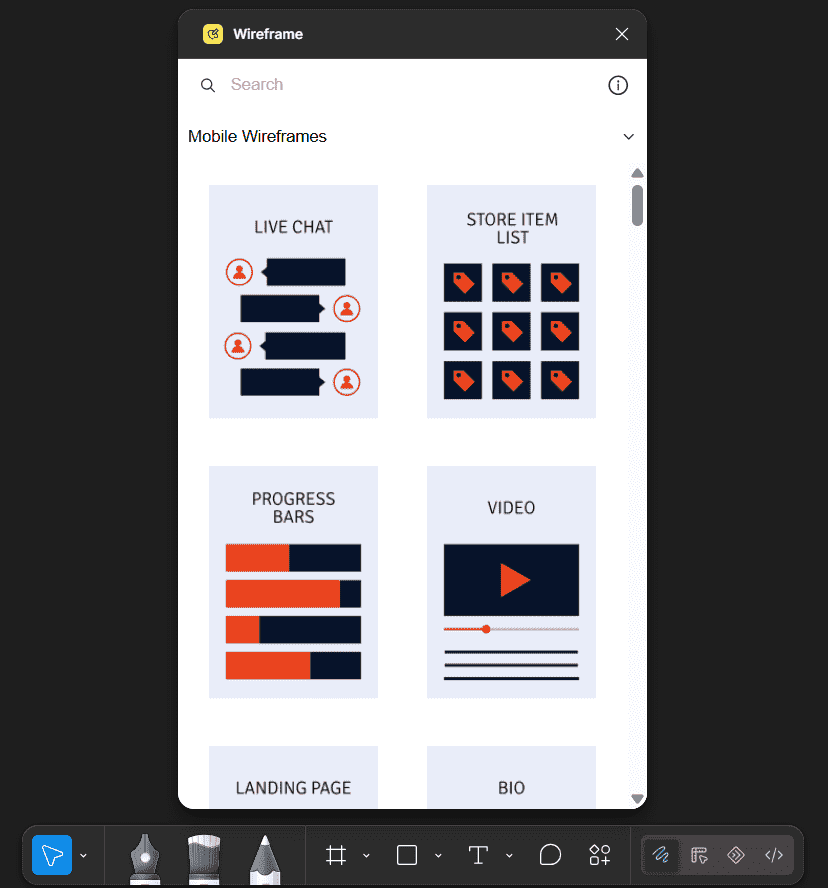
Install the plugin from the Figma Community and run it in your Figma file. You can then drag and drop wireframe elements onto the canvas
2. Illustrations
Illustrations is a Figma plugin that provides a collection of illustrations that can be added directly to Figma designs.
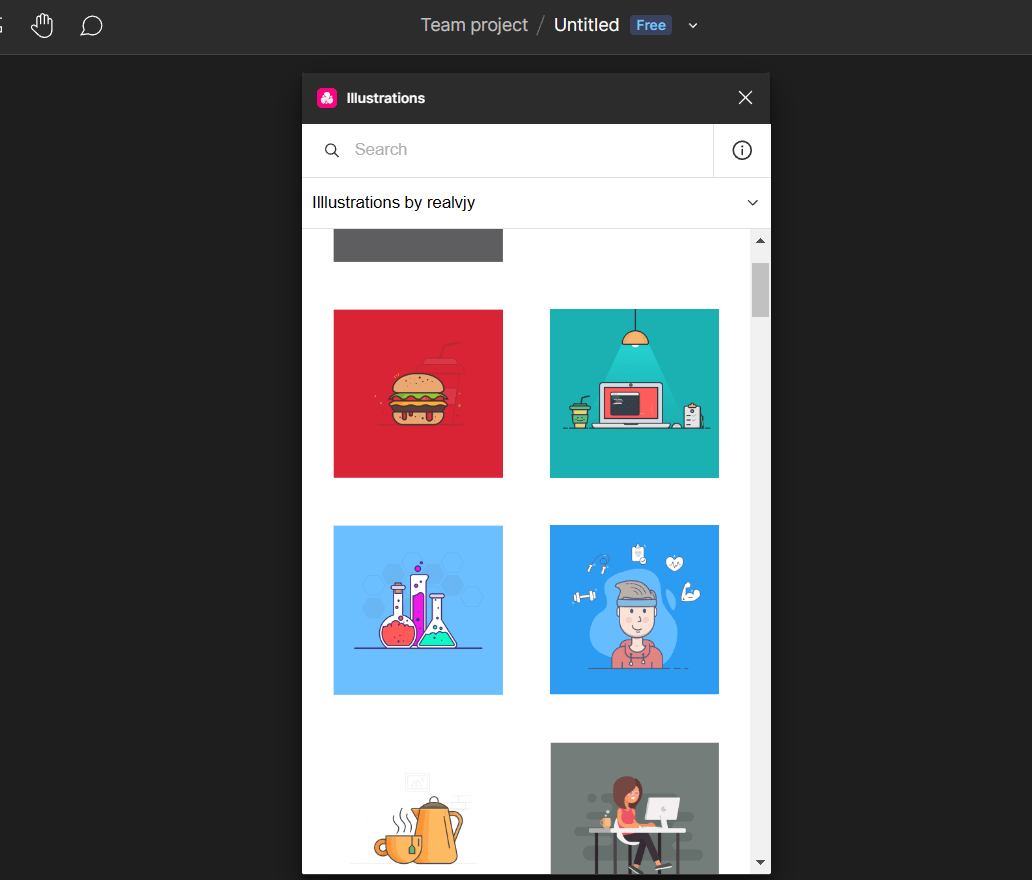
Install the plugin from the Figma Community, run it in your Figma file, and drag the required illustration onto the canvas.
3. ProtoPie
The ProtoPie plugin for Figma allows you to import Figma designs into ProtoPie and create high-fidelity, interactive prototypes. It supports advanced interactions such as conditional logic, formulas, variables, text input, camera, voice, media playback, and device sensors.

Install the ProtoPie plugin for Figma and import your Figma designs into ProtoPie to add advanced interactions
Pitchdeck Presentation Studio
The Pitchdeck Presentation Studio plugin for Figma makes it simple to create presentations on Figma, with support for animations and real-time previews built right in. You can export your presentations to a variety of file formats, including PowerPoint, Keynote, Google Slides, and PDFs, as well as include content from Loom, Canva, Lottie, Spotify, and others.
.png)
Install from the Figma Community and run it in your Figma project. Follow the user guide for detailed instructions.
Autoflow
Autoflow is a Figma plugin that allows you to quickly create user flows, diagrams, and visuals in a hand-drawn or minimalist manner. Create sophisticated flowcharts fast and effortlessly using Autoflow's clever obstacle recognition, text annotations, and custom path routing, among other capabilities.
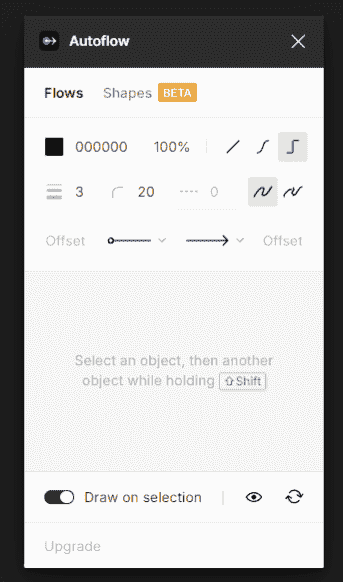
Install from the Figma Community and run it in your Figma project. Connect two objects by holding down Shift, and Autoflow will draw an arrow to connect them.
Blush
Blush is a Figma plugin that allows you to alter illustrations. Blush makes it simple to produce original pictures that complement your brand's look, with a variety of mix-and-matchable design elements, artists' collections, and random composition creation choices, saving you time searching for existing illustrations or designing from scratch.
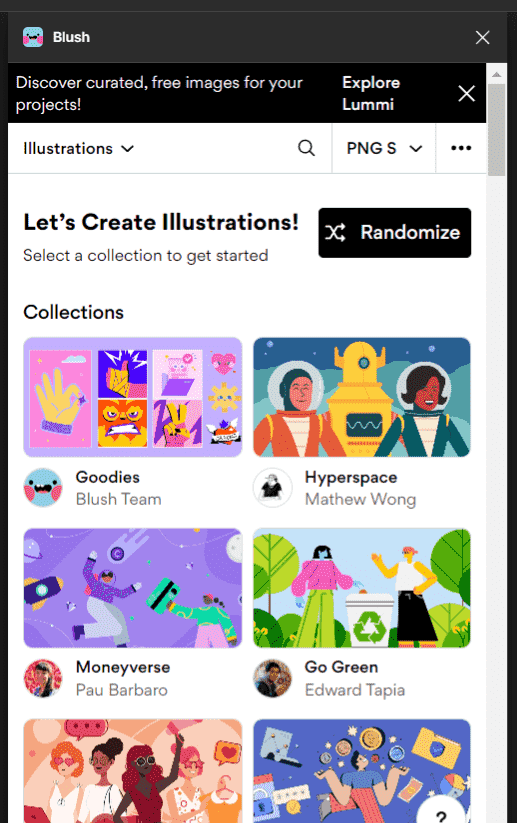
Install from the Figma Community and run it in your Figma project. Choose a collection and drag compositions onto your canvas.
Unsplash
The Unsplash Figma plugin lets designers search for and insert images from Unsplash directly into their Figma designs without leaving the workspace.
.png)
Install the Unsplash plugin from the Figma Community, run it in your Figma file, search for an image, and insert it into your design.
Icons8
A Figma plugin called Icons8 provides a curated set of more than 3 million icons, graphics, and images made by professional designers and artists. Without ever leaving Figma, you may use the plugin to quickly access the visuals, organize data by styles and categories, and search for specific terms. Thousands of graphics are available for free, but premium subscriptions also include high-resolution or customizable visuals that don't require backlinks.

Install from the Figma Community and run it in your Figma project. Search for graphics and click to insert.
Lorem Ipsum
Figma's Lorem Ipsum tool generates placeholder text that can be inserted directly into a Figma design. It allows users to control the amount and type of placeholder text, including words, sentences, and paragraphs.
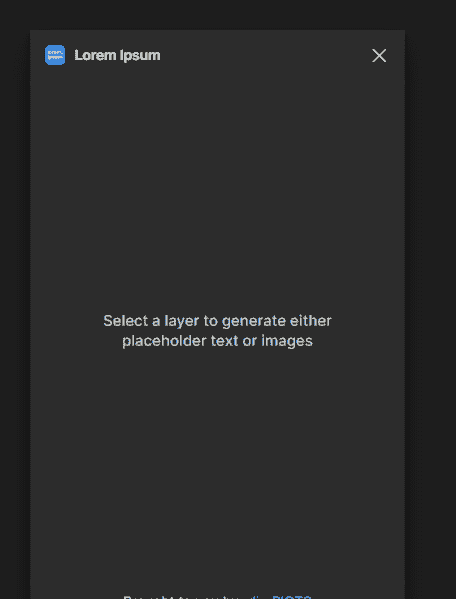
Use the Lorem Ipsum tool to quickly add placeholder content to selected text layers while designing.
Image Tracer
Image Tracer converts raster images into vector layers directly in Figma. It can create coloured vector versions of images, trace images as masks, and allow the resulting vectors to be edited and scaled.
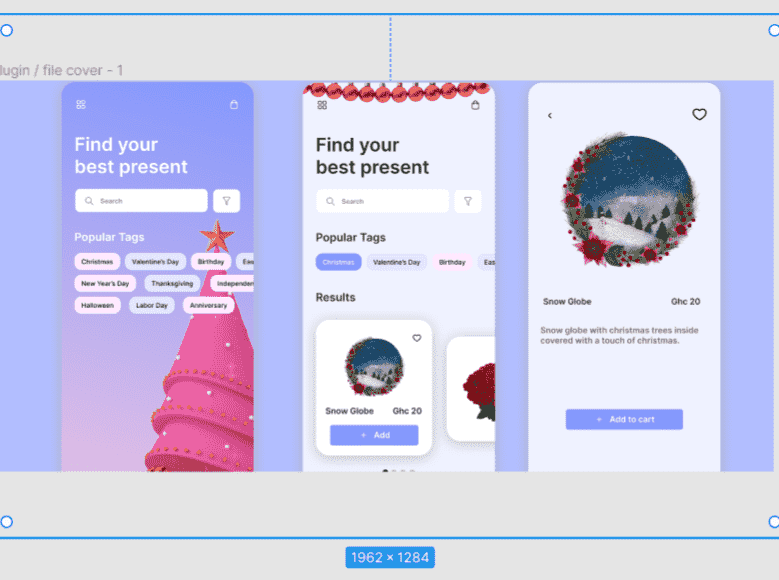
Install Image Tracer from the Figma Community, run it in your Figma file, select an image, and follow the plugin's instructions to trace it into a vector.
Limitations of Plugins in Figma
- Plugins must be manually run by the user.
- Only one plugin can run at a time.
- Plugins cannot perform actions in the background.
- Plugin availability and capabilities can vary by Figma product and user access.
- Plugin licensing and pricing can vary between plugins.
