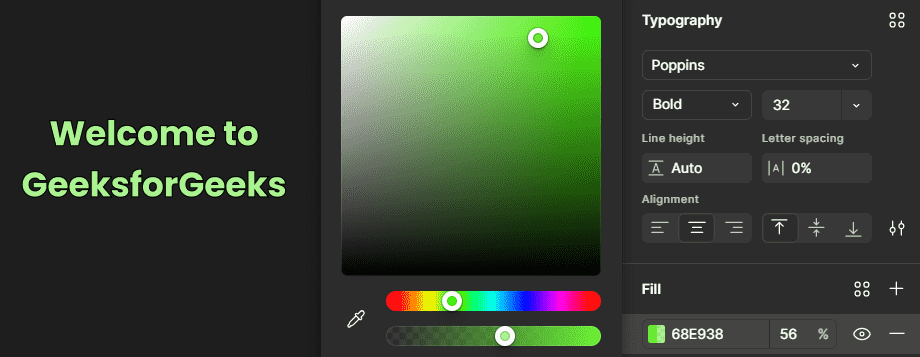
Text formatting in Figma refers to adjusting text properties such as font family, font size, font weight, line height, letter spacing, alignment, text color, and other typography settings. These options help designers control the appearance and readability of text in a design.
- Improves Readability: Proper font sizes, spacing, and alignment make text easier to read.
- Creates Visual Hierarchy: Different font sizes, weights, and styles help users identify headings, subheadings, and body text.
- Organizes Content: Consistent formatting helps separate different sections and types of information.
- Guides Attention: Formatting can help highlight important information and direct the viewer's attention to key content.
Formatting in Figma
Figma provides different text formatting options that allow designers to control the appearance and layout of text. These options include font family, font size, font weight, line height, letter spacing, alignment, text settings, and color.
Text Formatting Features in Figma
Select the Text tool (T) from the toolbar and add text to the canvas. Figma provides several typography and text formatting options that can be adjusted from the right sidebar.
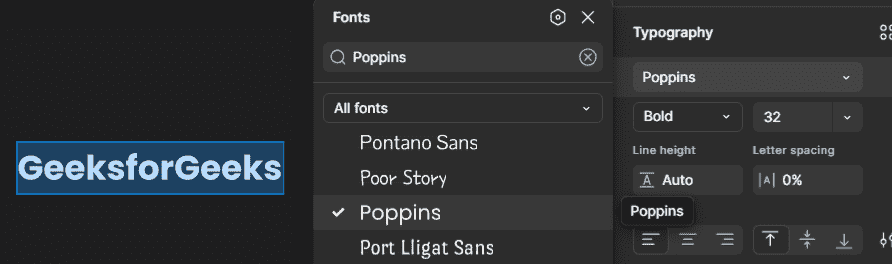
1. Font Family: In the right side bar, the font family can be chose, as in how the font looks like & what is the typography. A relatively subtle font family is chosen for simple websites. Here, we have chosen the font family "Poppins".
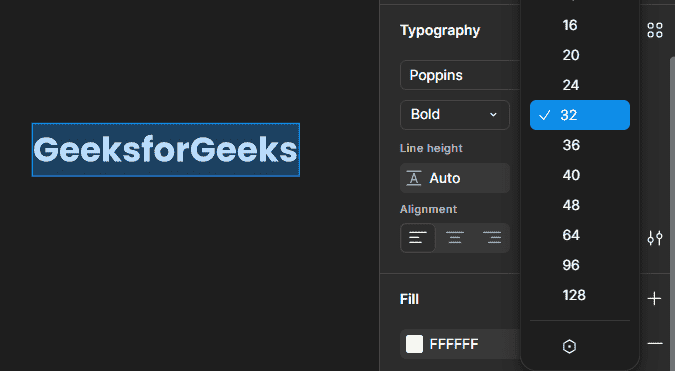
2. Font Size: Beside the regular type of font family, a font size can be chosen which is mentioned in pixels. Here we have chosen a font size of 32 pixels.
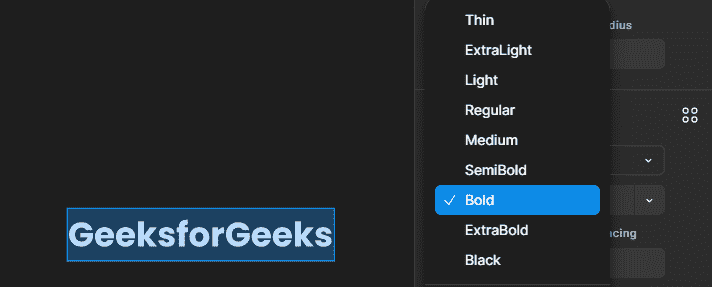
3. Font Weight: Controls how thick or thin text appears. Headings often use heavier weights for emphasis, while body text usually uses a regular or lighter weight for readability.
4. Line Height: Controls the vertical space between lines of text. It can be adjusted to improve readability and create consistent spacing between lines.
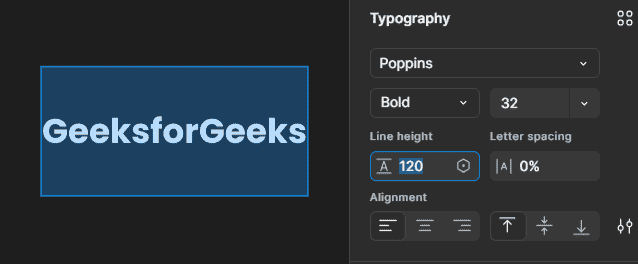
5. List Spacing: Controls the vertical space between items in a bulleted or numbered list. It helps keep list items clear and well organized.
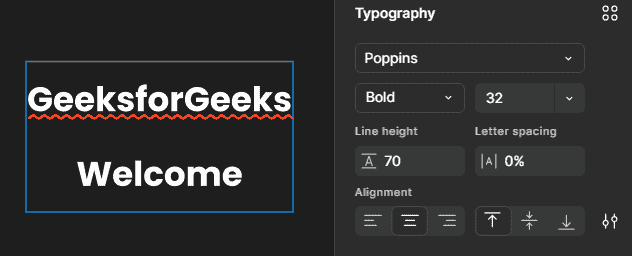
6. Letter Spacing: The spacing between letters in any word is called Letter spacing. It is represented by the symbol of A beside which, both left & right side, there lies vertical lines, representing margin between every letter from every other letter at the left and right side.
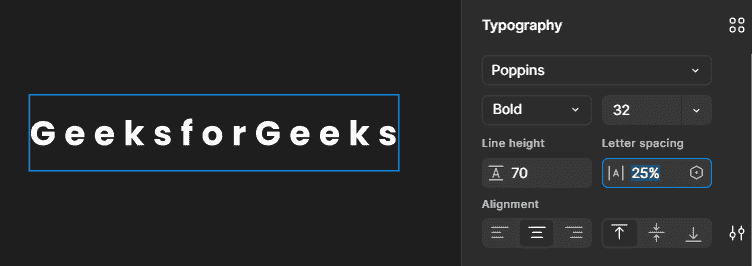
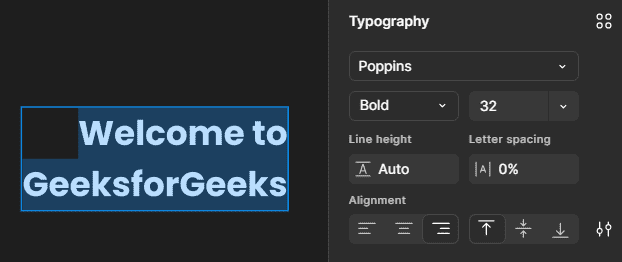
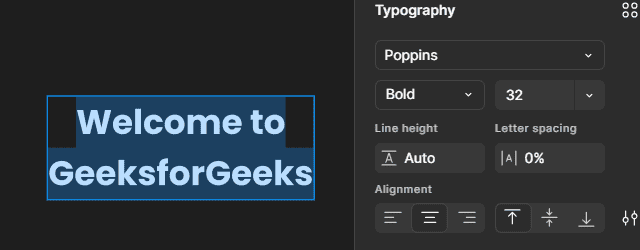
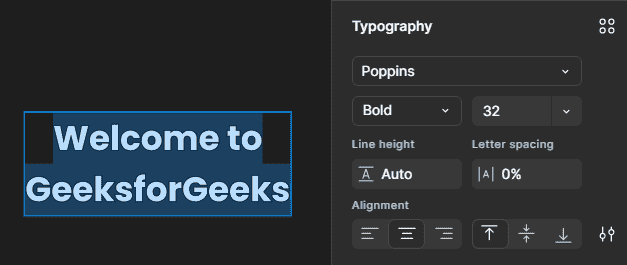
7. Alignment: Proper text alignment helps organize content and makes a design easier to read. Figma provides alignment options such as left, center, right, and justified alignment.
- Left alignment
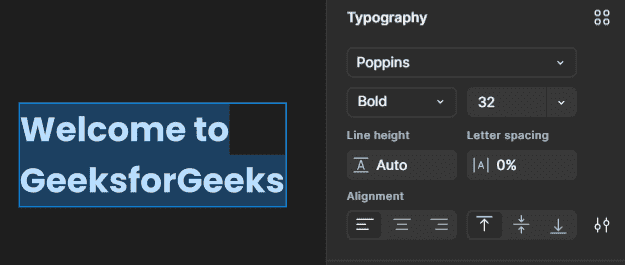
- Right alignment
- Centre aligned
8. Type Settings of Text: In Figma provide additional options for formatting and controlling how text is displayed.
- Resizing: Text can be resized based on its content. Options such as Auto Width, Auto Height, and Fixed Size control how the text container adjusts to the content.
- Decoration: You can apply Underline or Strikethrough to text.
- Case: You can change the text case to Uppercase, Lowercase, Capitalize, and other available options.
- List Style: You can format text as bulleted or numbered lists to organize related information clearly.
- Wrap Style: Figma provides text wrapping options such as Auto, Balance, and Pretty, which control how text wraps across multiple lines.
9. Color fill: We can also add colors to the text which is probably the most basic, yet most essential feature of Designing. Here we have added a red color to the text.