Web Console UI Tour
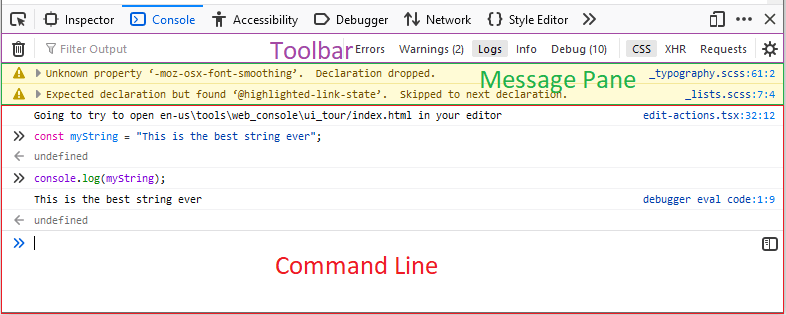
The Web Console’s interface is split into three horizontal sections, detailed in the sections below.
Toolbar
The toolbar across the top contains a number of features:
Garbage can: Click this icon to clear the contents of the console.
Funnel (filter): Enter text to filter the messages that are displayed in the console message pane. Plain-text and regular expression filtering are supported.
Filter categories: Toggle a filter category (such as Errors, Warnings, CSS, or XHR) to display messages of that type in the message page (the UI shows the number of hidden message for unselected categories).
Settings (“gear” menu): Select the gear icon to access the settings menu, where you can toggle the following features on and off:
Persist Logs: When enabled, the console doesn’t clear on page reload, or new page load.
Show Timestamps: When enabled, timestamps are shown on the left-hand side of each message row to say when the messages were logged.
Group Similar Messages: When enabled, similar types of messages are grouped together, with an indicator of the number of occurrences.
Enable Autocompletion: When enabled, the JavaScript interpreter attempts to autocomplete while you type.
Instant Evaluation: When enabled, the interpreter displays the evaluated results of an expression, when possible, before you press Enter to submit it.
Message display pane
This is where the messages appear, both those generated by the code in the page, and those generated by the commands entered on the command line.
See Console messages for a lot more detail on what the messages can contain.
Note
You can clear the contents of the console by entering the keyboard command Ctrl + Shift + L (Windows, macOS, and Linux) or Cmd + K on macOS.
Command line
The command line starts with double angle brackets (>>). Use it to enter JavaScript expressions.
Clicking on the “split pane” icon on the right hand side of the command line will open the console multi-line mode.
