

Wine runs Windows programs on Linux by translating Windows API calls into native ones, so there is no virtual machine and no emulator overhead. To install Wine on Linux Mint properly you want the WineHQ repository rather than Mint’s own archive. WineHQ ships the current stable branch and the development snapshots, while Mint carries one older build for the life of the release.
The one trap in this install is the last step. WineHQ publishes two branches, and pasting the stable and development installs together leaves you on the development build, or with nothing installed at all in some terminals. This guide keeps them as separate commands and shows how to recover if you already pasted both. Every command below was run on Linux Mint 22.3 in October 2026, where the WineHQ repository served wine-stable 11.0 and winehq-devel 11.20.
What changed in Wine 11
The WineHQ stable branch is now 11.0, and a few of its changes break instructions written for Wine 9 and 10. If you’ve followed an older guide before, these are the differences you’ll notice:
- No more
wine64command; a singlewineloader picks 32-bit or 64-bit from the executable - Finished WoW64 mode: one 64-bit prefix runs 32-bit, 64-bit and 16-bit programs
- Pure 32-bit prefixes (
WINEARCH=win32) deprecated - NTSync used when
/dev/ntsyncexists
NTSync speeds up the synchronization calls that games and heavier applications make, but on Mint 22.3 it is not active by default. NTSync needs kernel 6.14 or newer, so Mint releases still on the 6.8 kernel do not have it at all. The 6.14 kernel on Mint 22.3 builds it as a module (CONFIG_NTSYNC=m) and nothing loads it at boot, so /dev/ntsync is missing until you run sudo modprobe ntsync. Wine falls back to its older wineserver path when the device is absent, which means nothing breaks if you skip it; you only give up some speed in games. The full list of changes is in the Wine 11.0 release announcement.
Check the Ubuntu base of your Mint release
WineHQ does not build packages for Mint itself. It builds them for Ubuntu releases, and Mint 22.x sits on Ubuntu 24.04, so the suite you need is noble. The Mint codename (zena on 22.3, xia on 22.1) means nothing to the WineHQ server, because there is no zena directory to download from. Read the Ubuntu codename from the release file.
cat /etc/os-releaseThe last line is the one that matters, and on our Mint 22.3 machine it reads noble. Everything above it describes Mint, so ignore it for this install.
NAME="Linux Mint"
VERSION="22.3 (Zena)"
ID=linuxmint
ID_LIKE="ubuntu debian"
PRETTY_NAME="Linux Mint 22.3"
VERSION_ID="22.3"
HOME_URL="https://www.linuxmint.com/"
SUPPORT_URL="https://forums.linuxmint.com/"
BUG_REPORT_URL="http://linuxmint-troubleshooting-guide.readthedocs.io/en/latest/"
PRIVACY_POLICY_URL="https://www.linuxmint.com/"
VERSION_CODENAME=zena
UBUNTU_CODENAME=noble
Mint 22, 22.1, 22.2 and 22.3 all report noble, so every command below is the same on any of them. If yours says jammy, you are on Mint 21 and need the jammy sources file instead, because a noble package built against newer libraries will not install on a jammy base.
Update the system and enable 32-bit packages
Paste each command block in this guide on its own and let it finish before the next one, and if your terminal lacks bracketed paste, enter multi-line blocks one line at a time; the recovery section explains why. Start from a fully updated system, because the WineHQ packages pull in around 200 i386 libraries and each one has to match the version of its 64-bit twin that is already installed. When the versions differ, apt refuses to install the i386 copy, because multiarch packages of the same library must carry the same version on both architectures. Reboot if the upgrade asks for it, so the running kernel matches the modules on disk, then log back in and carry on with the next step.
sudo apt update && sudo apt full-upgrade -y
[ -f /var/run/reboot-required ] && sudo reboot
Wine 11 still installs a 32-bit half (wine-stable-i386) next to the 64-bit one, so dpkg has to accept i386 packages. The command is safe to run twice, and our Mint 22.3 lab machine already had i386 enabled, so the check below is the part to watch.
sudo dpkg --add-architecture i386
dpkg --print-foreign-architectures
The second command should print i386. If it prints nothing, the first one did not run with sudo, and the Wine install will later fail with unmet dependencies on every :i386 package.
Add the WineHQ repository and key
Two files go in: the signing key under /etc/apt/keyrings/, and a deb822 .sources file that points apt at the noble suite and names that key in its Signed-By field. That pairing matters because apt then trusts the WineHQ key for the WineHQ repository only, which is why the old apt-key add method from older guides is gone. Make sure wget and curl are present first, since curl comes back later for the test download.
sudo apt install -y wget curlDownload the key next. WineHQ’s own instructions name it winehq-archive.key, and the sources file you fetch afterwards expects exactly that path.
sudo mkdir -pm755 /etc/apt/keyrings
sudo wget -O /etc/apt/keyrings/winehq-archive.key https://dl.winehq.org/wine-builds/winehq.key
Then drop the noble sources file into place with the -NP form WineHQ documents, which writes straight into sources.list.d and skips the separate move step. The download is 163 bytes, so do not worry that it looks small.
sudo wget -NP /etc/apt/sources.list.d/ https://dl.winehq.org/wine-builds/ubuntu/dists/noble/winehq-noble.sourcesPrint the file to confirm that the key path in it matches the file you just saved. A mismatch here is silent until apt update runs, so it is worth the two seconds now.
cat /etc/apt/sources.list.d/winehq-noble.sourcesIt should hold six lines, with Signed-By pointing at /etc/apt/keyrings/winehq-archive.key and both architectures listed:
Types: deb
URIs: https://dl.winehq.org/wine-builds/ubuntu
Suites: noble
Components: main
Architectures: amd64 i386
Signed-By: /etc/apt/keyrings/winehq-archive.key
Refresh the package lists so apt reads the new repository. Run this one on its own line, because the next step depends on its result.
sudo apt updateLook for the dl.winehq.org lines. Seeing both the i386 and amd64 package indexes means the key and the sources file agree, and an Ign on packages.linuxmint.com zena InRelease is normal on Mint:
Get:1 https://dl.winehq.org/wine-builds/ubuntu noble InRelease [8,910 B]
Ign:2 http://packages.linuxmint.com zena InRelease
Hit:3 http://archive.ubuntu.com/ubuntu noble InRelease
Hit:4 http://security.ubuntu.com/ubuntu noble-security InRelease
Hit:5 http://packages.linuxmint.com zena Release
Hit:6 http://archive.ubuntu.com/ubuntu noble-updates InRelease
Hit:8 http://archive.ubuntu.com/ubuntu noble-backports InRelease
Get:9 https://dl.winehq.org/wine-builds/ubuntu noble/main i386 Packages [254 kB]
Get:10 https://dl.winehq.org/wine-builds/ubuntu noble/main amd64 Packages [254 kB]
Fetched 517 kB in 1s (355 kB/s)
If apt update stops with an E: line instead, jump to the apt update errors section before going further, because nothing will install until the sources list reads cleanly.
Pick a branch before you install
WineHQ offers three branches, and their metapackages conflict, so installing one removes whichever winehq-* package was there before:
winehq-stable: yearly release, point fixes onlywinehq-devel: development snapshots with the newest fixeswinehq-staging: devel plus experimental patches
Check which version the stable branch would give you today before you commit to it.
apt-cache policy winehq-stableStable was at 11.0 when we ran this, and the same command for winehq-devel showed 11.20 with 11.19, 11.18 and 11.17 still listed. Older builds stay in the repository, which is handy if a new release breaks a program you depend on:
winehq-stable:
  Installed: (none)
  Candidate: 11.0.0.0~noble-1
  Version table:
     11.0.0.0~noble-1 500
        500 https://dl.winehq.org/wine-builds/ubuntu noble/main amd64 Packages
     10.0.0.0~noble-1 500
        500 https://dl.winehq.org/wine-builds/ubuntu noble/main amd64 Packages
We’d run stable on any machine you rely on. Development ships frequent snapshots with fixes that haven’t reached stable yet, so take it only when a program you need is broken on stable and the WineHQ bug tracker shows the fix landed in a newer devel build. Install one branch, never both.
Install Wine stable
Run this on its own and answer the prompt yourself. Keep --install-recommends, because the recommended packages are the 32-bit graphics, audio and media libraries that many Windows programs need, and WineHQ’s own install instructions keep the flag for that reason.
sudo apt install --install-recommends winehq-stableOn a fresh Mint 22.3 desktop apt wants to add 235 packages and about 2 GB of disk. Most of that is i386 libraries; the Wine binaries themselves are the three wine-stable packages at the end of the list, and winehq-stable is only the metapackage that ties them together.
  libxrandr2:i386 libxrender1:i386 libxshmfence1:i386 libxslt1.1:i386
  libxss1:i386 libxvidcore4:i386 libxxf86vm1:i386 libzstd1:i386
  libzvbi0t64:i386 mesa-libgallium:i386 mesa-va-drivers:i386
  mesa-vdpau-drivers:i386 ocl-icd-libopencl1:i386 va-driver-all:i386
  vdpau-driver-all:i386 wine-stable wine-stable-amd64 wine-stable-i386:i386
  winehq-stable zlib1g:i386
0 upgraded, 235 newly installed, 0 to remove and 0 not upgraded.
Need to get 378 MB of archives.
After this operation, 2,061 MB of additional disk space will be used.
Do you want to continue? [Y/n] y
Once apt finishes, confirm which build you ended up with. Check this even on a clean run, because the version string is the quickest way to tell the two branches apart.
wine --versionStable reports the release with a .0 minor:
wine-11.0A snapshot number such as wine-11.20 means you have the development branch instead. That is what a pasted two-branch block leaves behind, and the recovery section below puts stable back.
Switch to the development branch (optional)
Skip this section unless you decided above that you need devel. On a machine that already has stable, apt swaps the metapackage for you, so there is no separate removal step to run first.
sudo apt install --install-recommends winehq-develRead the prompt before you say yes. It removes winehq-stable but leaves the stable binaries behind as orphans, so the two branches now sit side by side on disk and only the devel one is on your PATH:
The following packages were automatically installed and are no longer required:
  libcapi20-3t64 libcapi20-3t64:i386 libxslt1.1:i386 wine-stable
  wine-stable-amd64 wine-stable-i386:i386
Use 'sudo apt autoremove' to remove them.
...
The following packages will be REMOVED:
  winehq-stable
The following NEW packages will be installed:
  libavformat60:i386 libbluray2:i386 libchromaprint1:i386 libcjson1:i386
  libgme0:i386 libmbedcrypto7t64:i386 libnorm1t64:i386 libopenmpt0t64:i386
  libpcsclite1:i386 libpgm-5.3-0t64:i386 librabbitmq4:i386 librist4:i386
  libsodium23:i386 libsrt1.5-gnutls:i386 libssh-gcrypt-4:i386 libudfread0:i386
  libvorbisfile3:i386 libzmq5:i386 wine-devel wine-devel-amd64
  wine-devel-i386:i386 winehq-devel
0 upgraded, 22 newly installed, 1 to remove and 0 not upgraded.
Need to get 307 MB of archives.
After this operation, 1,832 MB of additional disk space will be used.
Clear the leftover stable packages once the install completes, because nothing uses them now and they hold about 2 GB. Then check the version again.
sudo apt autoremoveAnswer the autoremove prompt first, then run the version check on its own line. Ours reported wine-11.20.
wine --versionGoing back to stable later is the same move in reverse. The next section covers it, because it is also the fix for the pasted-block problem.
Recover from pasting both installs at once
An earlier version of this guide put the stable and development installs in one copyable block, with ### comment lines between them. A reader on Mint 22.3 pasted the whole block and reported errors, so we reproduced it on a clean Mint 22.3 machine. The repository, the key and apt update all worked; what went wrong was the paste itself, and it fails in one of two ways depending on how your terminal delivers pasted text:
- Bracketed paste (what bash 5.2 and most desktop terminals use): both installs run once you answer the prompts, and you end on
wine-11.20with stable orphaned - Plain paste: the first
sudo apt updateswallows every line after it, and nothing installs
The second case looks like output that stops halfway through apt update, because the pasted lines scroll past while it runs and are then thrown away. That happens because Mint’s /etc/sudoers sets Defaults use_pty, so sudo reads your terminal input on behalf of the command it runs and drops whatever that command didn’t consume. Check what you have now:
dpkg -l | grep -E '^ii +(winehq|wine-)'An empty result means the plain-paste case: start again from Install Wine stable and run each command on its own. If you see winehq-devel with wine-stable packages beside it, you got the bracketed case. Install stable over it and apt removes the devel metapackage:
sudo apt install --install-recommends winehq-stableBecause the stable binaries are still on disk from the first half of the paste, this swap downloads only the metapackage, 1,328 bytes on our machine.
The following packages will be REMOVED:
  winehq-devel
The following NEW packages will be installed:
  winehq-stable
0 upgraded, 1 newly installed, 1 to remove and 0 not upgraded.
Need to get 1,328 B of archives.
Then remove the orphaned devel packages. Apt marked them as automatically installed, so autoremove takes them without touching anything else, and it freed 1,832 MB here. Confirm the version is back to stable afterwards.
sudo apt autoremoveOnce it finishes, check the version on its own:
wine --versionThe version line should read wine-11.0 again, and the dpkg -l check from above should list only the four 11.0.0.0~noble-1 stable packages.
Fix apt update errors from an old Wine repository
If this machine had Wine from WineHQ before, an older repository entry is probably still on disk. When the old entry and the new .sources file name different key paths, apt refuses to read any sources at all. We reproduced it by leaving a winehq.list that pointed at /usr/share/keyrings/:
E: Conflicting values set for option Signed-By regarding source https://dl.winehq.org/wine-builds/ubuntu/ noble: /etc/apt/keyrings/winehq-archive.key != /usr/share/keyrings/winehq-archive.key
E: The list of sources could not be read.
Find every file that mentions the WineHQ server. Mint’s Software Sources tool writes PPAs and third-party repos to additional-repositories.list, so an entry added through the GUI years ago shows up there rather than under a Wine name.
grep -rln dl.winehq.org /etc/apt/sources.list /etc/apt/sources.list.d/Keep winehq-noble.sources and delete or edit the other file it lists. On our machine that was the old winehq.list, and apt update ran clean as soon as it was gone.
sudo rm /etc/apt/sources.list.d/winehq.list
sudo apt update
A duplicate entry that carries no key path at all produces a milder symptom: a run of W: Target ... is configured multiple times warnings. Those don’t stop the install, but remove the duplicate the same way so the next real error isn’t buried under them.
Configure Wine with winecfg
The first Wine command you run creates the default prefix in ~/.wine, which is the Windows directory tree and registry your programs install into. Running winecfg first is the cleanest way to trigger that, because any error during prefix creation shows up here instead of in the middle of an installer. Run it as your normal user, never with sudo, or the prefix ends up owned by root.
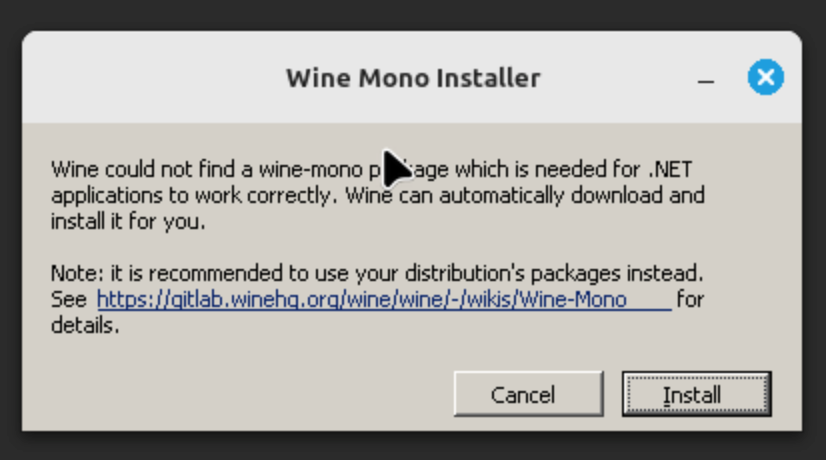
winecfgWhile it builds the prefix, Wine offers to install Wine Mono, its replacement for the .NET Framework. Click Install, since many installers and utilities are .NET programs and fail without it.
When the download finishes, the Wine configuration window opens. The default Windows version is Windows 10, which suits almost every current installer, so click OK to save it.
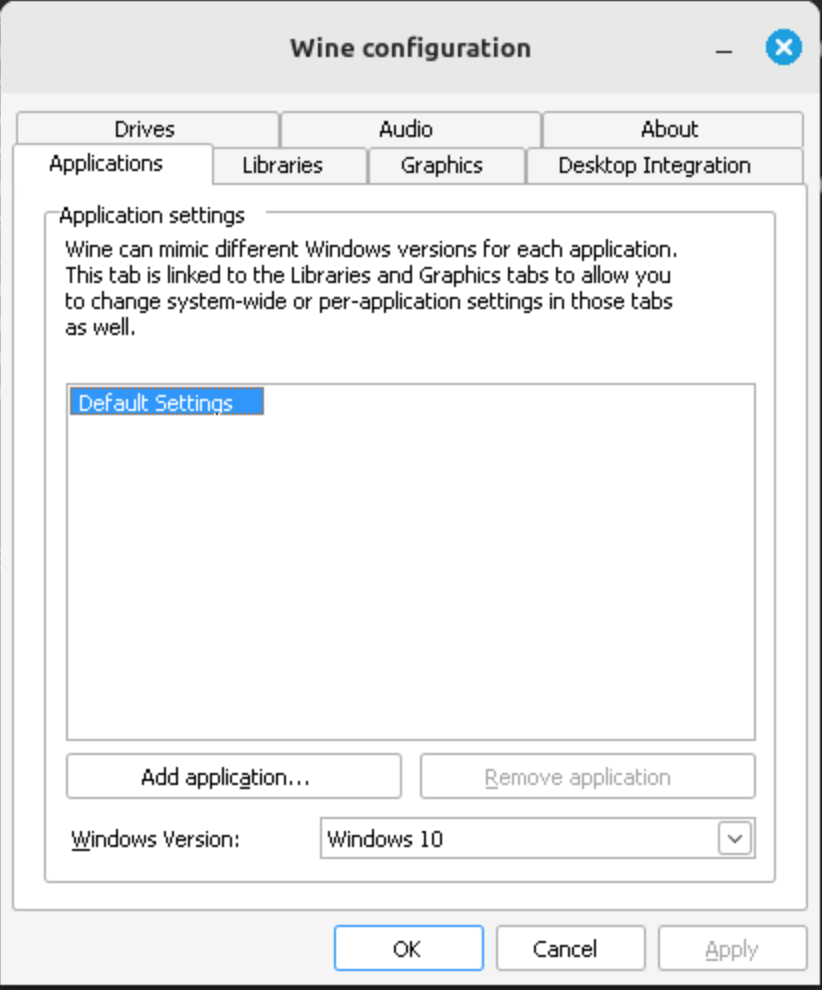
The prefix now exists, and the next step proves it with a real Windows program.
Install a Windows application
Notepad++ makes a good first test because it is a standard Windows installer with no dependencies, so a failure points at Wine rather than at a missing runtime. Fetch the latest release tag from the GitHub API and download the installer that matches it.
VER=$(curl -s https://api.github.com/repos/notepad-plus-plus/notepad-plus-plus/releases/latest | grep tag_name | cut -d '"' -f 4 | sed 's/v//g')
wget https://github.com/notepad-plus-plus/notepad-plus-plus/releases/download/v${VER}/npp.${VER}.Installer.exe
Hand the installer to Wine from the same shell, so ${VER} is still set. Terminal output such as fixme: lines is normal while it runs, so leave the terminal open and watch the installer window instead.
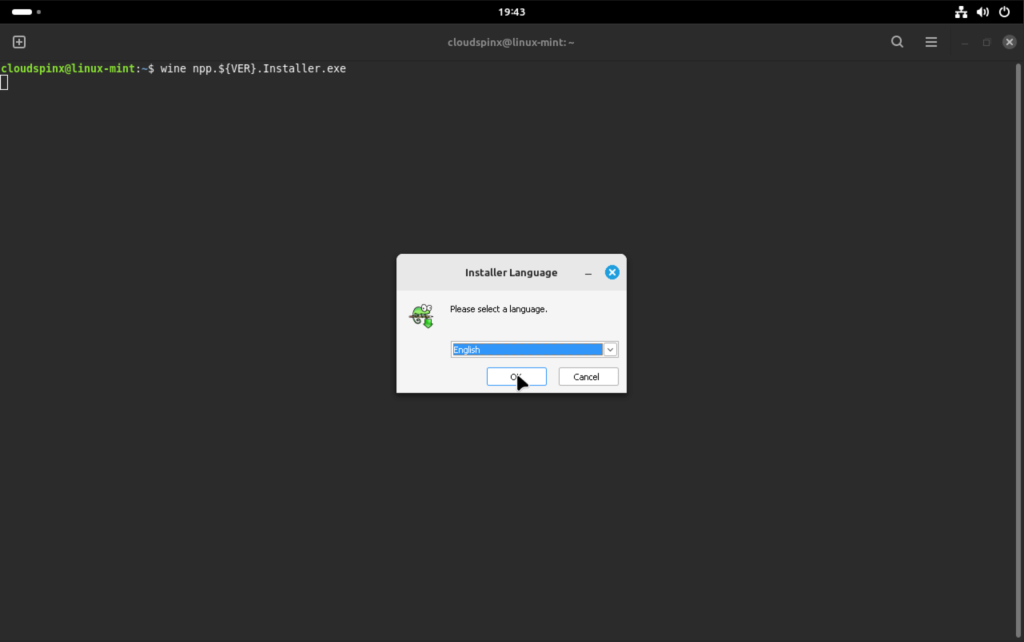
wine npp.${VER}.Installer.exeThe Windows installer opens in its own window. Pick a language and press OK:
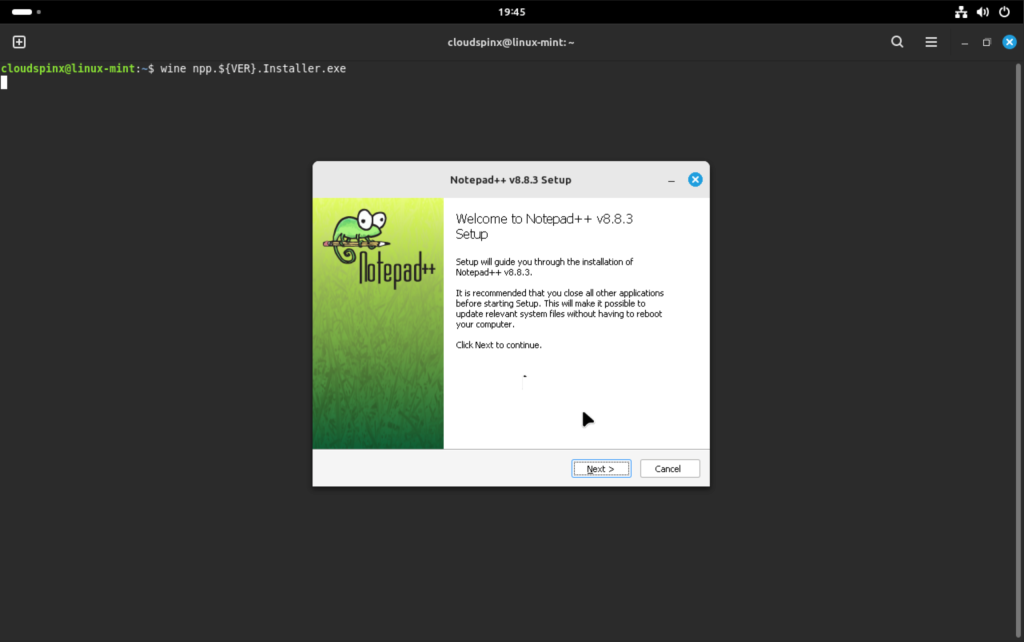
The setup wizard follows; click Next through its pages as you would on Windows. Its default target, C:\Program Files (x86)\Notepad++, lives inside the prefix under ~/.wine/drive_c/:
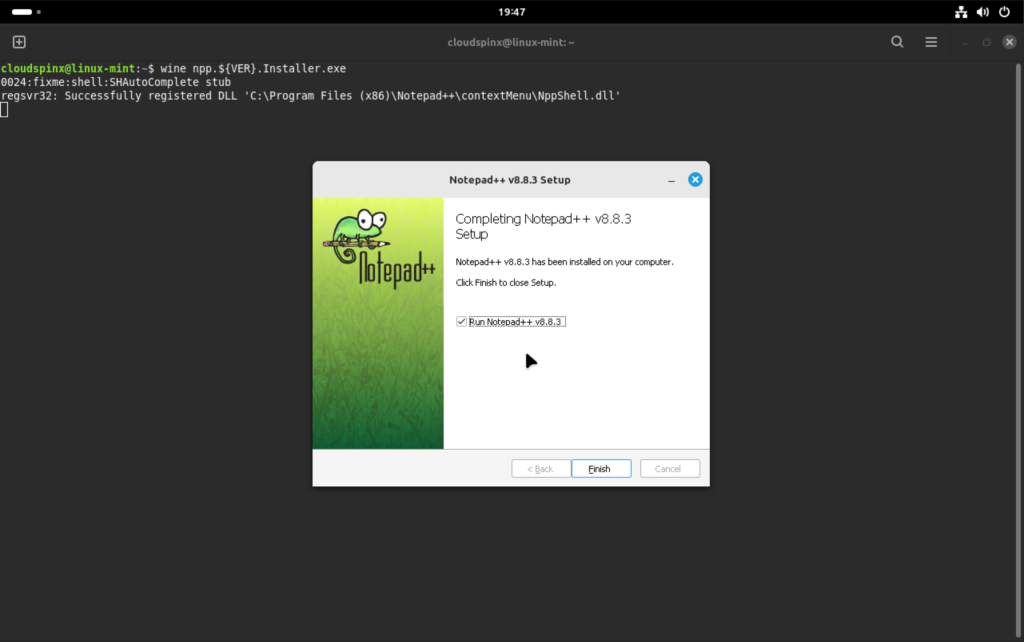
Click Finish on the last page, leaving the option to run Notepad++ ticked. The regsvr32 line in the terminal behind it confirms the shell extension registered inside the prefix, so the install itself is complete at this point:
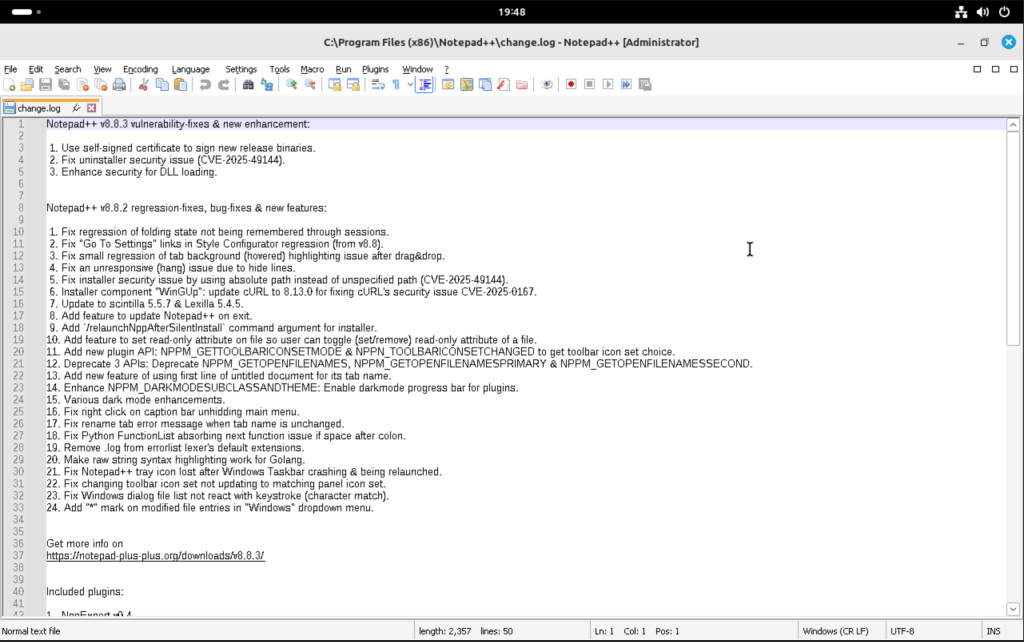
Notepad++ starts as a normal desktop window, with menus, fonts and file dialogs all working:
If an installer stalls on a missing runtime such as the Visual C++ redistributables, Winetricks adds them to the prefix; our Winetricks guide for Ubuntu and Debian works unchanged on Mint.
Find Wine in the menu and launch programs
Wine deliberately puts nothing in the applications menu. It installs /usr/share/applications/wine.desktop, but that entry is marked NoDisplay=true, so the menu hides it. Its job is to register Wine as the handler for .exe, .msi and .bat files, which is why double-clicking a Windows executable in the file manager works even though there is no Wine icon to click. Menu entries appear only once you install a Windows application, and Wine writes them under ~/.local/share/applications/wine/.
To launch something by hand, give Wine a path to a real executable. The usage line printed by wine --help reads wine PROGRAM [ARGUMENTS...], and PROGRAM there is a placeholder, not something to type literally:
wine ~/Downloads/npp.${VER}.Installer.exeTwo mistakes produce messages that look like a broken installation but are not. A path to a file that does not exist gets a plain wine: failed to open "..." line. Typing the placeholder literally, as in wine PROGRAM, is handed to Wine’s start.exe, which answers with this:
Application could not be started, or no application associated with the specified file.
ShellExecuteEx failed: File not found.
When you are unsure whether Wine itself is healthy, wine --version and winecfg are the two checks worth running. Games are the other common reason to install Wine on Mint, and for those the GPU driver matters more than the Wine branch, so sort out the NVIDIA driver on Linux Mint first if you have an NVIDIA card. The same WineHQ setup on other distributions is covered in our guides for Ubuntu, Debian and Fedora.




Did not work for me everything went as you posted but when I went to run WINE it stated
~$ wine PROGRAM
Application could not be started, or no application associated with the specifie
d file.
ShellExecuteEx failed: File not found.
And wine does not appear in my programs list Any ideas
PROGRAM is the placeholder printed by the wine usage line, not something to type literally. Give it a real path, for example wine ~/Downloads/npp.8.9.8.Installer.exe, and it will run. Wine also installs no visible menu entry by design: /usr/share/applications/wine.desktop is marked NoDisplay=true and only registers Wine as the handler for .exe and .msi files, so entries show up under ~/.local/share/applications/wine/ once you install a Windows program. I have added a section to the guide covering both.
Why are articles like these so unnecessarily complicated?! Sudo apt install wine OR software manager and search for wine! Simple! My god.
Fair point.
sudo apt install wineworks on Mint and gives you Wine 9.0 from the Ubuntu 24.04 archive, which is fine for a lot of programs. The WineHQ repo is only worth the extra steps if you want the current release (11.0 when we tested), which is what this guide installs.