If lsusb -t shows Driver=uas for your NVMe enclosure, you have UASP, but that alone doesn’t prove TRIM reaches the SSD. On Linux the two are decided in different places: UASP by the USB driver that binds to the bridge, TRIM by what the bridge firmware reports about logical block provisioning and whether the kernel even asks. Get either wrong and the drive still mounts and copies files, so nothing tells you that the SSD is filling with stale blocks or that SMART has gone dark.
This guide answers what UASP means for an NVMe enclosure and whether TRIM works over UASP, then shows how to check both from a shell and force TRIM on with a udev rule when the kernel turns it off. Everything here was built in October 2026 on an Ubuntu 26.04 VM in our Proxmox lab with two emulated USB disks, one on the uas driver and one on usb-storage, so the TRIM and udev output below comes from that VM. The SMART reference capture is from another lab host; chip details come from vendor pages and the kernel source.
UASP and TRIM on NVMe enclosures
UASP (USB Attached SCSI Protocol) is the queued transport a modern NVMe enclosure uses instead of the old one-command-at-a-time Bulk-Only Transport, and on Linux it shows up as the uas kernel driver. TRIM over USB is the SCSI UNMAP command, and the kernel only sends it when the disk’s provisioning_mode says it can. In practice you will land in one of three states:
- UAS with discard on:
Driver=uas,provisioning_modereadsunmap, andlsblk -Dshows a non-zero DISC-MAX. TRIM works with no extra setup. - UAS with discard off: the bridge negotiated UAS but its firmware doesn’t report thin provisioning, so the kernel sets
fullandfstrimfails. The udev rule below fixes it. - usb-storage (BOT): the kernel never reads the provisioning pages, so TRIM is off even when the bridge and SSD both support it. Same udev rule, and the enclosure is also slower.
The third case surprises people because it is not a hardware limit. We put a USB disk that fully supports UNMAP on the usb-storage driver and the kernel still left TRIM disabled. One sysfs value turned it on, and the reason sits in two lines of the kernel’s USB storage code, covered in the lab section below.
The bridge chips behind most enclosures
Every USB NVMe enclosure is an M.2 slot wired to a bridge chip that translates USB into PCIe, and that chip decides the speed ceiling, which SSDs fit and which smartctl device type reads its health data. A handful of families cover almost everything on sale:
| Bridge chip | USB link | Drives behind it | UASP and TRIM in vendor docs | smartctl type |
|---|---|---|---|---|
| JMicron JMS583 | USB 3.1 Gen 2, 10 Gbps | NVMe, PCIe Gen 3 x2 | Both listed | sntjmicron |
| JMicron JMS581 family | USB 3.2 Gen 2, 10 Gbps | NVMe Gen 3 x2 and SATA | Both listed, TRIM to PCIe and SATA | sntjmicron or sat |
| Realtek RTL9210 / RTL9210B | USB 3.2 Gen 2, 10 Gbps | NVMe (RTL9210B also SATA M.2) | Listed by enclosure makers | sntrealtek |
| ASMedia ASM2362 | USB 3.2 Gen 2, 10 Gbps | NVMe, PCIe Gen 3 x2 | Both listed | sntasmedia |
| ASMedia ASM2364 | USB 3.2 Gen 2×2, 20 Gbps | NVMe, PCIe Gen 3 x4 | Both listed | sntasmedia |
| ASMedia ASM2464PD | USB4 / Thunderbolt, 40 Gbps | NVMe, PCIe Gen 4 x4 | Both listed (UAS and UNMAP) | native nvme on Thunderbolt or a PCIe-tunnelling USB4 host; try sntasmedia on USB 3.2 |
Read the fourth column with care. JMicron’s pages list UASP and TRIM for the JMS583 and the JMS581 parts, and ASMedia’s feature lists include “Support BOT and UAS Protocol” plus a TRIM or UNMAP command set for all three of its chips, while Realtek’s product page sat behind a bot wall when we checked, so the RTL9210 claims come from the enclosure makers. Even a datasheet line doesn’t prove TRIM reaches your SSD: what matters is what your enclosure’s firmware reports to the kernel, and the checks below read that directly. The kernel also keeps its own list of bridges it handles differently. The JMS583 (ID 152d:0583) stays on UAS with one quirk flag that skips a command it mishandles, while older ASMedia ASM1051 SATA bridges and a JMS566 rebrand are forced off UAS entirely.
Lab test: UAS vs usb-storage
We had no physical enclosure to sacrifice, so we built both cases in QEMU, which can emulate a UAS bridge (usb-uas) and a classic Bulk-Only one (usb-storage) on the same xHCI controller. Each one fronts an 8 GB disk image with discard passed through to the host, and both answer the SCSI provisioning queries the same way. The guest runs a stock Ubuntu 26.04 kernel. This isolates the Linux side of the problem, which is the part you can fix; it does not reproduce the firmware bugs of any particular chip. Both disks enumerated at 5000M, with different drivers:
lsusb -tThe two mass storage lines are the ones to read, and the driver name at the end of each is the whole UASP question:
/:  Bus 001.Port 001: Dev 001, Class=root_hub, Driver=uhci_hcd/2p, 12M
/:  Bus 002.Port 001: Dev 001, Class=root_hub, Driver=xhci_hcd/4p, 480M
/:  Bus 003.Port 001: Dev 001, Class=root_hub, Driver=xhci_hcd/4p, 5000M
    |__ Port 001: Dev 002, If 0, Class=Mass Storage, Driver=uas, 5000M
    |__ Port 002: Dev 003, If 0, Class=Mass Storage, Driver=usb-storage, 5000M
Then we asked the kernel what it thought of each disk’s discard support. sda is the UAS disk and sdb the usb-storage one:

The usb-storage disk was not lying about its abilities. Asked directly with sg_vpd, it reported the same logical block provisioning page as the UAS disk, UNMAP included:
sudo sg_vpd -p lbpv /dev/sdbLBPU=1 means the device accepts UNMAP, and it is thin provisioned:
Logical block provisioning VPD page (SBC)
  LBPU=1
  LBPWS=1
  LBPWS10=1
  LBPRZ=0x0
  ANC_SUP=0
  DP=0
  Minimum percentage: 0 [not reported]
  Provisioning type: thin provisioned
  Threshold percentage: 0 [percentages not supported]
The kernel never saw that page. In the usb-storage driver’s SCSI glue, every disk gets skip_vpd_pages unless the SCSI layer forces it, and try_rc_10_first unless the device has the large-capacity quirk. With no VPD pages and only READ CAPACITY(10), the sd driver never learns the disk supports provisioning and picks full, which means no discard. Disks larger than 2 TiB take a different path: READ CAPACITY(10) overflows, sd retries with READ CAPACITY(16), sees the LBPME bit and, still without the VPD pages, picks writesame_16, a command the usb-storage driver itself marks as one not to send to USB disks, and not every bridge turns it into an UNMAP for the SSD. The uas driver sets neither flag, so the same disk behind a UAS bridge gets unmap automatically. In practice this means a working bridge that falls back to usb-storage, or that you force there with the quirk later in this guide, loses TRIM as a side effect.
Checking UASP and TRIM on your enclosure
Four reads tell you which of the three states your enclosure is in, and none of them change anything. Start with the driver, which you already know how to read from the output above:
lsusb -t | grep -i "mass storage"If you see Driver=usb-storage on a 10 Gbps enclosure, check whether the bridge offers UAS at all. A real UAS bridge exposes two alternate settings on its storage interface, Bulk-Only as bInterfaceProtocol 80 and UAS as 98, and lsusb -v lists both. Swap in your own vendor and product ID from plain lsusb:
sudo lsusb -v -d 152d:0583 | grep -E "bAlternateSetting|bInterfaceProtocol"No 98 line means the bridge only speaks Bulk-Only, and no setting will give you UASP. If protocol 98 is listed but usb-storage still bound, sudo dmesg | grep -iE "UAS is ignored|does not support streams" usually shows why: “UAS is ignored for this device, using usb-storage instead” means a kernel quirk forced that ID off UAS, and “does not support streams” means your USB controller lacks the streams UAS needs. Next, check discard at the block layer, using the disk name from lsblk:
lsblk -Do NAME,TRAN,DISC-GRAN,DISC-MAX /dev/sdaDISC-MAX of 0B means TRIM is off. The kernel’s reason is in sysfs, and it is the value the fix changes:
cat /sys/block/sda/device/scsi_disk/*/provisioning_modeunmap (or writesame_16 or writesame_10) means discard is on. full or disabled means the kernel won’t send TRIM. If you want to know whether the bridge could do it anyway, install the SCSI tools (sudo apt install sg3-utils smartmontools on Debian and Ubuntu, sudo dnf install sg3_utils smartmontools on Fedora) and run the same sg_vpd -p lbpv query from the lab: LBPU=1 tells you the udev rule will work, while a bridge that rejects the query or reports LBPU=0 is one where forcing UNMAP is a gamble.
A udev rule that turns TRIM on
The fix sets provisioning_mode to unmap every time the enclosure appears, so it survives replugs and reboots. Writing the sysfs file by hand works too, but it is gone the next time you unplug. Take the enclosure’s vendor and product ID from lsusb (our emulated usb-storage disk is 46f4:0001; a JMS583 enclosure is 152d:0583), then create the rule file:
sudo vim /etc/udev/rules.d/90-usb-discard.rulesAdd one line with your IDs. This is the exact rule we ran in the lab:
ACTION=="add|change", ATTRS{idVendor}=="46f4", ATTRS{idProduct}=="0001", SUBSYSTEM=="scsi_disk", ATTR{provisioning_mode}="unmap"Reload the rules, replay a change event for SCSI disks, and wait for udev to finish:
sudo udevadm control --reload-rules
sudo udevadm trigger --subsystem-match=scsi_disk --action=change
sudo udevadm settle
Don’t skip udevadm settle. On our first pass we read provisioning_mode right after the trigger and it still said full, because udev processes events in the background; with settle in between, the same read returned unmap every time. Confirm the block layer agrees. Our usb-storage disk is /dev/sdb mounted at /mnt/bot, so replace both with your own device and mount point here and below:
lsblk -Do NAME,TRAN,DISC-GRAN,DISC-MAX /dev/sdbDISC-MAX is no longer zero. Note the value, because it matters in a moment:
NAME TRAN DISC-GRAN DISC-MAX
sdb  usb       512B       4G
Now prove the whole path with a real trim on the mounted filesystem:
sudo fstrim -v /mnt/botOn the pass shown above, the one with settle, it printed zero:
/mnt/bot: 0 B (0 bytes) trimmedZero is the expected answer here, not a failure. Our first run of the same rule, before we added settle, had already trimmed 7.8 GiB on this filesystem, and ext4 skips block groups it has trimmed since the last mount, so a second fstrim shows 0 B until you remount. A disk that still lacks discard prints “the discard operation is not supported” instead, and on a fresh mount you should see the free space as the trimmed count.
We also checked that the discards reached storage rather than being swallowed on the way. On the Proxmox host, du on the disk image dropped from 1.2G to 201M after we deleted a 512 MB file and ran fstrim, and most of what stayed allocated was ext4 metadata written before TRIM was on. Reformatting with the rule in place printed “Discarding device blocks: done” and took the image down to 74M, which is mostly the new journal. If you are about to format a new enclosure, add the rule first.
Cap discard size to the bridge limit
That 4G DISC-MAX is not a number the bridge reported. When you force unmap on a disk whose Block Limits page the kernel never read, the sd driver falls back to its own ceiling of 0x7fffff blocks, which is 4294966784 bytes on 512-byte sectors. The UAS disk, which the kernel did query, got 1G: its bridge reports a maximum of 0x200000 blocks per UNMAP. A real bridge that receives a larger UNMAP than it supports can fail the command, which is the “fstrim works on small partitions and errors on large ones” report you see on forums. Read the bridge’s limit:
sudo sg_vpd -p bl /dev/sdb | grep -i unmapOur emulated bridge reported a maximum unmap LBA count of 0x200000:
  Maximum unmap LBA count: 0x200000
  Maximum unmap block descriptor count: 0xff
  Optimal unmap granularity: 0x8
  Unmap granularity alignment valid: false
Multiply that count by the logical block size from /sys/block/sdb/queue/logical_block_size (512 here) to get bytes, which is 1073741824 for our disk. Open the rule file again:
sudo vim /etc/udev/rules.d/90-usb-discard.rulesAdd a second line under the first one that writes the cap on the block device:
ACTION=="add|change", ATTRS{idVendor}=="46f4", ATTRS{idProduct}=="0001", SUBSYSTEM=="scsi_disk", ATTR{provisioning_mode}="unmap"
ACTION=="add|change", ATTRS{idVendor}=="46f4", ATTRS{idProduct}=="0001", SUBSYSTEM=="block", KERNEL=="sd?", ATTR{queue/discard_max_bytes}="1073741824"
Apply it the way we did in the lab. This time the trigger has no subsystem filter, so the block device receives a change event too:
sudo udevadm control --reload-rules
sudo udevadm trigger --action=change
sudo udevadm settle
That brought DISC-MAX on /dev/sdb down to 1G. After a reboot both disks still showed 1G and fstrim trimmed the full 7.8 GiB again, with one harmless line in the journal. At boot the block rule fired before the SCSI rule had switched the mode, so systemd-udevd logged Failed to write "1073741824" to sysfs attribute "queue/discard_max_bytes", ignoring: Invalid argument. While discard is still off the disk’s discard granularity is 0, and the block layer rejects any discard_max_bytes write in that state. A later event applied the cap, but we confirmed that only across a reboot, not on hotplug, so check lsblk -D after every plug-in and rerun the three commands above if DISC-MAX shows 4G. A value above discard_max_hw_bytes is not rejected; the block layer uses the smaller of the two, so this cap can lower the limit but never raise it.

For a laptop or a backup host, a weekly trim is plenty. Ubuntu and Fedora both ship fstrim.timer, so sudo systemctl enable --now fstrim.timer covers every mounted filesystem with discard support, the enclosure included once the rule is in place.
SMART health through the bridge
SMART is how you catch a drive wearing out before it takes data with it, and over USB smartctl has to wrap its NVMe query in whatever the bridge understands. When it can’t recognise the bridge, it stops with the error we got on both emulated disks:
/dev/sdb: Unknown USB bridge [0x46f4:0x0001 (0x000)]
Please specify device type with the -d option.
The device type follows the bridge vendor, which is why identifying the chip pays off. The smartctl man page shipped with Ubuntu 26.04 lists these types for USB bridges:
| Behind the bridge | smartctl command |
|---|---|
| NVMe on JMicron (JMS583, JMS581) | sudo smartctl -d sntjmicron -a /dev/sda |
| NVMe on Realtek (RTL9210, RTL9210B) | sudo smartctl -d sntrealtek -a /dev/sda |
| NVMe on ASMedia (ASM2362, ASM2364) | sudo smartctl -d sntasmedia -a /dev/sda |
| NVMe on ASM2464PD in USB 3.2 mode | try sudo smartctl -d sntasmedia -a /dev/sda (the smartmontools drive database names only the ASM2362 and ASM2364 IDs) |
| SATA M.2 on any bridge | sudo smartctl -d sat -a /dev/sda |
| Dual NVMe and SATA enclosure | sudo smartctl -d sntrealtek/sat -a /dev/sda |
The last row is new in the smartmontools release Ubuntu 26.04 ships and is marked experimental in its man page. Adding /sat to an snt* type tells smartctl to fall back to SATA translation if the NVMe identify command fails, which suits enclosures such as the Sabrent below that take either kind of M.2 drive. Directly attached, an NVMe drive returns the full health page, and this is the reference to compare your enclosure output against:

Three fields matter most for a drive that lives in an enclosure, and they are the ones to put in any monitoring you run against it:
- Temperature: a small aluminium shell running a Gen 4 drive through a long copy is how an SSD reaches its thermal limit, so this is the first number to watch.
- Available Spare: the reserve of replacement blocks; a steady drop means the flash is wearing out.
- Percentage Used: the drive’s own estimate of rated endurance consumed, which a backup drive should climb slowly.
If the bridge returns no temperature at all, you are flying blind on the one number that warns you first, and that alone is a reason to return an enclosure.
When UAS itself is the problem
Some bridges negotiate UAS and then misbehave under load: the device resets, the copy stalls and dmesg fills with reset messages. The kernel already pushes known offenders back to usb-storage on its own, so if yours slips through, the fix is the same flag the kernel uses, u for “ignore UAS”. The uas driver reads usb-storage’s quirks parameter when a device is probed, and that parameter is writable at runtime, so you can test without a reboot. Set it with your device ID, then unmount and replug the enclosure:
echo 152d:0583:u | sudo tee /sys/module/usb_storage/parameters/quirksThe tee replaces whatever string the parameter already held, so if cat /sys/module/usb_storage/parameters/quirks lists other devices, write them back in the same comma-separated line. After the replug, lsusb -t should show Driver=usb-storage for that port. If the resets stop, make the quirk permanent with a modprobe drop-in:
sudo vim /etc/modprobe.d/disable-uas.confAdd the quirk line, comma-separating devices if you have more than one:
options usb-storage quirks=152d:0583:uRebuild the initramfs so the option is present at boot, with sudo update-initramfs -u on Ubuntu and Debian or sudo dracut -f on Fedora and RHEL. Then remember the lab result: on usb-storage the kernel stops reading the provisioning pages, so the enclosure loses TRIM the moment this quirk takes effect. Add the udev rule from the previous section for the same ID, or you will have traded resets for an SSD that slowly fills with stale blocks. Use this only on a bridge that really misbehaves, never as a default.
ZFS pools and USB enclosures
A USB NVMe enclosure is a good portable drive and a good backup target. It is a poor foundation for a ZFS pool, and the TrueNAS and OpenZFS communities both say so, for reasons a better cable doesn’t fix:
- Bridge firmware: built to a price, with quirks that scrub and resilver load expose long after a file copy would have passed.
- Identity: many bridges present generic or duplicate serial numbers, which confuses anything that tracks disks by ID.
- Dropouts: a brief USB disconnect can bring the disk back under a new name,
/dev/sdabecoming/dev/sdb, and the pool degrades. - Health data: a bridge without SMART pass-through removes the early warning ZFS users rely on.
If you run a pool on USB anyway, import it by /dev/disk/by-id/ names so a rename doesn’t break it, and expect to watch it closely. For storage you care about, put the drives on SATA or PCIe inside a real box. A NAS built on a mini PC does that job, and on a Proxmox host the NVMe drives we would put in the server are a different buy from the one you put in an enclosure.
Enclosures we would buy for Linux
We pick by chipset because that decides everything above, then by who sells the listing. Two of the three run a Realtek RTL9210-family bridge, which reads SMART with sntrealtek and is documented with UASP and TRIM by the enclosure makers; the third uses the ASMedia ASM2464PD found in most 40 Gbps enclosures. For a wider field of shells, our roundup of M.2 NVMe and SATA enclosures covers more models, and the drive inside matters as much as the shell, whether it’s a 2TB SSD for backups or a Gen 4 or Gen 5 NVMe drive for the USB4 pick. Prices below were checked on Amazon in October 2026 and move often, so treat them as bands.
| Enclosure | Bridge | Link | Drives | Price band |
|---|---|---|---|---|
| Sabrent EC-SNVE | Realtek RTL9210B | 10 Gbps | NVMe and SATA M.2 | about $30 |
| Plugable USBC-NVME | Realtek RTL9210 | 10 Gbps | NVMe only | about $23 |
| UGREEN 40Gbps with fan | ASMedia ASM2464PD | 40 Gbps USB4 | NVMe only | $70 to $80 (list $110) |
1. Sabrent EC-SNVE: NVMe or SATA
The EC-SNVE is a tool-free 10 Gbps enclosure that takes both NVMe and SATA M.2 drives, so one shell covers whatever stick you have spare. Sabrent’s FAQ names the bridge as a Realtek RTL9210B (printed there as “RTL92108B”), a USB 3.2 to PCIe Gen 3 x2 NVMe and SATA chip, and that is why it reads SMART with -d sntrealtek, or sntrealtek/sat when you swap in a SATA stick. At about 17,000 ratings and a 4.5-star average on Amazon, it is also the most proven listing here.
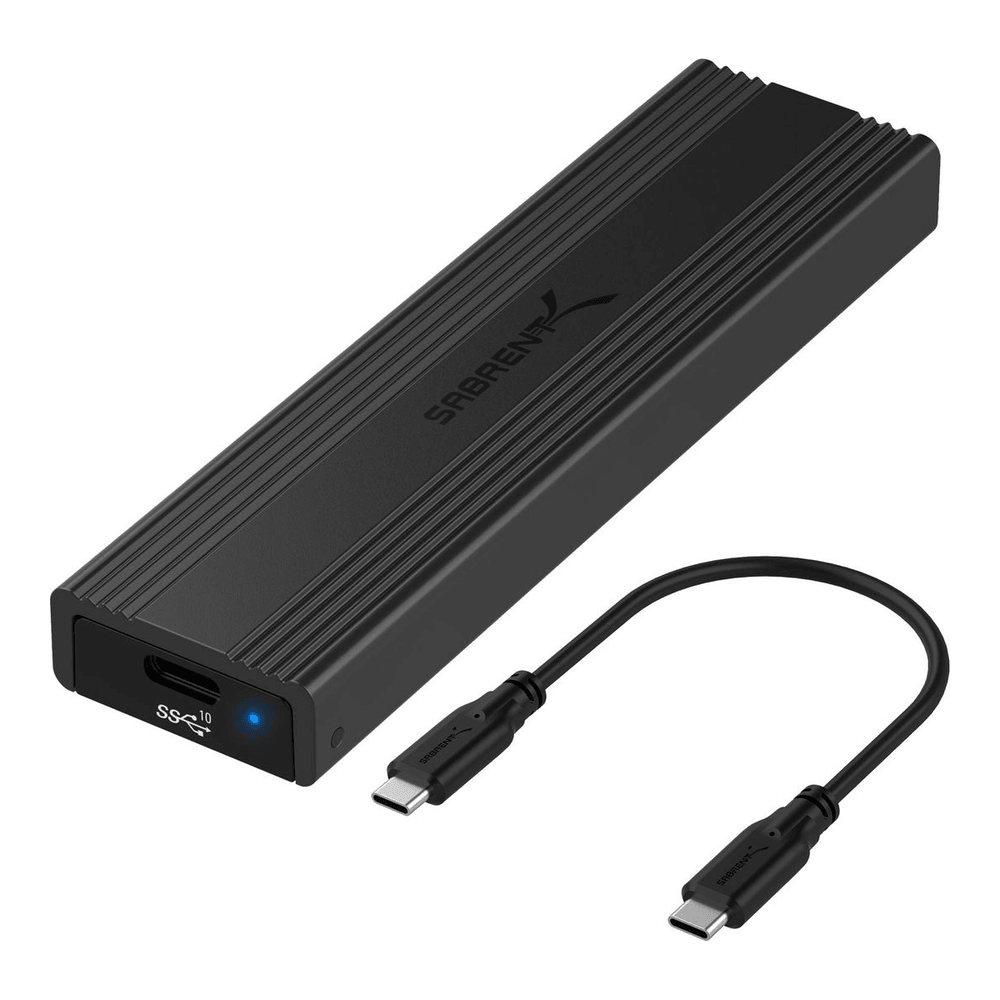
Buy it if you keep a mix of old SATA and NVMe sticks and want one enclosure for all of them. Pass on it if you own a Gen 4 drive and want its speed, because 10 Gbps holds any drive to roughly 1,000 MB/s. It sold for about $30 when we checked; see the live price on Amazon.
2. Plugable USBC-NVME: the budget NVMe pick
Plugable publishes the bridge in its own spec table, a Realtek RTL9210, which is more than most budget enclosures do, and the box carries both a USB-C and a USB-A cable, three thermal pads and a two-year warranty. It is NVMe only: an M.2 SATA stick won’t work. Plugable also states that on a USB4 or Thunderbolt host it runs as a 10 Gbps USB device, so it shows up as a uas disk there too, not as a native NVMe device.

Pick it for a backup drive or a carry-around NVMe stick where support matters more than features. Avoid it if you need SATA M.2 support. Search results also show a lookalike “Plugable” enclosure from another seller at half the price, so make sure the listing is sold by Plugable Technologies. It was about $23 when we checked; see the live price on Amazon.
3. UGREEN 40Gbps: USB4 speed
On a USB4 or Thunderbolt port, a 10 Gbps enclosure leaves most of a Gen 4 drive on the table. This UGREEN enclosure uses the ASMedia ASM2464PD, which ASMedia describes as tunnelling PCIe across USB4 and Thunderbolt to a Gen 4 x4 link, and it adds a fan because sustained 40 Gbps transfers make real heat. On a Thunderbolt host, or a USB4 host that supports PCIe tunnelling (optional in the USB4 spec), the drive comes up through the nvme driver as /dev/nvme1n1 or similar, so TRIM and SMART work natively with no bridge type at all. If it doesn’t appear, check boltctl list, since Thunderbolt security can hold a new device until it is authorized. On a plain USB 3.2 port it falls back to a uas disk; try -d sntasmedia for SMART there, since the smartmontools drive database names only the older ASMedia NVMe bridges.
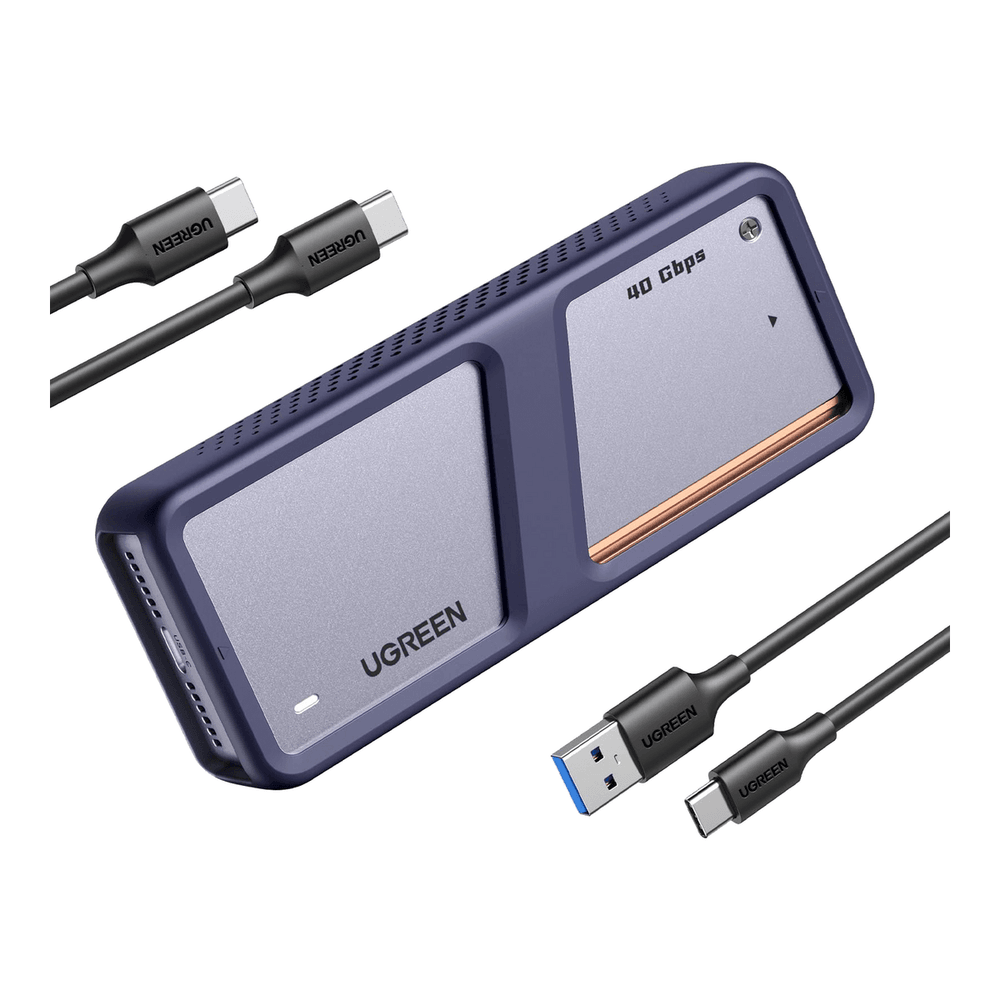
It earns its price on a USB4 or Thunderbolt machine where you want close to internal NVMe speed from an external drive. Skip it if your host only has USB 3.2, because you pay for bandwidth you cannot use, and the fan is one more small noise source on the desk. It was $75.99 against a $109.99 list price when we checked; see the live price on Amazon. Thunderbolt 5 enclosures at 80 Gbps exist from UGREEN, ACASIS and Satechi at $200 and up, and once you are moving that much data between machines every day, a 10GbE network link is usually the better spend.
The acceptance test for a new enclosure
Before an enclosure joins your Linux backup rotation, run it through the same sequence we used in the lab. It takes five minutes, and every step either passes or tells you which fix to apply:
lsusb -tshowsDriver=uas. If it saysusb-storage, checklsusb -vfor protocol 98 before blaming the kernel.lsblk -Dshows a non-zero DISC-MAX andprovisioning_modereadsunmap. If not, add the udev rule, thenudevadm settle.sg_vpd -p blgives the bridge’s maximum unmap count, and DISC-MAX is no larger than that count times the block size.sudo fstrim -von the mounted filesystem prints a trimmed byte count instead of “not supported”.smartctlwith the right-dtype returns temperature, Available Spare and Percentage Used.
An enclosure that passes all five is a solid portable drive on Linux. One that fails steps 1 and 2 and also has no SMART is a slow, blind drive that will quietly wear the SSD inside it, and in almost every case the difference comes from the bridge chip and its firmware, not the brand printed on the box.