

GitHub Actions workflows run when specific events occur in a repository or when they are manually or automatically triggered. These events help automate tasks such as building, testing, and deploying applications.
- Trigger workflows when code is pushed or pull requests are updated.
- Automatically run tests when new changes are submitted.
- Deploy applications after changes are merged.
- Start workflows manually when required.
- Run workflows automatically at defined times.
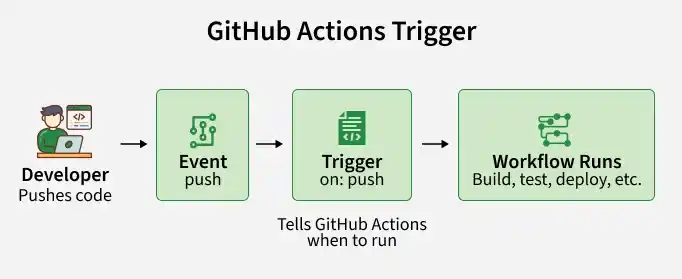
GitHub Actions Events
An event is an activity that occurs in a GitHub repository or on GitHub that can trigger a workflow.
For example:
- A developer pushes code to a repository.
- A pull request is opened.
- A new issue is created.
- A workflow is manually started.
- A scheduled time is reached.
The events that trigger a workflow are defined using the on keyword in the workflow
on:
  push:
  pull_request:

jobs:
  build:
    runs-on: ubuntu-latest

    steps:
      - name: Checkout Repository
        uses: actions/checkout@v4

      - name: Run Build
        run: echo "Building the project..."
In this example, the workflow runs when:
- Code is pushed to the repository.
- A pull request activity occurs.
on Keyword in GitHub Actions
The on keyword is used in GitHub Actions to defines which events trigger a workflow.
For example:
on:
    Push:
    pull_request:
Here, push and pull_request are events. On which the workflow will be triggered.
Note: You can configure one or multiple events depending on your requirements.
Common GitHub Actions Events
GitHub provides many events that can trigger workflows. Some of the most commonly used events are:
1. Push Event
The push event triggers a workflow whenever commits are pushed to the repository.
Example
name: Push Workflow
on:
    push:
jobs:
     build:
           run-on: ubuntu-latest
           step:
               - name: Run Build
                  run: echo "Code was pushed"
Whenever a developer pushes code, GitHub Actions starts the workflow.
2. Pull Request Event
The pull_request event triggers a workflow when a pull request is created or updated.
This is commonly used for continuous integration.
For example, whenever a developer creates a pull request, GitHub Actions can:
- Checkout the code.
- Install dependencies.
- Run tests.
- Run code quality checks.
- Report the result.
Example
name: pull_request
on:
   pull_request:
jobs:
   test:
       run-on: ubuntu-latest
       steps:
            - name: Checkout Code
               uses: actions/chcekout@v4
           - name: Run Test
              run: echo "running tests..."
3. Workflow Dispatch Event
The workflow_dispatch event allows users to manually trigger a workflow from the GitHub Actions interface.
Example
name: Manual Workflow
on:
   workflow_dispatch:
jobs:
    deploy:
         run-on: ubuntu-latest
         steps:
            - name: Deploy Application
               run: echo "Application deployed"
After this workflow is added to the repository, you can open GitHub Repository go to actions Select workflow and click on Run workflow
This is useful when you want to control when a workflow starts instead of triggering it automatically.
4. Schedule Event
The schedule event allows workflows to run automatically at specific times. GitHub Actions uses POSIX cron syntax for scheduled workflows.
Example
on:
    schedule:
         - cron: "0 0 * * *"
This configures the workflow to run according to the specified cron schedule.
A scheduled workflow can be useful for tasks such as:
- Running periodic tests
- Generating reports
- Checking dependencies
- Performing maintenance tasks
- Updating data
5. Issues Event
The issues event can trigger a workflow when issue-related activities occur.
For example:
on:issues:types:- opened
This workflow runs when a new issue is opened.
You can use issue events to automate tasks such as:
- Adding labels
- Sending notifications
- Running automation
- Managing issue workflows
6. Release Event
The release event can trigger workflows when release-related activities occur.
For example:
on:release:types:- published
This can be useful when you want to automatically perform actions after a release is published.
Branch Filters
GitHub Actions allows you to control which branches can trigger a workflow.
Example
on:push:branches:- main
Only pushes to main trigger the workflow.
You can also use patterns.
on:push:branches:- "feature/**"
This can match branches such as:
feature/loginfeature/paymentfeature/dashboard
Event vs Trigger
| Event | Trigger |
|---|---|
| An event is an activity or action that happens in a GitHub repository. | A trigger is the configuration that tells GitHub Actions when to start a workflow based on an event. |
| Events represent what happened. | Triggers determine when the workflow should run. |
| Examples include push, pull_request, issues, and release. | Examples include on: push, on: pull_request, and on: workflow_dispatch. |
| An event can occur automatically because of an action performed on GitHub. | A trigger can include conditions such as branches, paths, or activity types. |
| Events provide the activity that GitHub Actions can listen for. | Triggers control whether that activity should start a particular workflow. |
