

GitLab Runners are applications that execute CI/CD jobs defined in a GitLab pipeline. They provide the computing environment required to build, test, and deploy applications.
- Runners execute the commands and tasks defined in the CI/CD pipeline.
- When a pipeline is triggered, GitLab assigns jobs to available runners.
- Runners can operate on local machines, virtual machines, cloud servers, or Docker containers.
- GitLab-provided runners that can be used by multiple projects.
- Runners configured for a particular project or group, providing greater control over the execution environment.
How GitLab Runners Work
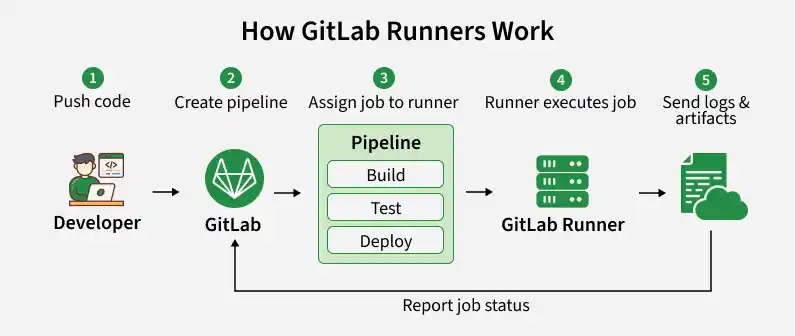
GitLab Runners execute the jobs defined in a GitLab CI/CD pipeline. They provide the environment required to build, test, and deploy applications.
- Pipeline creation: GitLab reads the .gitlab-ci.yml file when a pipeline is triggered.
- Job assignment: GitLab assigns each job to an available runner that meets its requirements.
- Code retrieval: The runner downloads the required repository files.
- Job execution: The runner executes the defined commands in its configured environment.
- Logs and artifacts: The runner sends job logs and generated artifacts back to GitLab.
- Status reporting: The runner reports the job status, such as success or failure, to GitLab.
Steps To Configuring GitLab Runners
Step 1: Install GitLab Runner
The first step to configuring a GitLab Runner is to install it on the machine where it will run the jobs.
1. Choose Your Environment: Determine where you want to install the GitLab Runner. It can be on a local server, virtual machine, cloud instance, or even within a Docker container. For the purpose of this guide, we’ll assume you are installing it on a Linux server.
2. Download the GitLab Runner Binary: For Linux, run the following commands to download and install the GitLab Runner binary:
sudo curl -L --output /usr/local/bin/gitlab-runner https://gitlab-runner-downloads.s3.amazonaws.com/latest/binaries/gitlab-runner-linux-amd64
sudo chmod +x /usr/local/bin/gitlab-runner
3. Install GitLab Runner as a Service: You can install the GitLab Runner as a service so that it starts automatically on system boot:
sudo gitlab-runner install --user=gitlab-runner --working-directory=/home/gitlab-runner
sudo gitlab-runner start
Step 2: Register GitLab Runner
Once the GitLab Runner is installed, it needs to be registered with your GitLab instance or project.
1. Get Your Registration Token: Go to your GitLab project’s Settings > CI/CD > Runners section. Here, you’ll find a registration token that you’ll use to register the runner.
2. Register the Runner: Run the following command on the machine where GitLab Runner is installed:
sudo gitlab-runner register3. Enter the Required Information: The registration process will prompt you for the following information:
- GitLab instance URL: This is the URL of your GitLab instance (e.g., https://about.gitlab.com/ for GitLab.com or your self-hosted GitLab instance URL).
- Registration token: Enter the registration token you copied from the GitLab project.
- Description: Give a brief description of the runner (e.g., "Project Build Runner").
- Tags: These are optional tags you can use to assign jobs to specific runners.
- Executor: Choose the executor that your runner will use. Common options include docker, shell, virtualbox, and ssh.
4. Choose Executor Type: Depending on your project’s needs, select the executor:For example, if you select docker, you’ll be prompted to specify the default Docker image to use for the jobs.
- Docker: Ideal for isolated environments where jobs run inside Docker containers.
- Shell: Executes jobs directly on the host machine’s shell.
- VirtualBox/SSH: Runs jobs on remote machines via VirtualBox or SSH, which is useful for complex setups.
Step 3: Configure the Runner
After registration, you can further configure the runner by modifying the config.toml file located in /etc/gitlab-runner/.
Here’s an example of a basic config.toml file for a Docker-based runner:
[[runners]]
  name = "docker-runner"
  url = "https://about.gitlab.com/"
  token = "your-token"
  executor = "docker"
  [runners.custom_build_dir]
  [runners.docker]
    tls_verify = false
    image = "docker:latest"
    privileged = true
    disable_entrypoint_overwrite = false
    oom_kill_disable = false
    disable_cache = false
    volumes = ["/cache"]
    shm_size = 0
  [runners.cache]
    [runners.cache.s3]
    [runners.cache.gcs]
- executor = "docker": This specifies that the runner will use Docker to run jobs.
- image = "docker:latest": This sets the default Docker image for jobs. You can override this in the .gitlab-ci.yml file.
- privileged = true: This allows the runner to execute privileged tasks inside Docker containers.
Step 4: Run and Manage the Runner
After configuring the runner, it should be ready to execute CI/CD jobs. To check the runner's status or restart it, you can use the following commands:
Check Status:
sudo gitlab-runner statusRestart Runner:
sudo gitlab-runner restartStep 5: Test Your Runner
To ensure your GitLab Runner is properly configured, test it with a simple pipeline.
1. Create a .gitlab-ci.yml File: This file defines the CI/CD pipeline jobs. Create a .gitlab-ci.yml file in the root of your GitLab repository with the following content:
stages:
    - build

build_job:
    stage: build
    script:
        - echo "Running a build job"
2. Commit and Push: Commit and push the .gitlab-ci.yml file to trigger the pipeline. The GitLab Runner should pick up the job and execute it according to the instructions in the .gitlab-ci.yml file.
Step 6: Advanced Configuration and Scaling
If your project has larger or more complex requirements, you might want to configure multiple runners or scale them dynamically:
- Multiple Runners: You can configure multiple runners for different types of jobs (e.g., runners dedicated to building, testing, or deploying). Each runner can be tagged, and jobs can be assigned based on those tags.
- Autoscaling with Docker Machine: If you’re using cloud infrastructure, GitLab Runners can be configured to autoscale using docker-machine. This allows you to automatically spin up and down instances based on the workload.
- Caching: Use caching to store dependencies between pipeline runs and reduce build times. You can configure caching in the .gitlab-ci.yml file and the runner's config.toml.
Step 7: Security Considerations
When configuring GitLab Runners, especially in a shared or production environment, be mindful of security:
- Limit Access: Use tags to restrict jobs to specific runners, ensuring that only trusted projects can use critical infrastructure.
- Use Privileged Mode Carefully: Privileged mode in Docker runners allows for escalated privileges, which can be a security risk. Only enable it when necessary.
- Isolate Runners: Run GitLab Runners on isolated machines or environments to prevent interference with other services on the host.
Benefits
Configuring your own GitLab Runners gives teams greater control over the environment used to execute CI/CD jobs. It allows them to choose suitable infrastructure based on project requirements.
- Add or remove runners based on workload.
- Run jobs on specific operating systems, hardware, or architectures.
- Use cloud infrastructure for flexible and scalable execution.
- Improve job execution by using dedicated resources.
- Apply custom security and access configurations.
- Run jobs on virtual machines, Docker containers, or bare-metal servers.
Common Commands
| Command | Description |
|---|---|
| gitlab-runner status | Check runner status. |
| gitlab-runner start | Start the runner service. |
| gitlab-runner stop | Stop the runner service. |
| gitlab-runner restart | Restart the runner service. |
| gitlab-runner verify | Verify registered runners. |
| gitlab-runner unregister | Remove a registered runner. |
| gitlab-runner list | List configured runners. |
