

A pie chart is used to show how different categories contribute to a whole. With Pandas, a pie chart can be created directly from a DataFrame or Series using the built-in plotting methods, which internally use Matplotlib.
Installing Libraries
Install pandas and matplotlib library using pip:
pip install pandas matplotlib
Creating a Sample DataFrame
Create a DataFrame containing categories and their corresponding values.
import pandas as pd

df = pd.DataFrame({
    'Category': ['Electronics', 'Clothing', 'Groceries', 'Books'],
    'Sales': [400, 300, 200, 100]
})

print(df)
Output
      Category  Sales
0  Electronics    400
1     Clothing    300
2    Groceries    200
3        Books    100
Explanation:
- It executes and create a pandas DataFrame, with columns and rows.
- Each element of the DataFrame can be accessed via indexes.
Creating from Pandas DataFrame
Pandas provides the plot() method with kind='pie' to create a pie chart. When plotting directly from a DataFrame, specify the numerical column using the y parameter.
import pandas as pd
import matplotlib.pyplot as plt

df = pd.DataFrame({
    'Category': ['Electronics', 'Clothing', 'Groceries', 'Books'],
    'Sales': [400, 300, 200, 100]
})

df.plot(
    kind='pie',
    y='Sales',
    labels=df['Category'],
    autopct='%1.1f%%',
    figsize=(6, 6)
)

plt.title('Sales Distribution')
plt.ylabel('')
plt.show()
Output
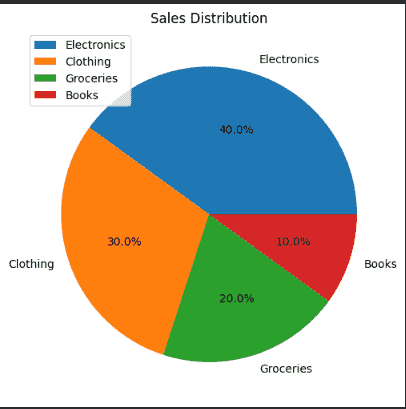
Explanation:
- kind='pie' creates a pie chart.
- y='Sales' selects the numerical column used to determine the slice sizes.
- labels=df['Category'] uses the category names as slice labels.
- autopct='%1.1f%%' displays the percentage of each slice.
- figsize=(6, 6) creates a square figure, which is suitable for pie charts.
Using DataFrame.plot.pie()
Same chart can also be created using the dedicated DataFrame.plot.pie() method.
df.plot.pie(
    y='Sales',
    labels=df['Category'],
    autopct='%1.1f%%',
    figsize=(6, 6)
)

plt.title('Sales Distribution')
plt.ylabel('')
plt.show()
Output
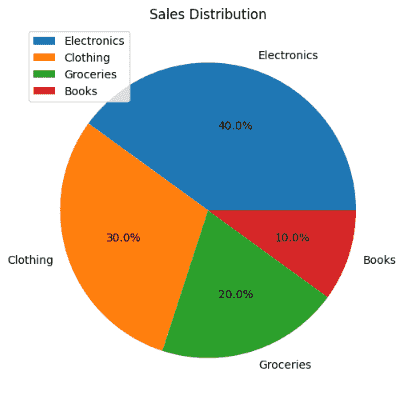
Explanation:
- groupby() combines rows belonging to the same category.
- sum() calculates the total sales for each category before plotting the result.
For detailed information on Grouping and aggregation with Pandas, refer to our article, Grouping and Aggregation with Pandas.
Creating After Grouping Data
When the DataFrame contains multiple rows for the same category, first calculate the total value for each category. This can be done using groupby() and an aggregation function.
import pandas as pd
import matplotlib.pyplot as plt

df = pd.DataFrame({
    'Category': [
        'Electronics', 'Electronics',
        'Clothing', 'Clothing',
        'Groceries'
    ],
    'Sales': [250, 150, 300, 100, 200]
})

sales = df.groupby('Category')['Sales'].sum()

sales.plot(
    kind='pie',
    autopct='%1.1f%%',
    figsize=(6, 6)
)

plt.title('Total Sales by Category')
plt.ylabel('')
plt.show()
Output
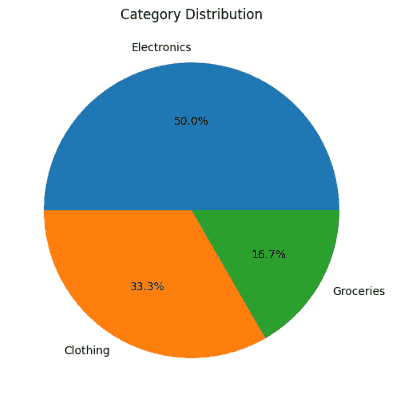
Explanation:
- value_counts() returns the number of occurrences of each unique value in a Series.
Customize Pie Chart
Pandas pie plots support several matplotlib options, including labels, colors, autopct, explode, shadow, and startangle.
Example:
sales.plot(
    kind='pie',
    autopct='%1.1f%%',
    colors=['skyblue', 'lightgreen', 'lightcoral'],
    explode=[0.05, 0, 0],
    startangle=90,
    figsize=(6, 6)
)

plt.title('Total Sales by Category')
plt.ylabel('')
plt.show()
Output
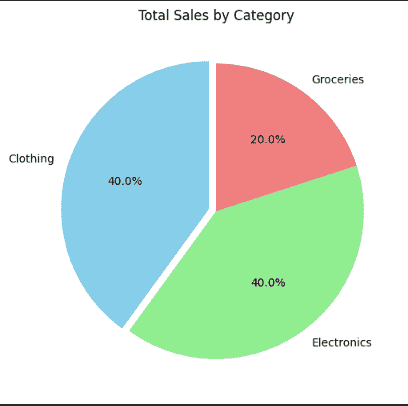
Explanation:
- colors specifies the color of each slice.
- explode separates selected slices from the center.
- startangle rotates the starting position of the pie chart.
- autopct displays percentage values.
