


Ask any computing enthusiast for some general pointers, and most will bring up regular backups at some point in the conversation. Keeping redundant copies of essential files is a great way to ensure your data isn’t lost even when the devices die out. Home labbers like yours truly tend to rely on local Network-Attached Storage systems for backup and archival operations.
But what if the NAS goes offline? Heck, even if the storage drives and the underlying OS can be restored using some tech wizardry, there are plenty of untoward scenarios where the data may be permanently lost. Having dealt with my fair share of scares caused by failed HDDs, I’ve developed a backup strategy that ensures I don’t lose my archived media and important documents, no matter what happens to my local NAS.
ZFS and RAID provide solid fault tolerance
But relying entirely on them would be stupid

Before I go over the actual workflow, I wanted to highlight some failsafe features I use on my NAS. For starters, I’ve got most of my storage server and home lab nodes armed with ZFS. Despite its slightly steep learning curve and tendency to hog RAM resources like there’s no tomorrow, ZFS’ terrific data protection features make it worth using as the file system. Its Copy-on-Write ensures my data remains untouched even during failed write operations, while checksums and scrub tasks can detect corrupted files – and even fix them using redundant RAID copies.
While we’re on the subject, ZFS pairs well with RAID levels, with the parity-based RAID-Z modes fixing certain issues plaguing their traditional counterparts. I used to be a member of the RAID-Z1 faction until a few years ago, but I ended up migrating to a RAID 10 configuration on my local NAS server after getting some high-capacity HDDs. Meanwhile, my remote storage server (and I’ll get to that in a bit) relies on RAID 1 to remain operational even when a drive fails.
Back when I had a custom-built storage server, I also used ECC RAM to avoid bit flips from ruining my archived data. But I had to repurpose those memory sticks into my home server after the RAM-apocalypse inflated the prices of ECC kits.
A 3-2-1 backup setup lets me sleep stress-free at night
A local NAS + remote storage server combo is pretty effective


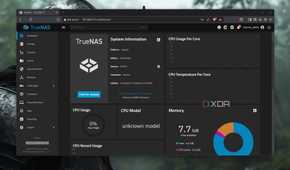
Although ZFS, RAID, and ECC memory can preserve data integrity, they’re far from perfect when it comes to preventing data loss. For example, I could have multiple drives ascend to tech heaven at the same time. Then there’s the problem of accidental deletion, which can cause the files on mirrored datasets to get wiped as well. Or, my NAS could get compromised by ransomware/firmware bugs. And I haven’t even mentioned floods, fire, theft, and other adverse scenarios that could result in catastrophic data loss.
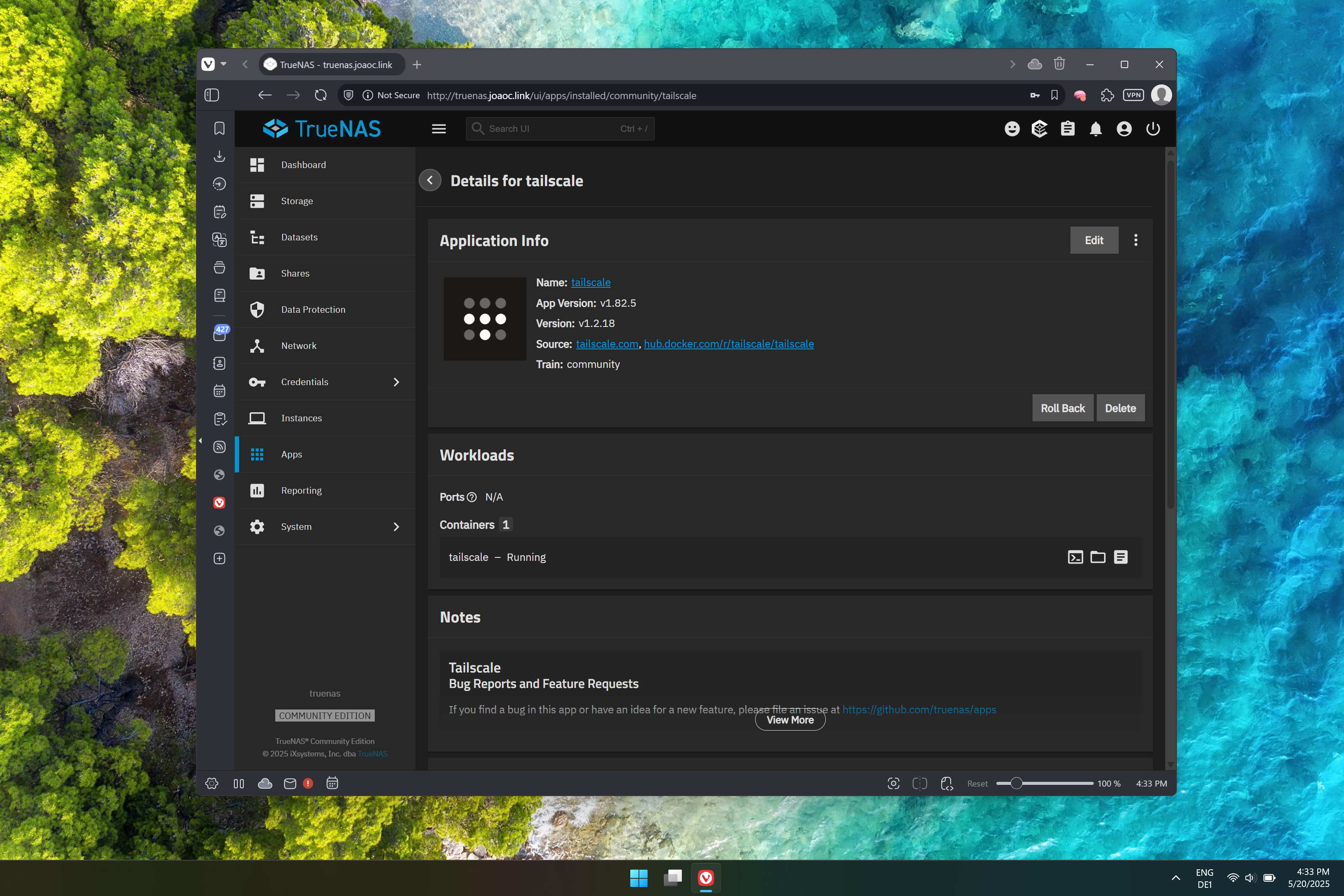
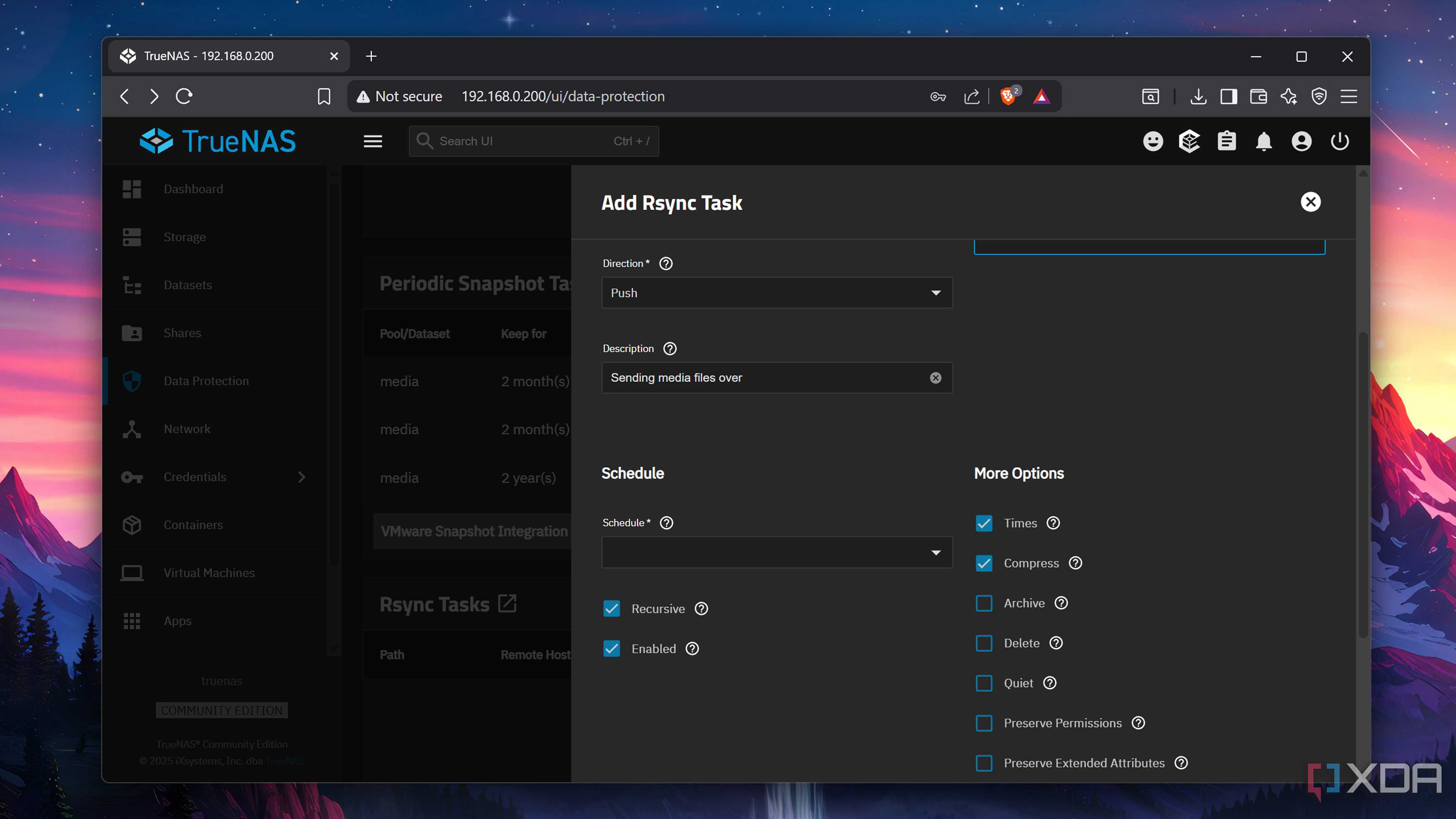
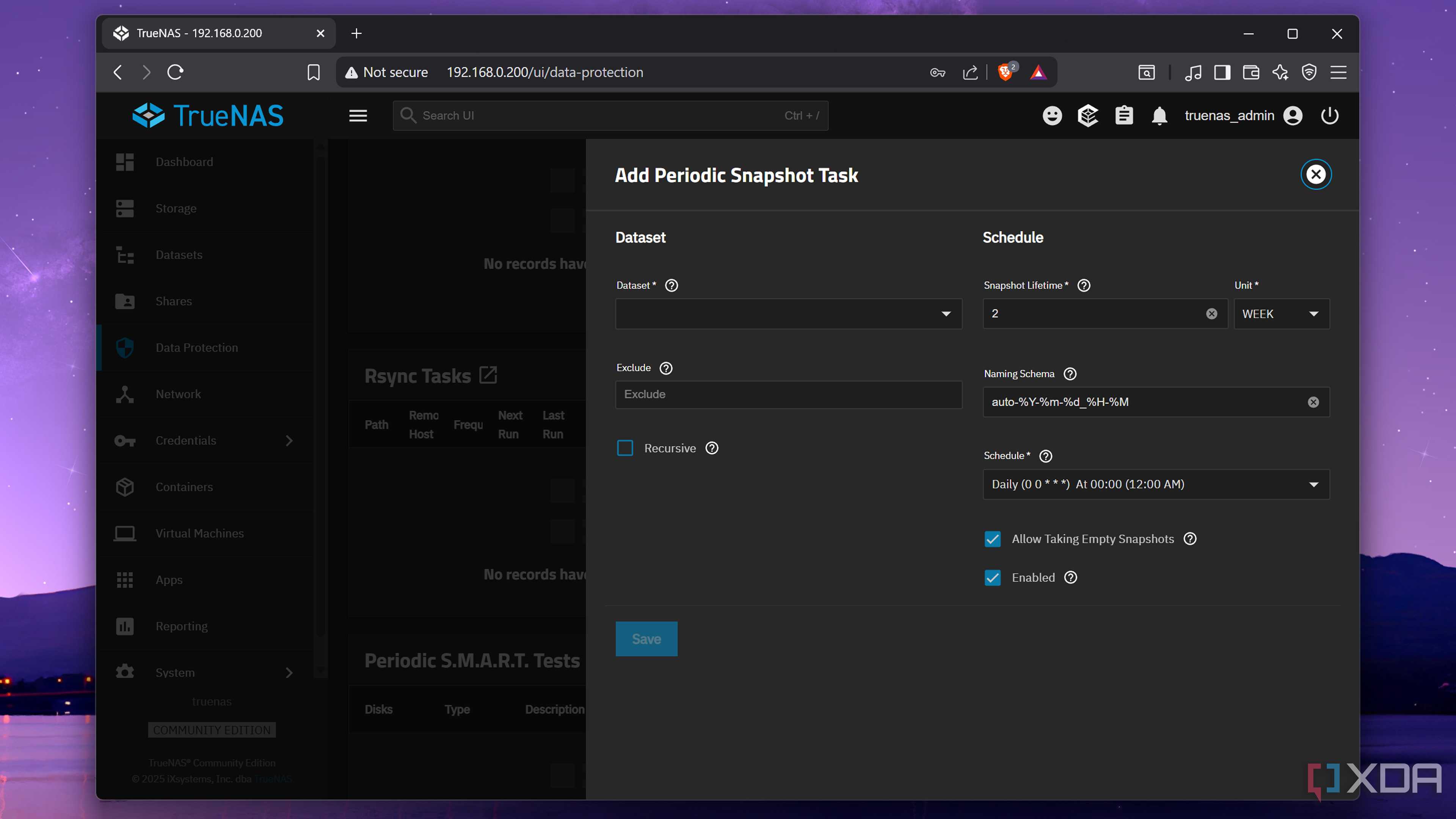
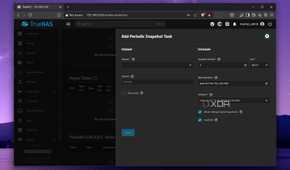
Call me too paranoid, but if there’s one thing I’ve learned from my home labbing misadventures, it’s that a single backup copy isn’t all that effective at ensuring my files can be recovered. That’s why I’ve got a proper 3-2-1 backup workflow up and running in my home lab. For the uninitiated, this involves keeping three copies of data on two different media (or devices), with one of them stationed at a remote location. I’ve got a separate NAS running at my family home in a different town – one that uses Rsync tasks to receive essential files, virtual guest snapshots, and backups of archived media from my local storage server. I’ve kept things simple by using Tailscale to link both systems, but you can also opt for WireGuard or other self-hosted VPNs to connect local and offsite NAS units.
The best part? This doesn’t cost as much as you think. Since I don’t back up every single file to my remote server, I can just go for a 2-bay NAS. If I didn’t have this server, I’d just go for a sub-$200 Intel N100 thin client and pair it with a hard drive or two.
Cloud storage is a valid option as well

Despite avoiding third-party services (except for Tailscale) as much as possible, I have to admit that cloud storage platforms aren’t bad if you can’t deploy a remote NAS. Of course, privacy is going to be an issue, and you may have to shell out regular subscription fees if you want to back up files that require hundreds of gigabytes. But for folks who don’t need a lot of storage real estate for their essential data, you could pair your NAS with a typical cloud platform and sync important files between them.
Even cold storage drives can provide additional redundancy
But I prefer offsite NAS setups

Let’s say you’re not a fan of cloud platforms but don’t want to drop extra money on new hardware for a remote backup server. Well, you could technically buy a couple of hard drives and use them as makeshift secondary backup media. Heck, that’s how I’ve repurposed some used enterprise-tier HDDs I bought a few months ago. But personally, I’d still recommend going down the offsite server route, as storing extra copies on a remote device adds an extra layer of protection compared to housing them in the same location as the local NAS. And whatever you do, try not to use SSDs as cold storage drives, as they have the drawback of losing data when they’re left unpowered for long periods.
