

Setting up your first Cucumber test with Selenium for automated browser testing to implement Behavior-Driven Development (BDD).
Here are the steps to create and run the first Cucumber test:
Step 1. Set Up a Maven Project.
Create a Maven Project and add dependencies for Cucumber, Selenium, and TestNG in the pom.xml file:
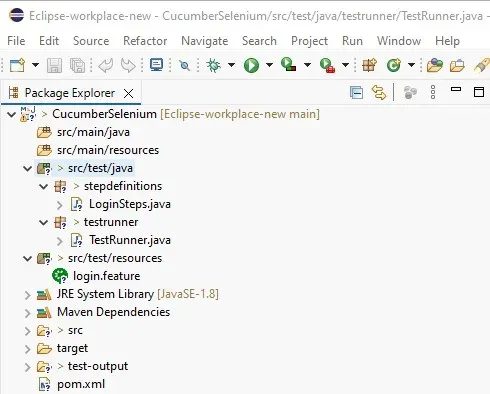
pom.xml
<project xmlns="http://maven.apache.org/POM/4.0.0" xmlns:xsi="http://www.w3.org/2001/XMLSchema-instance" xsi:schemaLocation="http://maven.apache.org/POM/4.0.0 https://maven.apache.org/xsd/maven-4.0.0.xsd">
  <modelVersion>4.0.0</modelVersion>
  <groupId>com.geeks</groupId>
  <artifactId>CucumberSelenium</artifactId>
  <version>0.0.1-SNAPSHOT</version>

  <dependencies>
    <!-- Cucumber Dependencies -->
    <dependency>
        <groupId>io.cucumber</groupId>
        <artifactId>cucumber-java</artifactId>
        <version>7.0.0</version> <!-- or latest version -->
        <scope>test</scope>
    </dependency>

    <dependency>
        <groupId>io.cucumber</groupId>
        <artifactId>cucumber-testng</artifactId>
        <version>7.0.0</version> <!-- or latest version -->
        <scope>test</scope>
    </dependency>

    <!-- TestNG Dependency -->
    <dependency>
        <groupId>org.testng</groupId>
        <artifactId>testng</artifactId>
        <version>7.4.0</version> <!-- or latest version -->
        <scope>test</scope>
    </dependency>

    <!-- Selenium WebDriver Dependency -->
    <dependency>
        <groupId>org.seleniumhq.selenium</groupId>
        <artifactId>selenium-java</artifactId>
        <version>3.141.59</version>
        <scope>test</scope>
    </dependency>
</dependencies>
</project>
Step 2. Create a Feature File.
Create Feature File this contains a simple login scenario defined in Gherkin syntax. The login.feature file is placed under the src/test/resources directory:
login.feature
Feature: User Login

  Scenario: Successful login with valid credentials
    Given the user is on the login page
    When the user enters valid username and password
    Then the user should be redirected to the homepage
Step 3. Create a Step Definitions File.
Create Step Definitions file these Java methods in the LoginSteps class map to the steps in the feature file. The LoginSteps class uses Selenium WebDriver to interact with the web application during the test:
LoginSteps.java
package stepdefinitions;

import org.openqa.selenium.By;
import org.openqa.selenium.WebDriver;
import org.openqa.selenium.WebElement;
import org.openqa.selenium.chrome.ChromeDriver;

import io.cucumber.java.After;
import io.cucumber.java.Before;
import io.cucumber.java.en.Given;
import io.cucumber.java.en.Then;
import io.cucumber.java.en.When;

public class LoginSteps {

    private WebDriver driver;
    private String url = "https://www.saucedemo.com/";

    // Initialize WebDriver and open the browser
    @Before
    public void setup() {
        System.setProperty("webdriver.chrome.driver", "C:\\Users\\change the path of the chromedriver\\drivers\\chromedriver.exe");
        driver = new ChromeDriver();
    }

    // Step definition for "Given the user is on the login page"
    @Given("the user is on the login page")
    public void userOnLoginPage() {
        if (!this.driver.getCurrentUrl().equals(this.url)) {
            this.driver.get(this.url);
        }
    }

    // Step definition for "When the user enters valid username and password"
    @When("the user enters valid username and password")
    public void userEntersValidCredentials() {
        WebElement userName = this.driver.findElement(By.id("user-name"));
        userName.sendKeys("standard_user");

        WebElement passWord = this.driver.findElement(By.id("password"));
        passWord.sendKeys("secret_sauce");

        WebElement loginBtn = this.driver.findElement(By.id("login-button"));
        loginBtn.click();
    }

    // Step definition for "Then the user should be redirected to the homepage"
    @Then("the user should be redirected to the homepage")
    public void userRedirectedToHomepage() {
        String currentUrl = driver.getCurrentUrl();
        assert currentUrl.equals("https://www.saucedemo.com/inventory.html");
    }

    // Cleanup after each test
    @After
    public void tearDown() {
        if (driver != null) {
            driver.quit();
        }
    }
}
Step 4. Create a TestRunner Class.
Create the TestRunner class connects the feature file and step definitions using Cucumber's @CucumberOptions annotation. It also generates HTML reports after running the tests.
TestRunner.java
package testrunner;

import io.cucumber.testng.AbstractTestNGCucumberTests;
import io.cucumber.testng.CucumberOptions;

@CucumberOptions(
    features = "C:\\path_to_feature\\login.feature", // Correct path to the feature file
    glue = "stepdefinitions", // Path to step definitions
    plugin = {"pretty", "html:target/cucumber-reports"} // Generate HTML report
)
public class TestRunner extends AbstractTestNGCucumberTests {
}
Step 5. Run the Test
After setting up the feature files, step definitions, and test runner, you can run the tests using TestNG. Right-click on the TestRunner class and select Run As TestNG Test.
Output:
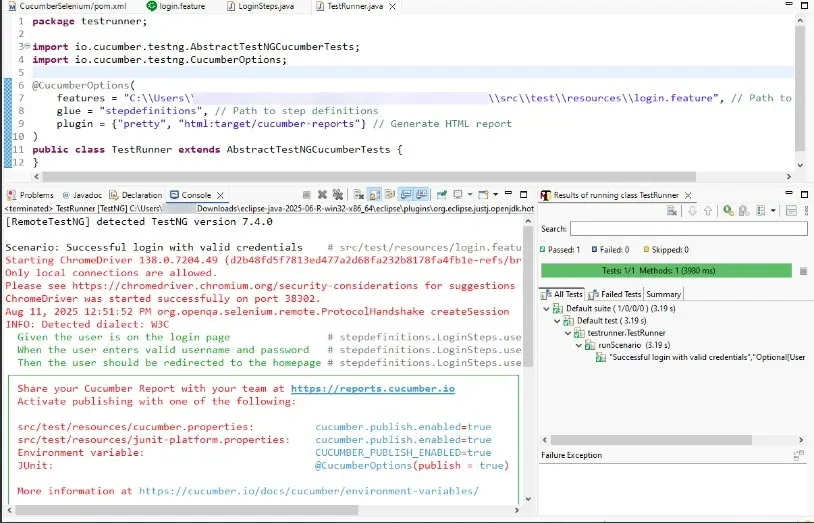
Creating and running your first Cucumber test is an important step in implementing BDD in your development process. As you become more comfortable with Cucumber, you'll be able to create more complex scenarios and leverage its full potential for improving your software quality and team communication.
