

Katalon Studio is an all-in-one test automation tool used to automate Web, API, Mobile, and Desktop applications. It provides a user-friendly interface, built-in features, and supports both scriptless and code-based testing, making it suitable for beginners and experienced testers.
- Simplifies test automation with an easy-to-use interface.
- Supports cross-platform testing on Windows, macOS, and Linux.
- Integrates with tools like Selenium, Appium, Git, Jenkins, and CI/CD pipelines.
Prerequisites
Before downloading and installing Katalon Studio, ensure your system meets the following requirements:
- A computer running Windows, macOS, or Linux.
- A stable internet connection to download the installation package.
- A Katalon account (free) to sign in and activate the application.
- Java Runtime Environment (JRE) if required by your Katalon Studio version (newer versions usually include the required runtime).
- Sufficient disk space and memory for smooth installation and execution.
Steps to Download and Install Katalon Studio
Step 1: Visit the Katalon Studio Website
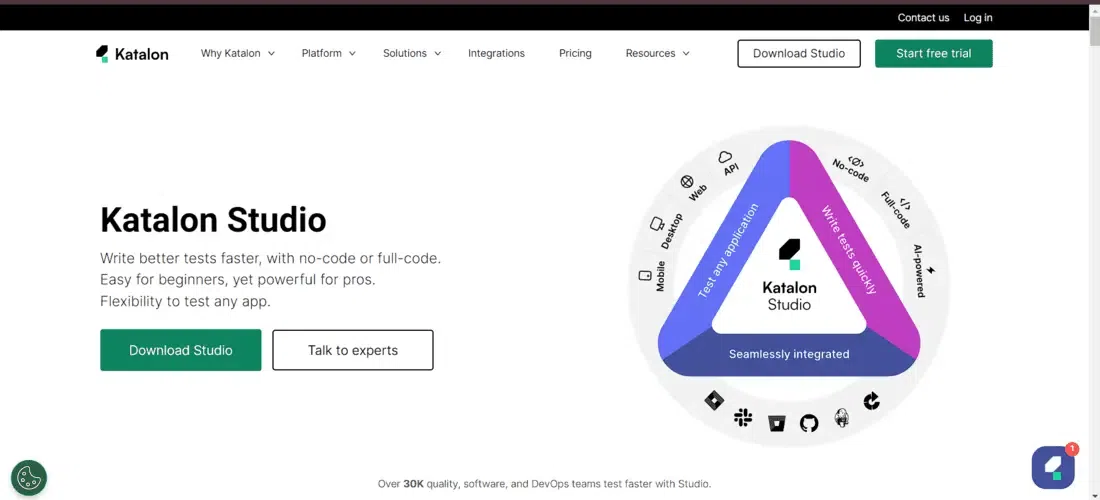
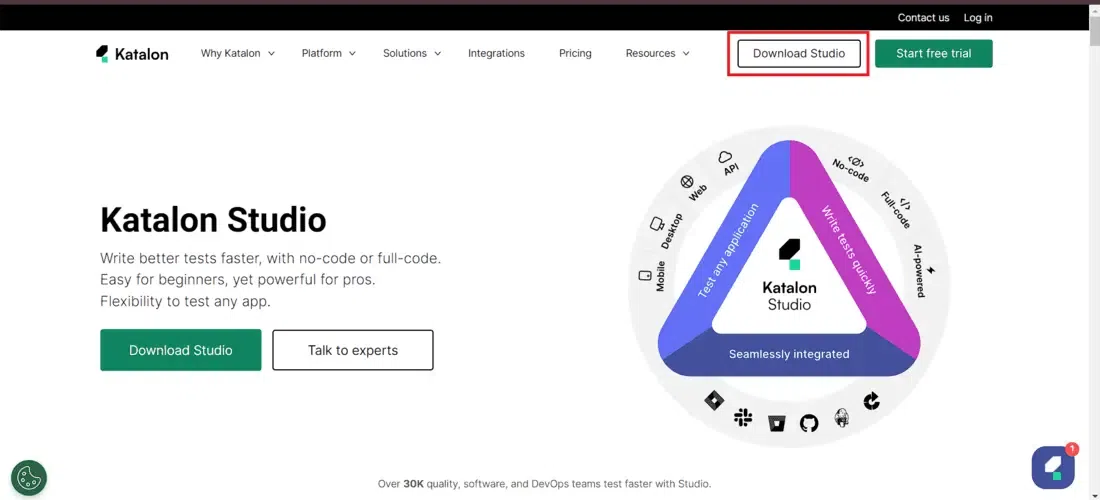
Open your preferred web browser (Google Chrome, Microsoft Edge, Firefox, Brave, etc.) and visit the official Katalon Studio website. Click the Download button on the homepage.
Step 2: Download Katalon Studio
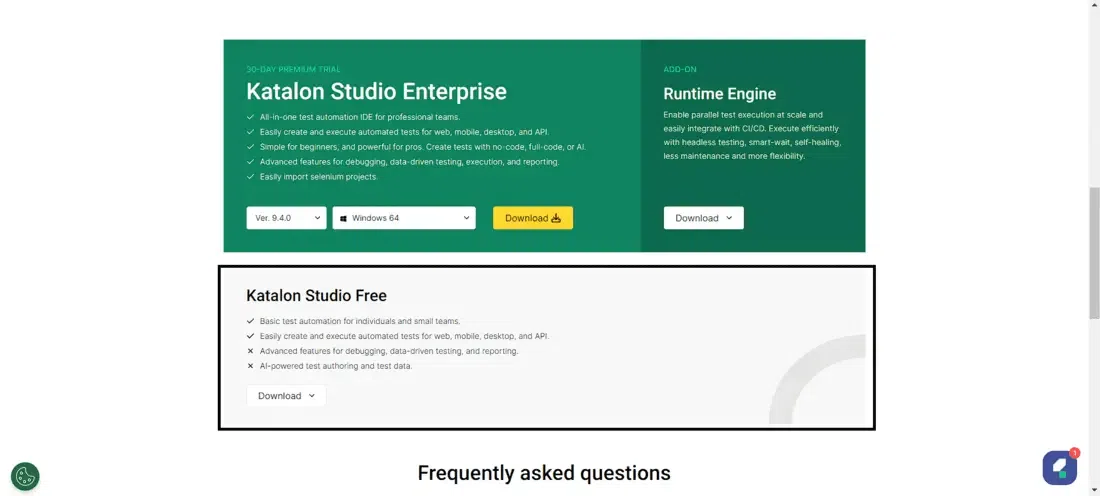
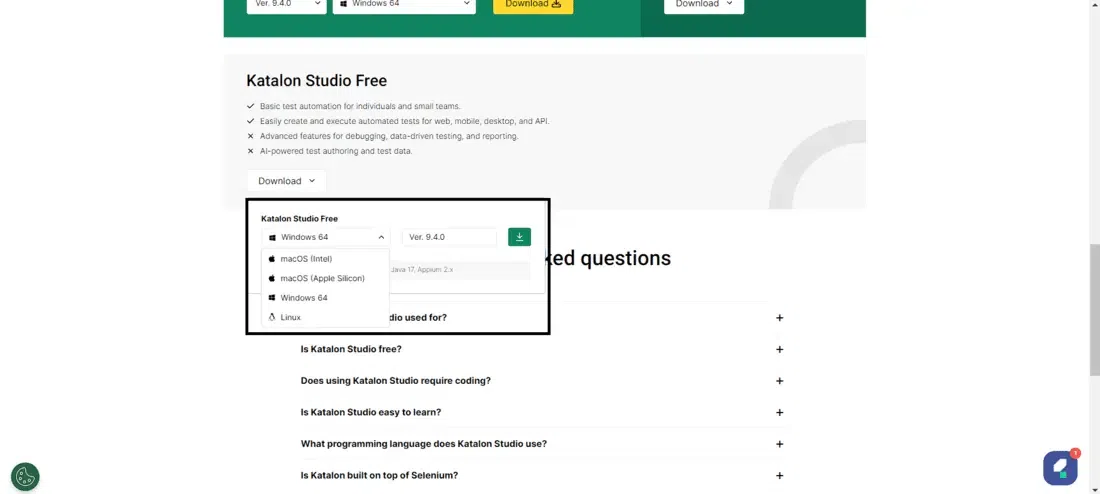
On the download page:
- Choose Katalon Studio Free or Enterprise.
- Select your operating system (Windows, macOS, or Linux).
- Click Download to download the installation package.
Step 3: Run the Installer
After the download is complete:
- Locate the downloaded installation file.
- Double-click KatalonSetup.exe (Windows) or open the downloaded package on macOS/Linux.
- Complete the installation process.
Note: Since your download is KatalonSetup.exe, don't mention extracting ZIP files.
Step 4: Launch Katalon Studio
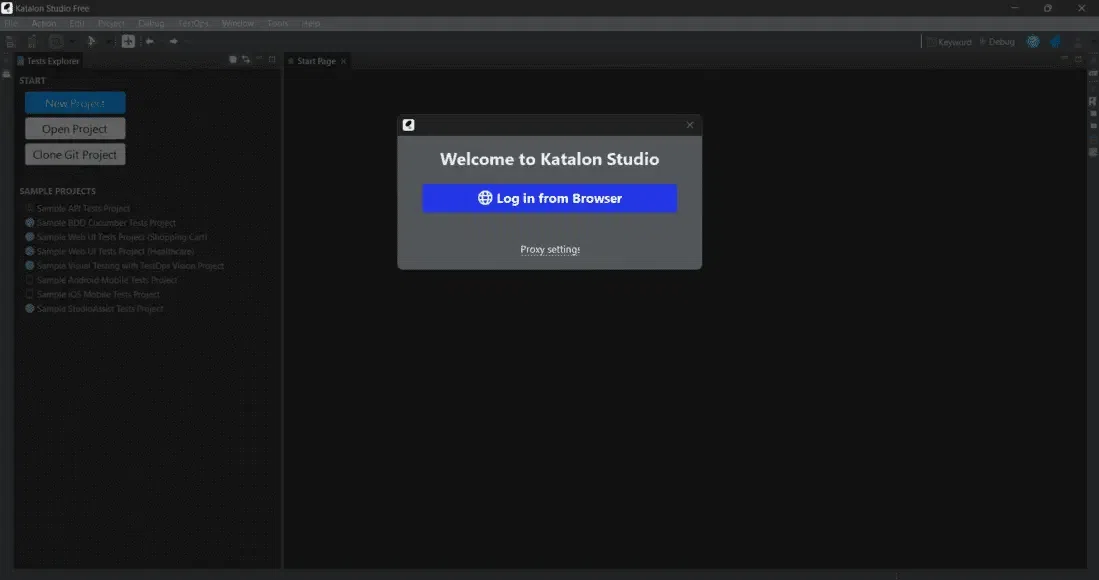
After the installation is complete, launch Katalon Studio. On the welcome screen, click Log in from Browser.
Step 5: Sign In or Create a Katalon Account
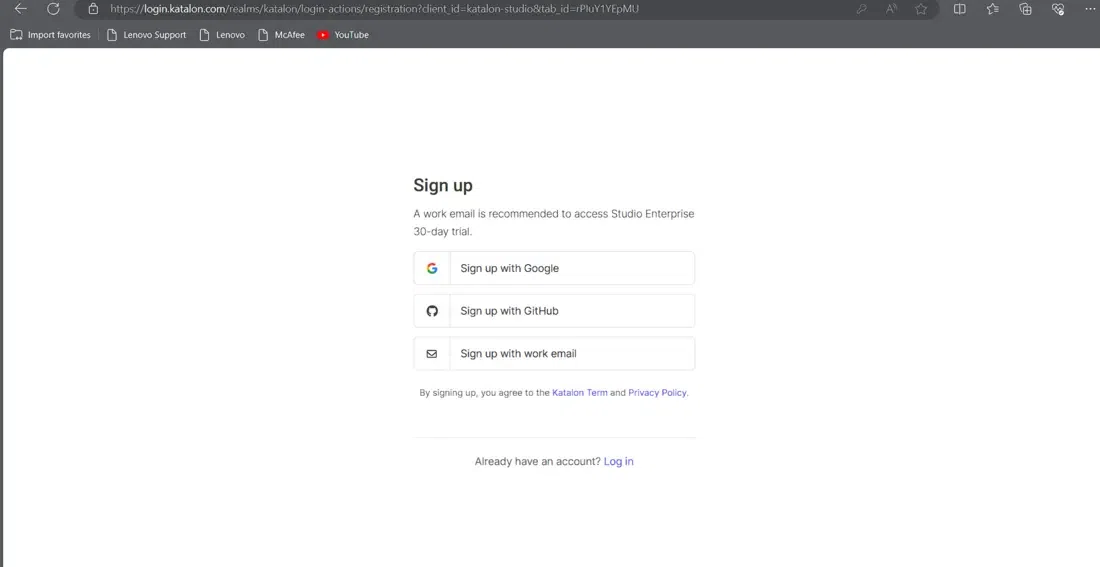
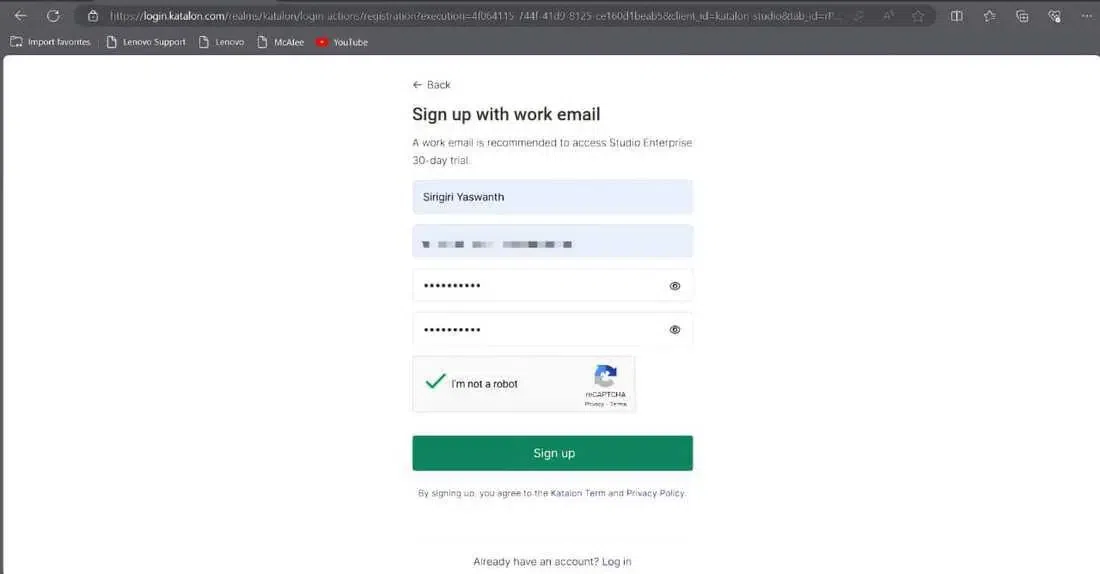
Your default browser opens. Sign in with an existing account or create a new Katalon account using Google, GitHub, or your email address.
Step 6: Complete the Initial Setup
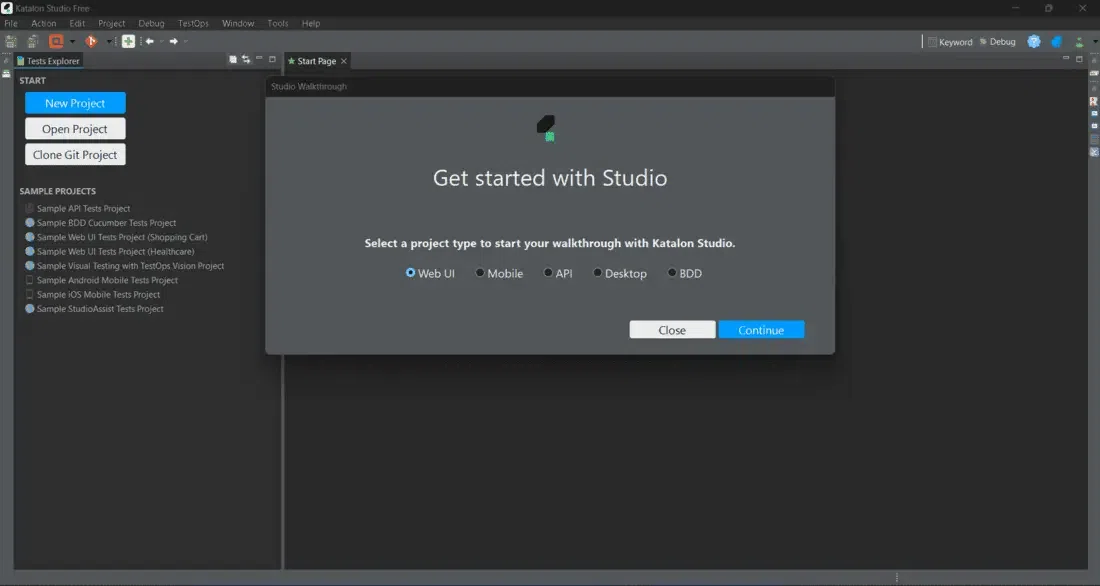
After successful authentication, Katalon Studio opens the Get Started screen. Select a project type or close the walkthrough to continue.
Step 7: Create Your First Project
Once logged in, the Katalon Studio dashboard appears. Click New Project, choose the project type (Web, API, Mobile, or Desktop), enter the project details, and create your project.
Step 8: Verify the Installation
The installation is successful if:
- Katalon Studio opens without errors.
- The project workspace loads successfully.
- You can create and work with test cases.
Features of Katalon Studio
- Supports Web, API, Mobile, and Desktop test automation.
- Provides scriptless and script-based test creation.
- Includes built-in integration with Selenium and Appium.
- Supports cross-browser testing on major web browsers.
- Enables data-driven and keyword-driven testing.
- Generates detailed test execution reports and logs.
