

Postman Collections can be shared with other users to collaborate on API development, testing, and documentation. Depending on the workspace and available permissions, you can share a collection with specific people, through a collection link, using Run in Postman, or through the Postman API.
- Makes it easier for teams to collaborate on the same API collection.
- Provides different sharing methods for team members, documentation users, and API consumers.
Prerequisites
Steps to Share a Postman Collection
Step 1: Open Postman and Select the Collection
Open the Postman application and go to Collections from the left sidebar. Select the existing collection you want to share, or create a new collection if required.
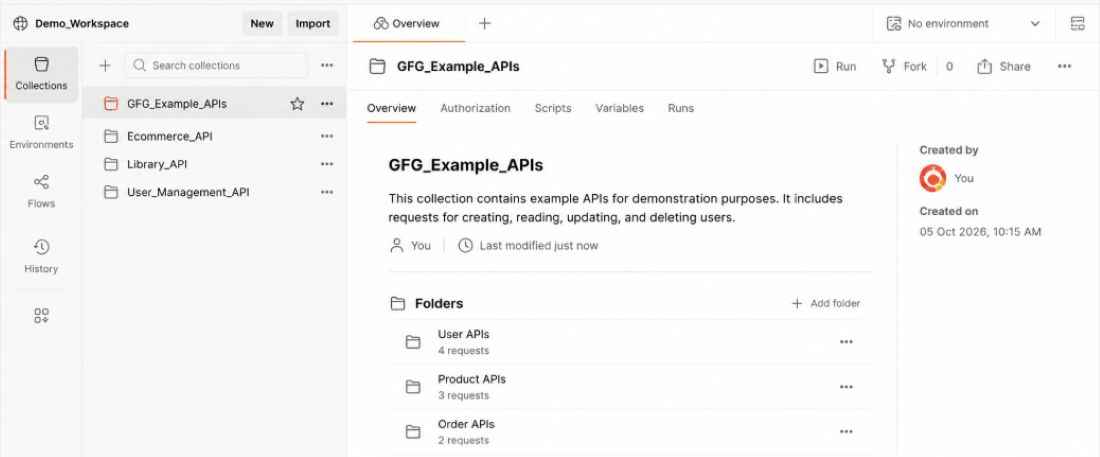
Step 2: Open the Share Option
Locate the collection you want to share. Click the three-dot (⋯) menu next to the collection name and select Share.
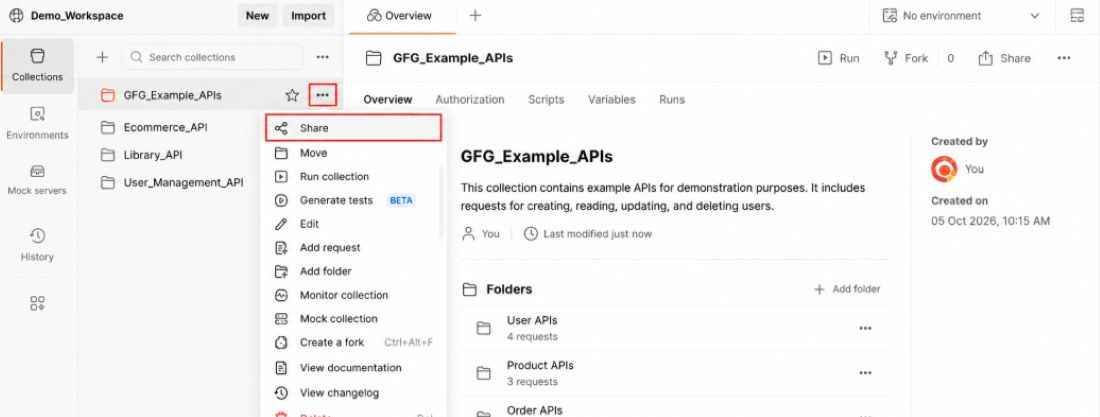
The sharing window opens and displays the sharing options available for the selected collection. These options can vary depending on the workspace type, Postman plan, and user permissions.
Step 3: Share the Collection with People
In the sharing window, select With people. This option allows you to share the collection with specific users or groups.
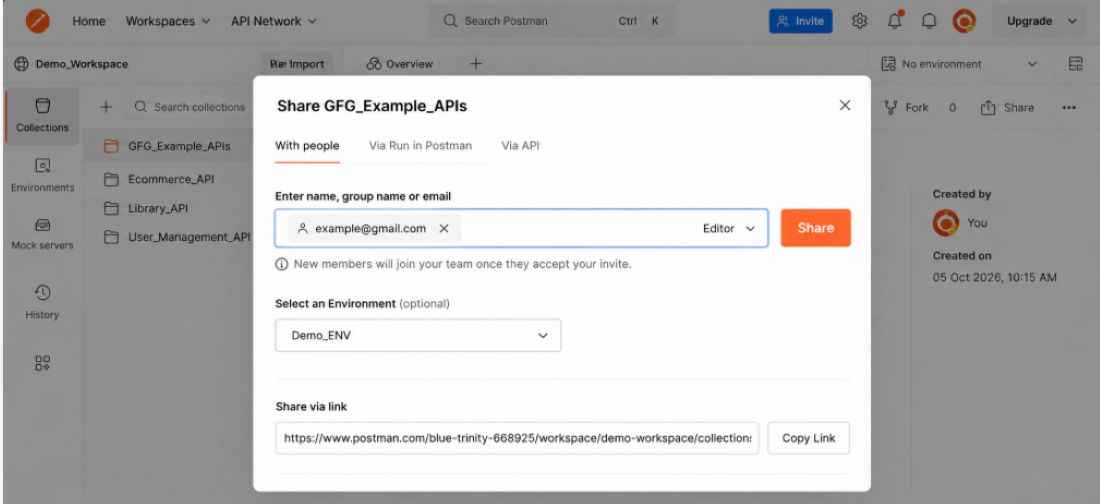
Enter the name, group name, or email address of the person or group with whom you want to share the collection. Select the appropriate permission available for the collaborator, such as Editor, and click Share.
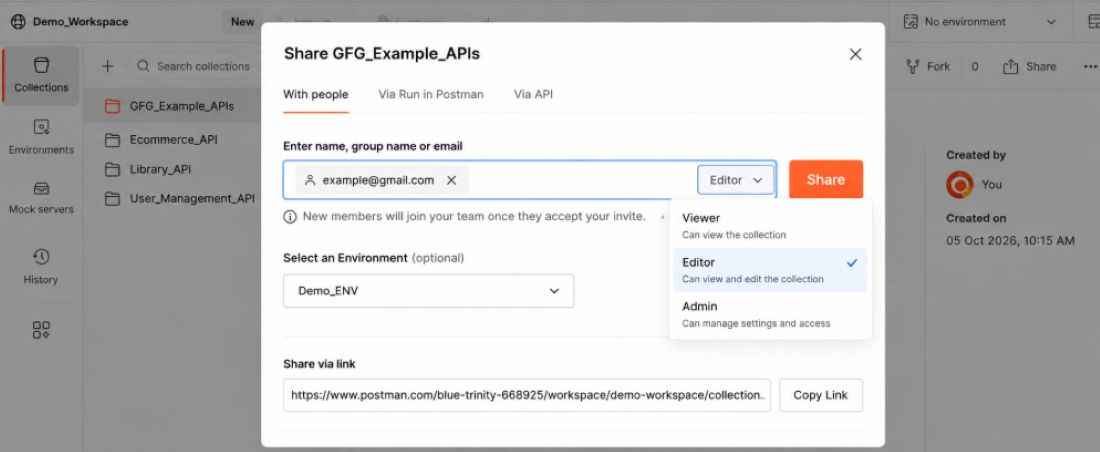
If required, you can also select an environment from the Select an Environment option before sharing.
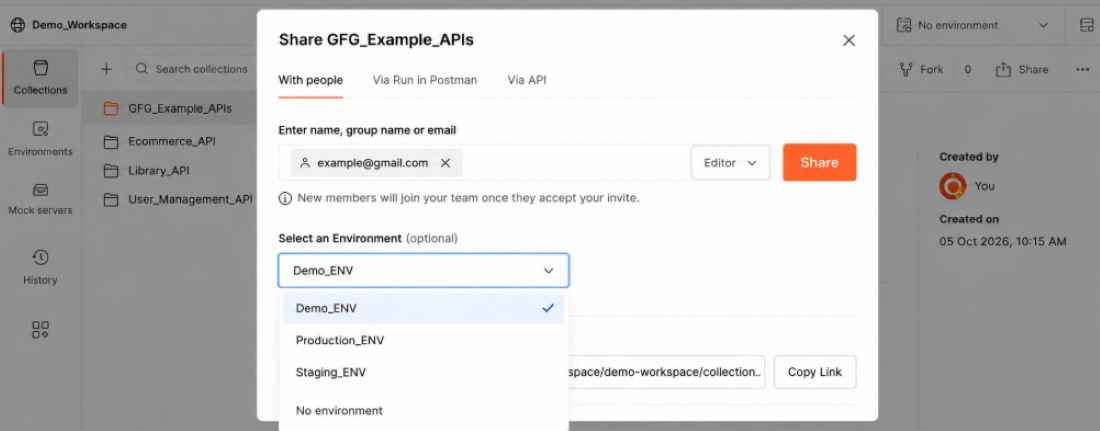
New team members may need to accept an invitation before they can access the shared content.
Share the Collection Using a Link
If link sharing is available, locate the Share via link section and click Copy Link.
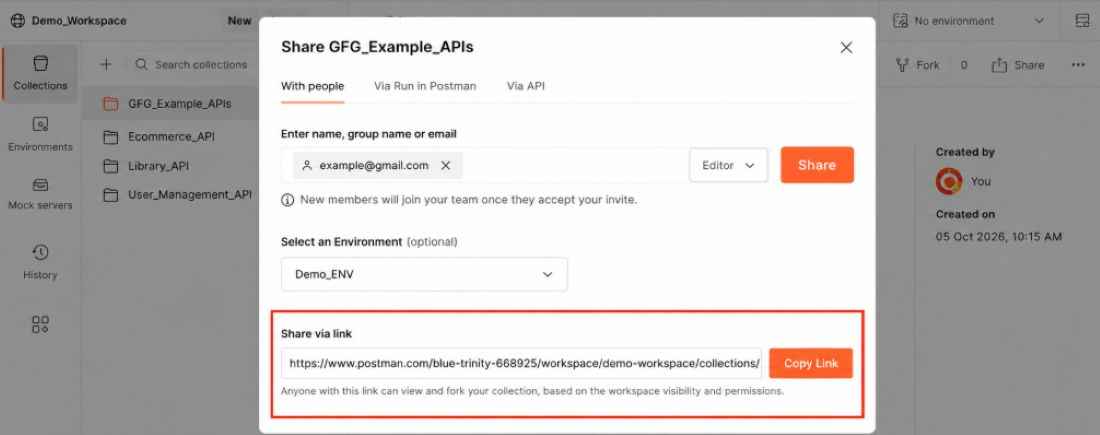
You can then send the copied link to the intended users. Whether a recipient can access the collection depends on the collection's workspace visibility and sharing permissions.
Step 4: Share Using Run in Postman
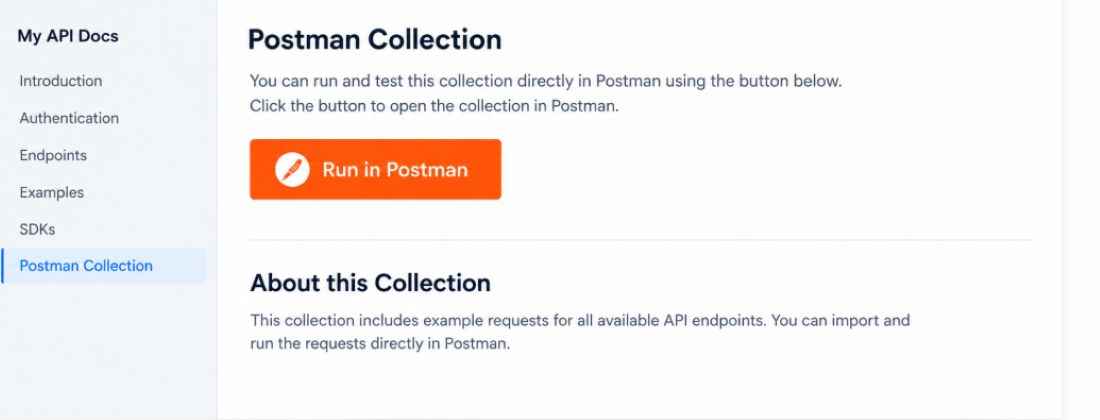
Postman can provide a Run in Postman button that can be embedded in supported websites or API documentation.
Open the collection's sharing window and select Via Run in Postman.
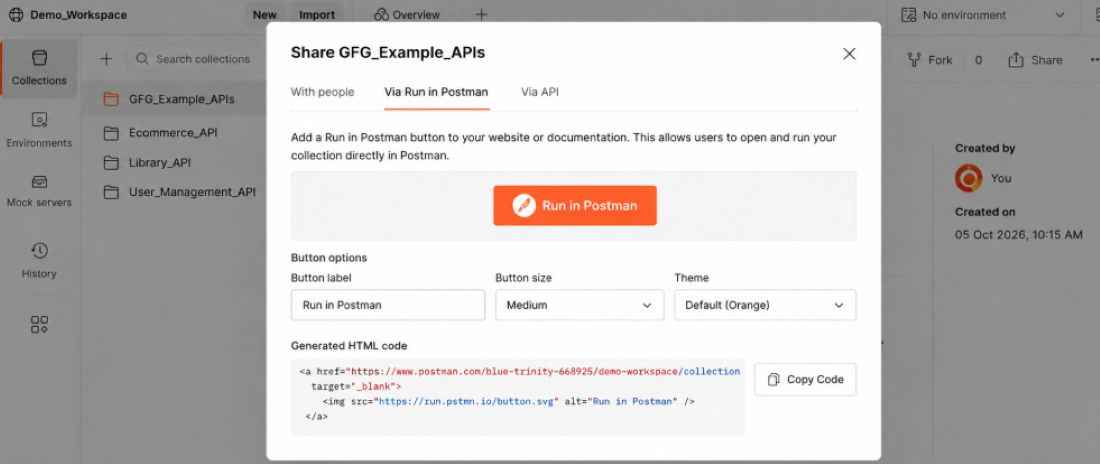
If required, select an environment. Postman provides embed code that can be copied and added to your website or documentation.
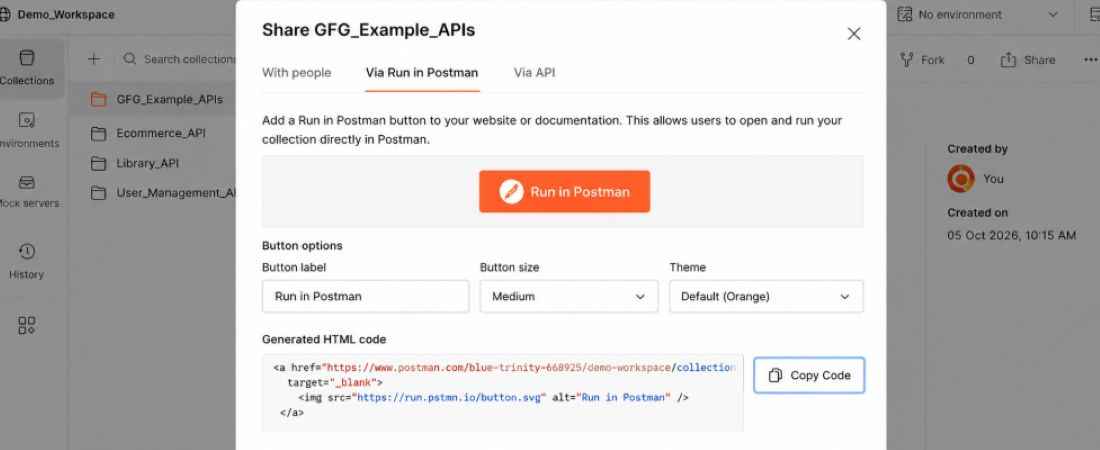
After adding the generated code to the supported page, users can use the Run in Postman button to access the associated Postman content.
Step 5: Share a Collection Through the Postman API
Postman can also provide API-based access to a collection. Open the collection sharing window and select Via API.
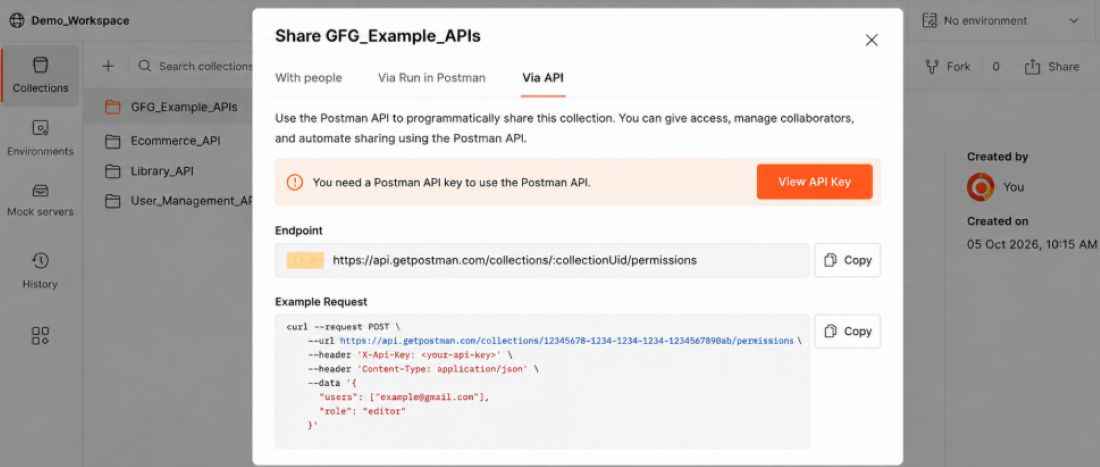
The Get collection JSON using Collection Access Key section can provide an endpoint for retrieving the current collection JSON using an access key.
If you generate a collection access key, handle it securely because anyone who obtains a valid key may be able to access the collection data permitted by that key.
Note: Never expose an active collection access key in public screenshots, source code, documentation, or repositories. Use a dummy or revoked key when creating tutorial images.
Step 6: Manage Collection Access Keys
To manage collection access keys, click Manage Keys from the API-sharing section.
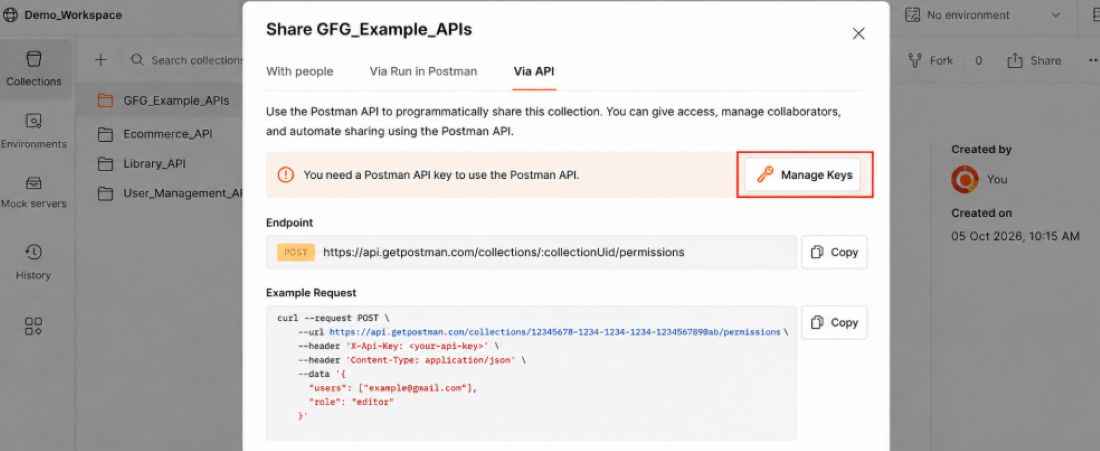
From the available key-management interface, review the keys associated with the collection and revoke keys that are no longer required.
Share a Collection from a Public Workspace
If the collection is available in a public workspace, the sharing interface may provide a Link to collection in public workspace option.
Expand this option and click Copy link to copy the collection's public workspace link.
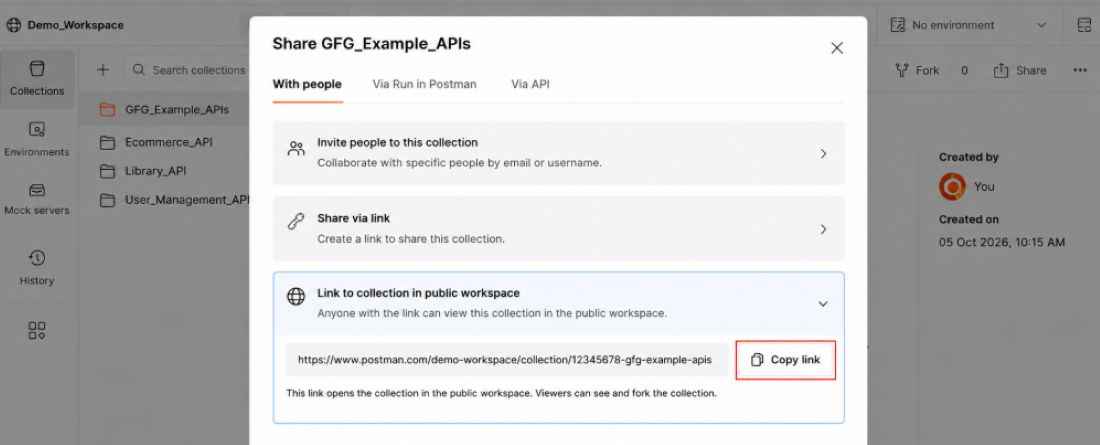
The link can then be shared with users who need to access the publicly available collection.
Ways to Share Postman Collections
| Method | Purpose |
|---|---|
| With people | Share with specific users or groups |
| Collection link | Provide a direct link when link sharing is available |
| Run in Postman | Make a collection accessible from supported websites or API documentation |
| Postman API | Retrieve collection data programmatically |
| Public workspace link | Direct users to a collection available in a public workspace |
Best Practices for Sharing Postman Collections
- Give collaborators only the permissions they require.
- Check workspace visibility before sharing collection links.
- Avoid storing passwords, API keys, access tokens, and other secrets directly in collections.
- Review collection variables, examples, and request data before making a collection publicly accessible.
- Never expose active collection access keys in screenshots or documentation.
- Revoke access keys when they are no longer required.
- Use shared workspaces for ongoing team collaboration.
