

File handling in C# allows developers to create, read, write and manage files stored on disk. The .NET Framework provides the System.IO namespace, which contains classes and methods for performing these operations in a simple and efficient way.
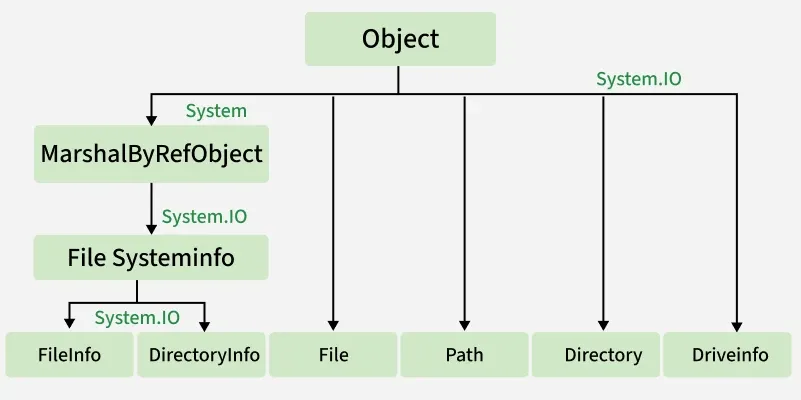
Namespaces and Classes for File Handling
C# uses the System.IO namespace for file and directory operations. Commonly used classes include:
- File: Provides static methods for creating, copying, deleting, moving and opening files.
- FileInfo: Provides instance methods for file operations with additional objec t-oriented features.
- Directory: Provides static methods for creating, moving and enumerating directories.
- DirectoryInfo: Provides instance methods for directory operations.
- StreamReader / StreamWriter: For reading and writing text files.
- BinaryReader / BinaryWriter: For reading and writing binary files.
- FileStream: For reading and writing to files at a lower level.
Creating a File
You can create a file using the File class or the FileStream class.
using System;
using System.IO;

class Program
{
    static void Main()
    {
        string path = "sample.txt";
        File.WriteAllText(path, "Hello, File Handling in C#!");
        Console.WriteLine("File created successfully.");
    }
}
Explanation
- File.WriteAllText creates the file if it doesn’t exist and writes the given string to it.
- If the file already exists, its contents are overwritten.
Writing to a File
You can write text data using StreamWriter.
using System;
using System.IO;

class Program
{
    static void Main()
    {
        using (StreamWriter writer = new StreamWriter("data.txt"))
        {
            writer.WriteLine("Line 1");
            writer.WriteLine("Line 2");
        }
        Console.WriteLine("Data written to file.");
    }
}
Output
Data written to file.
Explanation
- StreamWriter is wrapped in a using block to ensure the file is closed automatically.
- WriteLine writes each string to a new line in the file.
Reading from a File
You can read text files using StreamReader.
using System;
using System.IO;

class Program
{
    static void Main()
    {
        using (StreamReader reader = new StreamReader("data.txt"))
        {
            string content = reader.ReadToEnd();
            Console.WriteLine("File Content:");
            Console.WriteLine(content);
        }
    }
}
Explanation
- ReadToEnd reads the entire file content into a single string.
- Alternatively, you can use ReadLine to read line by line.
Appending to a File
Appending adds data without deleting existing content.
File.AppendAllText("data.txt", "\nAppended Line");
Console.WriteLine("Line appended.");
Working with Binary Files
For binary data, use BinaryWriter and BinaryReader.
using System;
using System.IO;

class Program
{
    static void Main()
    {
        using (BinaryWriter writer = new BinaryWriter(File.Open("numbers.bin", FileMode.Create)))
        {
            writer.Write(100);
            writer.Write(200);
        }

        using (BinaryReader reader = new BinaryReader(File.Open("numbers.bin", FileMode.Open)))
        {
            Console.WriteLine(reader.ReadInt32());
            Console.WriteLine(reader.ReadInt32());
        }
    }
}
Explanation
- BinaryWriter writes integers in binary format.
- BinaryReader reads them back in the same order.
File Information
The FileInfo class provides detailed information about files.
FileInfo fileInfo = new FileInfo("data.txt");
Console.WriteLine($"File Name: {fileInfo.Name}");
Console.WriteLine($"Size: {fileInfo.Length} bytes");
Console.WriteLine($"Created: {fileInfo.CreationTime}");
Directory Operations
The Directory and DirectoryInfo classes are used for folder management.
Directory.CreateDirectory("MyFolder");
Console.WriteLine("Directory created.");

string[] files = Directory.GetFiles(".");
Console.WriteLine("Files in current directory:");
foreach (string file in files)
    Console.WriteLine(file);
Key Points
- Use System.IO namespace for file and directory operations.
- File and FileInfo provide file operations, while Directory and DirectoryInfo manage folders.
- Use StreamWriter and StreamReader for text files.
- Use BinaryWriter and BinaryReader for binary files.
- Always close or dispose streams to release resources.
- Wrap file operations in try-catch to handle exceptions like FileNotFoundException or UnauthorizedAccessException.
